

I’m a sim racer and amateur racer with a passion for Motorsport, good racecraft and the technical and setup aspect of sim racing.
Featured Image: Moza R9 in White with GS Wheel
I’ve been playing with the Moza R5 on my desktop setup and testing out their higher-powered brothers for around 6 months now. In that journey, I’ve amassed a collection of FFB settings that work well as a strong starting point in iRacing.
Firstly I’ll look at Moza’s configuration software: Pit House (download the latest version here) if you’re making a change to your FFB profile, what the settings individually mean and how they will feel, and finally, I’ll share some settings for the Moza R5 (5.5Nm), R9 (9Nm), R12 (12Nm), R16 (16Nm), and R21 (21Nm) wheelbases.
Quick Navigation:
Pit House · FFB Settings Explained · Moza FFB for iRacing · R5 Settings · R9 & R12 Settings · R16 Settings · R21 Settings
How to Use Pit House

When you open Moza’s Pit House software, you’ll be greeted with the main interface. Click the direct drive wheelbase icon. This opens the FFB settings. Along the top, you’ll see tabs for Basic Settings, Advanced Settings, the FFB Effect Equaliser, Base FFB Curve settings, and Miscellaneous options:

These tabs contain all the adjustable parameters that define your FFB feel.
To load a previously saved preset, click the “Load preset” button in the bottom-left corner. This will open a Windows File Explorer Window where you can navigate to your saved profile. Once loaded, the settings will be applied to your wheelbase.
MOZA Racing Bundle Deals on Amazon

MOZA R3 Racing Simulator 4PCS Bundle
- 3.9Nm DD servo motor with ultra-low torque ripple
- 11-inch ES Lite wheel with 22 programmable buttons
- SR-P Lite dual pedals with Hall sensors
- Aviation-grade aluminum X-shape design

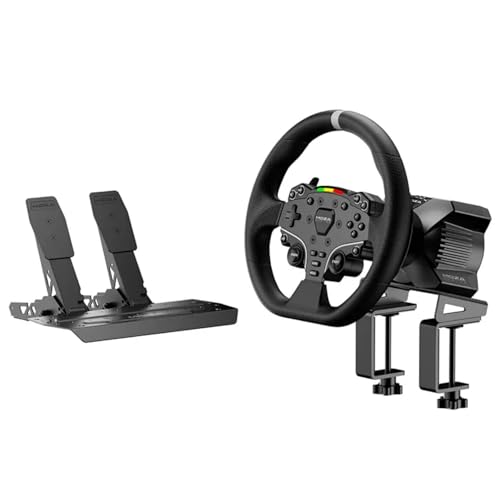
MOZA R5 All-in-One PC Gaming Racing Simulator
- 5.5Nm direct drive with 15-bit ultra-high resolution encoder
- D-shaped ES wheel with microfiber leather grips
- SR-P Lite pedals with adjustable configuration
- Racing-level Quick Release system included
MOZA R3 Racing Wheel and Pedals Bundle
- 3.9Nm direct drive in compact X-shape housing
- 11-inch ES Lite wheel with ISF PU grips
- High-strength steel pedals with adjustable spacing
- Intelligent temperature control system

MOZA R5 Bundle Kit with NexGen 4.0 Force Feedback
- 5.5Nm direct drive with MOZA 4.0 algorithm
- 11-inch ES racing wheel with aluminum rim
- SR-P Lite pedals with customizable output curves
- Next-generation realism and road texture feedback
MOZA R5 Formula Bundle with 280mm Wheel
- 5.5Nm wheelbase with iRacing 360Hz mode support
- 280mm ES formula wheel matching real formula dimensions
- SR-P Lite pedals with Hall sensor precision
- NexGen 4.0 with enhanced responsiveness
If you’ve made changes to your settings and want to save them for future use, click the “Create Preset” button. This will open a window where you can name your preset and choose a location to save it. I keep my profiles (for a variety of the direct drive wheels I own) in a Dropbox folder, which means I can share them easily or bring them along when I’m in a friend’s simulator.
The FFB Settings – What They Mean
What’s in the “Basic Settings”?

- Maximum Limit / Steering Angle: Adjusts the maximum rotation angle of your wheelbase. This should match the setting in your iRacing option settings (your wheel range).
- Road Sensitivity: Controls the strength of road surface details. Higher values will make bumps and curbs significantly more pronounced.
- Game Force Feedback Intensity: Scales the overall force feedback strength. This acts as a global multiplier for all FFB effects.
- Maximum Wheel Speed: Limits how quickly the wheel can rotate, and adjusts its inertial mass on rotation. Lower values will make the wheel feel heavier to turn, while higher values allow for quicker movements.
- Wheel Spring Strength: Simulates a centring spring force. Higher values will make the wheel want to return to the centre quickly and more aggressively.
- Wheel Damper: Adjusts the amount of damping applied to the wheel. Higher values will smooth out the FFB and reduce oscillations.
What’s in the Advanced Settings?

- Maximum Output Torque Limit: Sets a limit on the maximum torque output of the wheelbase. This can be lowered to prevent excessive force during a crash or during other high-impact events. This one’s good from a safety point of view especially if you have a junior in the sim.
- Natural Inertia: Simulates the inertia of a real steering system. Higher values will make the wheel feel heavier and more resistant to quick movements.
- Wheel Friction: Adds a constant friction force to the wheel. This can help reduce oscillations and provide a more dampened feel.
- Speed-dependent Damping: Scales the amount of damping based on the vehicle’s speed. Higher values will provide more damping at higher speeds.
- Start Point of Speed-dependent Damping: Sets the speed at which the speed-dependent damping starts to take effect.

FFB Equaliser Settings

The FFB Effect Equalizer settings allow you to change the gain of different frequency ranges. Each frequency range in the equaliser corresponds to the following FFB effect categories:
FFB Effect Equalizer:
- 10Hz: Low-frequency bumps and body movement
- 15Hz: Kerb effects and road bumps
- 25Hz: ABS vibration
- 40Hz: Higher-speed surface effects and kerbs
- 50Hz: Surface texture (grass, asphalt grain)
- 100Hz: High-frequency detail and tire slip (some users reduce this for a smoother, more “rubbery” feel)
With the equaliser (and a bit of time and patience) you can fine-tune the strength (amplitude) of each frequency range by adjusting the points on the equaliser curve, much like an audio system. For example, if you want to feel more of the ABS vibrations, you can increase the slider at the 25Hz level.
I often leave the equalizer alone, but small changes can really polish off a great FFB profile. Experiment with different equaliser settings to find the balance that provides the most immersive setup for you.
What’s in the Miscellaneous Settings?

- Soft Lock: Adjusts the strength of the soft lock effect when the wheel reaches its maximum rotation. Higher values will make the lock feel more abrupt.
- Temperature Control Strategy: Determines how the wheelbase manages its temperature. The “Conservative” setting will prioritise running in a way that keeps the wheelbase temperature down, while “Radical” will allow higher operating temperatures in favour of maintaining maximum performance.
Moza FFB Settings for iRacing
Now that you have a better understanding of what each setting does, let’s dive into some recommended FFB config settings for iRacing. These settings are designed to provide a balanced and immersive experience, but feel free to use them as a starting point and make adjustments to suit your preferences.

In each list item below, there are settings for your Moza wheelbase and the settings you’ll need to follow in iRacing’s options.
Moza R5 Settings: Danny Lee’s R5 Settings:
Danny’s settings are very realistic and detailed, in particular the way the car communicates slip and rotation:
Visit Our Sponsors
Basic Settings:
- Steering Angle: 900
- Road Sensitivity: 10
- Game Force Feedback Intensity: 100%
- Maximum Wheel Speed: 50%
- Wheel Spring Strength: 0%
- Wheel Damper: 5%
Advanced Settings:
- Maximum Output Torque Limit: 100%
- Hands-Off Protection: Off
- Natural Intertia: 150%
- Wheel Friction: 15%
- Speed Dependent Damping: 15%
- Start Point of Speed Dependent Damping: 90km/h
FFB Effect Equaliser:
- All EQ Points Set to 100% (Flat Line)
iRacing Settings:
- Enable Force Feedback: Yes
- Use Linear Mode: Yes
- Reduce Force When Parked: Yes
- Strength: 9.0
- Wheel Force: 5.5Nm
- Intensity: 50%
- Smoothing: 0%
- Damping: 0%
- Min Force: 0%
Note: These settings are adapted from community recommendations for the R5. The R5’s actual peak torque is 5.5Nm – earlier versions of similar guides sometimes confused this with the R12’s 12Nm specification. Always set “Wheel force” to your wheelbase’s actual maximum torque output.
Moza R5 iRacing Settings:
These settings are a good starting point, I’ve highlighted the wheelbase version, although the settings are fundamentally very similar in all of the R series wheelbases.
Basic Settings:
- Maximum Limit / Steering Angle: 900
- Synchronous: On
- Road Sensitivity: 10
- Game Force Feedback Intensity: 100%
- Maximum Wheel Speed: 40%
- Wheel Spring Strength: 0%
- Wheel Damper: 35%
Advanced Settings:
- Professional Game Force Feedback Intensity: 100%
- Force Feedback Reversal: Off
- Maximum Output Torque Limit: 100%
- Hands-Off Protection: On
- Steering Wheel Inertia: 1450
- Natural Inertia: 200%
- Wheel Friction: 20%
- Speed-dependent Damping: 50%
- Start Point of Speed-dependent Damping: 100km/h
FFB Effect Equalizer:
- 10Hz – 100%
- 15Hz – 140%
- 25Hz – 200%
- 40Hz – 180%
- 50Hz – 160%
iRacing Settings:
- Enable force feedback: On
- Use linear mode: On
- Reduce force when parked: On
- Strength: 60.0Nm
- Wheel force: 5.5Nm
- Damping: 0%
- Min force: 0%
Moza R9 and R12 – Base Settings:
The R9 (9Nm) and R12 (12Nm) share similar setup methodology in Pit House, though the R12’s higher torque allows it to handle greater iRacing Max Force values without clipping. These settings work well for both wheelbases as a starting point, but you may find the R12 benefits from slightly higher Strength values (70-75Nm range) compared to the R9’s 65Nm.
Basic Settings:
- Maximum Limit / Steering Angle: 900
- Synchronous: On
- Road Sensitivity: 10
- Game Force Feedback Intensity: 100%
- Maximum Wheel Speed: 50%
- Wheel Spring Strength: 0%
- Wheel Damper: 35%
Advanced Settings:
- Professional Game Force Feedback Intensity: 100%
- Force Feedback Reversal: Off
- Maximum Output Torque Limit: 100%
- Hands-Off Protection: On
- Steering Wheel Inertia: 1800
- Natural Inertia: 200%
- Wheel Friction: 20%
- Speed-dependent Damping: 60%
- Start Point of Speed-dependent Damping: 100km/h
FFB Effect Equalizer:
- 10Hz – 100%
- 15Hz – 150%
- 25Hz – 180%
- 40Hz – 180%
- 50Hz – 150%
iRacing Settings:
- Enable force feedback: On
- Use linear mode: On
- Reduce force when parked: On
- Strength: 65.0Nm
- Wheel force: 9Nm
- Damping: 0%
- Min force: 0%
Moza R16 Settings – R16 Base Settings:
Basic Settings:
- Maximum Limit / Steering Angle: 900
- Synchronous: On
- Road Sensitivity: 10
- Game Force Feedback Intensity: 90%
- Maximum Wheel Speed: 50%
- Wheel Spring Strength: 0%
- Wheel Damper: 30%
Advanced Settings:
- Professional Game Force Feedback Intensity: 90%
- Force Feedback Reversal: Off
- Maximum Output Torque Limit: 100%
- Hands-Off Protection: On
- Steering Wheel Inertia: 1950
- Natural Inertia: 200%
- Wheel Friction: 20%
- Speed-dependent Damping: 55%
- Start Point of Speed-dependent Damping: 90km/h
FFB Effect Equalizer:
- 10Hz – 100%
- 15Hz – 140%
- 25Hz – 180%
- 40Hz – 160%
- 50Hz – 140%
iRacing Settings:
- Enable force feedback: On
- Use linear mode: On
- Reduce force when parked: On
- Strength: 80.0Nm
- Wheel force: 16Nm
- Damping: 0%
- Min force: 0%
Moza R21 Settings – R21 Base Settings:
Basic Settings:
- Maximum Limit / Steering Angle: 900
- Synchronous: On
- Road Sensitivity: 10
- Game Force Feedback Intensity: 80%
- Maximum Wheel Speed: 30%
- Wheel Spring Strength: 0%
- Wheel Damper: 35%
Advanced Settings:
- Professional Game Force Feedback Intensity: 80%
- Force Feedback Reversal: Off
- Maximum Output Torque Limit: 100%
- Hands-Off Protection: On
- Steering Wheel Inertia: 2200
- Natural Inertia: 150%
- Wheel Friction: 15%
- Speed-dependent Damping: 65%
- Start Point of Speed-dependent Damping: 90km/h
FFB Effect Equalizer:
- 10Hz – 100%
- 15Hz – 130%
- 25Hz – 160%
- 40Hz – 150%
- 50Hz – 120%
iRacing Settings:
- Enable force feedback: On
- Use linear mode: On
- Reduce force when parked: On
- Strength: 90.0Nm
- Wheel force: 21Nm
- Damping: 0%
- Min force: 0%
These settings are an excellent starting point, but don’t be afraid to experiment. Find what works best by learning what each control does, and experimenting by making one change at a time. I’ve written about the process of improving your own FFB here. Every driver has different preferences their wheel feel, so there’s really no right or wrong setup.
I hope this guide has been helpful in getting you started with your Moza wheelbase in iRacing. If you have any questions or want to share your own settings, feel free to leave a comment below.
Related Articles
Simucube 3 Direct Drive Wheelbase: What 13 Reviews Really Say
Logitech RS50 Settings for PlayStation & Xbox (Every Supported Game
Logitech RS50 Settings for Every PC Game (Tested Baselines)
Logitech RS50 Review: First Proper Direct Drive from Logitech
Racing Cockpits Buyer’s Guide
Best VR Headsets for Flight Simulation
Topic: Direct Drive Wheels