

I’m a sim racer and amateur racer with a passion for Motorsport, good racecraft and the technical and setup aspect of sim racing.
Quick answer for most readers (2026 update): if you’re looking for a weather and lighting mod for Assetto Corsa today, you almost certainly want Pure, not Sol. Sol’s last release was 2.2.9 and development moved to Pure years ago. Modern Custom Shaders Patch builds don’t always play nicely with Sol anymore, and the in-game weather features Sol pioneered are now built into Pure and the latest CSP releases.
Skip ahead to my Pure install guide here. If you’ve got a specific reason to install Sol (legacy mods, period car packs, an existing CSP 0.1.79 setup you don’t want to break), the original install steps are still further down this page.
For me, this guide started life back in 2020 as the install walkthrough for Sol – the weather mod that turned Assetto Corsa from a daytime-only sim into something with proper day/night cycles, 3D clouds, rain, and time-of-day lighting. I’ve been running Sol since the early versions, and for a long time it was the obvious answer when someone asked me which weather mod to install for AC.
The reality in 2026 is different. Sol 2.2.9 is the final version and won’t receive further updates. Pure – same developer (Peter Boese) – is essentially a full rewrite with better performance, more advanced weather, proper linear colour space shaders, and rain that behaves like rain rather than a particle effect. Pure’s where active development has gone, and on a recent CSP build you’ll find it works without fuss where Sol increasingly doesn’t.
This guide now covers both – the Sol→Pure migration path first, because that’s what most people landing here need, and the original Sol install steps further down for the small group who still want Sol for a specific reason.
First, a quick clarification for 2026: Sol, Pure and CSP are all for the original Assetto Corsa – the 2014 game. Assetto Corsa EVO, the early-access follow-up, has native dynamic weather and a full 24-hour day/night cycle built into its new engine, so you don’t need any of this on EVO. If that’s what you’re running, you’re already sorted. Everything below is for the classic AC that the modding scene still revolves around – which in 2026 is still most of us. There’s more on the newer game in our Assetto Corsa EVO mods guide.
Quick Navigation
Why Pure replaced Sol |
The Sol → Pure migration |
What Pure does that Sol never could |
When Sol is still the right call |
Original Sol install (legacy) |
Troubleshooting
Why Pure replaced Sol (and why the Reddit consensus says “just use Pure”)
The short version: CSP got too far ahead of Sol. Sol 2.2.9 was written against a specific Custom Shaders Patch API, and when CSP moved through the 0.2.x branch (around 2024) the breaking changes were never patched on Sol’s side because Peter Boese was already deep into Pure development. Pure ships with the patches Sol never got.
I read the AC subreddit threads on this regularly and the consensus is consistent – if you’re installing weather and lighting fresh in 2026, you go with Pure. The threads where someone walks in with a Sol install that’s crashing on CSP 0.2.11 always end the same way: roll CSP back, or switch to Pure. The roll-back path is fragile (you have to pin CSP to 0.1.79 or 0.1.80 and stay there), so most people end up on Pure anyway.
Pure also costs $1.50/month via Peter Boese’s Patreon, which puts some people off. In my view this is the wrong way to look at it – you can pay one month, download the latest build, then cancel. The download is yours. The subscription only matters if you want every update as it ships, which most casual users don’t need. That’s covered in detail in my Pure install guide if you want the full breakdown.
The Sol → Pure migration: what to do, in order
If you’ve already got Sol running and want to move to Pure, the cleanest path is to uninstall Sol first, update CSP to a current build, then install Pure on a clean slate. Trying to layer Pure on top of an existing Sol install works sometimes, but you’ll inherit Sol’s config files and PP filters that won’t behave correctly under Pure. Better to start fresh.
Step 1: Back up your AC root folder
Before touching anything, copy your entire Assetto Corsa folder to a backup location. Yes, it’s a few gigabytes. Yes, do it anyway. If something goes wrong with the CSP update or the Pure install you’ll want a known-good state to roll back to. I’ve lost a session-and-a-half worth of careful config tweaking in the past from not doing this – really not ideal and a huge lesson learned.
Find your AC root: in Steam, right-click Assetto Corsa, Properties, Local Files, Browse. Copy that folder somewhere safe.
Step 2: Uninstall Sol cleanly
If you’ve got Sol installed, it ships with an uninstall script. Use it – don’t try to delete the folders manually because Sol writes config files in multiple places and you’ll miss some.
- Open the Sol 2.2.9 archive (.7z) you originally installed from
- Inside, find
soluninstall.batin the Sol 2.2.x folder - Copy it to your AC root folder
- Run it as administrator (right-click then Run as administrator)
The script strips out Sol’s files cleanly. If it errors out about specific files being in use, close Content Manager and AC entirely, then try again. Once it’s done, check that extension/weather/sol is gone from your AC root.
Step 3: Update Custom Shaders Patch to a current build
Open Content Manager, go to Settings → Custom Shaders Patch → About & Updates. Pick the current preview or stable build (anything from 0.2.3-preview1 onwards works with Pure). The whole reason Sol stopped working was that CSP moved on – now you actively want CSP to be current, because Pure depends on the modern API.
You’ll want CSP installed before you touch Pure. Pure is essentially a content pack that plugs into CSP’s weatherFX system – without a working CSP, Pure has nothing to hook into.
If you’ve never touched CSP, my Content Manager and CSP install walkthrough covers the full process from a clean AC install.
Step 4: Install Pure
Once CSP is current and Sol’s gone:
- Subscribe to Peter Boese’s Patreon ($1.50/month) and download the latest Pure build, or use the Gumroad option if you prefer a one-off purchase
- Open the downloaded Pure archive
- Copy the four folders inside –
apps,content,extension,system– into your AC root folder - Confirm any overwrite prompts
Manual copy only. Don’t drag the archive into Content Manager – same reason as Sol, CM’s drag-and-drop doesn’t merge folder structures the way Pure needs.
Step 5: Switch weatherFX over to Pure
In Content Manager, go to CSP Settings → WeatherFX. You’ll now see Pure as a weather style option, with two variants:
- Pure LCS – linear colour space shaders, the newer and more accurate option. This is what I’d pick for most setups
- Pure Gamma – the older path with a slightly brighter look. End-of-life and won’t get new features
Then over in AC’s video settings under Post-processing, set the PP filter to Pure. Don’t leave it on the old __Sol filter – that was tuned for Sol’s lighting model and will look wrong under Pure.
Step 6: Enable Pure’s in-game apps
In Content Manager, Settings → Ingame Apps. Enable Pure Config, Pure Weather Planner and Pure PP. These replace the Sol equivalents – Pure Config handles installation health checks and global quality presets, Weather Planner is where you set live weather and time-of-day, Pure PP lets you tweak the post-processing filter live.
Launch a hotlap session at a familiar track. Open Pure Config first – if you get a green status message you’re done. A red message means CSP and Pure aren’t seeing each other, usually because CSP is out of date or your AC root path in CM doesn’t match Steam’s. Re-check those two.
Visit Our Sponsors
What Pure does that Sol never could
If you’re hesitating about the migration, here’s what you get by moving across.
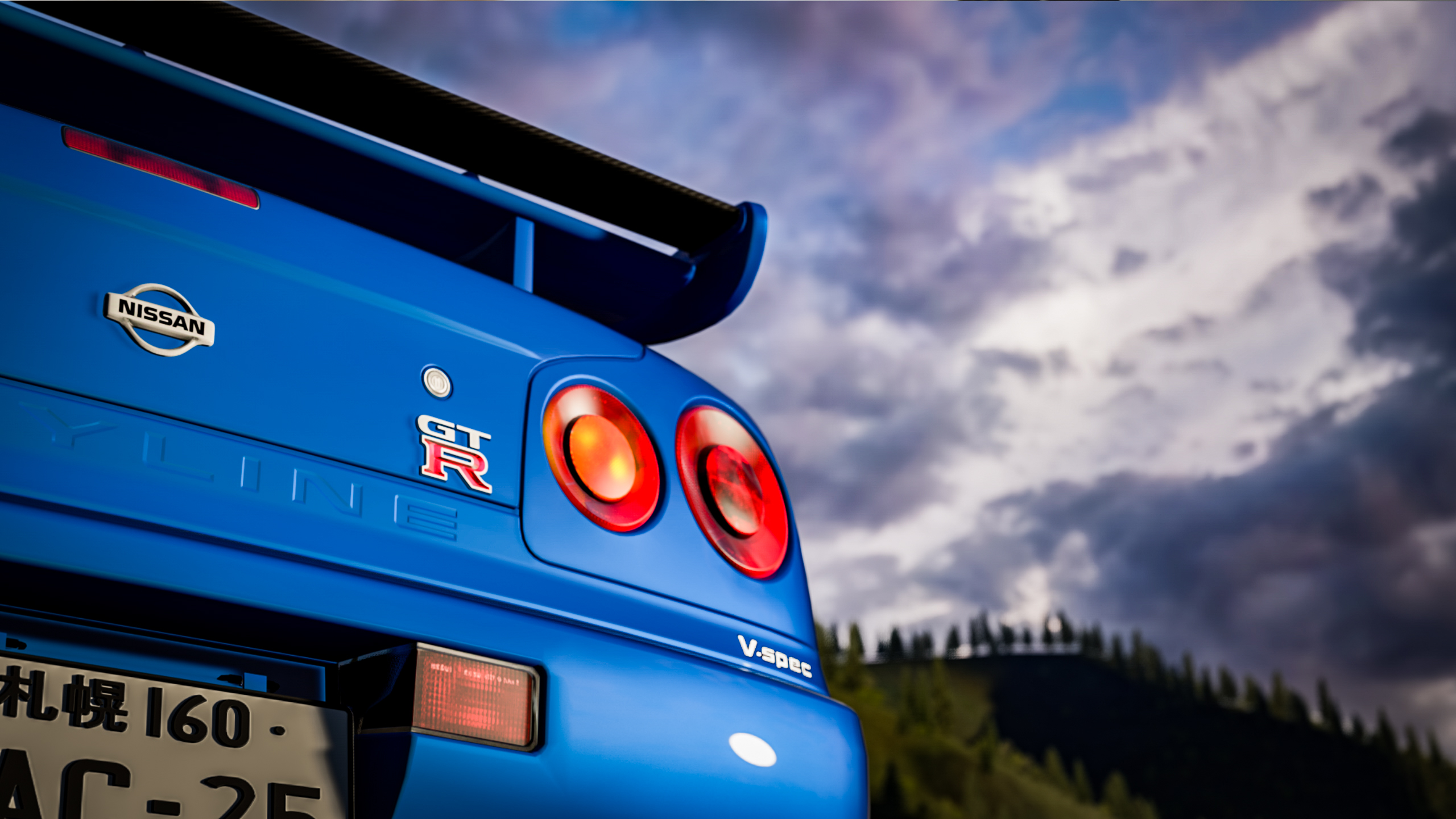
Linear colour space rendering. Pure LCS hooks into the modern CSP shader pipeline and renders in linear colour space rather than the legacy gamma path Sol relied on. The practical result is more accurate light response – bright surfaces don’t blow out as readily, shadows hold detail at sunrise and sunset, and the tonemapping looks closer to what your eyes would see in real life. Sol’s lighting always had a slightly painted quality to it. Pure looks photographic.
Rain that behaves like rain. Sol’s rain was always a compromise – particles falling past the camera, puddle textures appearing on the road. Pure (combined with the modern CSP rainFX system) does proper surface wetness, evolving puddle physics, spray off the tyres of cars ahead, and a drying line that follows the racing line. It’s a substantial step up.
Active development. Sol’s last release was 2.2.9 and that’s where it stops. Pure is on version 3.10 and Peter Boese is still shipping updates through 2026, with the current Custom Shaders Patch sitting at 0.2.11 on the public build and 0.3.0 in preview. If you find a bug in Pure, you can post it on the Patreon and there’s a non-trivial chance it gets patched. Sol bugs are frozen.
The Pure Weather Planner. Sol had the Planner app in its later versions, but Pure’s planner is the more polished tool – drag-and-drop weather slot duration, proper time-of-day curves, smooth transitions between conditions. You can build a full 24-hour cycle with rain windows and sun gaps in a couple of minutes. Saved plans port between cars and tracks.
Pure PP filters. Pure ships with a whole family of PP filters tuned for different looks – default Pure, Pure Natural, Pure HDR variants. You can fine-tune them live in-game via the Pure PP app, save your tweaks as profiles, and share them with the community. The Sol filter scene still exists but it’s frozen at the 2022 era of community tuning.
When Sol is still the right call
It’s not for everyone. There are a handful of legitimate reasons to stay on Sol, and I want to name them properly rather than just push you toward the newer thing.
You’re running CSP 0.1.79 or 0.1.80 and your install is stable. If you’ve got a working setup on a pinned CSP version with Sol behaving itself, there’s no real argument for upgrading – you’d be breaking something that works in exchange for incremental gains. Leave it alone.
You’ve got period mods that depend on the __Sol PP filter. A lot of historic-era car and track mods (1970s F1 packs, classic Le Mans content) were built and screenshot-tuned against Sol’s specific lighting. Pure renders the same scenes differently, and if you’ve spent time getting a particular vintage look just right under Sol, switching to Pure will throw all of that off. Not insurmountable, but it is real work to retune.
You don’t want to pay for Pure, even temporarily. Sol is free, Pure is paid. The $1.50/month subscription is small, but if your principle is that mods should be free, that’s a fair line to hold. Sol still gives you weather, day/night and basic time-of-day lighting at zero cost.
You’re on a low-spec rig and Pure’s modern shader path is too heavy. Pure LCS uses high-resolution skydome textures and proper linear-space rendering. On older hardware (think GTX 1060 or below) you can sometimes get better frame rates out of Sol with a stripped-back config than you can from Pure at minimum settings. Worth testing both if you’re CPU- or GPU-limited.
If any of those apply, scroll down for the original Sol install walkthrough – it’s still complete and accurate, just outdated for the average new user.
Original Sol install walkthrough (legacy – for the specific cases above)
If you’ve read the above and decided Sol is still the right call for your setup, here’s the original install process. I’m leaving this in place because there are people who need it – the legacy mod authors, the locked-CSP users, the no-subscription camp.
What you’ll need
- Assetto Corsa installed via Steam
- Content Manager from acstuff.ru/app (free version works fine)
- Custom Shaders Patch – version 0.1.76 or higher, but not 0.2.10 through 0.2.12. CSP 0.1.79, 0.1.80 or pre-0.2.10 builds are the safest. 0.3.0+ also works but you’re then close to Pure territory anyway
- 7zip – Sol comes as a .7z archive (from 7-zip.org)
- Sol 2.2.9 from Overtake.gg (formerly RaceDepartment)
Find and bookmark your AC root folder
You’ll be copying files here repeatedly, so it’s worth bookmarking the path. In Steam, right-click Assetto Corsa, Properties, Local Files, Browse. Make a desktop shortcut.
While you’re here, open Content Manager and check that it’s pointing to this same folder. The path under AC root in CM’s settings should match exactly what Steam just showed you. If it doesn’t, Sol’s settings won’t save correctly and you’ll get strange behaviour.
Install Content Manager
If you’ve already got Content Manager running, skip ahead to the CSP section. For everyone else, CM is where everything comes together – it manages your tracks, cars, skins, and all the new features like Custom Shaders Patch and Sol itself. Download from acstuff.ru/app, open the archive, move Content Manager.exe to your AC root folder, run it from there.
That’s it. CM doesn’t need a traditional installer – it’s a single executable that sits in your AC folder. Quick and painless.
Install or pin Custom Shaders Patch to a Sol-compatible version
CSP is the graphics extension that makes Sol possible. Specifically, it’s the weatherFX module inside CSP that acts as a graphics SDK, giving Assetto Corsa proper day/night cycles, volumetric clouds, and the lighting system Sol hooks into. Without CSP, Sol has nothing to work with.
Here’s the critical bit. Sol 2.2.9 needs CSP version 0.1.76 at minimum. But it does not work with CSP 0.2.10, 0.2.11, or 0.2.12 – there were breaking changes in that range that Sol was never updated to support (development moved to Pure). CSP 0.3.0 and newer works fine again. If you’ve been updating CSP to the latest version thinking newer is always better, check which branch you’re on.
Fresh CSP install: download from acstuff.ru/patch, drag the archive into Content Manager, open the install menu, install CSP.
Updating to a specific build: in CM, go to Settings → Custom Shaders Patch → About & Updates. Pick 0.1.79 or 0.1.80 for the safest Sol-compatible path.
Getting steady crashes after a CSP update? Try clearing the CSP settings. Open C:\Users\[your username]\Documents\Assetto Corsa\cfg, back up the extension folder, then delete its contents. CSP rebuilds defaults on next launch.
Uninstall any previous Sol version first
Already running an older Sol version? You need to uninstall it first. This isn’t optional – leftover files from older versions cause conflicts that are a pain to debug. Open the Sol 2.2.9 .7z with 7zip, go into the Sol 2.2.x folder, copy soluninstall.bat to your AC root, then run it. If the batch file errors about being unable to delete certain files, right-click and Run as administrator. Usually that’s enough to clear everything.
Install Sol (manual copy)
This is the step where most people go wrong. Do not drag the Sol archive into Content Manager. It won’t work properly. Manual copy only.
- Open the Sol 2.2.9 .7z archive with 7zip
- Go into the Sol 2.2.x folder inside the archive
- Select the four folders:
apps,content,extension, andsystem - Copy all four to your AC root folder
- Confirm overwriting existing files when prompted
Why manual copy? CM’s drag-and-drop doesn’t handle Sol’s folder structure correctly. The four folders need to merge with the existing AC directory tree, and CM’s importer isn’t built for that kind of merge. Manual copy, every time.
Set up weatherFX in Content Manager
With Sol’s files in place, point Content Manager at it. The exact steps depend on which CM and CSP version you’re running – the UI changed in newer builds, which caught me out when I first updated CM past 0.8.25.
Older CM / CSP 0.1.79 to 0.1.80p115: In CM, go to the weatherFX settings, set weather script to Sol, then pick a controller. The “Sol” controller uses text file-based weather plans and works with the Sol Plan Selector app. “Sol 2.4” uses the newer Sol Planner app with a graphical interface.
Newer CM (0.8.25+) / CSP 0.1.80p218 onwards: The weatherFX settings now call it “weather style” instead of “weather script”. Select Sol as the weather style. The Sol 2.5 controller has its own submenu in the Drive menu, and if you race Challenges you can set the Sol 2.5 controller there too.
One thing to keep an eye on – there’s a known bug where the weather controller resets to the default when you restart the game. If Sol’s weather suddenly looks wrong after relaunching AC, check the controller setting first. It’s probably flipped back.
Activate the Sol apps and PP filter
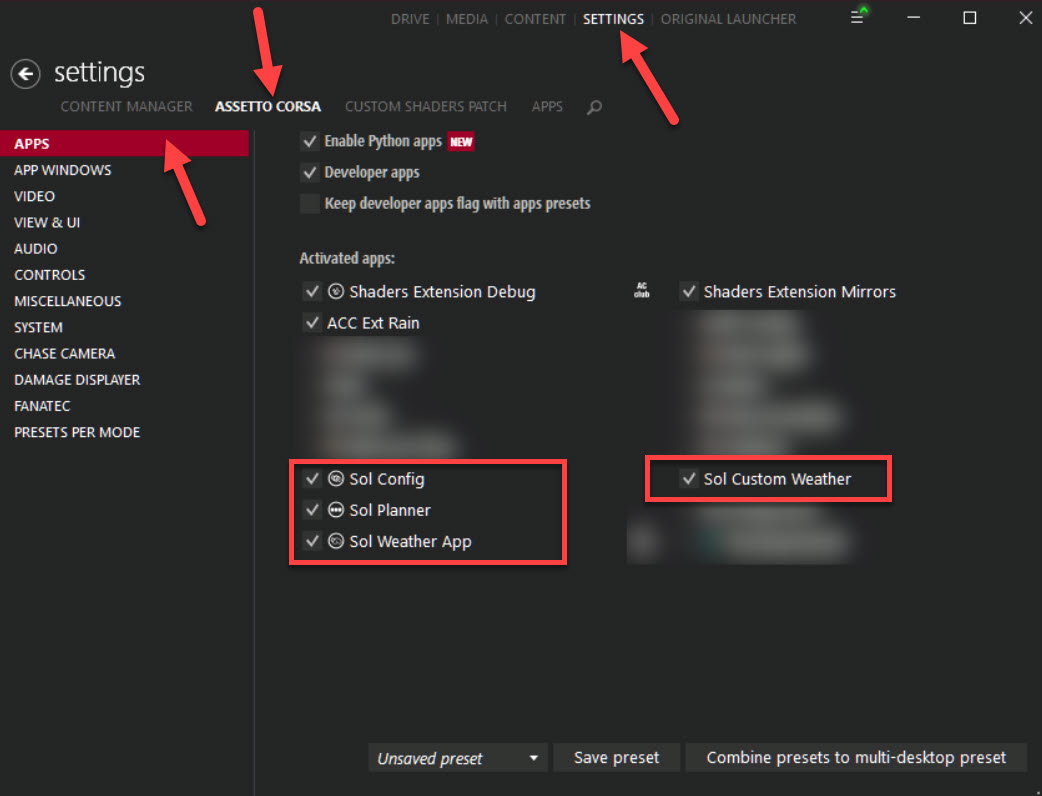
In Content Manager, go to Settings → Ingame Apps. Enable Sol Config (your main configuration panel – a full manual is included in the install package if you want to dig into the settings), Sol Planner (creates weather without messing about with text files; only works with the Sol 2.4 or 2.5 controller), Sol Weather App by leBluem (mainly a debug tool that shows all Sol/weatherFX errors, but it also has time and date controls), and optionally Sol Custom Weather (a developer tool for composing custom weather, most people won’t need this).
Set your PP filter to __Sol in AC’s video settings – that’s the neutral filter that matches Sol’s lighting model. __Sol_Extra is in there too if you want a punchier screenshot-friendly look with auto-exposure control.
For reflections, go with “Two faces per frame”. Sol’s lighting plays best with that setting.
Troubleshooting (Sol and Pure)
If something’s not right, work through this checklist before posting on Discord or forums. Saves everyone time, including yours.
- Set the PP filter to match the weather mod –
__Solfor Sol,Purefor Pure. Mismatch is the most common cause of weird lighting - Try a default session with Kunos content (no mod cars, no mod tracks). Rules out mod conflicts
- Reset the weather mod’s config to defaults. Rules out a broken configuration
- Check your CSP version. On Sol: if you’re on 0.2.10, 0.2.11 or 0.2.12, that’s your problem – roll back to 0.1.79/0.1.80 or jump forward to 0.3.0+. On Pure: just make sure CSP is current
- Open the Sol Weather App or Pure Config in-game – both display weatherFX errors. Screenshot the output before you post in a Discord
Still stuck after all that? Take it to Sol’s Discord at discord.gg/m2Vbsgz – screenshot the Sol Weather App’s error output before you post, it saves a lot of back-and-forth. Beta builds live at discord.gg/fM8zVzP. Pure’s Discord is gated behind Peter Boese’s Patreon and is helpful if you’re subscribed. For CSP-specific issues, try discord.gg/QwXVEF.
Windows 7 holdouts or strange folders appearing in your AC root: open AC root\extension\weather\sol\__Win7__DocumentsFolderFix.lua in a text editor and set your Documents folder path manually. Still broken? Move everything to a folder outside your user directory entirely.
Worth installing alongside either mod: Texture Colour Corrections
There’s a texture corrections pack that fixes vegetation colours on several Kunos tracks where things look off under Sol or Pure’s lighting. Grab it from Sol’s Discord at discord.gg/XEFpq7g – it works with both mods. Unlike Sol or Pure themselves, this one you can drag and drop into Content Manager directly. It installs corrected textures into each track’s /skins/default folder automatically. Zandvoort in particular looks noticeably better with the corrected vegetation.
That’s the lot. If you came here looking to install Sol and you’ve ended up installing Pure instead, that’s the right outcome for most people in 2026. If you’ve stuck with Sol because you’ve got a specific reason to, the original walkthrough’s still up there and still works on the right CSP version. For more Assetto Corsa guides, have a browse around the site.
Related Posts
Pimax Black Friday 2026: Price Protection, and Why I Rate the Move
The Best Gaming PCs: Buyer’s Guide (2026)
Should Sim Racers Wait for the Pimax Crystal Pro, or Buy Today?
MOZA Mustang GTD Wheel Review: Ford’s Licensed Sim Wheel on the Bench
CONSPIT 280 FR Review: A Very Good All-Rounder for Formula and LMP2
Sim Racing Wheel Stands and Folding Cockpits: Why I’d Skip One, and What to Buy Instead
Topic: Sim Racing Games