
I’m a sim racer and amateur racer with a passion for Motorsport, good racecraft and the technical and setup aspect of sim racing.
If you’ve got a direct drive base, the force feedback is set in two places (the base’s own software and the game’s menu), and whatever you set in the game works inside the limit the base puts on it. The Settings Finder below covers nine sims, and the table under it links the settings page for each game we cover, with a source behind every value. Further down you’ll find what each brand’s software calls its settings, and what to change when the force feedback feels wrong.
Quick Navigation
Jump directly to what you’re looking for:
Settings Finder Tool |
Settings by Game |
Two Places to Set FFB |
Fanatec |
Moza |
Simagic |
Simucube |
Thrustmaster |
Logitech |
Asetek |
When the FFB Feels Wrong
DD Wheelbase Settings Finder
Pick your brand, wheelbase and sim in the Finder below and it gives you the settings for your wheelbase software and the in-game settings as two separate lists, with the notes and the sources for those settings underneath. For most combinations, the first profile comes from the game’s own settings page here on the site, where every value goes back to a primary source, whether that’s the wheelbase maker’s own guide, the game developer’s guide or patch notes, or a named creator’s video with the settings on screen. If there’s no sourced profile for your combination yet, the Finder says so and sends you to that game’s settings page, and there’s a link to it under every result, too.
Settings Guides by Game
The wheel settings page for each game we cover is in the table below, with the brands each page has settings for. ACC, EA SPORTS WRC and iRacing each have single-brand pages alongside the general one, and the two RS50 pages cover Logitech’s wheel on PC and on console.
| Game | Brands covered | Settings page |
|---|---|---|
| Any sim | Any wheelbase (the strength pro sim racers run) | Pro sim racers' FFB settings |
| Assetto Corsa | Fanatec, Moza, Simucube, Simagic, Logitech, Thrustmaster, Asetek | Assetto Corsa wheel settings |
| Assetto Corsa Competizione | Fanatec, Moza, Simagic, Logitech, Thrustmaster, Asetek | ACC wheel settings |
| Assetto Corsa Competizione | Moza | ACC Moza settings |
| Assetto Corsa Competizione | Simagic | ACC Simagic settings |
| Assetto Corsa EVO | Fanatec, Moza, Simucube, Simagic, Logitech, Thrustmaster, Asetek | AC EVO wheel settings |
| Automobilista 2 | Moza, Fanatec, Simucube, Logitech, Thrustmaster | Automobilista 2 wheel settings |
| DiRT Rally 2.0 | Fanatec, Logitech, Thrustmaster, Moza, Simucube, Asetek | DiRT Rally 2.0 wheel settings |
| EA SPORTS WRC | Fanatec, Moza, Logitech, Asetek | EA WRC wheel settings |
| EA SPORTS WRC | Fanatec (CSL DD, ClubSport DD+) | EA WRC Fanatec settings |
| EA SPORTS WRC | Moza | EA WRC Moza settings |
| F1 25 | Fanatec, Moza, Logitech, Thrustmaster, Asetek | F1 25 wheel settings |
| F1 25 | PS5 DualSense, Xbox and PC controllers | F1 25 controller settings |
| Forza Horizon 5 | Logitech, Thrustmaster (T598), Moza, Fanatec | Forza Horizon 5 wheel settings |
| Forza Motorsport | Logitech, Fanatec, Moza, Thrustmaster, Simucube | Forza Motorsport wheel settings |
| Gran Turismo 7 | Fanatec, Logitech, Thrustmaster, Moza | GT7 wheel settings |
| iRacing | Fanatec, Moza, Simucube, Simagic, Logitech, Thrustmaster, Asetek | iRacing FFB settings |
| iRacing | Moza (R5, R9, R12, R16, R21) | Moza iRacing settings |
| iRacing | Simagic (Alpha EVO, Alpha Mini, Alpha, Alpha U) | iRacing Simagic settings |
| iRacing | Simucube (Simucube 2 Pro, Sport, Simucube 3) | iRacing Simucube settings |
| Le Mans Ultimate | Fanatec, Moza, Simucube, Simagic, Logitech, Thrustmaster, Asetek | LMU wheel settings |
| Logitech RS50 on PC (iRacing, ACC, LMU, F1 25 and more) | Logitech | RS50 PC settings |
| Logitech RS50 on PS5 and Xbox (GT7, F1 25, ACC, Forza, EA WRC) | Logitech | RS50 console settings |
| Project Motor Racing | Asetek, Logitech, Fanatec, Moza, Simucube | Project Motor Racing wheel settings |
| RaceRoom | Moza, Fanatec, Simucube, Simagic, Logitech, Thrustmaster, Asetek | RaceRoom wheel settings |
| rFactor 2 | Moza, Fanatec, Simucube, Simagic, Logitech, Thrustmaster, Asetek | rFactor 2 wheel settings |
Two places to set force feedback
The base’s software sets the ceiling. Simucube’s documentation says to set it to what you’d be happy to feel on your hands suddenly in a crash, and iRacing warns that on a direct drive wheel it’s important to limit the force to prevent injury. The game’s own strength setting then decides how much of that ceiling you use.
Clipping is when the wheel is already at full force and the sim asks for more, so the detail above that point is lost. Simucube says it doesn’t harm the base or you, but in normal driving it costs you the information about the tyres and the track. iRacing’s F meter, ACC’s FF meter and RaceRoom’s FFB Graph all show it. Clipping on big bumps and kerbs is fine, though, and iRacing says it’s okay for its F meter to fill up over those.
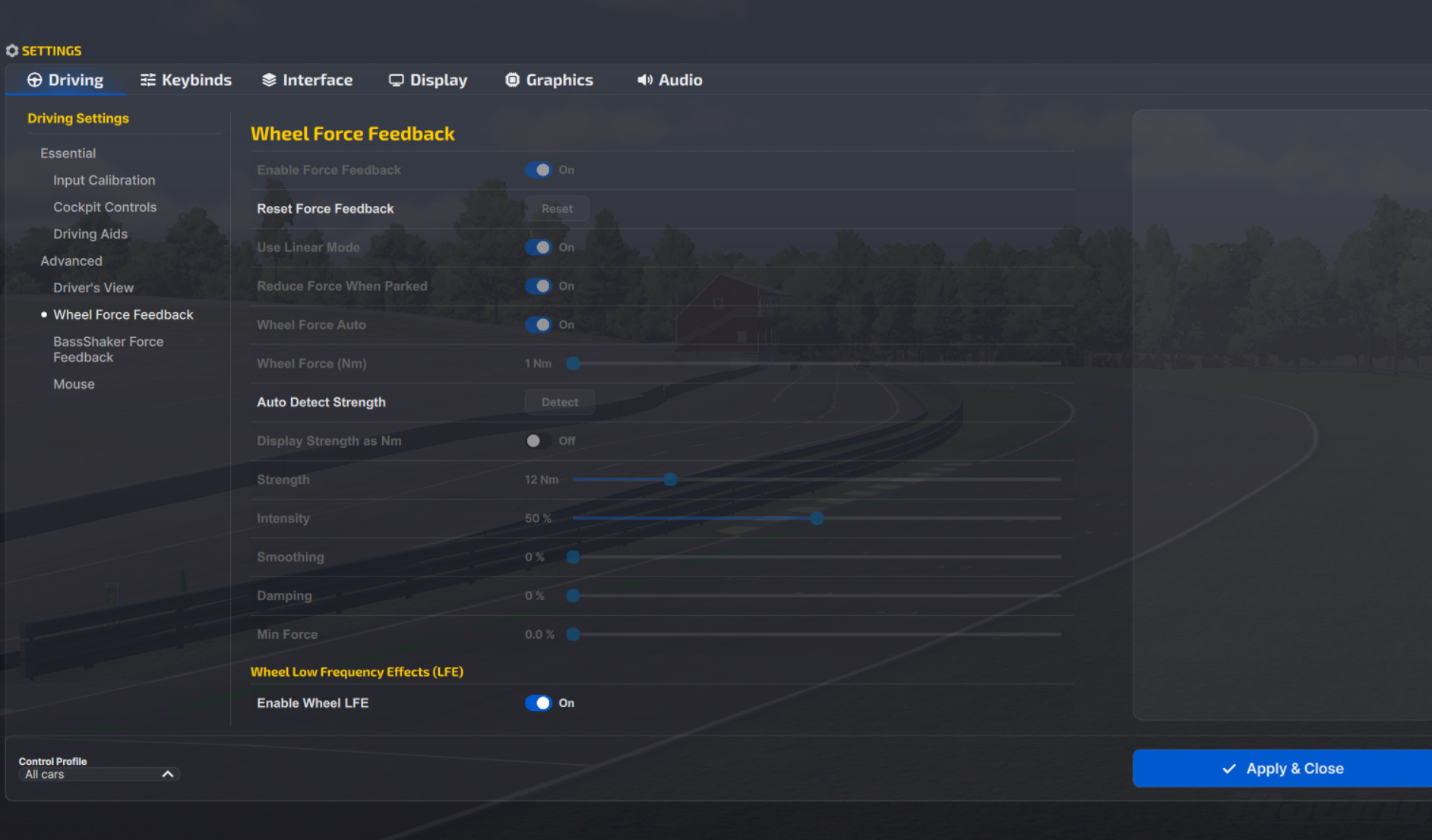
The makers split on which layer to turn down. Fanatec’s AC EVO guide, Thrustmaster’s T818 sheets and the official MOZA and Simagic ACC videos all run the base high and the sim lower. Fanatec’s FF explainer caps the base at around 60-80% for iRacing instead, and MOZA suggests backing off Game Force Feedback Intensity on the R16 and R21 for comfort. Fanatec’s F1 25 page gives both routes.
It’s the same story with smoothing and damping, and Simucube wants iRacing’s Smoothing at 0% so the base’s filters do the work. Le Mans Ultimate’s guide keeps smoothing in the game because driver smoothing can add latency, and RaceRoom’s developer allows damping in the driver because the game uses none besides stationary friction. Each game’s page sets out who says what for that game, and where they disagree.
How strong should it be?
I wrote my 2020 force feedback guide around my Fanatec DD2 in iRacing. My approach: less is more. I don’t like bags of resistance to input and high-strength settings. If you’re struggling to turn the wheel, you’re hardly going to feel the subtle early warning signs of a car about to slide! Don’t feel that just because you have a wheel that can deliver a peak of 30 Nm, you need to use all 30 Nm! But don’t just turn FFB off, either. Of course, the settings you’ll end up with are entirely dependent on your personal preferences, the car you’re driving, and even the circuit you’re on. There’s no wrong or right, only a point where there’s a good chance the FFB settings are hiding the details you should be feeling from the simulated race car chassis.
We couldn’t find a controlled study of force feedback strength against lap time. In Jimmy Broadbent’s test of 0% against 100%, 0% was quicker in two of the three sims, and his own conclusion was that the real answer lies somewhere in between. Past that the evidence is thin, and the pro sim racers’ FFB page has what three drivers have shown of their settings on camera.
Fanatec: the Fanatec App, FanaLab and the Tuning Menu
There are three places to change a Fanatec base’s settings: the Fanatec App (the firmware ships inside it), FanaLab (PC only) and the Tuning Menu on the wheel itself. Short-press the Tuning button to open the menu, or hold it for about four seconds for the Advanced Tuning Menu. The menu runs SEN (Sensitivity), FF (Force Feedback Strength), NDP (Natural Damper), NFR (Natural Friction), NIN (Natural Inertia), INT (FFB Interpolation Filter), FEI (Force Effect Intensity), FOR (Force Effect Strength), SPR (Spring Effect Strength), DPR (Damper Effect Strength) and FUL (FullForce).
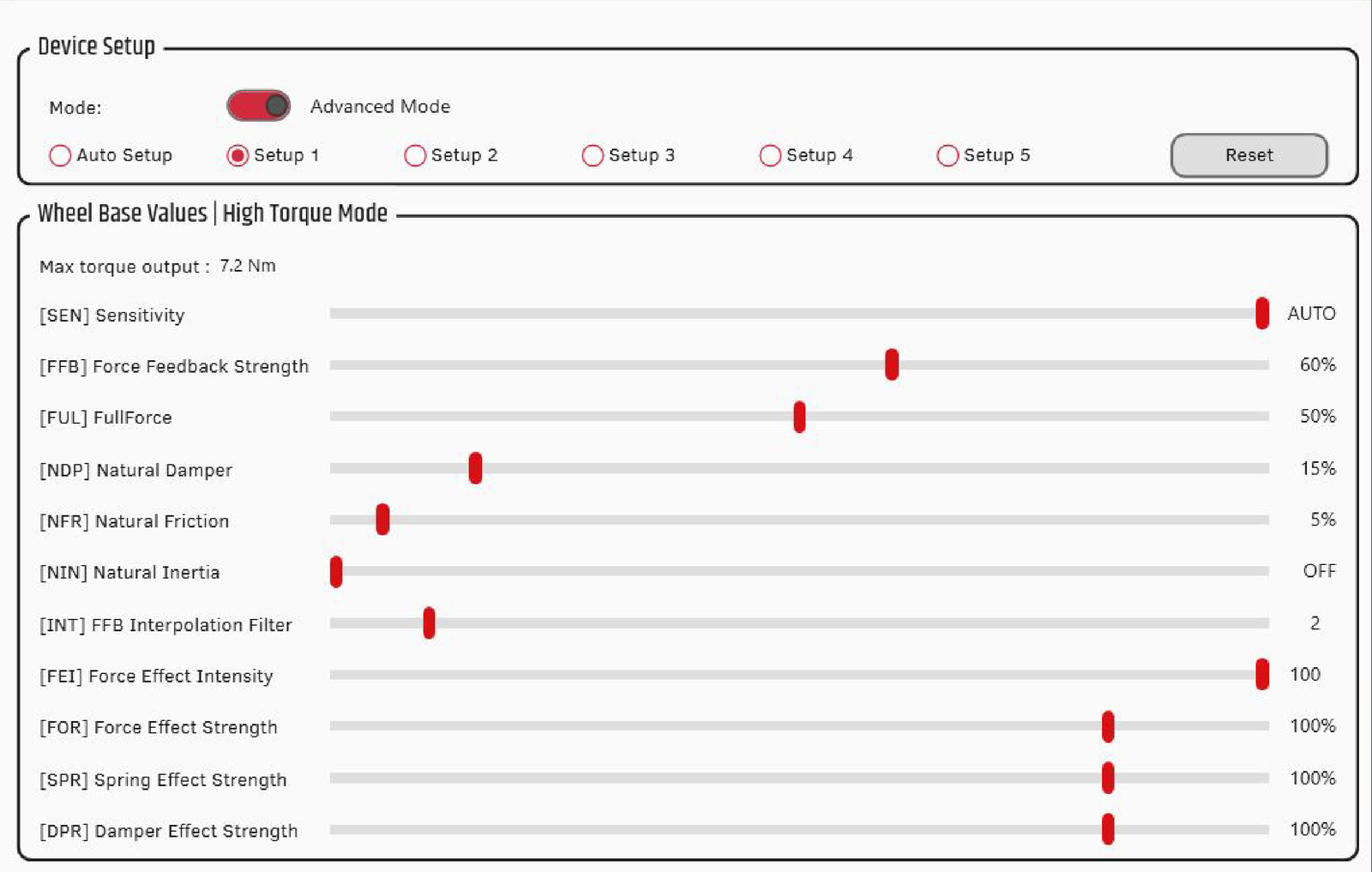
Fanatec describes FF as a hard cap on how strong the force feedback effects can be. Turning it up gives stronger road feel, until it gets heavy and tiring. Too much torque can also mask the detail. Go too low, though, and it can dull your sense of grip loss. NDP and NFR add weight and can calm steering oscillation on some cars, but higher values slow the wheel’s rotation and can take away some of the fine detail. Fanatec’s AC EVO guide says it’s best to avoid high NDP, NFR, NIN and INT values. FullForce is Fanatec’s protocol that fuses vibration cues into the main force feedback signal. It’s on the ClubSport DD and DD+ and the Podium DD, and a free firmware update has since added it to the CSL DD and Gran Turismo DD Pro. FUL in the Tuning Menu sets its overall strength.
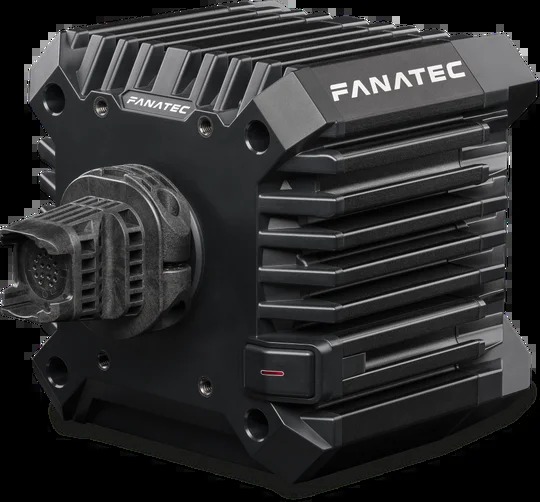
The Fanatec App V1.4.2.3, released on 5 May 2026, raised the ClubSport DD from 12 Nm to 15 Nm and the ClubSport DD+ from 15 Nm to 18 Nm, with no hardware change. Fanatec updated its recommended profiles for both at the same time, which means any ClubSport value dated before May 2026 was set for the old torque.
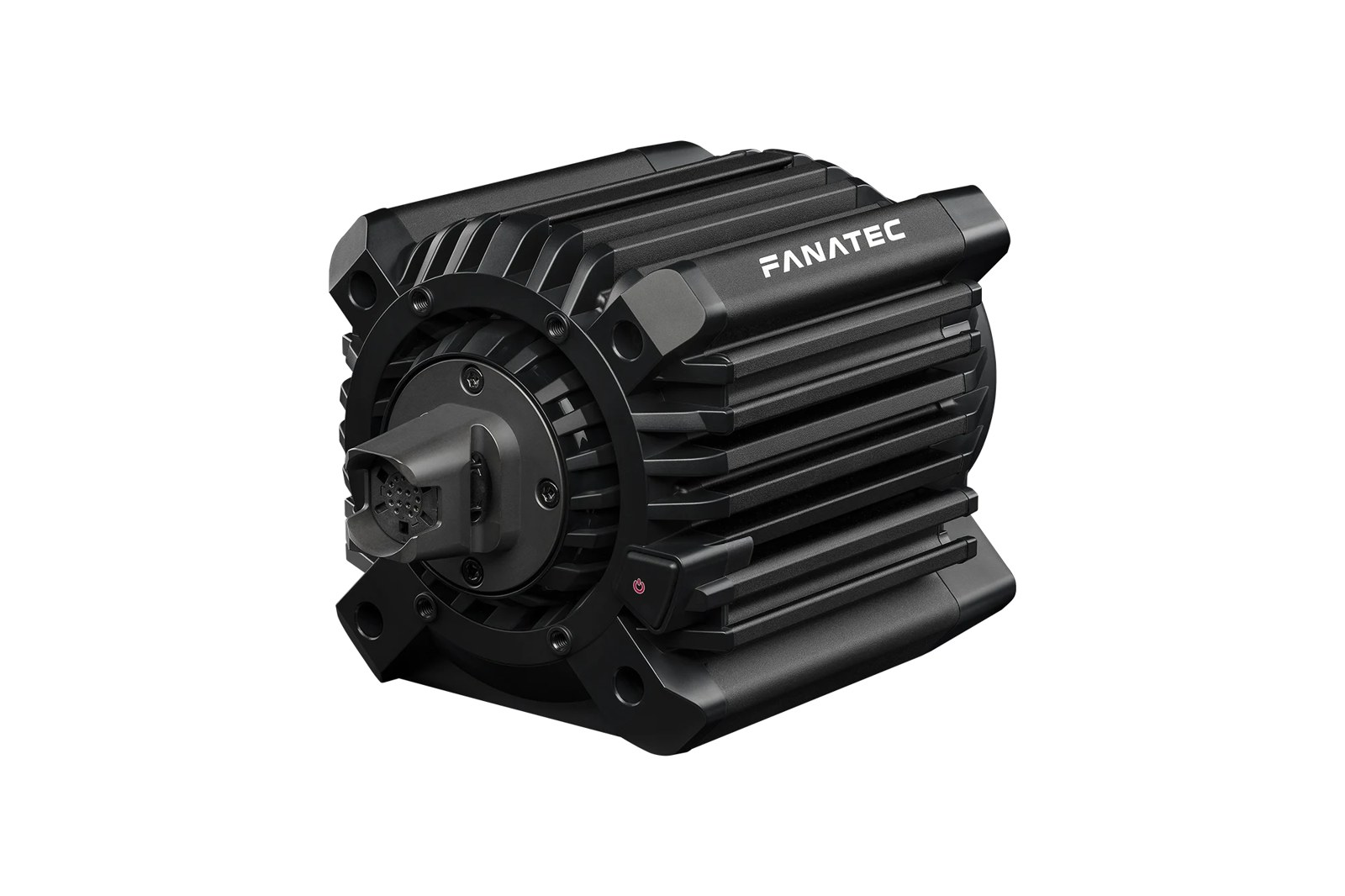
Fanatec publishes values for AC EVO, F1 25, GT7, ACC, Automobilista 2, Assetto Corsa, DiRT Rally 2.0, rFactor 2 and RaceRoom, mostly 2019-2021 forum baselines for the DD1, DD2 and CSL DD, and nothing for EA SPORTS WRC, Forza Motorsport, Forza Horizon 5, LMU or Project Motor Racing. Fanatec’s documents disagree with each other on iRacing’s SEN and FF, so read the iRacing FFB settings page before trusting any of their iRacing numbers. For EA SPORTS WRC, the EA WRC Fanatec page works from Fanatec owners’ profiles on Fanatec’s forum instead.
Moza: Pit House
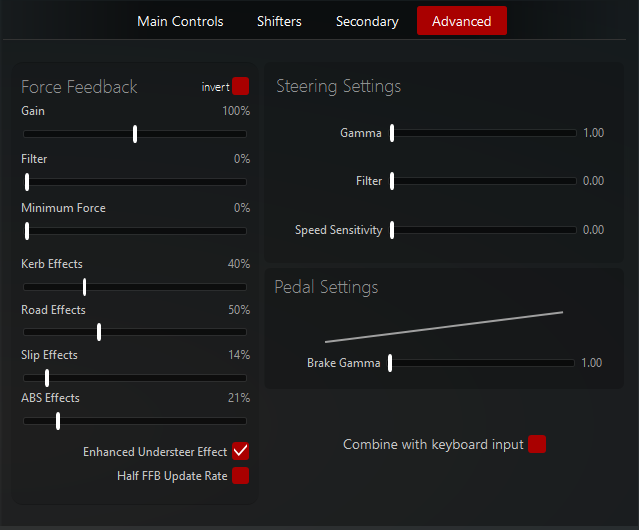
MOZA’s settings live in Pit House, across the Basic Settings, Advanced Settings, FFB Effect Equalizer, Base FFB Curve and Miscellaneous tabs. MOZA’s own guide describes Road Sensitivity (0-10) as the overall strength of track surface detail, and Game Force Feedback Intensity as an overall multiplier for game forces, generally best at 100% on the R3, R5 and R9 and worth 70-90% on the R16 and R21 for comfort. Maximum Output Torque Limit is the hard limit on peak forces, and Natural Inertia simulates the weight of the steering column. Wheel Friction adds a constant resistance to the steering, while Speed-dependent Damping adds weight as the car’s speed rises, starting from a speed you set in km/h.
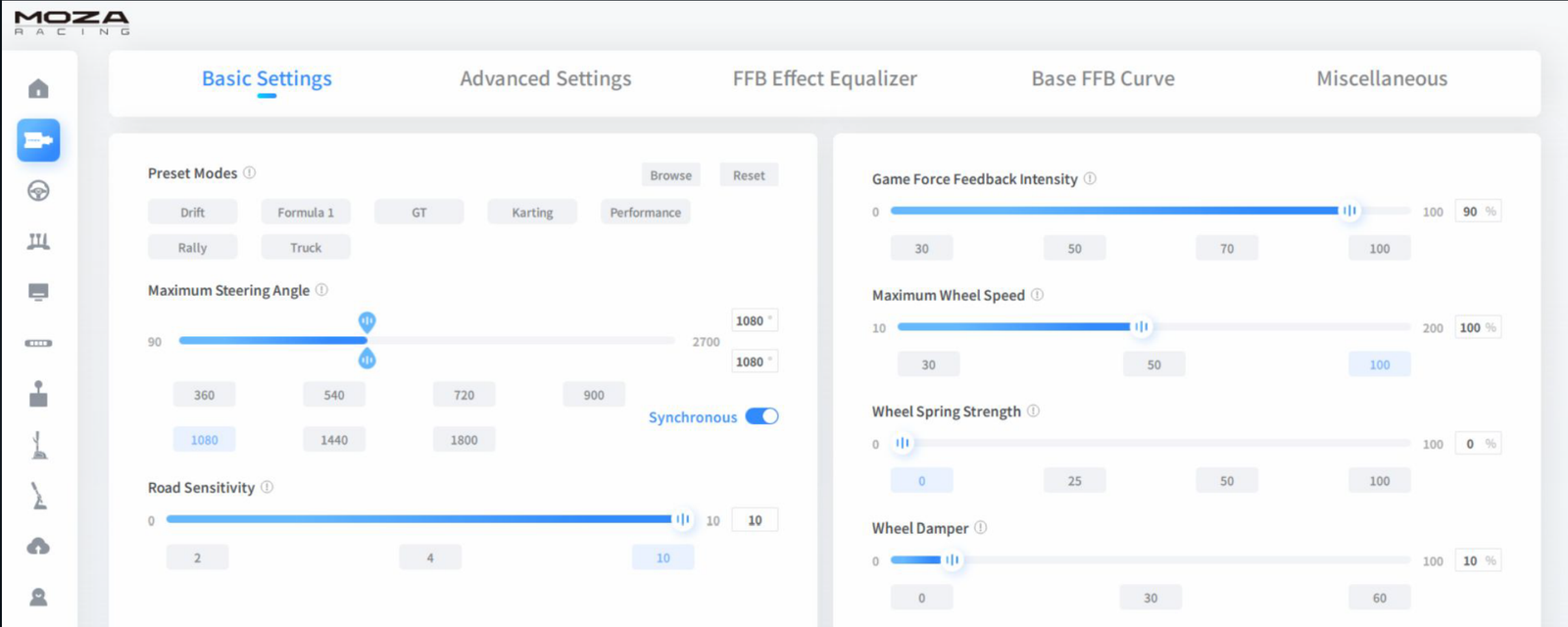
The FFB Effect Equalizer works in MOZA’s three bands: 0-15 Hz carries chassis movement, roll and weight transfer, 15-40 Hz carries kerb impacts and tyre slip, and 40-100 Hz carries road texture and tyre vibration. Pit House 1.3.4.56 has equaliser points at 0, 10, 15, 25, 40, 60 and 100 Hz, and the same version moved Natural Damping, Natural Friction and Force Feedback Interpolation to the Advanced tab without saying which new slider matches which old one. MOZA’s guide lists GT, Formula 1, Rally, Drift and Trucks presets, and the Pit House in Kunos’s screenshot above has Karting and Performance as well.
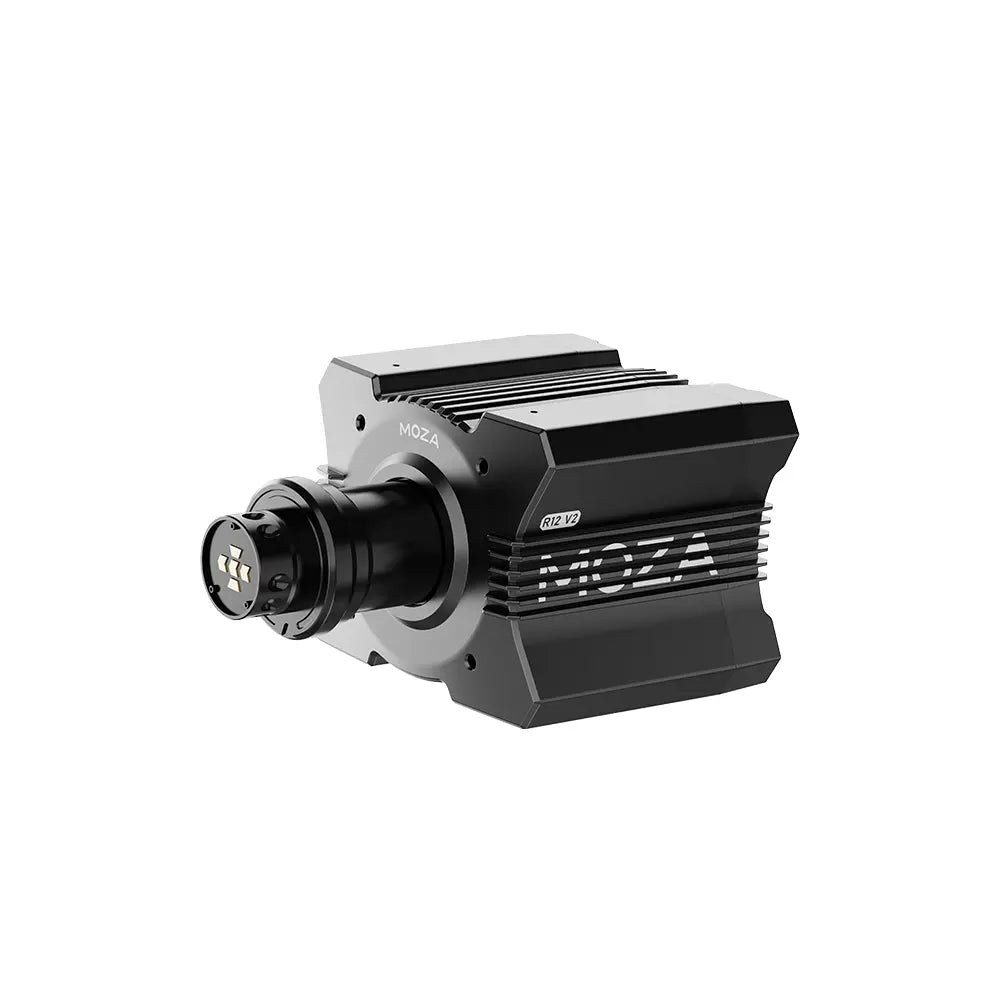
For most games, MOZA’s support pages say force feedback doesn’t require any configuration. MOZA’s own values cover Assetto Corsa (a table per base) and Forza Horizon 5, and its channel has videos for ACC, iRacing, AC EVO and DiRT Rally 2.0. In iRacing, every MOZA base has 360 Hz and Wheel LFE switched on by default. MOZA’s blog says the LFE layer is deliberately loud as shipped, which is the usual reason a MOZA base starts buzzing. If you race ACC, iRacing or EA SPORTS WRC on a MOZA base, start with the ACC Moza page, the Moza iRacing page or the EA WRC Moza page.
Simagic: SimPro Manager
Simagic’s software is SimPro Manager, currently V3.2.2 (22 September 2026), and it comes preloaded with game settings. Simagic says those defaults were carefully selected and fine-tuned by experienced simulator and game engineers, and that a beginner can simply plug and play with the presets. Hover over a setting in SimPro and it shows you a description of what it does.
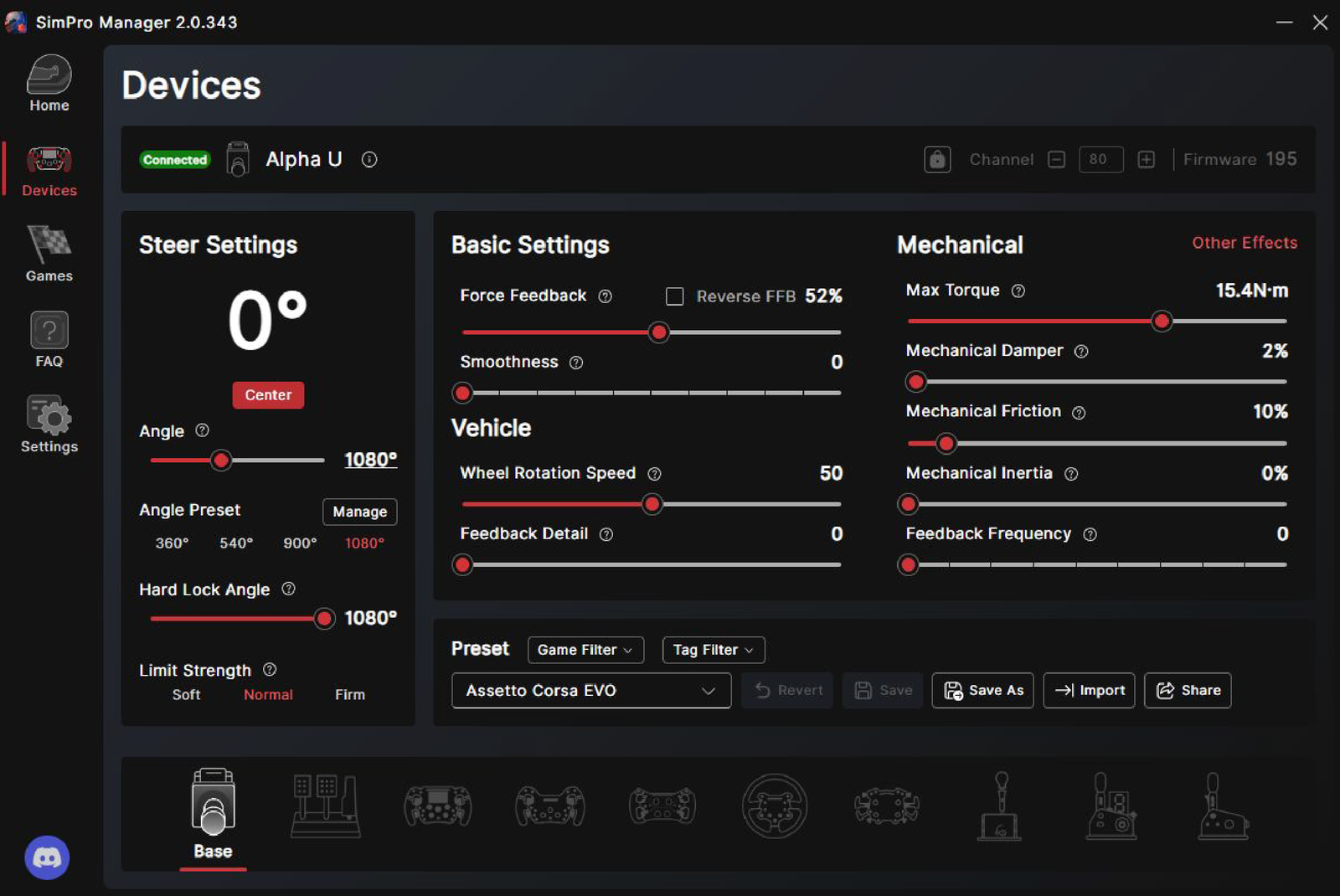
The labels in Simagic’s ACC preset run Angle, Hard Lock Angle, Limit Strength, Force Feedback, Filter Level, Wheel Rotation Speed, Feedback Detail, Dynamic Prediction Level, Steering Torque Assist, Mechanical Damper, Mechanical Friction, Mechanical Inertia, Slew Rate Control, Mechanical Centering, Center Damper, Game Inertia, Game Centering, Game Damper and Game Friction. In Simagic’s own words, a small amount of Mechanical Inertia can accentuate weight transfer, and a slight increase in Game Friction can add a rubber-like tyre feel. Slew Rate Control changes how quickly the force feedback corrects, and you set it to suit your driving style. The base’s friction and damping, Simagic says, are very useful for stabilising the force feedback. Dynamic Prediction Level doesn’t apply in iRacing’s 360 Hz mode. On the EVO bases, even-numbered firmware is the default, and the odd-numbered versions give more pronounced force feedback and have to be flashed by hand.
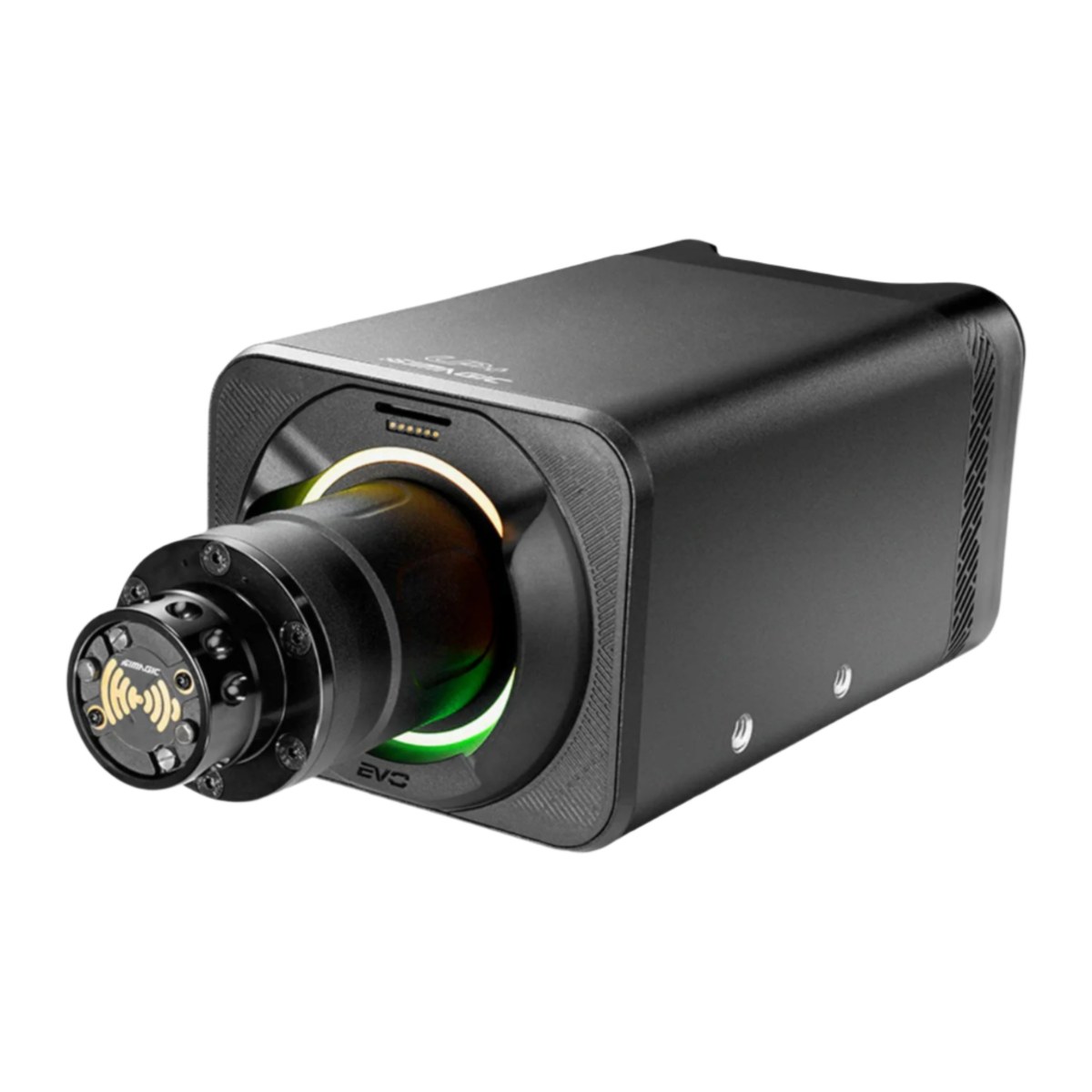
Simagic publishes presets and official videos for ACC, iRacing, LMU and RaceRoom, and SimPro has an AC EVO preset too. We found nothing for the rest, F1 25, EA SPORTS WRC and the Forzas included. Even in ACC, Simagic’s own preset and Alvin Wong’s profile on Simagic’s blog differ on nine values, so read the ACC Simagic page before copying either. For iRacing, go to the iRacing Simagic page.
Simucube: Simucube Tuner (formerly True Drive)
Simucube Tuner, currently 3.1.6 (14 September 2026), runs both Simucube 2 and Simucube 3 bases. It replaced True Drive, and the True Drive Paddock profiles for Simucube 2 have moved across to Tuner’s online profiles. Going by Tuner’s own descriptions, Max Strength is the most torque the sim’s force feedback can produce. The Reconstruction Filter smooths and extrapolates the signal. Low values follow the sim closely, and high values trade some accuracy for smoothness. Slew Rate Limit is especially useful if you want a rubbery or less active feel, and Torque Bandwidth removes the high frequencies (the details). Game Effects are best left at 100%, since those sliders do nothing unless the sim uses the effects, and not many modern sims do.
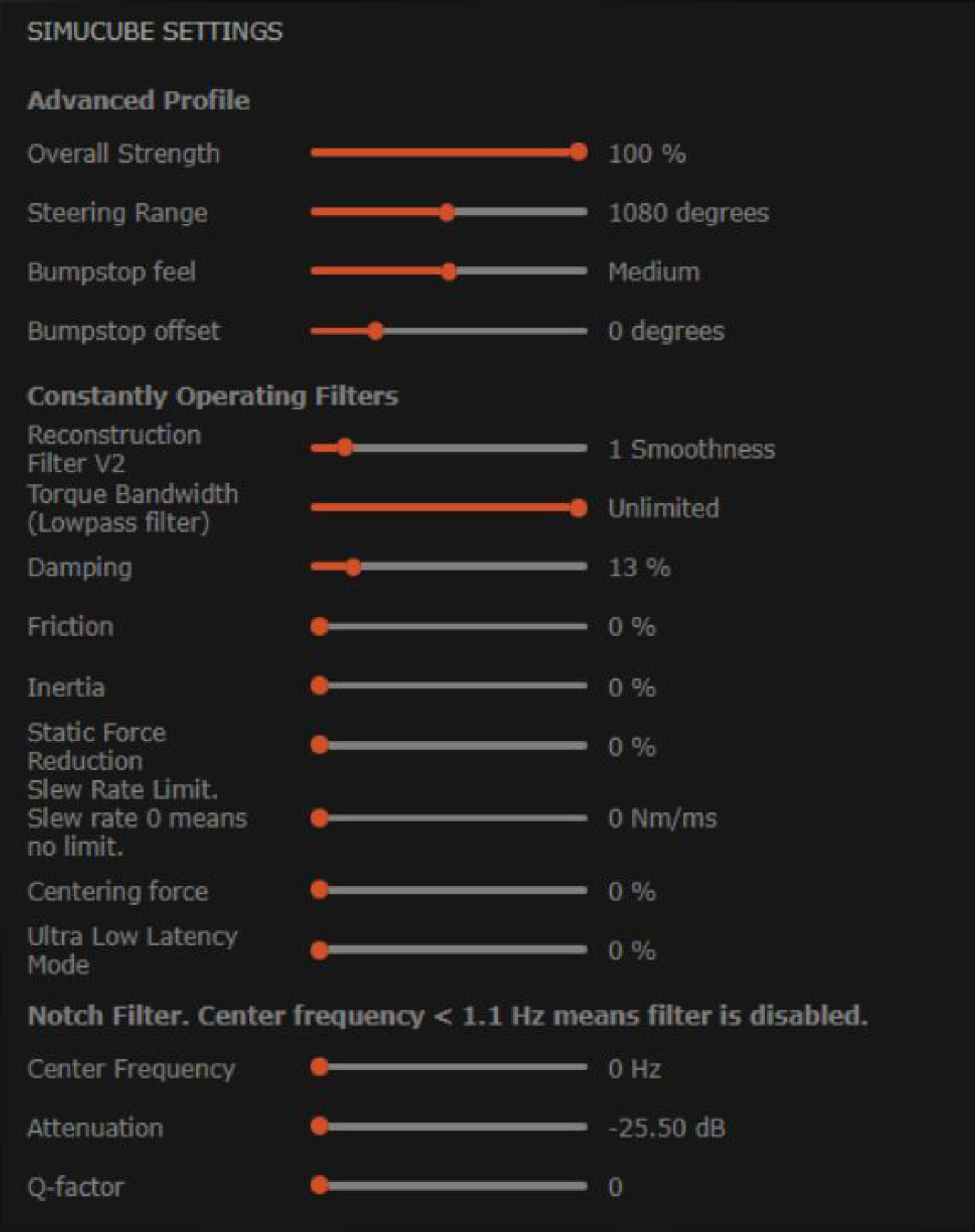
Simucube’s method starts with setting the base’s maximum to what you’d accept in a crash. Next, you set the in-sim strength so you’re not hitting constant maximum force through the corners. Then you add some damping and friction, which Simucube says are realistic and cut down oscillation if you let go of the wheel. After that, you use the smoothness filters to shape the detail. Switch on the torque saturation beeps while you do it. Since Tuner 3.0 there are driver, car-type and game profiles, and they can switch automatically per sim or per car.
For iRacing’s 360 Hz mode, Simucube’s 2024 advice was to tune the Reconstruction Filter to 1 or even off, but Reconstruction Filter V2 has since replaced the original and nobody has published a V2 number for iRacing. Simucube doesn’t publish per-game value lists, just the method and the profiles, but Kunos (for AC EVO) and Reiza (for Automobilista 2) each put out a Simucube set. The full iRacing settings are on the iRacing Simucube page, along with the argument over whether a fixed figure from Simucube’s staff beats iRacing’s Auto strength.
Thrustmaster: the T818 Control Panel and the T598
The T818 is set up in its Control Panel on Windows, which has four settings (Master Gain, Damper, FFB Linearity and Mode). Thrustmaster’s advice is to set Master Gain to 100% and adjust the strength only in the game. Damper at 0% gives the best feel of the car and the road, and anything above that reduces oscillation but dulls the feel. Raising FFB Linearity a little, to 10, 20 or 30%, quietens the steering on the straight, which means the Damper can come down. The T598 is set on the base by profile, Green for PC and Blue for PS5, with Inertia for oscillation and Boost Low and Boost High for vibration.
Thrustmaster publishes settings sheets for twelve of the fifteen games in the table above. The T818 sheets hold settings recommended by Thrustmaster’s community of T818 beta testers, and they cover AC EVO, LMU, iRacing, ACC, Automobilista 2, DiRT Rally 2.0, rFactor 2, RaceRoom and Assetto Corsa. The T598 sheets cover AC EVO, F1 25, GT7, LMU, iRacing, ACC, Automobilista 2, Forza Horizon 5 and rFactor 2. There’s nothing for EA SPORTS WRC, Project Motor Racing or Forza Motorsport, and nothing for the belt and gear bases (the T300, T248 and the rest) in any of the fifteen. Thrustmaster also points out that the right settings depend on the rim, the car and the cockpit. In rFactor 2 the sheets use a negative in-game strength, which sets direction and isn’t a mistake.
Logitech: G HUB and the RS50
Logitech’s wheels are set up in G HUB, and the RS50 has its own OLED screen for the compatibility mode. The RS50 is 8 Nm with TRUEFORCE and 90-2700 degrees of rotation, while Logitech’s values for the PRO wheel assume 11 Nm. Logitech keeps two support articles up to date, one for the RS50 and one for the PRO wheels. Between them they cover all fifteen games in the table above, and for every game they give values for the same five G HUB settings (Compatibility Mode, FFB Filter, Dampener, TF Audio and Angle).
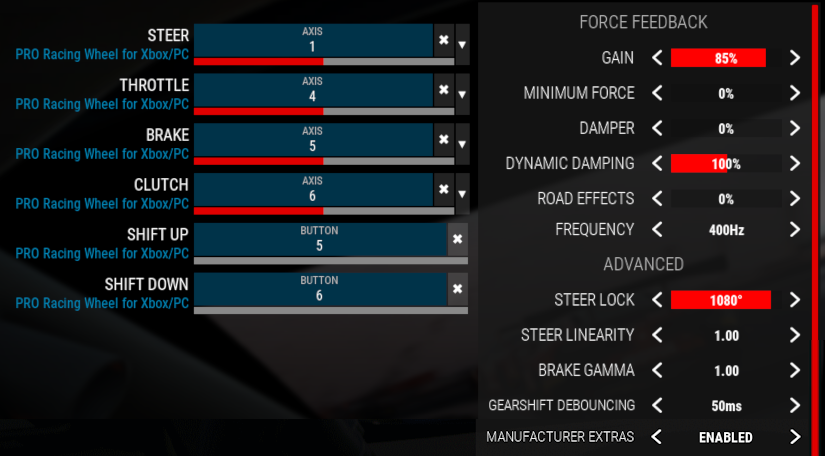
In Logitech’s words, a higher FFB Filter is smoother and a lower one more raw, and Auto will usually create the most ideal experience. The Dampener should be as low as possible for the most response from the wheel, and since the values assume 8 Nm, you can set it lower if you run the wheel at a lower strength. If the wheel oscillates when you let go, Logitech says to keep hold of it at all times. TF Audio should sit at a level that gives you subtle cues rather than overwhelming everything else. Logitech publishes no per-game values for the G923, G29 or G920, and for those wheels iRacing’s advice is to leave G HUB at its defaults. The RS50 PC settings page and the RS50 console settings page have the numbers.
Asetek: RaceHub presets
Asetek’s bases are tuned in RaceHub, and every one of its guides works the same way. Download the game’s preset for your base, then head to Wheelbase > Force Feedback Settings, click the three dots next to Preset, choose Import as new and then Save to wheelbase. The RaceHub slider values come inside the presets, and Asetek doesn’t list them anywhere else. Its guides, updated late August to mid September 2026, cover AC EVO, F1 25, EA SPORTS WRC, Project Motor Racing, LMU, iRacing (per car class), ACC, rFactor 2, RaceRoom and Assetto Corsa, and there are none for DiRT Rally 2.0, Forza Motorsport, GT7, Automobilista 2 or Forza Horizon 5. In ACC, gain has a big effect on each car, which is why Asetek recommends putting it on a button or dial on the wheel so you can change it while you’re racing. In iRacing, Asetek sets Wheel Force below the rated torque on its biggest bases in some car classes. iRacing’s own guide says never to go below the maker’s spec, so check the iRacing FFB settings page before you set Wheel Force on an Asetek base.
When the force feedback feels wrong
The fixes below come from the makers’ and developers’ own guides, and the page for your game has the full list of settings behind them.
Heavy and flat through long corners
Heavy and flat through a long corner, with the detail gone, is usually clipping. Watch the game’s clipping meter (in Project Motor Racing it’s the rightmost bar of the FFB widget) and bring the in-game strength down until it only pins on big bumps and kerbs. If it feels weak and clips at the same time, Simucube says to raise the base and lower the sim. iRacing’s own release notes say Wheel Force Auto can guess high and cap your strength, and that you should switch it off and set the base’s peak by hand. Logitech’s RS50 values and Asetek’s tables switch Auto off, while Logitech’s PRO values leave it on.
Shaking on the straights or with your hands off
Simucube’s third step is a little damping or friction on the base. On a T818, raise the Damper a little, or add 10-30% FFB Linearity so the Damper can stay lower. For fast, heavy cars in iRacing, Fanatec suggests higher NDP, NFR and to an extent NIN, or Speed Sensitive Damping in FanaLab. On a Logitech wheel, just keep hold of it. Thrustmaster’s iRacing sheets switch on Reduce Force When Parked for the pits. In Assetto Corsa, shaking on the straights is usually too high a gain, so lower Gain and the effects, the road one especially. In Forza Motorsport, don’t drop Wheel Damping or Center Spring too far.
Kerbs and walls jolt the rim
iRacing’s own answer to kerb and wall jolts is Smoothing at 25-50%, which works as a slew limiter, rather than turning everything down. Simucube would rather the base did that job, with the Reconstruction Filter or Torque Bandwidth in Tuner, so the two disagree. In LMU, the developer’s guide says to lower Smoothing or Minimum Steering Torque for random spikes, and in DiRT Rally 2.0, lower Collision for violent crashes.
Buzzing, rattling or grainy
On a MOZA base in iRacing, turn Wheel LFE down in the game, or set enableFFB360HzInterpolated=0 in app.ini. Raise the FFB Filter on a Logitech wheel. If Automobilista 2 or rFactor 2 feels grainy on a Fanatec base, turn INT up. In ACC on an EVO base, Simagic says to keep Road Effects below 10%. On the T598, adjust Boost Low and Boost High to the level of vibration you want.
Too heavy to drive for an hour
On a MOZA R16 or R21, MOZA’s guide suggests 70-90% Game Force Feedback Intensity, or the Maximum Output Torque Limit at 70-80%. On a Fanatec base, FF is the cap, and Fanatec’s explainer says a DD2 user running 20 Nm might prefer 50-65%. In AC EVO, keep NDP, NFR, NIN and INT low as well. If you’d rather not cap the base, Thrustmaster’s sheets leave it at 100% and turn the strength down in the game instead, and Fanatec’s AC EVO guide does the same on the CSL DD.
Small details are hard to feel
On a gear or belt driven wheel in iRacing, raise Min Force, and in Automobilista 2 and Project Motor Racing, Low Force Boost is there for lower-end wheels. Min Force isn’t meant for a direct drive base, though, and iRacing says it’s for gear and belt driven wheels. LMU’s guide says you generally shouldn’t use its Minimum Steering Torque on direct drive wheelbases either.
For the numbers, start with the Settings Finder or the table above, and open the game’s page for the reasoning behind each value. If you’re still choosing a base, have a look at the direct drive wheel buyer’s guide. Once you’re set up, change one setting at a time, as Fanatec and Turn 10 both suggest, so you can feel what each change did. Good luck!
Related Posts
Should Sim Racers Wait for the Pimax Crystal Pro, or Buy Today?
Sim Racing Wheel Stands and Folding Cockpits: Why I’d Skip One, and What to Buy Instead
The Best Direct Drive Sim Racing Bundles (2026)
Best Thrustmaster Wheel and Pedal Mods (2026)
ButtKicker and Tactile Feedback for Sim Racing: The Highest-ROI Upgrade You Shouldn’t Skip (2026 Beginner’s Guide)
Sim Racing Motion Platforms: A Beginner’s Guide to Adding Motion to Your Rig (2026)
Best Pimax VR Settings for F1 25 in 2026: A Damage-Control Guide
Best Pimax VR Settings for Le Mans Ultimate in 2026
Best Pimax VR Settings for Automobilista 2 in 2026
Best Pimax VR Settings for Assetto Corsa in 2026
iRacing VR Settings (2026): Meta Quest 3, PSVR2, Pimax and Valve Index
Assetto Corsa VR Settings 2026: Pimax, Quest 3, PSVR2 & More
Topic: Direct Drive Wheels