
I’m a sim racer and amateur racer with a passion for Motorsport, good racecraft and the technical and setup aspect of sim racing.
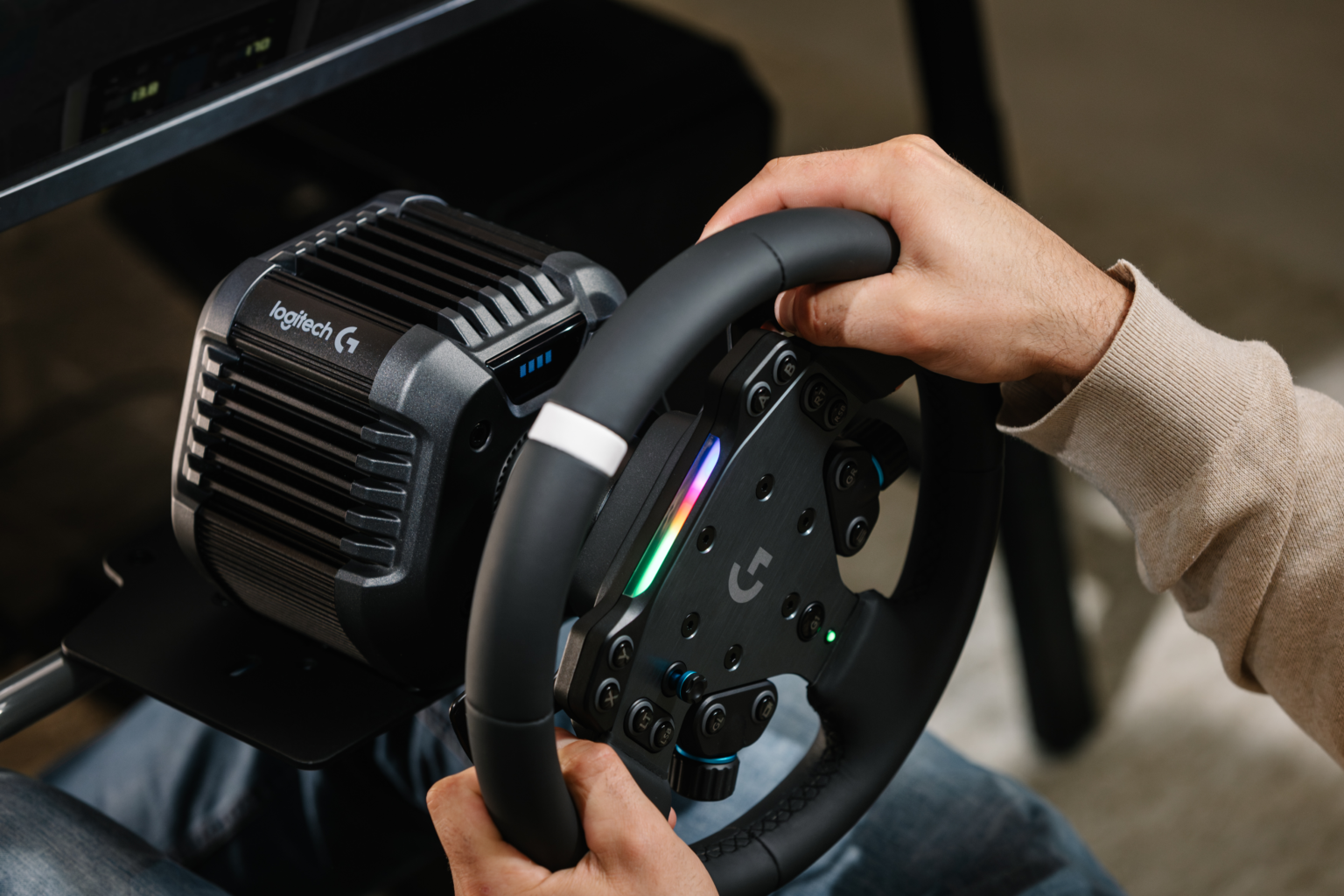
Featured image: the Logitech RS50 with the RS wheel on a rig (Image: Logitech)
If you’ve got a Logitech RS50 plugged into a PC, the first job is sorting out the FFB (force feedback) in the sims you actually drive, and Logitech’s own numbers are the quickest way to a good starting point. I’ve set them out game by game below, with what to set on the RS50 itself first and then what to set in each game’s force feedback menu.
Quick Navigation
Jump directly to what you’re looking for:
The RS50’s settings |
iRacing |
ACC |
AC Evo |
LMU |
AMS2 |
rFactor 2 |
Assetto Corsa |
F1 25 |
EA WRC |
Forza Motorsport |
Other PC games |
Fine-tuning
The RS50’s own settings
Logitech publishes a settings list for the RS50 covering 33 PC games, each with five settings on the RS50 itself and a screenshot of the game’s menu. The values here are Logitech’s as of 23 September 2026, and every one assumes the RS50 at its full 8 Nm, so if you run it lower you can bring the Dampener down too.
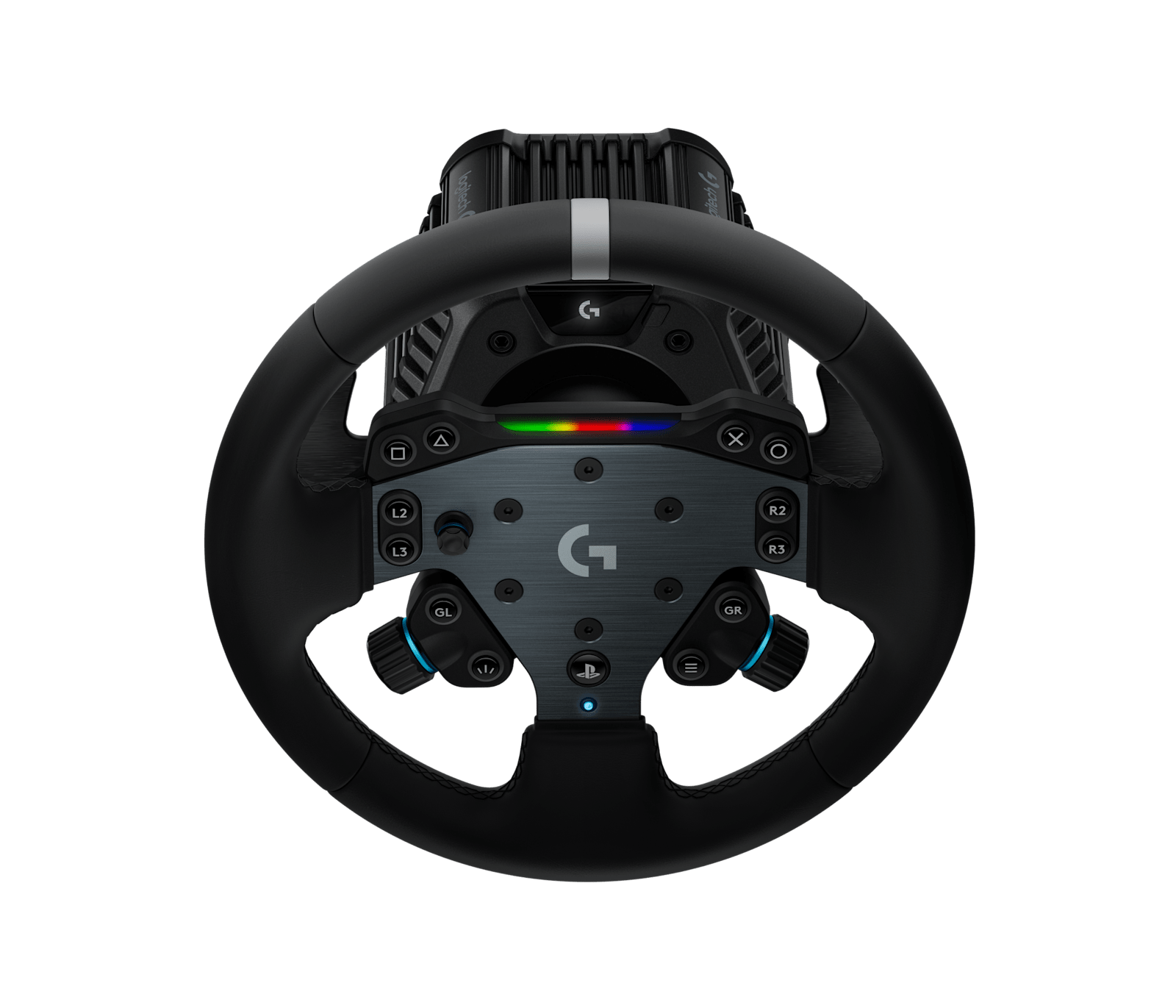
The five settings live on the RS50’s OLED screen or in G HUB (Logitech’s software). Compatibility Mode has two options, RS and PRO. PRO makes the RS50 show up as Logitech’s PRO Racing Wheel, which means games that already support the PRO pick it up automatically. Choose the mode before you start a game, since changing it mid-game can cause odd behaviour. A higher FFB Filter is smoother and a lower one is more raw. The Dampener calms a direct drive wheel that moves too quickly in some games, and Logitech says to keep it as low as you can.
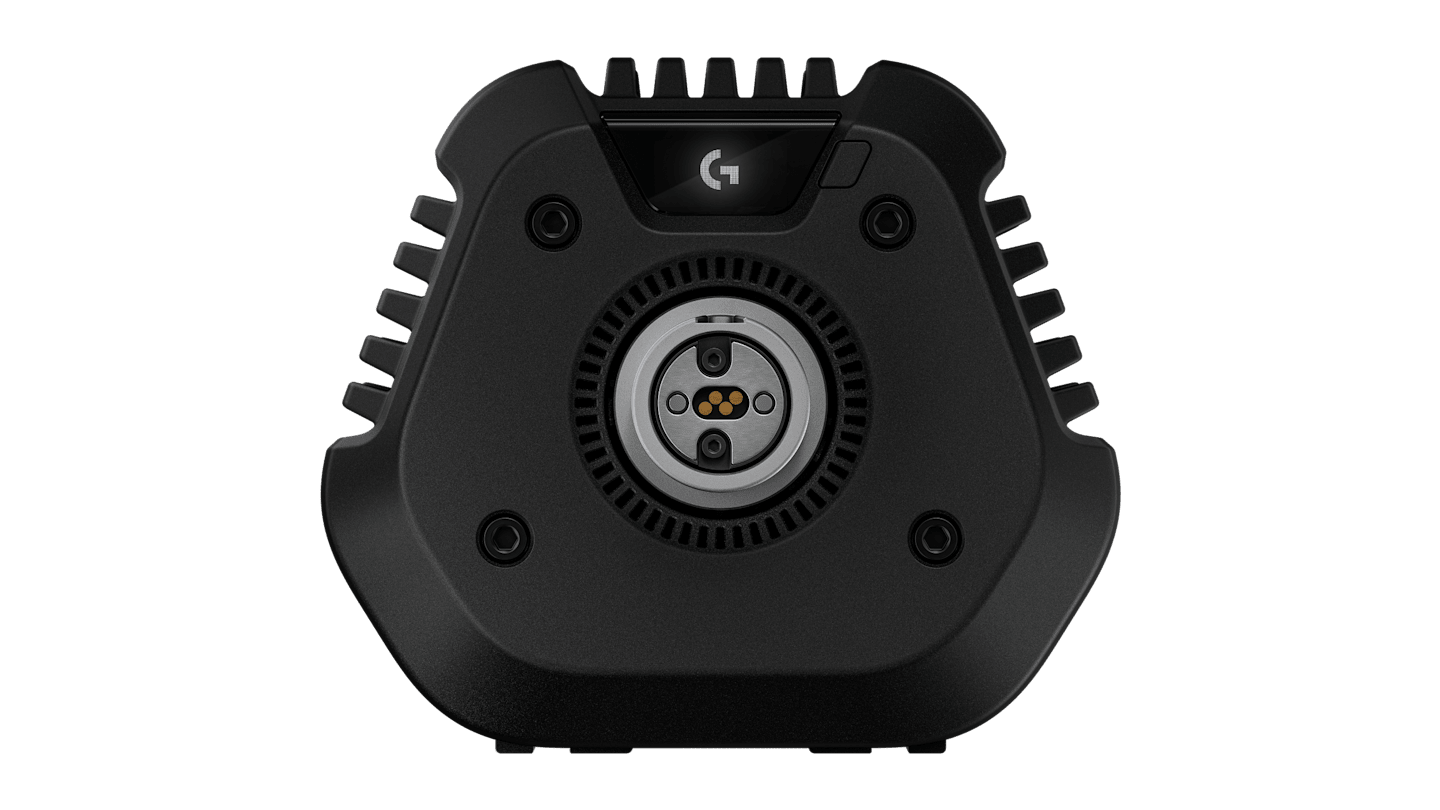
TrueForce is Logitech’s vibration layer on top of the force feedback. TF Audio sets how strong those vibrations are, and Logitech suggests keeping them to subtle cues so they don’t overwhelm everything else. Where Logitech’s list says N/A for TF Audio, that game has no TrueForce. The Angle sets the RS50’s overall rotation, and Logitech’s PC numbers run from 360 degrees for the F1 games up to 2520 for the truck sims.
Logitech has changed the numbers for four PC games since March 2026. iRacing’s Dampener has gone from 10 to off, F1 25 has moved from PRO to RS, and Assetto Corsa Competizione’s angle is now set per car. Le Mans Ultimate picked up TrueForce, so its row went from Dampener 20 and 1080 degrees to TF Audio 60, the Dampener off and 900.
iRacing settings
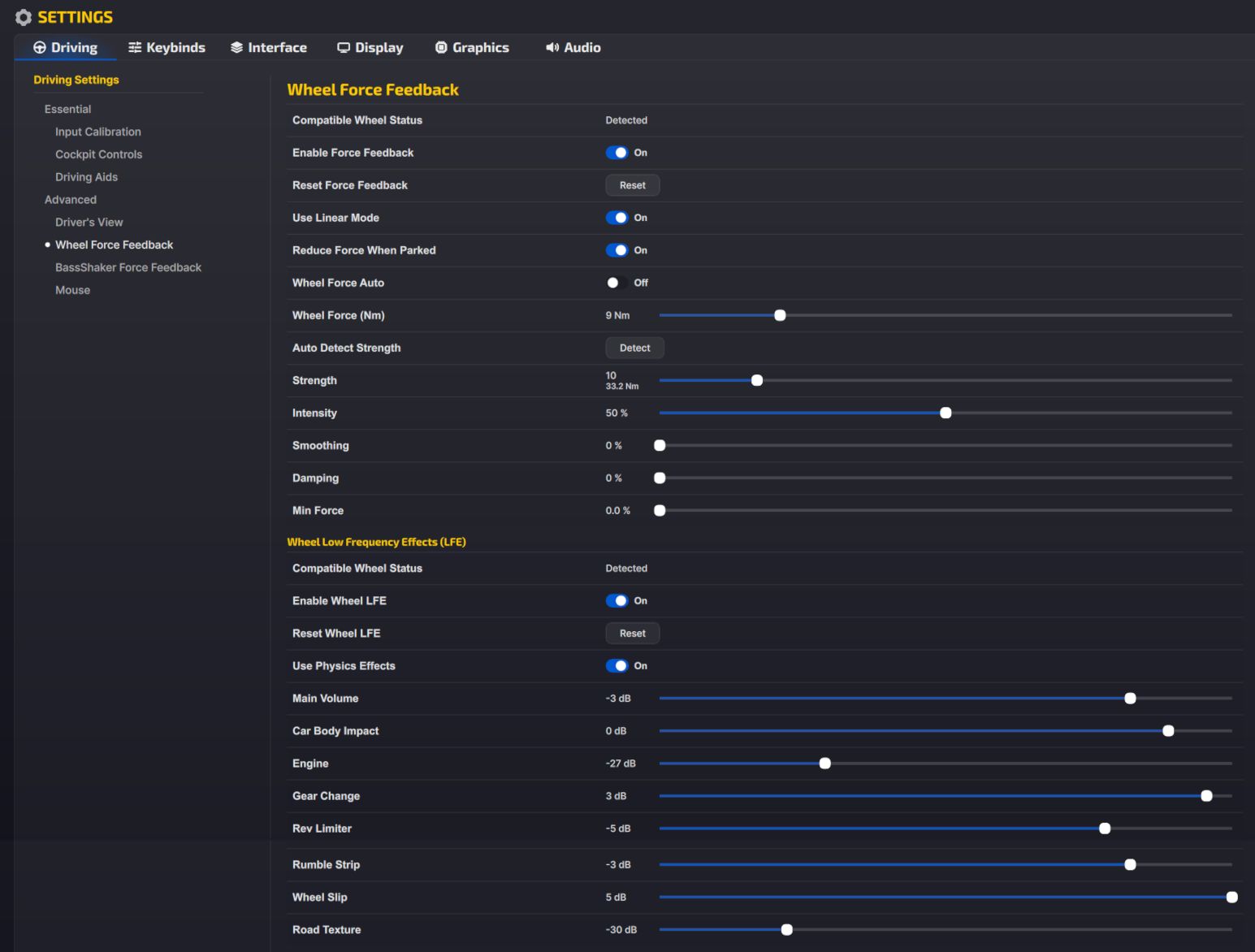
iRacing gets the FFB Filter at 1, which is as raw as Logitech’s list goes, with TF Audio at 100. The screenshot above is iRacing’s current force feedback screen, with the TrueForce effects on the Wheel LFE panel underneath. It shows Wheel Force at 9 Nm, which is more than the RS50’s 8 Nm, and Logitech doesn’t say why. iRacing is on 2026 Season 4 at the moment, and its release notes list no force feedback changes. If you’re on a G923, I’ve got my own G923 settings for iRacing too.
Set these on the RS50’s OLED screen or in G HUB:
- Compatibility Mode: RS
- FFB Filter: 1
- Dampener: Off
- TF Audio: 100
- Angle: 1080°
Then in iRacing, go to Settings > Driving > Advanced > Wheel Force Feedback and set:
- Enable Force Feedback: On
- Use Linear Mode: On
- Reduce Force When Parked: On
- Wheel Force Auto: Off
- Wheel Force (Nm): 9 Nm
- Strength: 10
- Intensity: 50%
- Smoothing: 0%
- Damping: 0%
- Min Force: 0.0%
Underneath that, the Wheel LFE panel carries the TrueForce effects:
- Enable Wheel LFE: On
- Use Physics Effects: On
- Main Volume: -3 dB
- Car Body Impact: 0 dB
- Engine: -27 dB
- Gear Change: 3 dB
- Rev Limiter: -5 dB
- Rumble Strip: -3 dB
- Wheel Slip: 5 dB
- Road Texture: -30 dB
TrueForce in the app.ini file
Logitech’s iRacing TrueForce page, updated on 24 September 2026, suggests picking XAudio2 as the audio device on iRacing’s Sound tab. iRacing has two kinds of TrueForce effect. One is physics-based, such as a pulse at the rev limiter or vibration from tyre scrub, and the other is the engine note. Only one runs at a time, and you choose which in the app.ini file in Documents\iRacing, under [Force Feedback]:
- trueForceVibePhysics=1 (physics-based effects; 0 switches to the engine note)
- trueForceVibeGain_dB= somewhere between -40 (weak) and 5 (strong) – the setting runs from -90 to 20
Assetto Corsa Competizione settings
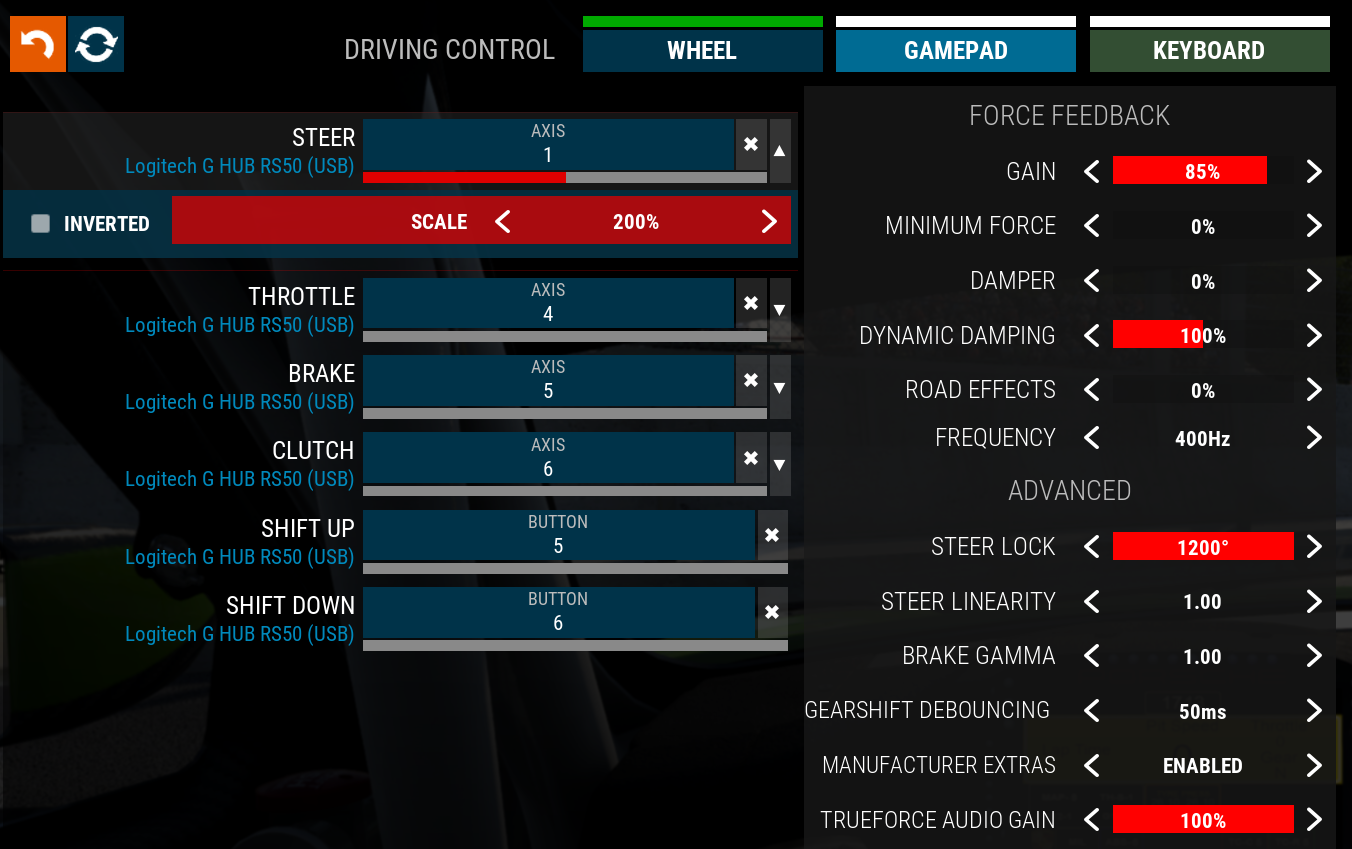
For ACC, Logitech’s table says to set the angle per car, but its own screenshot has Steer Lock at 1200° in the game, so you’ll find both in the lists below.
Set the RS50 like this for ACC:
- Compatibility Mode: RS
- FFB Filter: 3
- Dampener: Off
- TF Audio: 30
- Angle: Set Per Car
Then on ACC’s Driving Control screen, open the Wheel tab and set:
- Force Feedback:
- Gain: 85%
- Minimum Force: 0%
- Damper: 0%
- Dynamic Damping: 100%
- Road Effects: 0%
- Frequency: 400Hz
- Advanced:
- Steer Lock: 1200° (Logitech’s table says set per car)
- Steer Linearity: 1.00
- Brake Gamma: 1.00
- Gearshift Debouncing: 50ms
- Manufacturer Extras: Enabled
- TrueForce Audio Gain: 100%
Assetto Corsa EVO settings
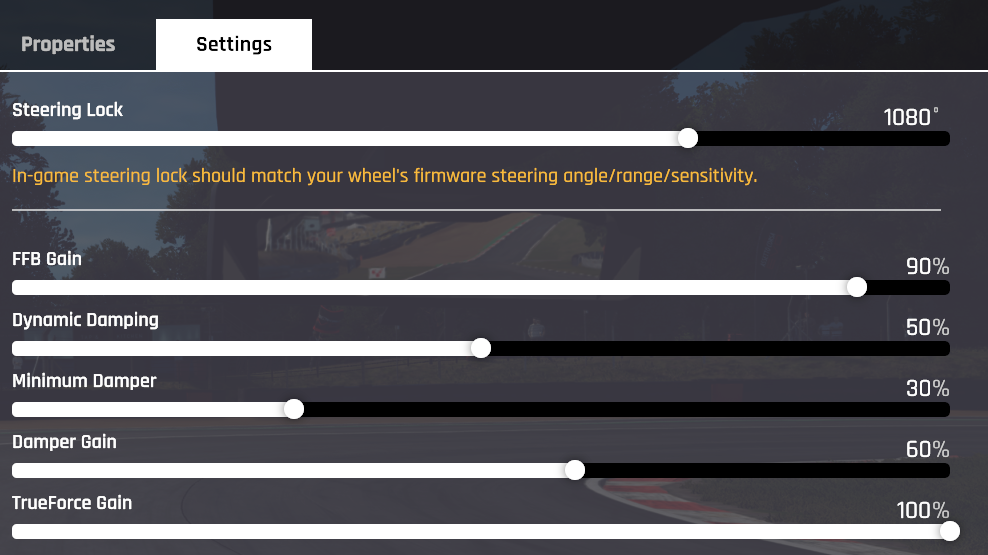
Assetto Corsa EVO is in early access, on v0.9.1 (1 September 2026). The TrueForce Gain slider in Logitech’s screenshot is called Audio-based FFB Effects in current builds, and the v0.9 force feedback update didn’t rename or remove any of the others. There’s more on AC Evo in our Assetto Corsa EVO guide.
For AC Evo, set the RS50 to:
Visit Our Sponsors
- Compatibility Mode: RS
- FFB Filter: 5
- Dampener: Off
- TF Audio: 85
- Angle: 1080°
Then, in AC Evo’s own force feedback settings, set:
- Steering Lock: 1080°
- FFB Gain: 90%
- Dynamic Damping: 50%
- Minimum Damper: 30%
- Damper Gain: 60%
- Audio-based FFB Effects: 100% (TrueForce Gain in older builds)
Le Mans Ultimate settings
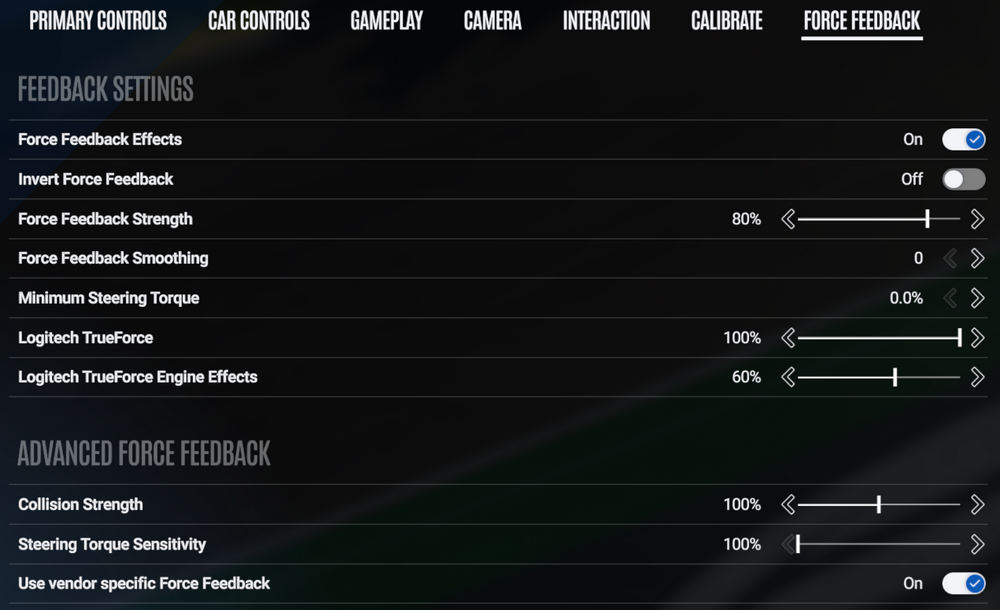
Le Mans Ultimate’s V1.3 update on 31 March 2026 added native Logitech TrueForce, which is why Logitech’s LMU numbers now include TF Audio. Studio 397 describes it as vibration effects “triggered directly from our physics engine”, running alongside the normal force feedback. The game also has two TrueForce sliders of its own.
For LMU, Logitech sets the RS50 to:
- Compatibility Mode: RS
- FFB Filter: 4
- Dampener: Off
- TF Audio: 60
- Angle: 900°
Then in LMU, open the Force Feedback tab (next to Calibrate) and set:
- Feedback Settings:
- Force Feedback Effects: On
- Invert Force Feedback: Off
- Force Feedback Strength: 80%
- Force Feedback Smoothing: 0
- Minimum Steering Torque: 0.0%
- Logitech TrueForce: 100%
- Logitech TrueForce Engine Effects: 60%
- Advanced Force Feedback:
- Collision Strength: 100%
- Steering Torque Sensitivity: 100%
- Use vendor specific Force Feedback: On
Automobilista 2 settings
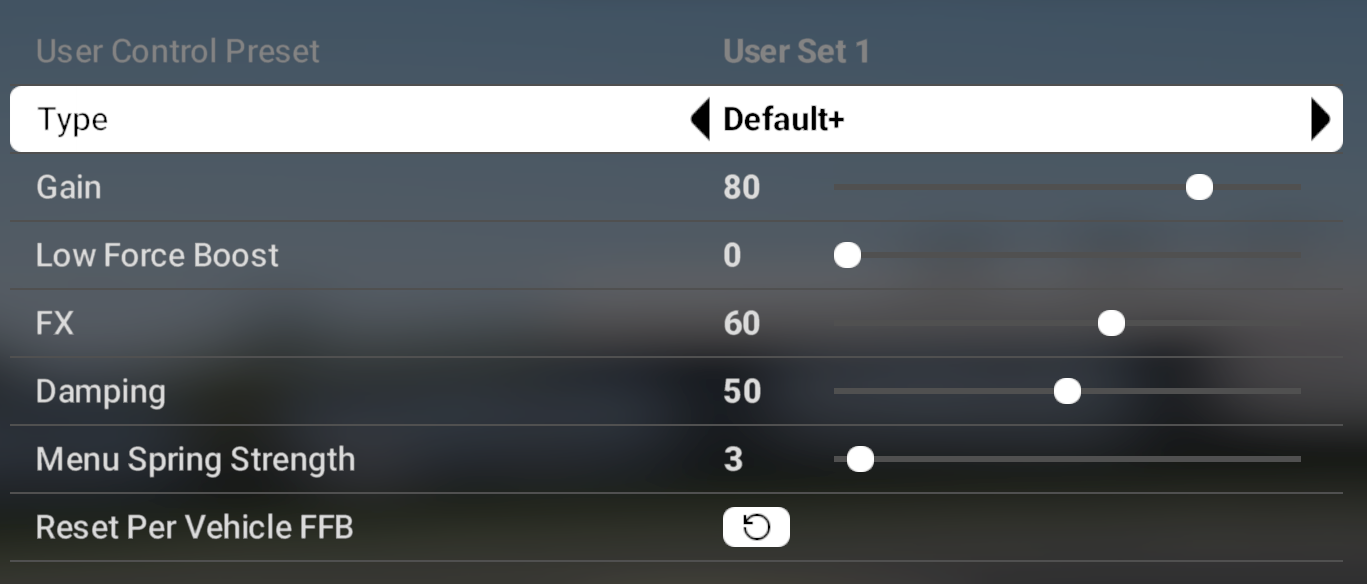
Automobilista 2 is one of only five PC games where Logitech puts the RS50 in PRO mode, along with EA Sports WRC, Forza Motorsport, Forza Horizon 5 and Japanese Drift Master.
AMS2 takes these on the RS50:
- Compatibility Mode: PRO
- FFB Filter: 1
- Dampener: Off
- TF Audio: 40
- Angle: 1080°
Then in AMS2’s force feedback panel, set:
- Type: Default+
- Gain: 80
- Low Force Boost: 0
- FX: 60
- Damping: 50
- Menu Spring Strength: 3
rFactor 2 settings
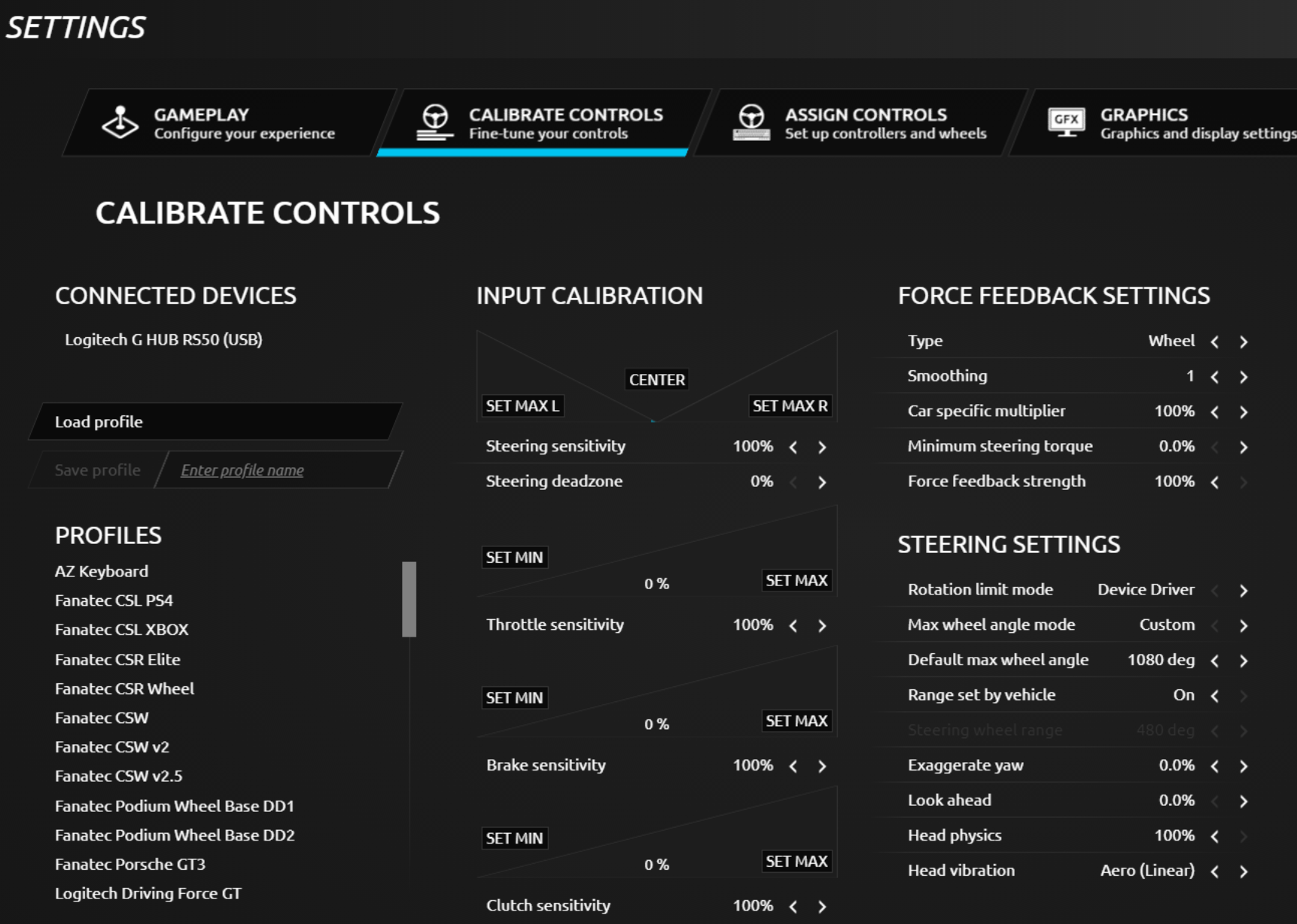
rFactor 2 has no TrueForce, and Logitech sets its angle per car, so in the game Range set by vehicle is switched on, with 1080 degrees as the default.
Start with these on the RS50:
- Compatibility Mode: RS
- FFB Filter: 1
- Dampener: Off
- TF Audio: N/A (no TrueForce in this game)
- Angle: Set Per Car
Then in rFactor 2, go to Settings > Calibrate Controls and set:
- Force Feedback Settings:
- Type: Wheel
- Smoothing: 1
- Car specific multiplier: 100%
- Minimum steering torque: 0.0%
- Force feedback strength: 100%
- Steering Settings:
- Rotation limit mode: Device Driver
- Max wheel angle mode: Custom
- Default max wheel angle: 1080 deg
- Range set by vehicle: On
Assetto Corsa settings
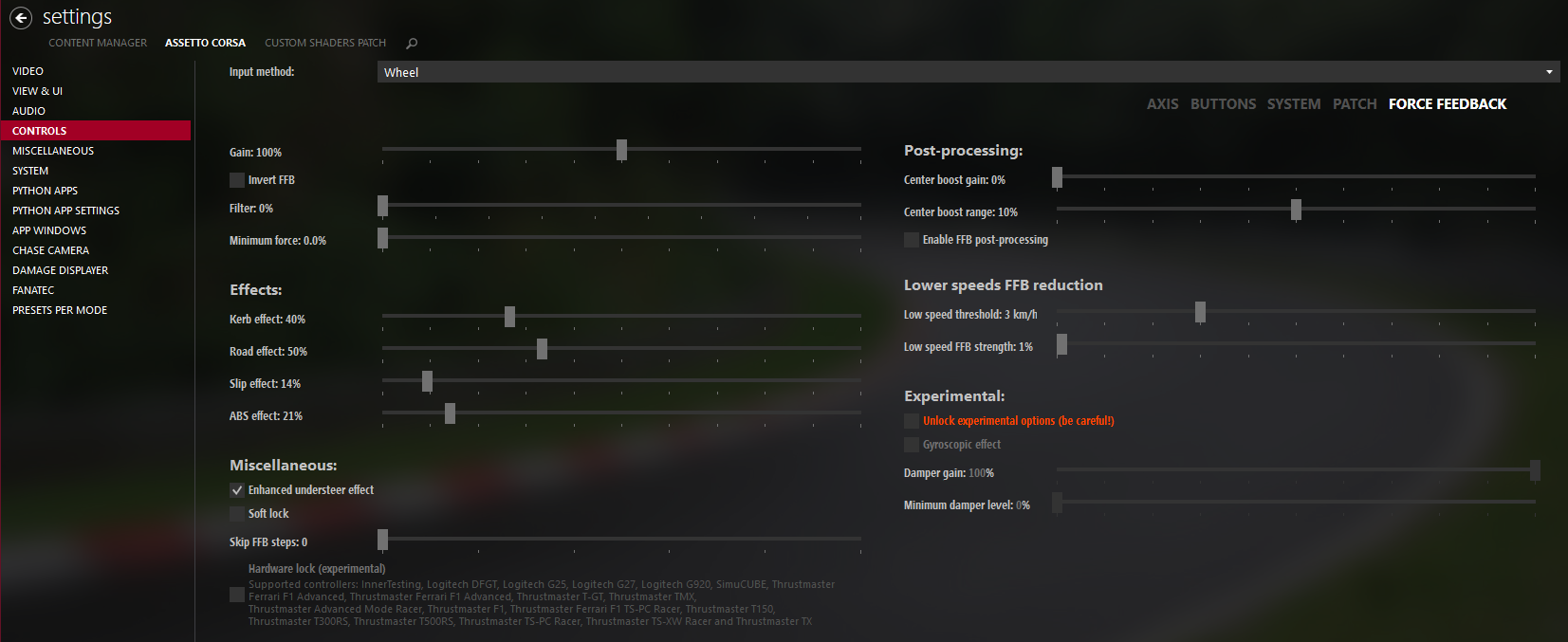
The original Assetto Corsa has the Dampener at 90, which is the highest on Logitech’s PC list, and there’s no TrueForce. Logitech shows the settings in Content Manager, a launcher for Assetto Corsa. Its force feedback page carries the same values as the game’s own Controls page, plus the post-processing and low-speed items.
Assetto Corsa wants these on the RS50:
- Compatibility Mode: RS
- FFB Filter: 5
- Dampener: 90
- TF Audio: N/A (no TrueForce in this game)
- Angle: 1080°
Then in Content Manager, go to Settings > Assetto Corsa > Controls > Force Feedback and set:
- Gain: 100%
- Filter: 0%
- Minimum force: 0.0%
- Effects:
- Kerb effect: 40%
- Road effect: 50%
- Slip effect: 14%
- ABS effect: 21%
- Miscellaneous:
- Enhanced understeer effect: On
- Soft lock: Off
- Skip FFB steps: 0
- Post-processing:
- Center boost gain: 0%
- Center boost range: 10%
- Enable FFB post-processing: Off
- Lower speeds FFB reduction:
- Low speed threshold: 3 km/h
- Low speed FFB strength: 1%
- Experimental:
- Damper gain: 100%
- Minimum damper level: 0%
F1 25 settings
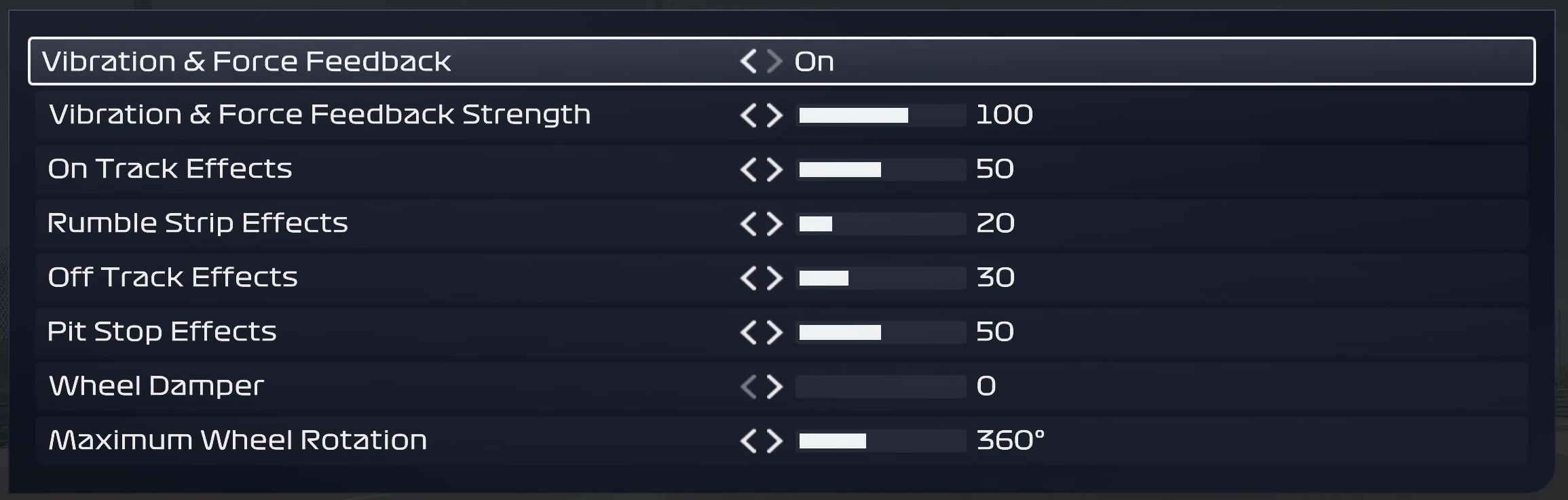
F1 25 added RS50 support in its v1.13 patch on 14 October 2025, and Logitech’s row covers F1 22 to 24 as well. On PC the RS50’s angle goes to 360 degrees, while on a console Logitech says to leave it at maximum and let the game take care of it. The Dampener is at 70, where most games on Logitech’s list have it lower or off.
For F1 25, set the RS50 to:
- Compatibility Mode: RS
- FFB Filter: 5
- Dampener: 70
- TF Audio: 20
- Angle: 360°
Then set these in F1 25’s Vibration & Force Feedback settings:
- Vibration & Force Feedback: On
- Vibration & Force Feedback Strength: 100
- On Track Effects: 50
- Rumble Strip Effects: 20
- Off Track Effects: 30
- Pit Stop Effects: 50
- Wheel Damper: 0
- Maximum Wheel Rotation: 360°
EA Sports WRC settings
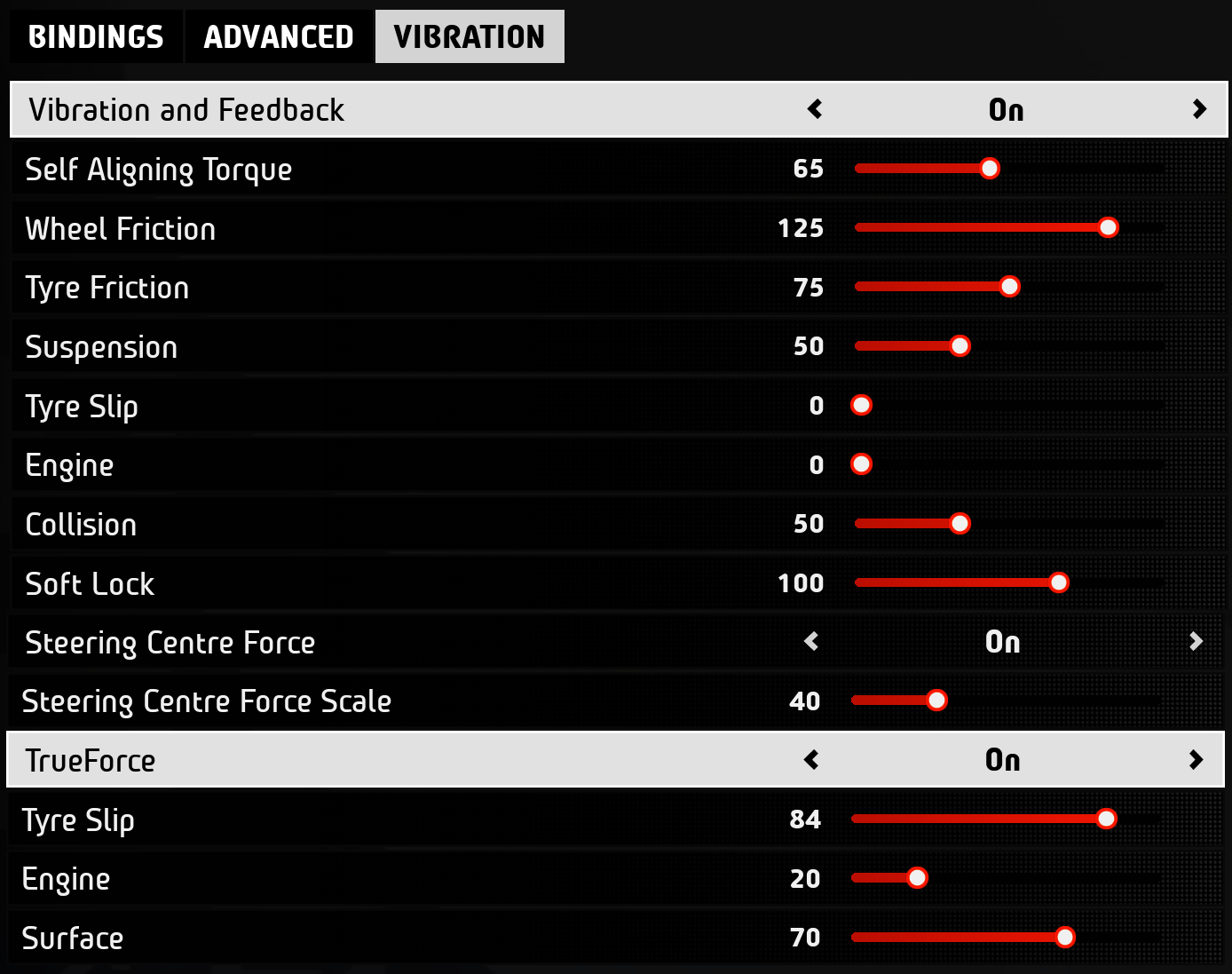
EA Sports WRC runs in PRO mode on Logitech’s list too, and its Vibration tab has a TrueForce section of its own, for tyre slip, engine and surface.
The RS50 settings for EA WRC are:
- Compatibility Mode: PRO
- FFB Filter: 5
- Dampener: 60
- TF Audio: 30
- Angle: 1080°
Then open the game’s Vibration tab and set:
- Vibration and Feedback: On
- Self Aligning Torque: 65
- Wheel Friction: 125
- Tyre Friction: 75
- Suspension: 50
- Tyre Slip: 0
- Engine: 0
- Collision: 50
- Soft Lock: 100
- Steering Centre Force: On
- Steering Centre Force Scale: 40
- TrueForce: On
- Tyre Slip: 84
- Engine: 20
- Surface: 70
Forza Motorsport settings
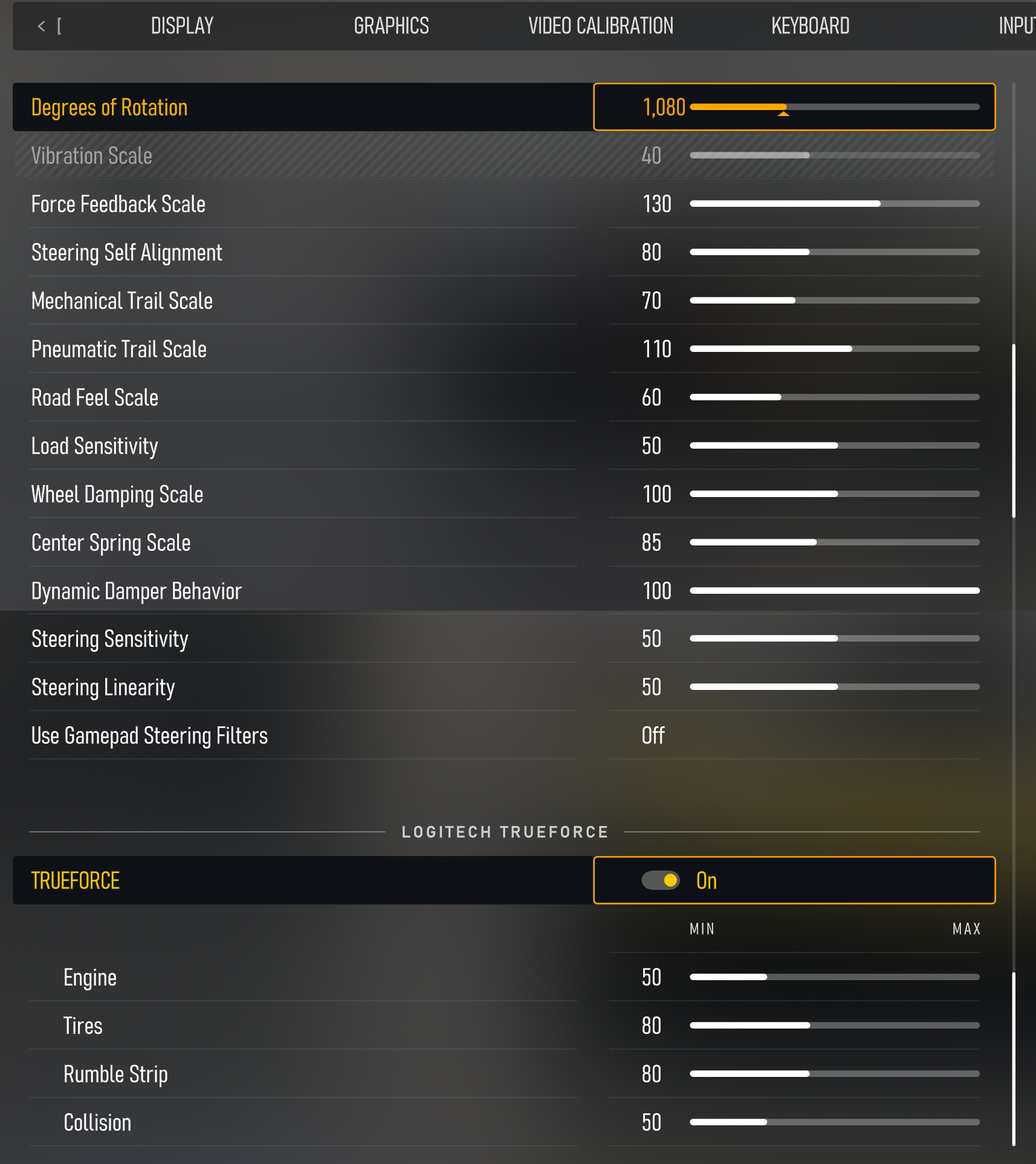
Forza Motorsport has its own Logitech TrueForce section, for engine, tyres, rumble strip and collision, and Logitech uses the same in-game screen for the Xbox version.
For Forza Motorsport, set the RS50 to:
- Compatibility Mode: PRO
- FFB Filter: 1
- Dampener: Off
- TF Audio: 40
- Angle: 1080°
Then set Forza Motorsport’s own settings to:
- Degrees of Rotation: 1,080
- Force Feedback Scale: 130
- Steering Self Alignment: 80
- Mechanical Trail Scale: 70
- Pneumatic Trail Scale: 110
- Road Feel Scale: 60
- Load Sensitivity: 50
- Wheel Damping Scale: 100
- Center Spring Scale: 85
- Dynamic Damper Behavior: 100
- Steering Sensitivity: 50
- Steering Linearity: 50
- Use Gamepad Steering Filters: Off
- Logitech TrueForce: On
- Engine: 50
- Tires: 80
- Rumble Strip: 80
- Collision: 50
Every other PC game on Logitech’s list
The rest of Logitech’s PC list is another 23 games, from American Truck Simulator to Wreckfest, with the RS50’s five settings for each in the table below. Logitech’s own page has the in-game screenshot for every one of them. If a game supports the G29, G920 or G923, the RS50 will work in it too, though you may need to do some setup first.
| Game | Mode | FFB Filter | Dampener | TF Audio | Angle |
|---|---|---|---|---|---|
| American Truck Simulator | RS | 4 | 70 | N/A | 2520° |
| Assetto Corsa Rally | RS | 7 | Off | N/A | 900° |
| BeamNG Drive | RS | 5 | Off | 80 | 1080° |
| CarX Drift Racing Online | RS | 1 | 50 | N/A | 1080° |
| CarX Street | RS | 11 | 60 | N/A | 540° |
| Dakar Desert Rally | RS | 7 | Off | N/A | 900° |
| Dirt Rally | RS | 6 | 50 | N/A | Set Per Car |
| Dirt Rally 2.0 | RS | 5 | 60 | 30 | Set Per Car |
| Endurance Motorsport Series | RS | 4 | 20 | 100 | 360° |
| Euro Truck Simulator 2 | RS | 3 | 60 | N/A | 2520° |
| Forza Horizon 5 | PRO | 6 | 30 | N/A | 900° |
| Forza Horizon 6 | RS | 5 | Off | N/A | 900° |
| GRID (2019) | RS | 5 | 40 | 80 | 1080° |
| GRID Legends | RS | 2 | 20 | N/A | 1080° |
| Japanese Drift Master | PRO | 4 | 20 | N/A | 500° |
| NASCAR 25 | RS | 5 | 20 | N/A | 900° |
| Project Cars 2 | RS | 5 | 20 | N/A | 1080° |
| Project Motor Racing | RS | 11 | 20 | N/A | 900° |
| RaceRoom Racing Experience | RS | 9 | Off | N/A | Change Per Car |
| Rennsport | RS | 1 | Off | N/A | 500° |
| The Crew Motorfest | RS | 4 | Off | N/A | 1080° |
| Tokyo Xtreme Racer | RS | 6 | 60 | N/A | 360° |
| Wreckfest | RS | 8 | 70 | N/A | Set Per Car |
Fine-tuning
If something doesn’t feel right, start here:
- If the RS50 starts shaking from side to side when you let go of it on a straight, keep your hands on it whenever you’re driving. If it’s already oscillating, Logitech says to pause the game before you grab it, so you don’t get hurt.
- When you run the RS50 below 8 Nm, you can set a lower Dampener than Logitech’s number for that game.
- If the force feedback feels too raw or grainy, raise the FFB Filter, or try Auto, which usually matches the filter to the rate the game updates its force feedback.
- When a game doesn’t recognise the RS50, set it up manually in the game’s own controls, or, if the game already supports the PRO, switch the RS50 to PRO mode before you launch the game.
- If it still isn’t working, check the RS50 is selected as the input device in the game’s controls and that G HUB and the drivers are up to date, then contact the game’s support.
- In Forza Horizon 5 in PRO mode, if the pedals don’t work properly, reassign the Accelerator, Brake and Clutch in the game’s Controls screen (it may ask you to switch to a custom profile) and save.
- If TrueForce is too loud or too faint in iRacing, move trueForceVibeGain_dB in app.ini towards -40 to weaken it, or towards 5 to strengthen it.
- When the RS50 gets warm on long runs at full force, that’s normal, and Logitech says the casing never goes above 60°C. Let it cool before you take the rim off or move the RS50, and a fan across it or a cooler room will help.
If the RS50 misbehaves in a way none of that fixes, the Logitech wheel troubleshooting guide is the next place to look. For the other bases, the direct drive wheel settings guide has a Settings Finder with per-brand values. I’ll see you out on track!
Related Articles
Best Pimax VR Settings for F1 25 in 2026: A Damage-Control Guide
Best Pimax VR Settings for Le Mans Ultimate in 2026
Best Pimax VR Settings for Automobilista 2 in 2026
Best Pimax VR Settings for Assetto Corsa in 2026
iRacing VR Settings (2026): Meta Quest 3, PSVR2, Pimax and Valve Index
Assetto Corsa VR Settings 2026: Pimax, Quest 3, PSVR2 & More
Topic: Direct Drive Wheel Settings