
I’m a sim racer and amateur racer with a passion for Motorsport, good racecraft and the technical and setup aspect of sim racing.
Yes, iRacing does VR, and has done since 2013 – it was the first racing sim to support it. Pick OpenXR in the display mode menu and most headsets just work. After that come iRacing’s VR settings, which are the same whatever you wear. Then come the settings for each headset, including the baseline I run on my Dream Air and RTX 4090.
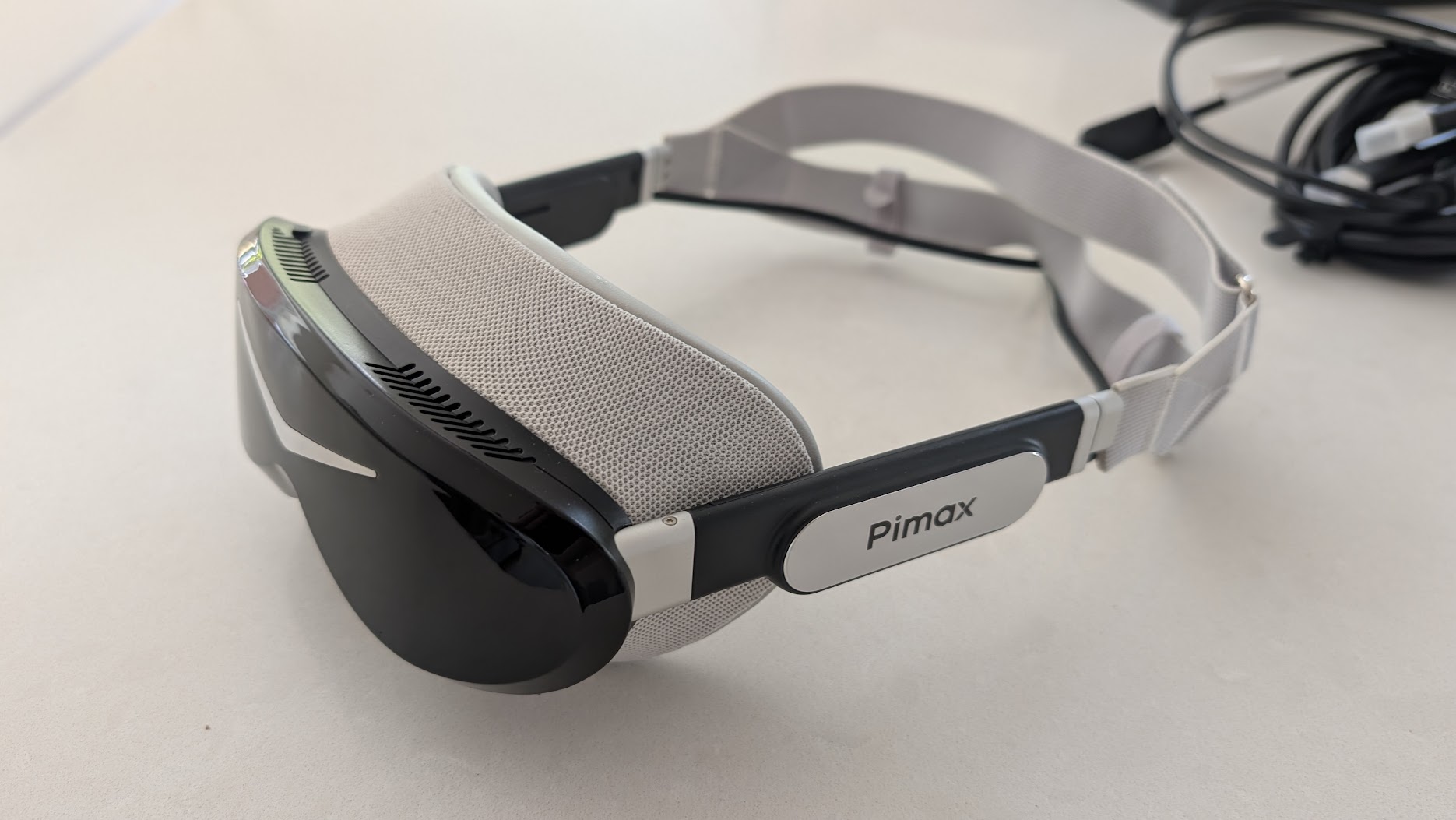
Pimax discount codes: use SIMRACINGCOCKPIT for 2% off, or SIMRACINGCOCKPIT25 for $25 off, at pimax.com.
If you haven’t picked a headset yet, our best VR headsets for sim racing guide and the wider VR headset comparison will help you choose one.
Quick Navigation
Jump directly to what you’re looking for:
Does iRacing support VR? |
iRacing’s VR settings |
Meta Quest (Oculus) |
PSVR2 on PC |
Pimax Dream Air |
Pimax Crystal |
Valve Index and SteamVR |
Stutter and frame rate |
When it isn’t working
Does iRacing support VR? OpenXR, OpenVR or Oculus
You’ll need a VR headset, a PC that meets both iRacing’s and the headset’s requirements, and an active subscription. iRacing runs on Windows PCs only. Install the headset maker’s software first and check the headset works in it before you go anywhere near the sim, as some headsets won’t run in iRacing unless their own software is running. And use a cable if you can, because iRacing recommends wired over Wi-Fi.
Then choose your display mode from the menu at the top right of the iRacing app: Monitor, Oculus, OpenVR, OpenXR, and CloudXR for the Apple Vision Pro. OpenXR is the open standard most headsets use to talk to a game, and iRacing calls it the most universally supported display mode. Your headset connects to it through a runtime. That’s the software sat between the game and the headset, usually the headset maker’s (Pimax OpenXR, Meta Horizon Link or SteamVR) or Virtual Desktop’s VDXR. Only one of them is active at a time.
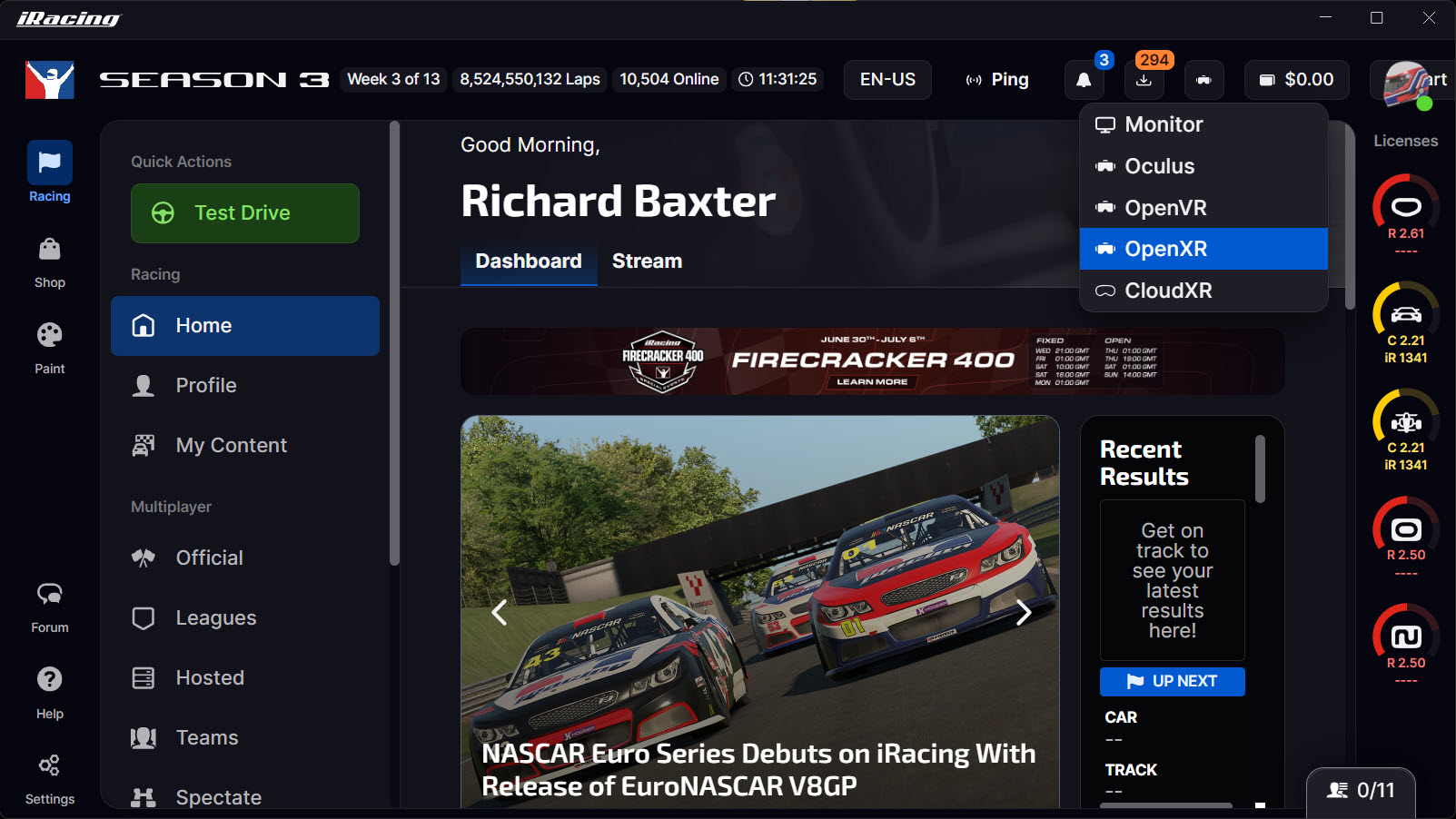
Which is better for iRacing, Oculus or OpenXR? For most of us it’s OpenXR, because foveated rendering only works there. iRacing calls Oculus an older standard built for the first Rift headsets; it may still work on a Quest 2 or 3, but iRacing says to try OpenXR first. OpenVR is still there for the community tools and mods that need it.
iRacing’s What You Need to Play iRacing in VR article has the full checklist, and it suggests a Test Drive to make sure everything works. Each display mode keeps its own graphics settings, so your VR profile won’t touch your monitor profile.
iRacing’s own VR settings, for any headset
Once you’re in the sim, the VR options live under Settings > Display > VR. The big one is foveated rendering. It draws full detail in the middle of the view and a lower resolution around the edges, so your GPU has fewer pixels to draw. Fixed foveated rendering keeps that sharp area in the centre, and dynamic foveated rendering (DFR) moves it to wherever your eyes are pointed on a headset with eye tracking.
Foveated needs an NVIDIA RTX 2000 series card or newer, it only works in OpenXR, and the sim needs a restart after you select it from the VR Mode list. Eye-tracked DFR arrived in 2025 Season 4, along with the Allow Eye Tracking and Show Eye Tracking switches. On an AMD card, or in another display mode, you stay on the standard, non-foveated rendering. There are two sliders that set the split. Percentage Resolution to Keep is how much resolution the outer area holds on to, and Inset Size Percentage is how big the sharp middle is. iRacing’s screenshot shows them at 35 and 40, and lower values free up more frames.
These are the settings in iRacing’s VR panel, in the order you’ll find them:
- VR Mode: Foveated (NVIDIA RTX 2000 series or newer, OpenXR only – restart the sim after changing it)
- Percentage Resolution to Keep: 35 to start (lower frees more frames)
- Inset Size Percentage: 40 to start (lower frees more frames)
- Allow Eye Tracking: On, on an eye-tracked headset (Dream Air, Crystal Super)
- Show Eye Tracking: Off (switch it on briefly to check the eye tracking is working)
- 3D Screen Width and 3D Screen Depth: to taste (no restart needed since 2026 Season 4)
In 2026 Season 3, iRacing added ResolutionScalePct to rendererDX11OpenXR.ini, which sets the render resolution relative to what your runtime recommends. Only edit the ini with the sim closed, otherwise iRacing overwrites your changes when it exits. As for frame rate, iRacing says 90 fps is optimal.
Most of the graphics menu works the same as it does on a monitor, but a handful of settings cost far more in VR. The biggest costs are Screen Space Reflections (SSR), the number of cockpit mirrors and their high-detail option, the shadows (dynamic objects especially) and the MSAA level. Crowds, grandstands and the sky barely move the frame rate. iRacing’s 2026 Season 2 build made mirror rendering faster, too. The order for turning those four down is in the stutter and frame rate section below.
Meta Quest 3, 3S and Quest 2 (Oculus) in iRacing
The Meta Quest 3, the Quest 3S and the Quest 2 run iRacing as PC VR. The sim runs on your PC and streams to the Quest. There are three ways to get it there: Meta’s own Link (a cable, or Air Link over Wi-Fi), Virtual Desktop, or Valve’s Steam Link.
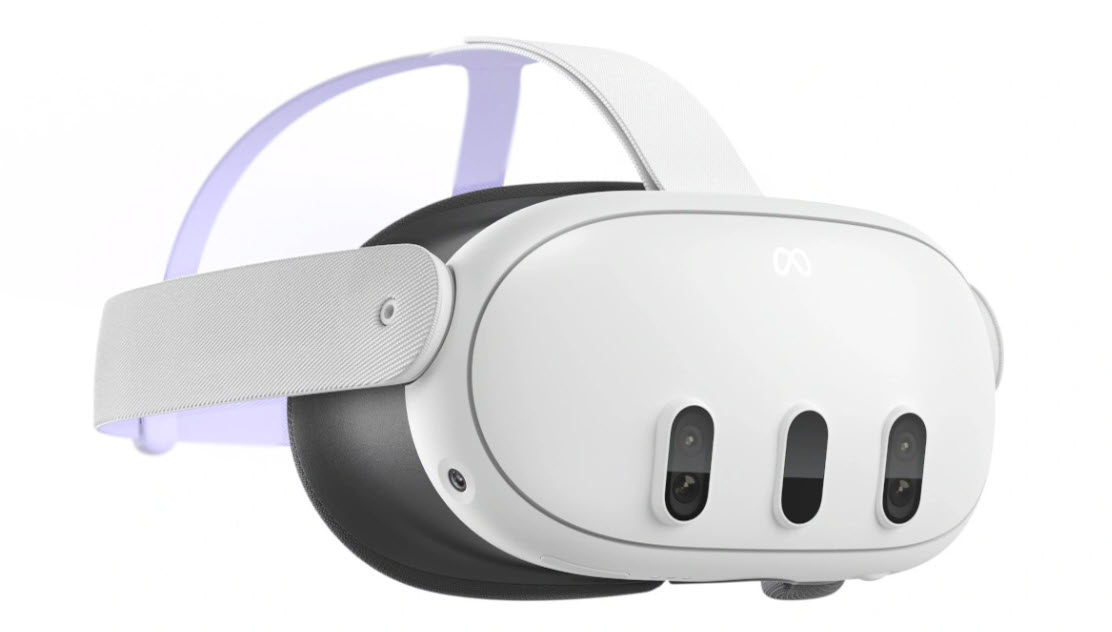
The Quest 3 has 2064 x 2208 pixels per eye, and the Quest 3S and Quest 2 have 1832 x 1920. Refresh is 72, 90 or 120Hz (Meta’s developer table also lists 80), and 90 is the one to aim for in iRacing. Our Meta Quest 3 review covers the Quest 3 itself.
Set Meta Horizon Link as the active OpenXR runtime and iRacing’s OpenXR mode talks to Meta directly, with no SteamVR in the middle. Virtual Desktop does the same through its own VDXR runtime. Only Steam Link needs SteamVR running. iRacing still lists the Oculus mode, and some Quest owners stick with it, but you give up foveated rendering if you do.
For a Quest on Meta Horizon Link, set these first:
- Settings > General > OpenXR Runtime: Set Meta Horizon Link as active
- Refresh rate: 90Hz (72 and 120 are the other main options)
- Oculus Debug Tool > Encode Bitrate (Mbps): 450 to 900, from the two creators below
- iRacing display mode: OpenXR
Link cable, Air Link or Virtual Desktop?
For the Link cable, Meta asks for a USB-C 3.2 cable that carries at least 5Gbps and is at least 3 metres long. Air Link just needs Wi-Fi, preferably 5GHz, although iRacing itself recommends wired. The Oculus Debug Tool still ships with Meta Horizon Link, and it’s where you set the Link encode bitrate. An Older Gamers Perspective runs 450 (above that, he got audio glitches), while LDFR Sim Racing goes for 500 to 900. Meta warns that high values can cause instability, so treat those numbers as a range to try.
Virtual Desktop wants the PC wired to the router and a 5GHz Wi-Fi network for the Quest. Choose VDXR as the OpenXR runtime in the Streamer app’s options, then run iRacing in OpenXR. Teqqles does VR sticks with SteamVR as his runtime for stability across his other sims, even though he says VDXR does better in some titles, especially iRacing. On his Quest 3 and RTX 4090, he runs AV1 10-bit, 72 fps and 200 Mbps, with SSW turned off (that’s Virtual Desktop’s frame extrapolation, which runs on the Quest itself). LDFR Sim Racing went the other way, from Virtual Desktop back to a cable, because he couldn’t get a high enough bitrate.
Steam Link, the third route, needs Steam and SteamVR running on the PC, a router wired to the PC and 5GHz Wi-Fi. Valve lists the Quest 2, 3 and Pro for it, but not the 3S.
PSVR2 on PC in iRacing
You can’t play iRacing on a PS5. iRacing runs only on Windows and on none of the consoles. A PSVR2 will run iRacing on a PC, though, through Sony’s PlayStation VR2 PC adapter.
Sony says you need the PC adapter and a DisplayPort 1.4 cable, plugged into your PC’s DisplayPort socket (DisplayPort over USB-C won’t work). The adapter goes straight into a USB 3.0 port, with no hub or extension cable. You’ll also need Bluetooth 4.0 or later, SteamVR and the PlayStation VR2 App. That makes it a SteamVR headset, so set SteamVR as your OpenXR runtime. Refresh rate and render resolution live in SteamVR’s settings. The PSVR2 has an OLED panel at 2000 x 2040 per eye, running at 90 or 120Hz.
For the PSVR2, the setup runs through SteamVR first, then iRacing:
- Connections: DisplayPort 1.4 straight into the PC, PC adapter straight into a USB 3.0 port, no hub
- SteamVR > Settings > OpenXR: SET STEAMVR AS OPENXR RUNTIME
- SteamVR > Settings > General: refresh rate (the PSVR2 runs at 90 or 120Hz, and iRacing calls 90 fps optimal)
- iRacing display mode: OpenXR
- iRacing VR Mode: Foveated (fixed – Allow Eye Tracking off, as there’s no eye tracking on PC)
Some features don’t make it to the PC: HDR, eye tracking, headset feedback, adaptive triggers and the Sense controller haptics (you get basic rumble). Without eye tracking, iRacing’s foveated rendering runs fixed on a PSVR2. Bnuuy Solutions makes an unofficial PlayStation VR2 Toolkit that adds eye tracking on PC, although it’s still a pre-release. Whether iRacing’s eye-tracked foveated rendering picks it up isn’t confirmed anywhere yet.
Pimax Dream Air: my iRacing baseline
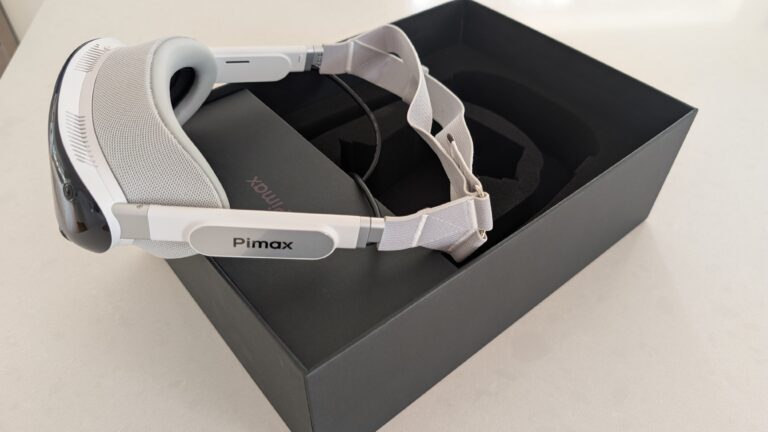
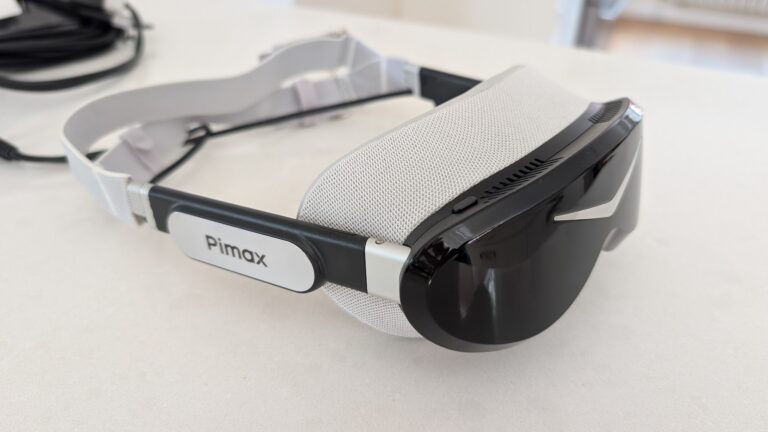
The headset I race on now is the Pimax Dream Air, on my RTX 4090, running through Pimax Play 2.0 with Pimax OpenXR as the runtime. It has Sony micro-OLED panels at 3840 x 3552 per eye, runs at 72 or 90Hz, and has eye tracking for dynamic foveated rendering. Here’s the result of my work getting everything reliable, stutter free and race ready.
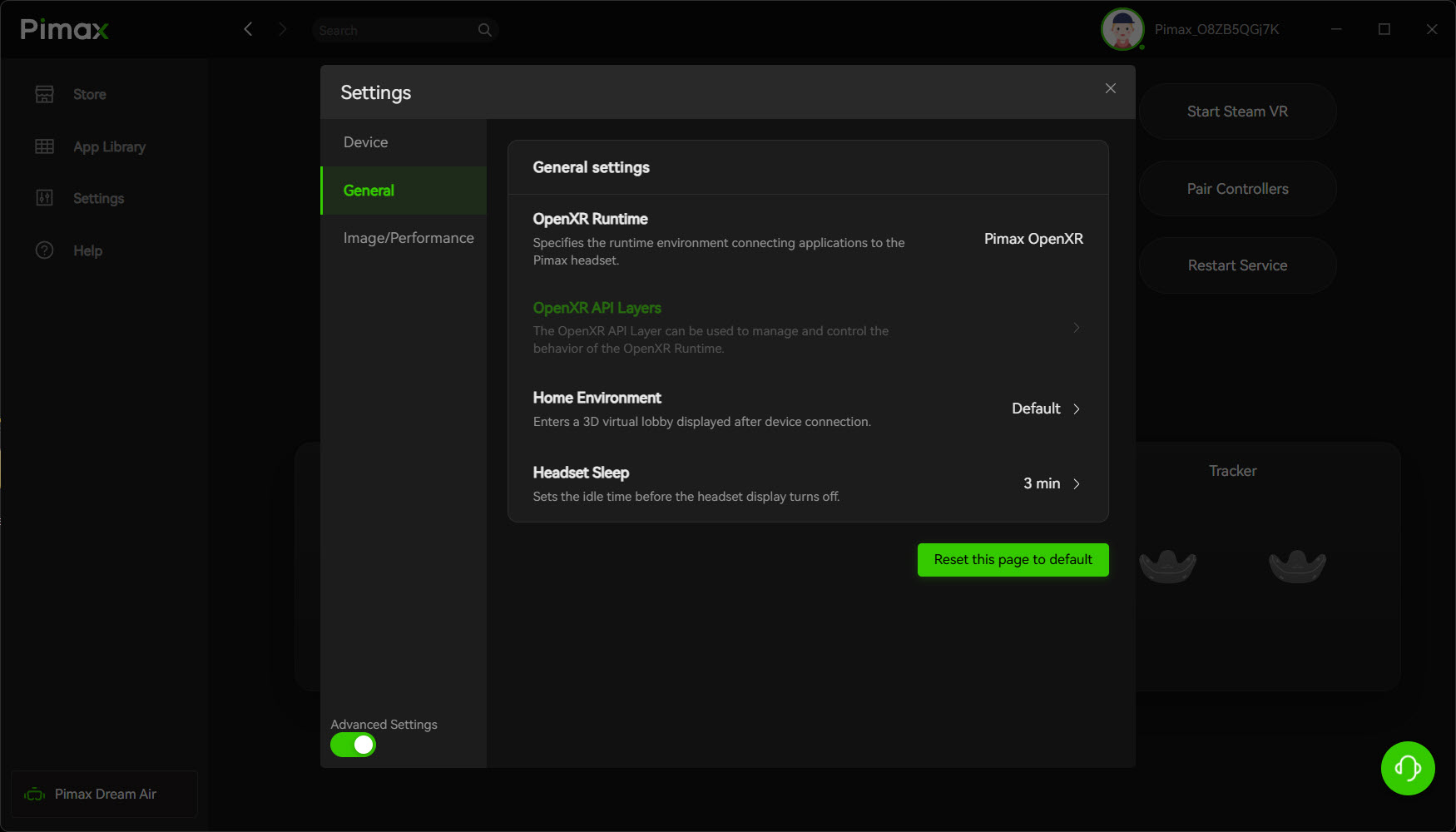
There are two settings to get right first on the Dream Air. The first is the eye tracking. Calibrate it in Pimax Play and turn Quad View on, then in iRacing set VR Mode to Foveated and switch Allow Eye Tracking on. You need both the Pimax side and the iRacing side set, and Pimax’s own iRacing guide runs through the same steps. iRacing’s 2025 Season 4 notes also say to use the Pimax OpenXR runtime rather than SteamVR for eye tracking on a Pimax.
The other is the refresh rate, in Pimax Play’s Device tab. Set the refresh rate at 72Hz to get started – that’s my baseline, and it’s no compromise (in my opinion). It held a full 20 grid race start for me with no stutter, which is exactly what we’re looking for. If you’ve got room, say a 50xx series GPU, 90Hz is there for the taking. FOV, I leave on Normal – I didn’t need to crop it.
Three real rear-view mirrors look glorious but cost a fortune in frame performance. In iRacing I run Cockpit Mirrors Max at 2, with the grandstands, crowds and foliage turned off. Remember – start simply and ramp up the detail settings to see what sticks. I’d love to see how these run on a 5090 but for now, my gaming PC seems to be keeping up with Pimax’s developments.
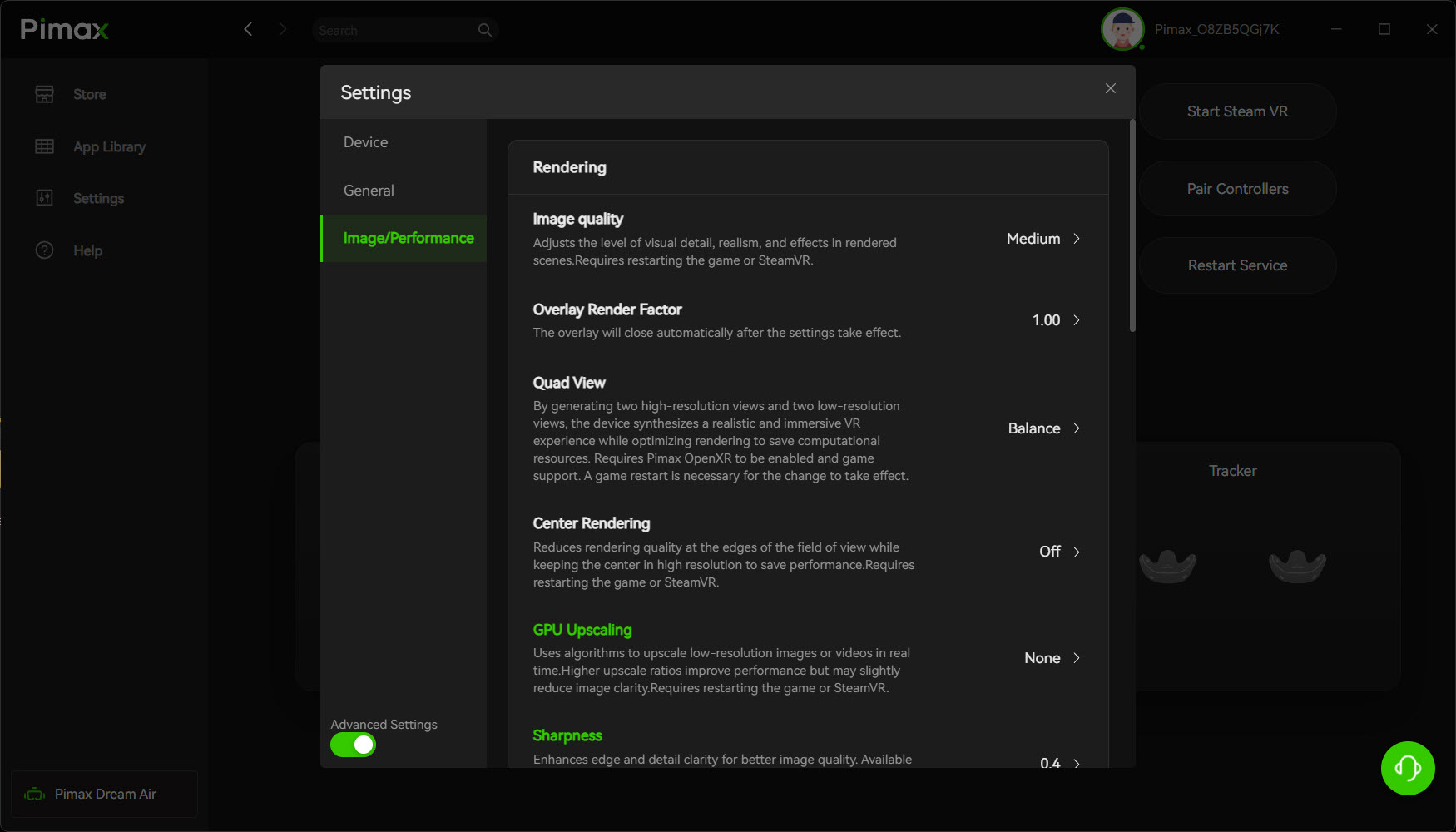
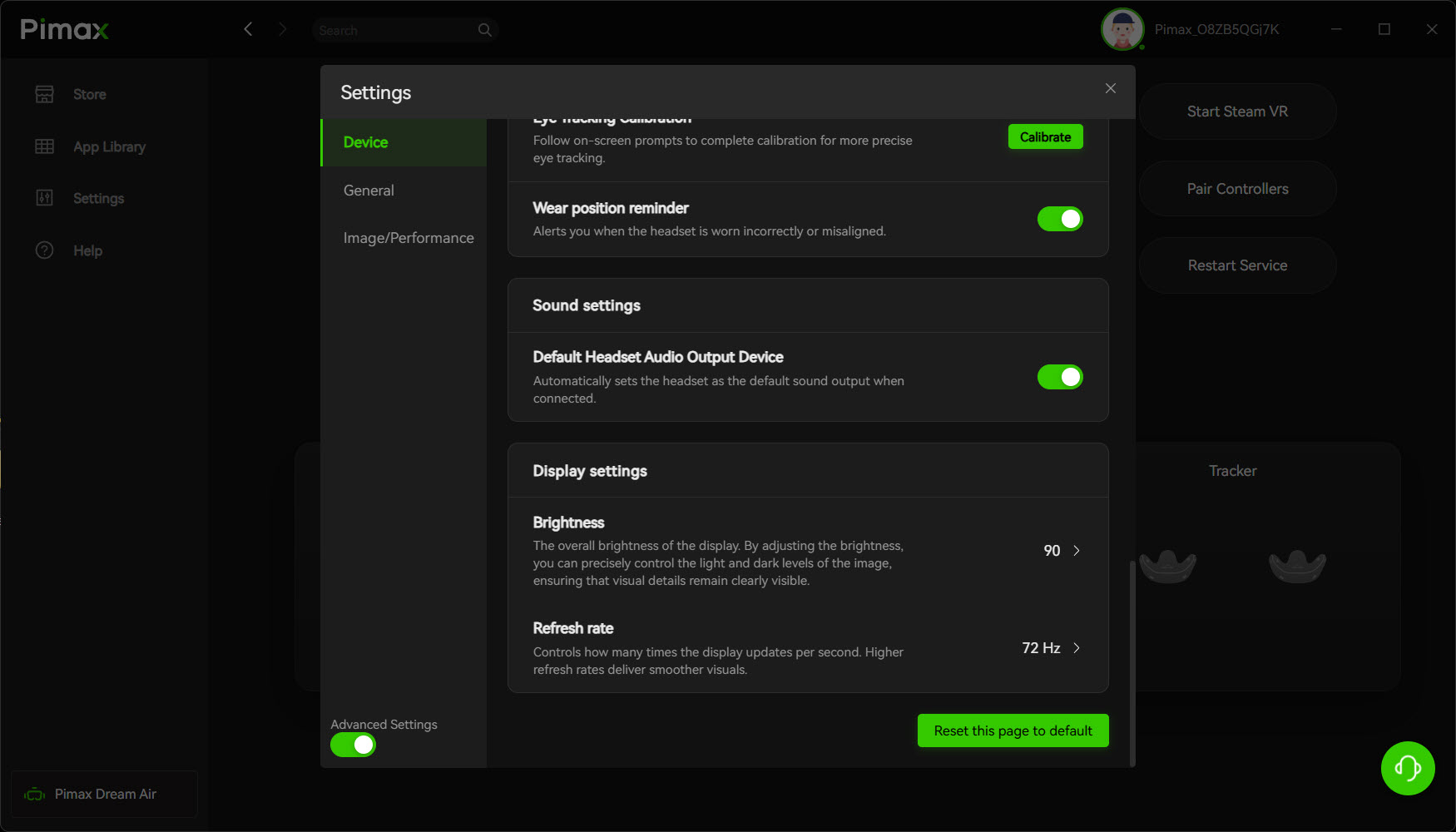
In Pimax Play, these are my baseline settings:
- General > OpenXR Runtime: Pimax OpenXR
- Device > Eye Tracking Calibration: Calibrate
- Device > Brightness: 90
- Device > Refresh rate: 72Hz
- Image/Performance > Image quality: Medium
- Image/Performance > Quad View: Balance
- Image/Performance > Center Rendering: Off
- Image/Performance > GPU Upscaling: None
- Image/Performance > Sharpness: 0.4
- Image/Performance > FOV: Normal
- Image/Performance > Hide Hidden Mask Area: On
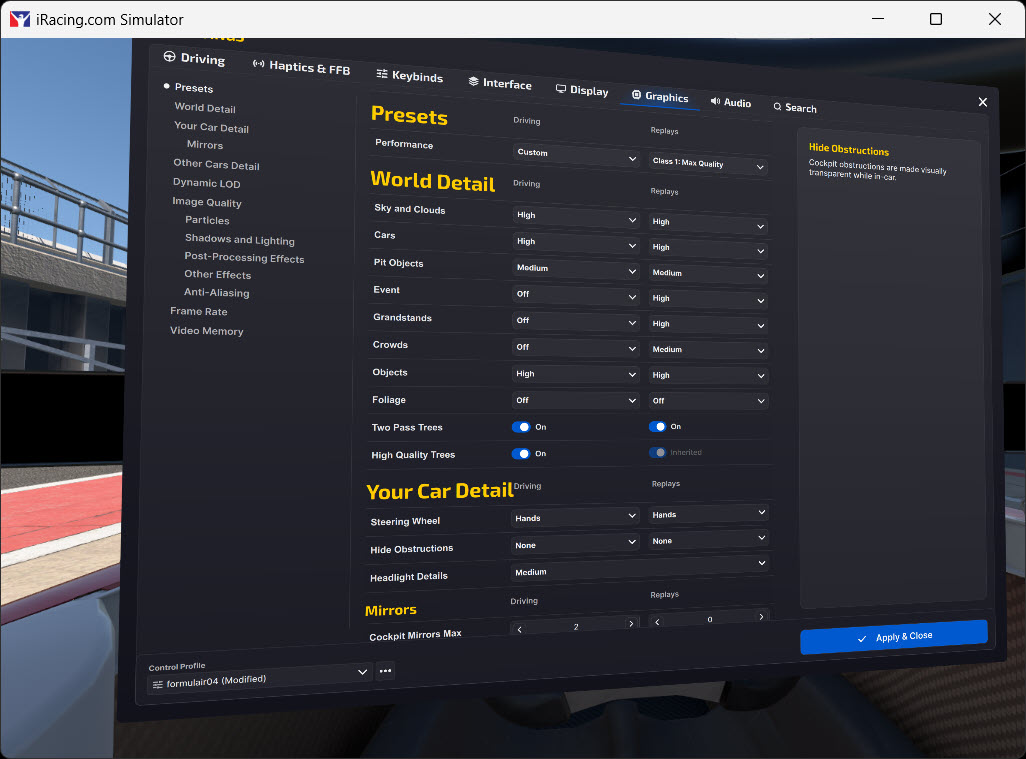
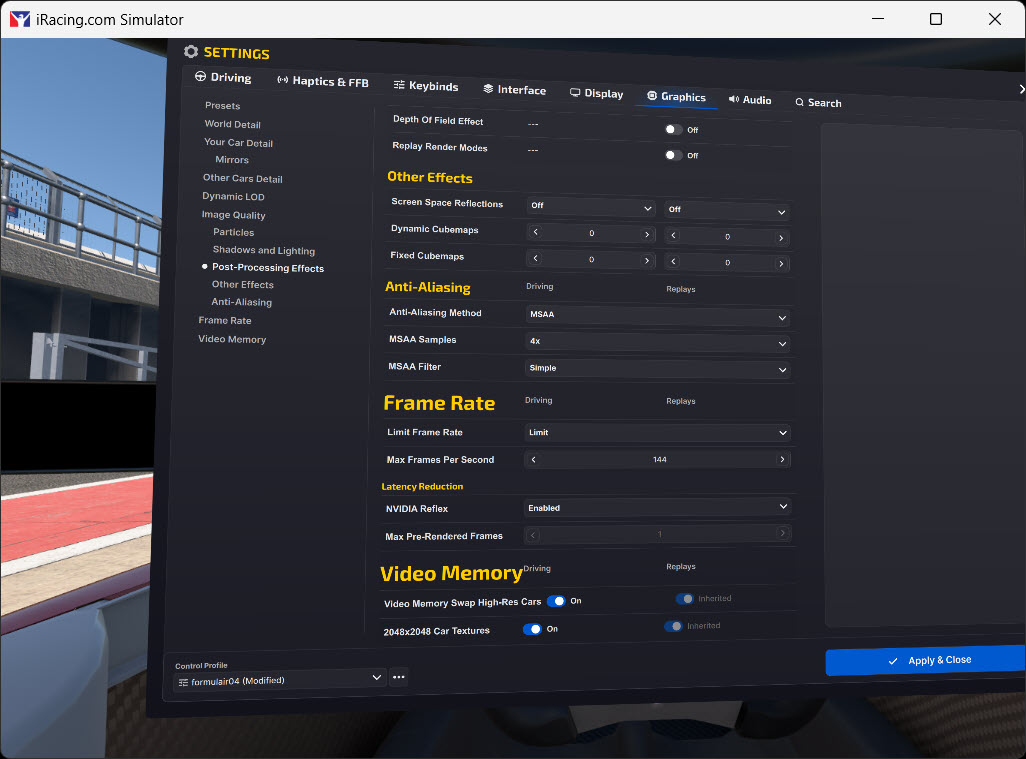
And in iRacing, this is how my VR graphics are set on the Dream Air:
- Display mode: OpenXR
- World Detail: Sky and Clouds High, Cars High, Pit Objects Medium, Objects High; Event, Grandstands, Crowds and Foliage Off
- Mirrors > Cockpit Mirrors Max: 2
- Shadows and Lighting: Shadow Maps On, Object Self-Shadowing On, Dynamic Objects In Main View, Night Shadow Maps On, Shadowmap Filter PCF4, Number of Lights 3
- Post-Processing Effects: Motion Blur, Sharpening, SSAO, Distortion and Heat Haze Off
- Other Effects: Screen Space Reflections Off, Dynamic Cubemaps 0
- Anti-Aliasing: MSAA, 4x samples, Simple filter
- Frame Rate: Limit Frame Rate on, Max Frames Per Second 144, NVIDIA Reflex Enabled
- Video Memory: 2048×2048 Car Textures On
Pimax Crystal Light and Crystal Super
The Crystal Light has no eye tracking, so iRacing’s foveated mode runs fixed on it. It has 2880 x 2880 pixels per eye on a QLED + Mini-LED panel with local dimming, and runs at 72, 90 or 120Hz. I used to cap the Crystal Light at 87 FPS in iRacing.
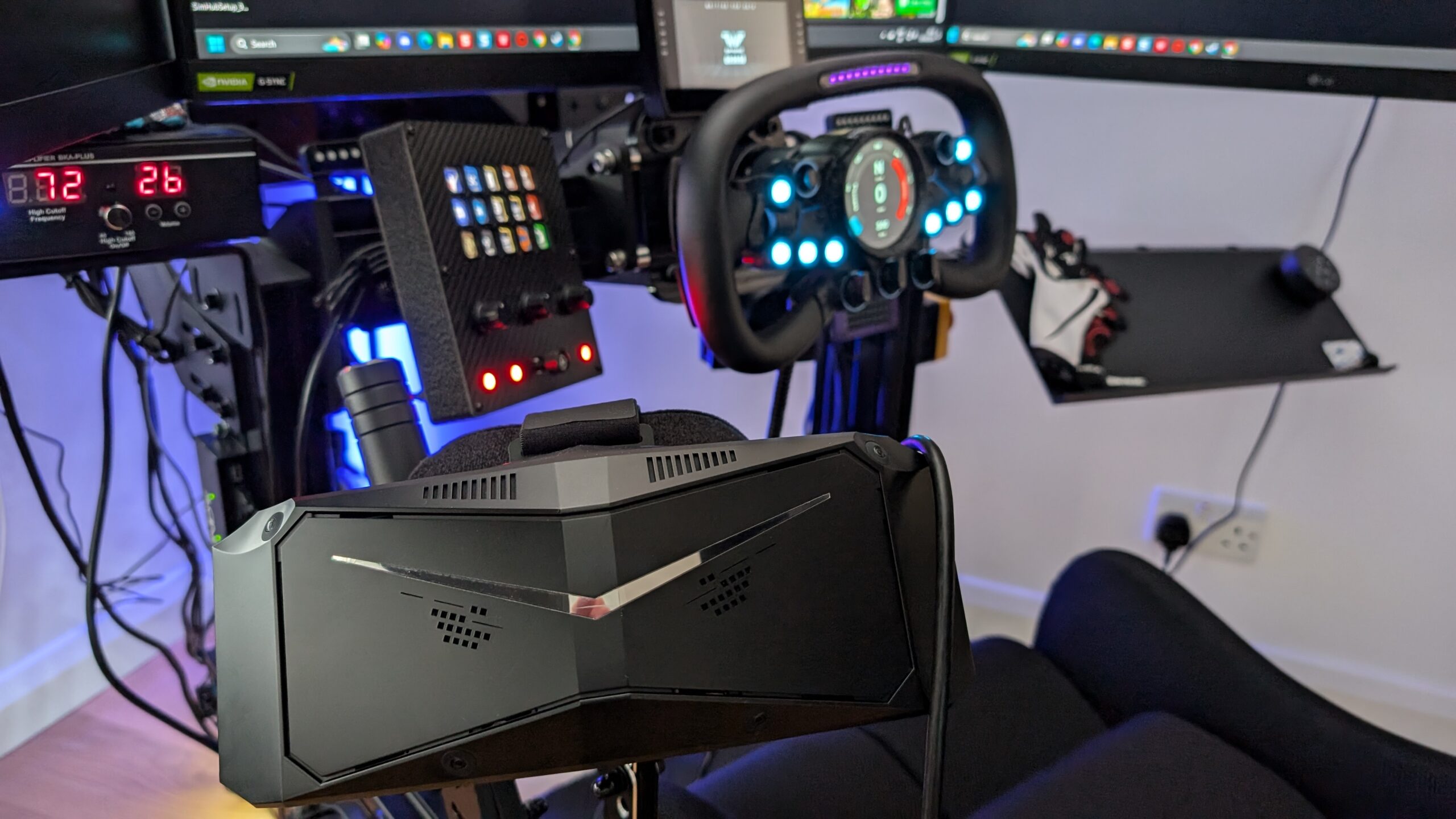
The Crystal Super has eye tracking on every optical engine, so it follows the Dream Air’s steps: Pimax OpenXR as the runtime, the eye tracking calibrated, Quad View on, then Foveated and Allow Eye Tracking in iRacing. Pimax’s Crystal Light guide still calls iRacing’s Foveated mode by its old name, MVP, and misspells the ini keys, which iRacing names FoveatedOuterPctRes and FoveatedInsetWidthPct. Our Pimax buyer’s guide covers the whole range.
For the Crystal Light and the Crystal Super, the settings go like this:
- Pimax Play > General > OpenXR Runtime: Pimax OpenXR
- Crystal Light in iRacing: VR Mode Foveated (fixed), Allow Eye Tracking Off
- Crystal Super in Pimax Play: eye tracking calibrated, Quad View on
- Crystal Super in iRacing: VR Mode Foveated, Allow Eye Tracking On
- Max Frames Per Second: 87 was my old Crystal Light cap
If you’re new to iRacing as well, Pimax bundles a qualifying headset and controllers with a free 12-month iRacing membership, and that’s the bundle in the table below.
Valve Index, Bigscreen Beyond and other SteamVR headsets
The Valve Index was my first VR headset, and I owned one from April 2020. The total immersion in iRacing was, frankly, game-changing. For me, it was the way VR enabled a more natural use of vision on track, looking into the corner on approach for the apex and spotting the exit to get the best line through it. I was faster in VR, and the good habits from that more realistic spatial awareness carried over to the (real) racetrack too.

Back then, on an RTX 2080 Ti, I ran the Index at 144Hz (that was the Valve Index feature, so I might as well use it), with brightness at 70% (100% was too bright!) and a custom render resolution of 138%. Don’t use motion smoothing, unless you want to feel unwell after 10 minutes. The Index also had an annoying tracking problem – you’d put the headset down to go to the loo, usually just before the race, and come back to a grey screen because it couldn’t lock into tracking again. The amount of iRating I lost for not turning up to races while I tried to solve that! The fix was raising “turn off displays after” in SteamVR’s startup and shutdown settings, as mine was set to 30 seconds. That was 2020, though, and SteamVR’s menus have moved on since.
Today, on any SteamVR headset, head to SteamVR > Settings > OpenXR on the desktop and click “SET STEAMVR AS OPENXR RUNTIME”, because the Windows permission (UAC) prompt it brings up can’t be clicked in VR. Since version 2.3, SteamVR also asks to switch the runtime back whenever something else has taken it. If a Pimax or a Quest shares the PC and you want its runtime left alone, say no, and from version 2.4 SteamVR remembers your answer.
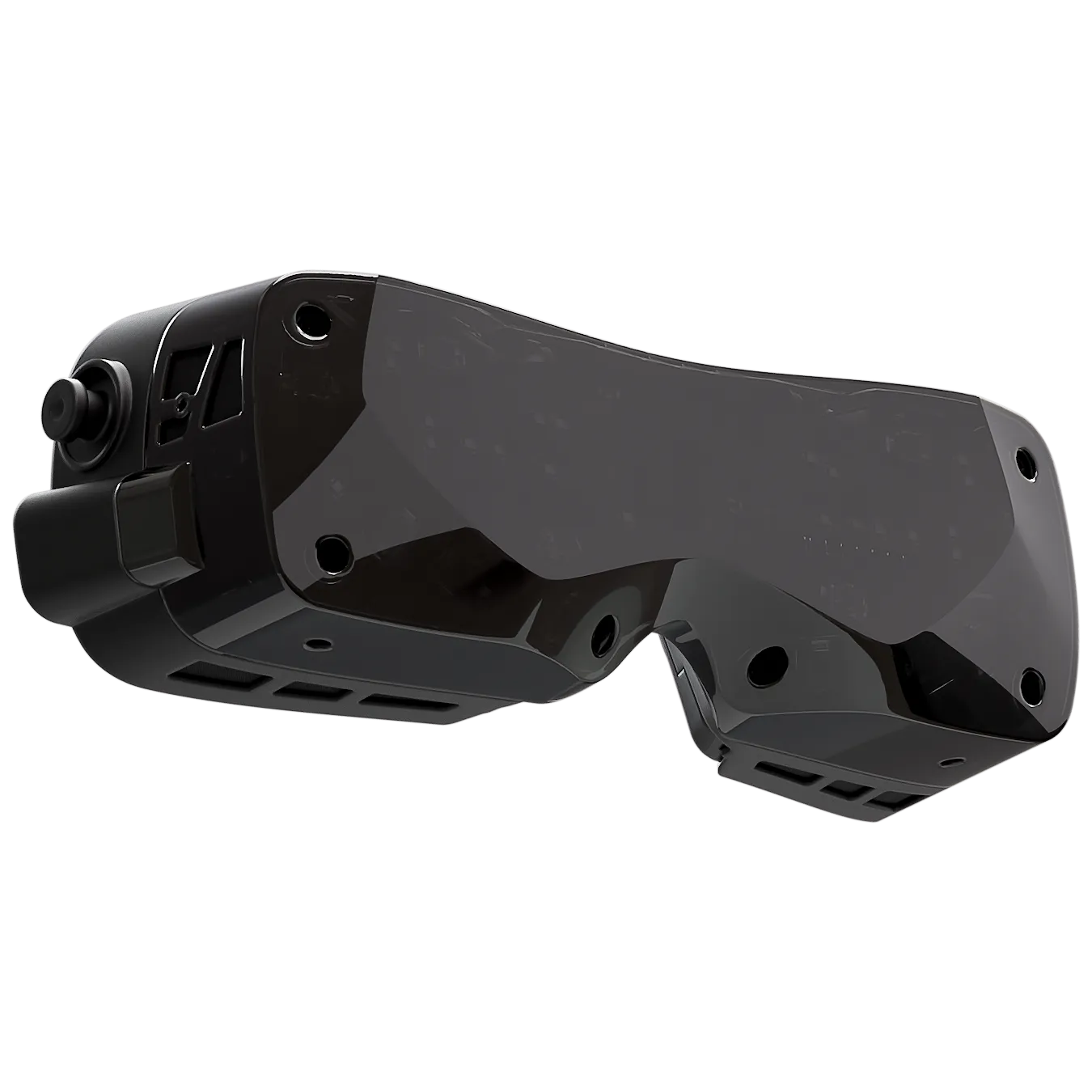
The Bigscreen Beyond 2 is a SteamVR headset too. It has 2560 x 2560 micro-OLED panels per eye, runs at 75 or 90Hz and tracks off SteamVR base stations, and the Beyond 2e adds eye tracking. Valve now sells the Steam Frame, with a 2160 x 2160 LCD per eye and a refresh rate of 72 to 144Hz (144 is experimental). It streams from the PC through the Wi-Fi 6E wireless adapter in the box, using eye-tracked foveated streaming. iRacing’s VR page still lists it as coming soon.
On a SteamVR headset, set these:
- SteamVR > Settings > OpenXR: SET STEAMVR AS OPENXR RUNTIME (from the desktop)
- Refresh rate on the Valve Index: 80, 90, 120 or 144Hz (144 is experimental)
- Render Resolution: in SteamVR’s video settings
- Motion Smoothing: Off
- iRacing display mode: OpenXR
Apple Vision Pro
The Apple Vision Pro runs iRacing through iRacing Connect, a free app on the App Store that streams the sim from a Windows PC over NVIDIA CloudXR. Pick CloudXR as the display mode. The PC needs an NVIDIA RTX 4070 Ti or 5070 Ti or newer, on driver 580 or later, and the Vision Pro needs visionOS 26.4 or later. You’ll also want a Wi-Fi 6 router that can hold 1000Mbps on 5GHz, with the PC wired to it. Passthrough masks the cockpit, so you see your own hands on your wheel. iRacing recommends turning on foveated rendering here too.
Stutter and frame rate: what to turn down first
Screen Space Reflections go off first. On anti-aliasing, An Older Gamers Perspective and LDFR Sim Racing both run MSAA 4x, and LDFR found FXAA and SMAA “super flickery” in VR. Slavco’s RTX 3080 lagged on MSAA, though, so he runs FXAA instead. An Older Gamers Perspective swaps the in-car mirrors for the virtual mirror, which he says takes a lot of rendering load off, and only after that lowers the foveated sliders and drops his Quest 3 to 72Hz.
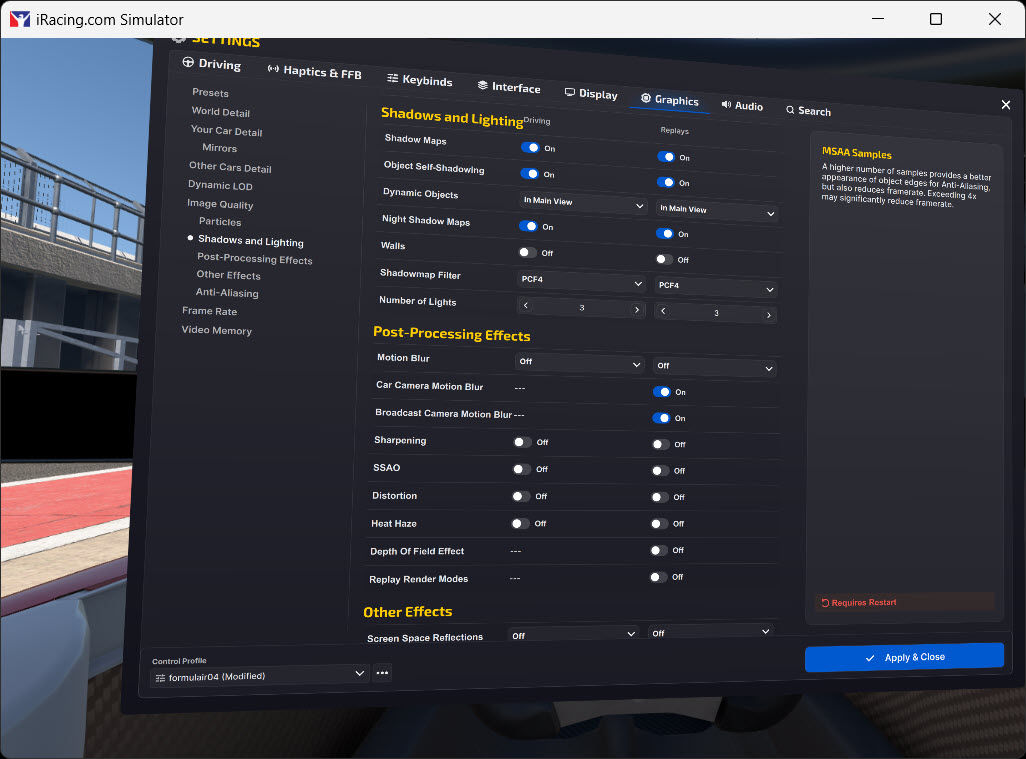
There’s no DLSS in iRacing. It has AMD FSR, but iRacing’s 2025 Season 4 Patch 2 notes say FSR “still is not functioning correctly in VR”, and none of the notes since say it’s been fixed. For the monitor side of things, FSR included, see our iRacing graphics settings guide.
Turn these down one at a time, in this order:
- 1. Screen Space Reflections: Off
- 2. Cockpit mirrors: fewer, high-detail mirrors off, or the virtual mirror instead
- 3. Shadows: Dynamic Objects off
- 4. Anti-Aliasing: fewer MSAA samples, or FXAA
- 5. Percentage Resolution to Keep and Inset Size Percentage: lower
- 6. Headset refresh rate: 72Hz
When iRacing VR isn’t working
If something goes wrong, start with these:
OpenXR Toolkit is still installed
OpenXR Toolkit’s developer ended support in 2024 and recommends against using it. iRacing’s own notice says remove it through Windows’ Add or remove programs, as iRacing now has fixed and dynamic foveated rendering built in. OpenComposite isn’t needed either, because it translates OpenVR games to OpenXR and iRacing already has its own OpenXR mode.
iRacing opens on the monitor, or the wrong software starts
Check which OpenXR runtime is active (Pimax OpenXR, Meta Horizon Link, VDXR or SteamVR), and that your headset’s own software is running.
A Pimax plugged into a hub
Plug the DisplayPort and USB straight into the motherboard on the highest bandwidth USB port you can find – a red port on my MSI motherboard means 20Gb/s of USB bandwidth. You’ll never get that working well even on a powered hub – it’s totally unnecessary latency.
The view is in the wrong place
Reset HMD puts the view back, and its default key is “;” (semicolon). Map the recenter key binding to an easily found button on your steering wheel.
Foveated rendering isn’t taking effect
Restart the sim after choosing Foveated, and check you’re in OpenXR on an NVIDIA RTX 2000 series card or newer.
Motion sickness
iRacing suggests short sessions of 5 to 10 minutes to start with, a small fan blowing on your face, and closed-cockpit cars like the Mazda MX-5 before the open-wheelers. Keep the frame rate up, too. You can feel a little motion sick at first, but after a few laps to orient yourself, you’re soon into faster lap times.
There’s more on living with the Dream Air in my Pimax Dream Air review, and if your Pimax still won’t behave, our Pimax troubleshooting page goes into a lot more detail. Good luck, and let me know how you get on!
Related Articles
Should Sim Racers Wait for the Pimax Crystal Pro, or Buy Today?
Pimax Crystal Pro: Everything We Know So Far
Bigscreen Beyond 2 for Sim Racing: What to Know in 2026
Pimax Dream Air vs Dream Air SE: Which Should a Sim Racer Buy?
SteamVR Base Stations for Sim Racing: Lighthouse vs SLAM on the Pimax Dream Air
How to Install the SBoys3 Driver on the Pimax Dream Air Lighthouse
Topic: VR Headsets