
I’m a sim racer and amateur racer with a passion for Motorsport, good racecraft and the technical and setup aspect of sim racing.
Simagic makes some of the best-value direct drive hardware you can buy, but its software is where most of the pain lives. If your base won’t show up in SimPro Manager, your wheel isn’t detected, the force feedback has dropped out, or your P1000 pedals are blinking a blue light at you, this page is the fix. Almost every Simagic fault traces back to one of a handful of causes, and most of them are software, not a dead motor.
One thing to know before you start: Simagic runs a lot of its support through Discord rather than a public forum, so the fixes are harder to find than they should be. That is exactly why this page exists. Work down it in order, cheapest fix first, and only reach for a warranty claim once you have ruled the rest out.
Quick Navigation
Jump to the fix you need:
First, the 30-second checks |
SimPro Manager won’t see the base |
Wheel not detected |
No force feedback or violent rattle |
Pedals dead or blinking blue |
Wheel shakes at a standstill |
When it’s a warranty claim |
FAQ
First, the 30-second checks
Before you touch a firmware flash, run these. They clear the majority of “not detected” and “no force feedback” reports on their own:
- Plug the base straight into a motherboard USB 2.0 port. Not a front-panel port, not a hub, not an extension cable. Hubs are behind more Simagic problems than any single hardware fault.
- Power-cycle the base. Switch it off at the unit, wait ten seconds, switch it back on, then reopen SimPro Manager.
- Confirm the app matches the base. Alpha EVO bases need SimPro Manager 3.x. Older Alpha, Alpha Mini and Alpha U bases use 2.x. Running the wrong one is the single most common reason nothing appears.
- Close SimHub if it’s open. It can grab the port and stop SimPro Manager talking to the base. Shut it down while you troubleshoot, then reopen it afterwards.
- Check the in-game wheel selection. No force feedback in one sim but fine in another almost always means the game is pointed at the wrong device or its own force feedback slider is at zero.
SimPro Manager won’t see the base, or bricked it after an update
This is the big one, and it is worth getting right before you do anything else. Simagic split its software when the Alpha EVO series launched. SimPro Manager 3.x drives the EVO bases; SimPro Manager 2.x drives the older Alpha, Alpha Mini and Alpha U. The two are not interchangeable, and the app will happily fail to detect a base that is plugged in and working simply because it is the wrong version.
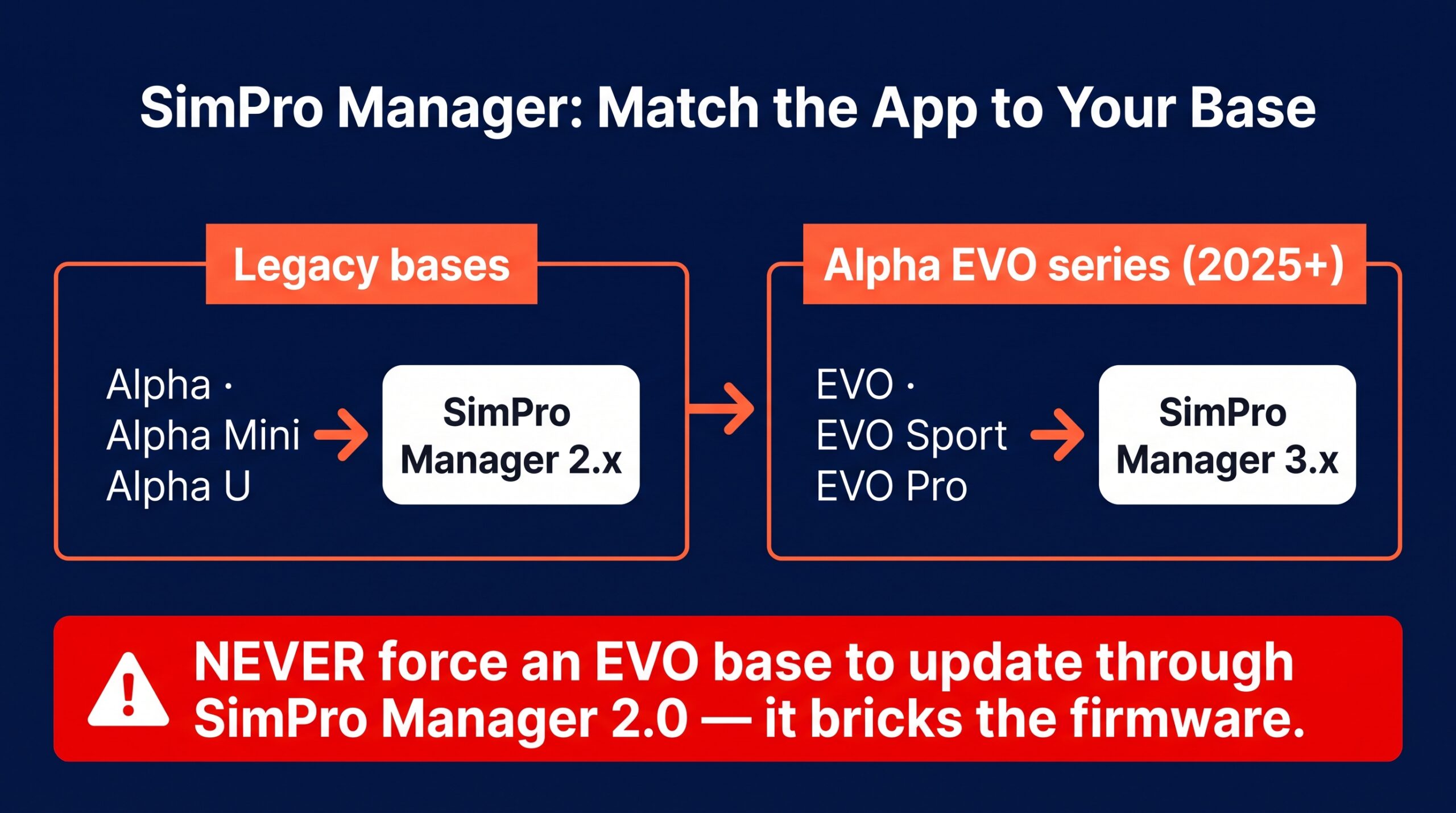
Here is the part that actually matters for your hardware: do not force an Alpha EVO base to update through SimPro Manager 2.0. The legacy app does not properly support the EVO bases, and pushing an EVO firmware update through it is the reported cause of bricked bases in 2025 and 2026. If you have both versions installed, uninstall the wrong one completely before installing the right one, so there is no chance of the two fighting over the same base.
If SimPro Manager itself won’t launch, close it from Task Manager to clear any stuck background process, run it as administrator, and make sure your antivirus hasn’t quarantined it. A clean reinstall of the correct version, with the base unplugged during install and plugged back in afterwards, resolves most launch failures.
Wheel not detected on the base
If the base is fine but a GT Neo, FX or GTS rim isn’t being recognised, the usual cause is a wireless channel desync between the rim and the base rather than a broken wheel. The fix takes five seconds: with the wheel still attached to the base, press and hold the two top-middle buttons together for five seconds to re-pair the channel. The rim should reconnect and light back up.
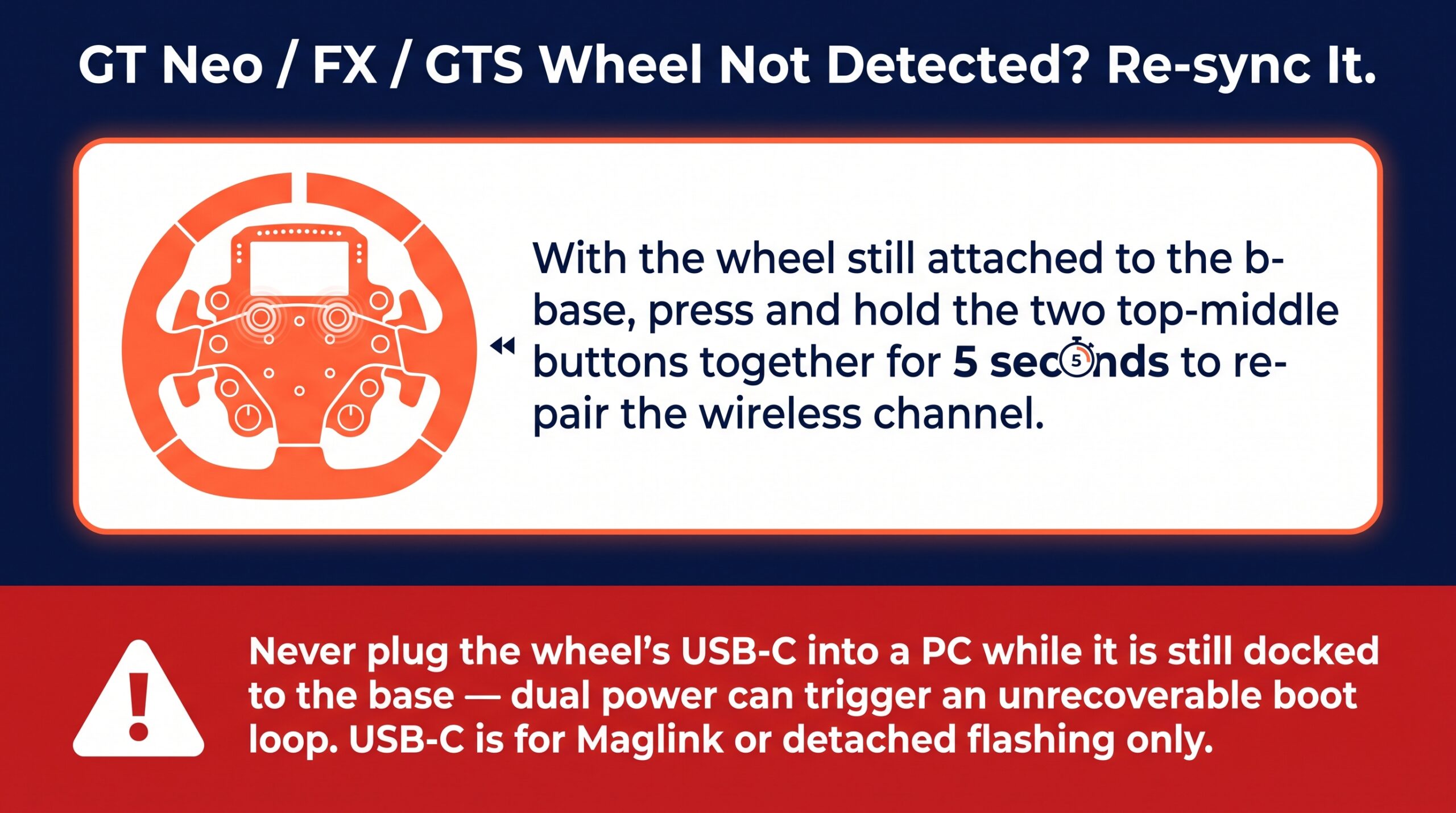
There is one thing you must not do here. Never plug the wheel’s USB-C port into a PC while the rim is still docked to the base. That feeds power and data down two paths at once and can short the board or trigger a boot loop that isn’t recoverable at home. The USB-C port is there for Maglink use on third-party bases, or for emergency flashing when the rim is off the base – never while it’s docked. If you need to update the rim’s own firmware, Simagic’s official walkthrough below shows the safe route.
No force feedback, or a violent rattle after an update
If the base went quiet or started rattling violently right after a firmware update, the flash almost certainly got corrupted. The most common trigger is flashing through a USB hub or an extension cable, which drops the connection mid-write and leaves the base in a bad state. To recover it: power-cycle the base, disconnect every other USB peripheral, and connect it directly to a USB 2.0 port on the motherboard. Then use Simagic’s offline AllWheelUpdater tool (available through their support or Discord) to roll the base back to a known-stable firmware, and re-run the update from SimPro Manager once it’s back.
Visit Our Sponsors
Watch the base’s reported torque while you’re in there. An Alpha EVO Pro that suddenly feels weak, or clips long before it should, is often misreporting itself as a 12Nm base after a botched update. That is a known firmware-classification bug on the 18Nm EVO Pro, and the fix is to flash the EVO Pro-specific firmware file rather than the generic EVO one. Simagic’s parameter walkthrough is a useful reference for checking your base is set up as it should be once the firmware is stable again.
Pedals dead or blinking a blue light
A P1000 or P2000 that’s blinking blue, or whose haptic reactors have stopped working, has almost always been downgraded by the wrong tool. The culprit is the old standalone “P1000 Firmware Update Tool V1.1.9”, which rolls the pedal firmware back far enough to disable haptic-reactor detection. It reads like a fix and behaves like the fault, so it catches a lot of people out.
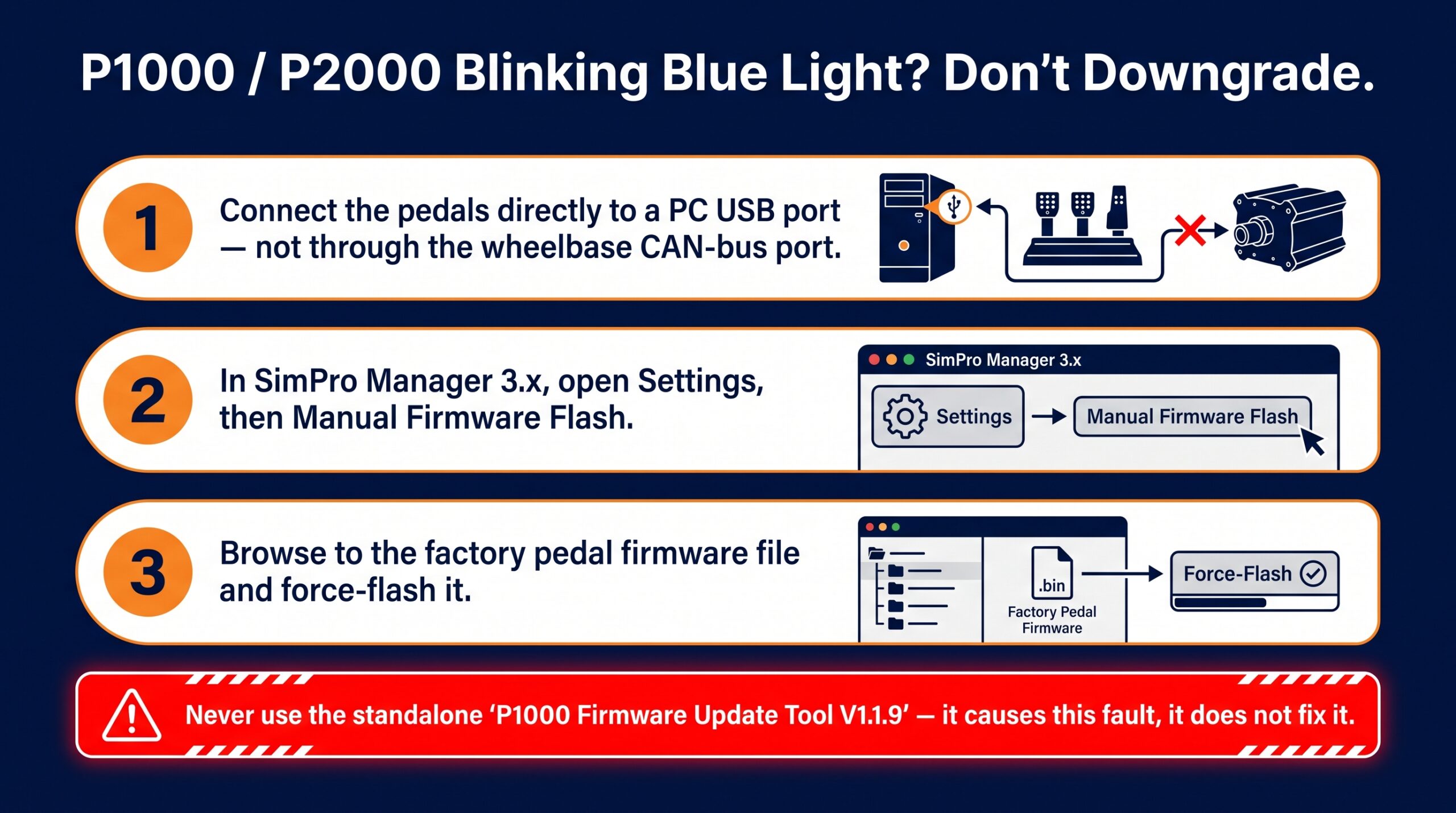
To put it right, connect the pedals directly to a PC USB port rather than through the wheelbase, open SimPro Manager 3.x, go to Settings and then Manual Firmware Flash, browse to the factory pedal firmware file and force-flash it. That restores the reactors and clears the blue light. If your pedals are flickering or dropping out rather than dead, that is usually a USB signal problem instead – the same root cause we cover in the sim racing pedals flickering USB fix.
Wheel shakes or oscillates at a standstill
A Simagic base that buzzes, shakes or oscillates when the car is stationary or crawling out of the pits is not faulty. It is resonance, and every direct drive base does it to some degree – the stronger the base, the more obvious it can be. The fix is the same across the whole range, from an Alpha Mini to an Alpha EVO Pro: raise the damping and friction sliders in SimPro Manager a few points at a time until the wheel settles, without adding so much that the feedback goes dull.
If you want to dial this in properly rather than just damp it out, our direct drive wheel settings guide walks through how damping, friction and inertia interact, and the per-game iRacing Simagic settings and ACC Simagic settings pages give you tested starting points to work from.
When it’s a warranty claim, not a fix
Most Simagic problems are software, but not all of them. If a forced cross-version flash has bricked the bootloader and the base won’t enter update mode at all, or a motor has genuinely failed, that is past the point of a home fix. The same goes for physical damage to a rim’s board after a USB-C-while-docked mistake. Stop there rather than making it worse.
Because Simagic funnels support through Discord and a ticket system rather than a public RMA portal, the fastest route is to raise it with the retailer you bought from and with Simagic support directly, with a clear description and, ideally, a short video of the fault. Keep your order details to hand – warranty is handled through the seller in most regions.
Frequently asked questions
Why won’t SimPro Manager open or see my wheelbase?
Nine times out of ten it is a version mismatch. Alpha EVO bases only work with SimPro Manager 3.x; the older Alpha, Alpha Mini and Alpha U use 2.x. Uninstall the wrong version first, plug the base straight into a motherboard USB 2.0 port, then install the correct one.
Why is there no force feedback on my Simagic in iRacing?
Check the base is detected in SimPro Manager first, then that iRacing is reading it as the active wheel and its in-game force feedback is above zero. A firmware flash done through a USB hub can also corrupt force feedback; reflash direct from a motherboard port.
My Alpha EVO Pro feels weak or clips early. Is it faulty?
Usually not. There is a known firmware bug where an 18Nm EVO Pro misreports itself as a 12Nm base, which caps the output and clips early. Flash the EVO Pro-specific firmware file rather than the generic EVO file to restore the full 18Nm.
Why does my Simagic wheel shake at a standstill?
That is resonance, not a fault, and it happens on every direct drive base. Raise the damping and friction sliders in SimPro Manager a few points until the wheel settles. It is the same fix on an Alpha Mini as on an Alpha EVO Pro.
My P1000 pedals aren’t detected. What now?
This is almost always caused by the old standalone P1000 Firmware Update Tool V1.1.9, which downgrades the pedals. Connect the pedals straight to a PC USB port, open SimPro Manager 3.x, use Manual Firmware Flash and force-flash the factory firmware file.
My Alpha Mini firmware update failed. How do I recover it?
Power-cycle the base, disconnect every other USB device, and connect it direct to a motherboard USB 2.0 port. Use Simagic’s offline AllWheelUpdater tool to roll back to a stable firmware, then re-update through SimPro Manager. Never flash through a hub.
Can I use SimHub instead of SimPro Manager?
SimHub reads telemetry and drives haptics, but it does not replace SimPro Manager for firmware, calibration or the core force feedback profile. Use SimPro Manager for the base itself and SimHub alongside it for dashboards and tactile feedback.
Is the Alpha EVO Pro really 18Nm?
Yes, the Alpha EVO Pro is an 18Nm base. If yours feels closer to 12Nm it is the firmware misclassification bug rather than the hardware; flashing the EVO Pro-specific firmware restores the rated torque.
Get the software version right, keep it off USB hubs, and the vast majority of Simagic faults never happen in the first place. If you’re still weighing up the range or thinking about an upgrade, our Simagic buyer’s guide covers where each base sits and who it suits.
Pimax Troubleshooting: Every Fix That Works
Simagic Troubleshooting: Every Fix That Works

MOZA Troubleshooting: Every Fix for Pit House, Detection, Pedals and Wheel Shake
Fanatec Troubleshooting: Every Fix for Drifting, Detection, Firmware and Pedal Faults
Thrustmaster Troubleshooting: Every Fix for the Control Panel, Force Feedback and Detection Faults