
I’m a sim racer and amateur racer with a passion for Motorsport, good racecraft and the technical and setup aspect of sim racing.
Thrustmaster wheels are the default first upgrade for a huge number of sim racers, and they throw a predictable short list of faults: the control panel vanishes on Windows 11, the force feedback dies the instant you alt-tab, the wheel won’t spin up on plug-in, or a pedal starts spiking. Almost none of it is a broken wheel – it’s Windows, drivers and the wrong software. Here’s every fix that works, quickest first.
Most of these are model-agnostic across the range (T300 RS, TX, T150, TMX, T248, TS-XW and the newer T598 and T818), so the fixes below apply whatever base you’re on unless a step names a specific wheel. The one thing that does split by model is the software, and getting that right up front saves a lot of the pain, so start there.
Rule this out first: the right software, and Windows 11 letting it run. Older wheels use the classic Thrustmaster Control Panel; newer bases (T248, T598, T818) use My Thrustmaster Panel from the Microsoft Store – the old updater won’t see them. And on Windows 11, Memory Integrity (Core Isolation) blocks Thrustmaster’s older drivers, which is why the panel so often installs but shows nothing. Turn it off, reinstall, and a large share of “not detected / no control panel” reports simply go away.
Quick Navigation
Jump to the fix you need:
First, the 30-second checks |
Control panel or firmware updater missing |
No force feedback |
Wheel not detected |
Off-centre or endless calibration |
Pedals not working |
When it’s a warranty claim |
FAQ
First, the 30-second checks
Before anything else, these clear the majority of Thrustmaster faults and cost nothing:
- Plug straight into a rear motherboard USB port. No hubs, no front-panel ports, no extensions – the calibration power spike gets starved otherwise, and firmware flashing through a hub is the number-one cause of a bricked base.
- Set the base switch correctly. Legacy PlayStation wheels (T300, T150) need PS3 or PC for PC use, not PS4/PS5; newer bases (T248, T818) need PC.
- Power to the wall, not a strip. Surge protectors starve the start-up calibration spike, so a base can look dead when it just isn’t getting a clean power draw.
- Confirm the right software is installed for your base (Control Panel vs My Thrustmaster Panel – see below).
Control panel or firmware updater missing – how to fix it
This is the single most common Thrustmaster search, and it’s almost always Windows 11, not the wheel. The driver “installs”, but the wheel only shows as a generic USB Input Device and the Control Panel is missing or does nothing. The cause is Windows 11’s Memory Integrity feature blocking Thrustmaster’s older kernel drivers.
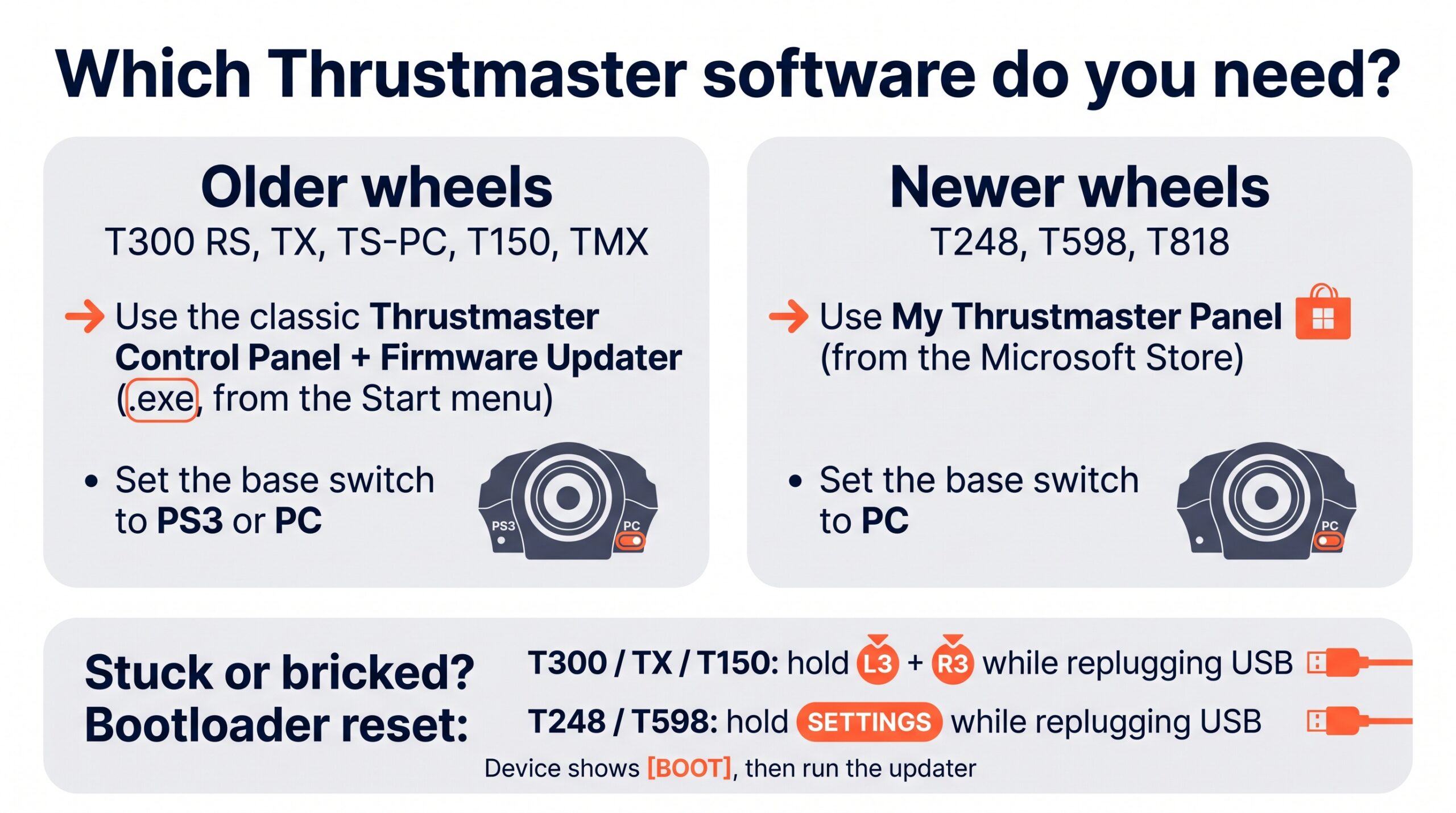
Fix it in this order. Search Core Isolation in the Start menu, toggle Memory Integrity off, restart, and reinstall the current Thrustmaster driver package. Then make sure you’re using the right software for your base: the classic Control Panel and .exe Firmware Updater for older wheels, or My Thrustmaster Panel from the Microsoft Store for the T248, T598 and T818. Plug direct to the rear I/O, and check the switch position. To confirm the driver actually took, press Win+R and run joy.cpl – if the wheel’s Properties opens the red-and-black Thrustmaster panel rather than a generic Windows box, you’re sorted.
If Memory Integrity is already off but the updater keeps looping or Windows reverts to a generic driver, there’s a stubborn old driver in the way. Open PowerShell as admin, run pnputil /enum-drivers /format:table, find any entry with Provider Name “Thrustmaster” (an oemXX.inf), and remove each with pnputil /delete-driver oemX.inf /uninstall /force. Unplug, restart, and reinstall the drivers clean.
No force feedback – how to fix it
Thrustmaster force feedback fails in three distinct ways, and the fix depends entirely on when it went. Match the symptom before you touch anything.
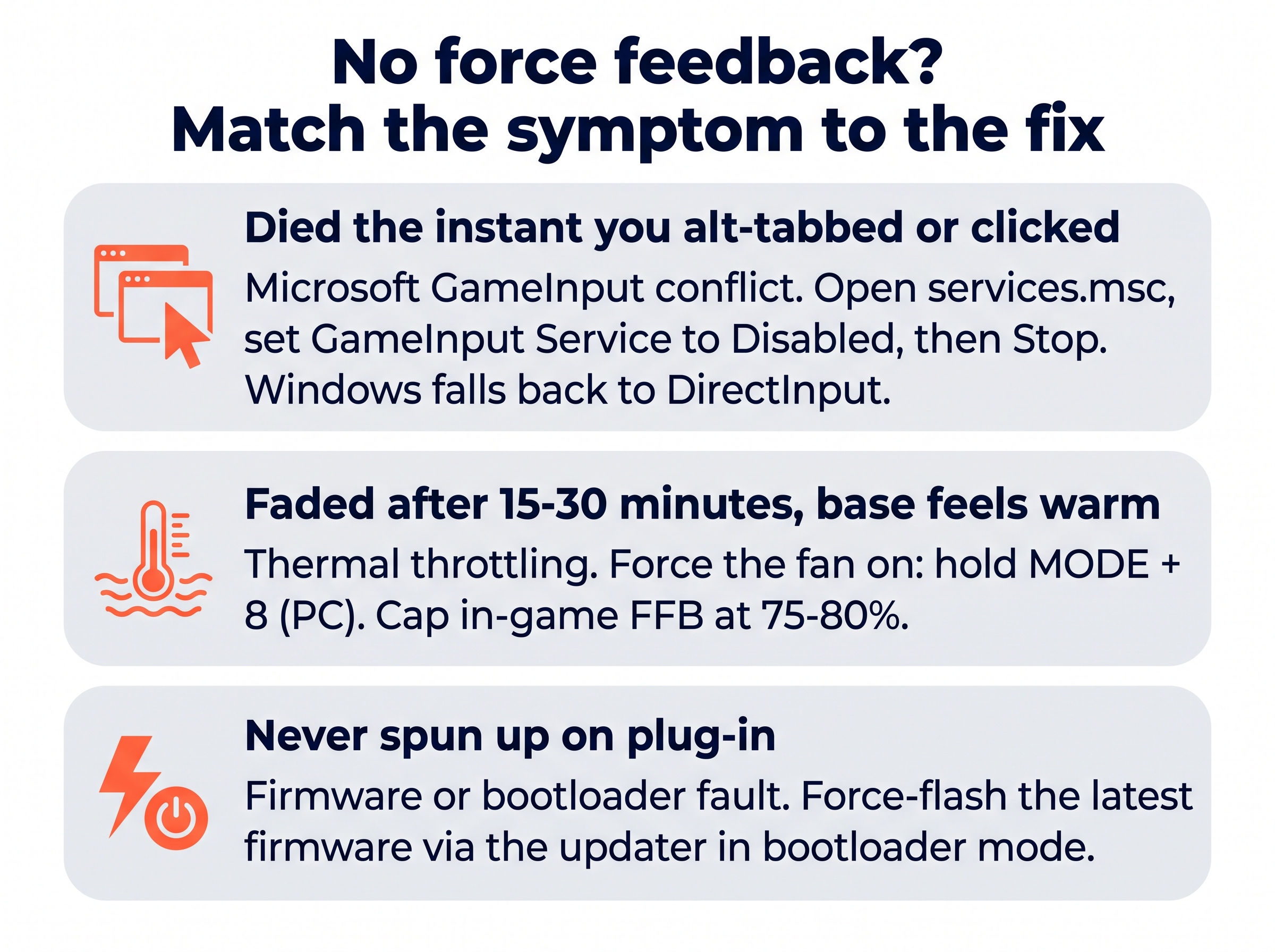
By far the most common on Windows 11 is the Microsoft GameInput conflict: total force feedback loss, sometimes a full steering cut-out, right after you alt-tab, click the mouse or minimise. Windows 11 and Xbox app updates keep installing background GameInput service instances that fight the Thrustmaster driver. The immediate fix is to open services.msc, set GameInput Service to Disabled, Stop it, and apply. It’s safe – Windows falls back to DirectInput and Xbox-app games still run. Installing the latest driver package (which patched this) is the permanent version of the same fix.
If instead the feedback was strong at first and went weak and mushy after fifteen or twenty minutes, with the base feeling warm, that’s thermal throttling, not a fault. Force the cooling fan to run constantly: hold MODE + 8 on PC (or MODE + OPTION on console) until the LED double-flashes. Capping in-game force feedback at 75-80% keeps it cooler and holds the detail better anyway. Ignore the “glue the motor cylinder” anecdotes – they risk bricking the motor, and the Noctua fan swap works but voids the warranty.
Visit Our Sponsors
And if the wheel never spun up at all on plug-in, with the mode lights dark, that’s a firmware or bootloader fault rather than a feedback one – jump to the detection section below and force-flash the firmware.
Wheel not detected – how to fix it
A Thrustmaster that won’t self-calibrate on plug-in, or that shows as a generic “Game Controller” instead of the proper device, is nearly always power, the switch, or firmware. Work the free steps first: unplug USB, set the base switch to the right position, plug the power straight to a wall outlet, and plug USB direct to the rear I/O. That alone revives most “dead” wheels.
If it’s genuinely dead – LED off, no spin, nothing in joy.cpl – use the bootloader rescue, which recovers almost any wheel that isn’t physically damaged. Install the PC drivers, unplug USB, then hold the combo while you replug: L3 + R3 on a T300, TX or T150; MODE on a T248. The wheel won’t spin or light up, which is normal. Open the Thrustmaster Firmware Updater and the device shows as [BOOT] – run the flash and it auto-calibrates when it finishes. Never flash through a hub.
One more variant: the wheel spins fine on plug-in but games still don’t see it, or joy.cpl is blank. That’s a Windows driver cache conflict. Uninstall the Thrustmaster FFB driver from Windows Apps, reboot, and reinstall the latest driver – crucially, don’t plug the wheel in until the installer prompts you to.
Off-centre or endless calibration – how to fix it
If the wheel is physically straight but the game thinks it’s turned a few degrees, don’t reach for a third-party deadzone app – there’s a proper hardware fix. Let it finish calibrating, hold the rim dead centre, and press the centre-reset combo for two seconds: SHARE + OPTIONS + MODE on PlayStation, VIEW + MENU + MODE on Xbox. The LED flashes and the new centre is saved to the wheel itself.
There’s one symptom here that isn’t a calibration quirk and needs treating seriously: a wheel that slams violently left and right into the end-stops and never settles. That’s a failed internal Hall sensor – a cracked sensor mount or a slipped shaft magnet. Unplug it immediately, because letting it thrash strips the internal belts. In warranty, that’s an RMA. Out of warranty it’s an open-the-shell repair (a 3D-printed sensor mount, or re-securing the magnet), and no amount of firmware flashing will fix it because it’s a physical break.
Pedals not working – how to fix it
The load-cell T-LCM has one dominant fault, and it catches almost everyone: it isn’t detected by the calibration tool, throws “Driver Unavailable”, disconnects when a sim loads, or spikes straight to 100%. The cause is having both the USB and the RJ12 connected at once. Unplug the RJ12 from the wheelbase, connect the T-LCM to the PC by USB alone, run the calibration tool, set your deadzones and brake force, then close it, unplug USB, and reconnect the RJ12 for gameplay. The T-LCM keeps its calibration in its own memory, so you don’t need the tool running afterwards.
If a T-LCM won’t be recognised at all, or throws a “no factory calibration” error, hold the physical pairing button on the back while you replug USB, then force-flash the latest firmware from the updater. For the plastic T3PA and standard pedal sets, a throttle or brake that flickers or maxes out early is a worn potentiometer: remove the base plate, spray electrical contact cleaner (DeoxIT or a QD cleaner) into the pot housings, and pump the pedal 20-30 times through full travel. It buys you three to six months. Never use WD-40, and don’t try to prise the pots apart – the plastic tabs snap and the housing is done.
When it’s a warranty claim, not a fix
Most Thrustmaster problems are software, but a few are genuinely hardware and worth stopping for. The violent endless-calibration slam is a failed Hall sensor. Total silence with a new power supply and a correct bootloader attempt points at a dead motor or logic board. If the base is in warranty, don’t open it – raise a support ticket with Thrustmaster, because the shell is fiddly and a DIY attempt voids the cover. Out of warranty, the sensor-mount and pedal-pot repairs are within reach of anyone comfortable with a screwdriver and a soldering iron, but a dead servo is usually the point where the wheel’s replacement cost wins.
Frequently asked questions
Where is the Thrustmaster control panel on Windows 11?
On older wheels (T300, TX, T150) it’s the classic Thrustmaster Control Panel – search “Thrustmaster” in the Start menu once the driver package is installed. Newer bases (T248, T598, T818) use My Thrustmaster Panel from the Microsoft Store. If it’s missing or opens a generic box, Windows 11 Memory Integrity is blocking the driver: turn Core Isolation off and reinstall.
Why does my Thrustmaster lose force feedback when I alt-tab?
That’s the Microsoft GameInput service conflict on Windows 11. Open services.msc, set GameInput Service to Disabled and Stop it, then restart the game. Windows falls back to DirectInput and the wheel keeps working. The latest Thrustmaster driver package patches it permanently.
How do I reset a Thrustmaster wheel?
For an off-centre wheel, hold it dead straight and press the centre-reset combo for two seconds – SHARE+OPTIONS+MODE on PlayStation, VIEW+MENU+MODE on Xbox. For a bricked base, hold the bootloader combo (L3+R3 on a T300/TX/T150, SETTINGS or MODE on a T248) while replugging USB, then run the firmware updater.
Why does my T300 force feedback get weaker after a while?
Thermal throttling – the base heats up and the motor backs off to protect itself. Force the fan to run constantly by holding MODE + 8 on PC (or MODE + OPTION on console) until the LED double-flashes. Capping in-game force feedback at 75-80% keeps it cooler and preserves the detail anyway.
My T-LCM pedals aren’t detected or spike to 100%. How do I fix it?
Don’t leave the USB and the RJ12 both connected – that dual connection causes the spikes and dropouts. Unplug the RJ12 from the base, connect the T-LCM to the PC by USB alone, run the calibration tool, then unplug USB and reconnect the RJ12 for gameplay. The pedals keep their calibration in their own memory.
Do I use Thrustmaster Control Panel or My Thrustmaster Panel?
By base age. Older wheels (T300, TX, TS-PC, T150, TMX) use the classic Control Panel and the .exe Firmware Updater. Newer bases (T248, T598, T818) use My Thrustmaster Panel from the Microsoft Store – the old updater won’t even see them.
Nearly every Thrustmaster fault comes down to Windows, drivers or the wrong software, not a broken wheel – which is worth remembering before you reach for a receipt. Once yours is behaving, the F1 25 wheel settings and GT7 wheel settings pages have Thrustmaster baselines to dial in the feel, and if you’re weighing a repair against an upgrade, the PS5 sim racing buyer’s guide is the place to start. On a Logitech instead? The Logitech troubleshooting hub covers the G29, G920 and G923.
Pimax Troubleshooting: Every Fix That Works
Simagic Troubleshooting: Every Fix That Works

MOZA Troubleshooting: Every Fix for Pit House, Detection, Pedals and Wheel Shake
Fanatec Troubleshooting: Every Fix for Drifting, Detection, Firmware and Pedal Faults
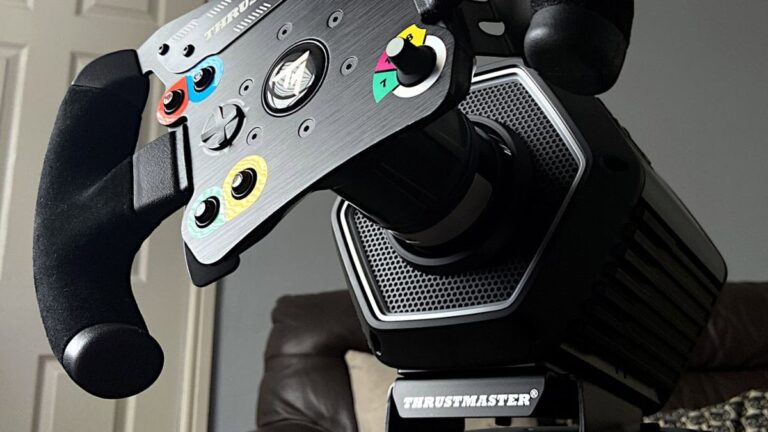
Thrustmaster Troubleshooting: Every Fix for the Control Panel, Force Feedback and Detection Faults