
I’m a sim racer and amateur racer with a passion for Motorsport, good racecraft and the technical and setup aspect of sim racing.
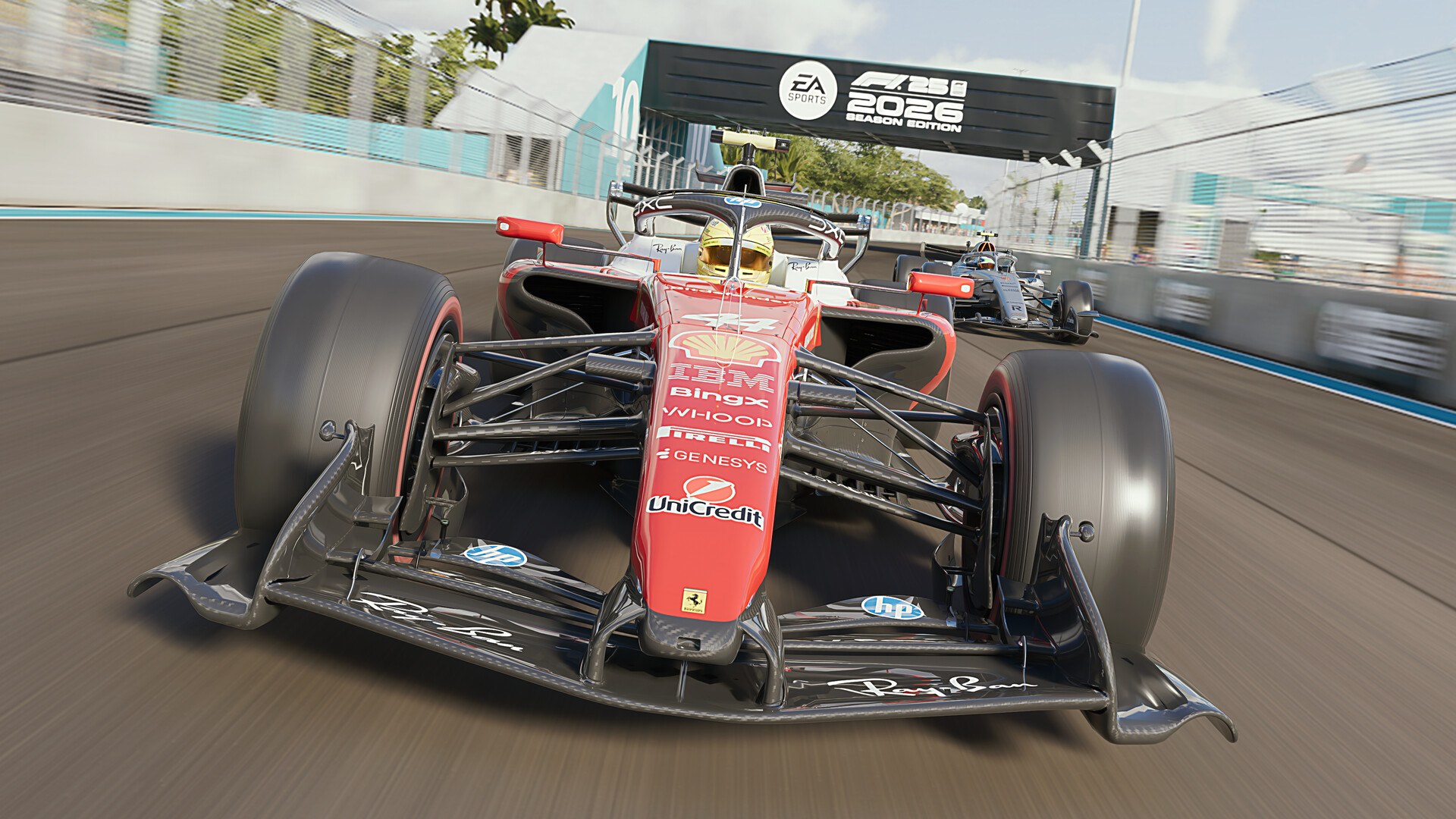
Featured image: a 2026 Ferrari in F1 25’s 2026 Season Edition (Image: EA Sports)
If you’re playing EA SPORTS F1 25 on a controller, whether that’s on a PS5, an Xbox or a PC, the right settings make the car a lot easier to place on the track. Today we’re taking a look at where each setting lives and what it does, with two F1 YouTubers’ own pad setups, EA’s advice on the assists and the console and PC settings that sit outside the game.
Quick Navigation
Jump directly to what you’re looking for:
The menu |
Calibration |
Assists |
PS5 |
Xbox |
PC |
Fine-tuning |
Wheels
F1 25’s controller settings
All of the controller settings in F1 25 live under Settings > Controls, Vibration & Force Feedback. Select your controller’s preset and you’ll find the Calibration and Vibration & Force Feedback menus at the top, with the Control Scheme (the button map) listed underneath. According to EA’s F1 25 accessibility page, the deadzone and sensitivity calibration can be set separately for the steering, the throttle and the brakes.
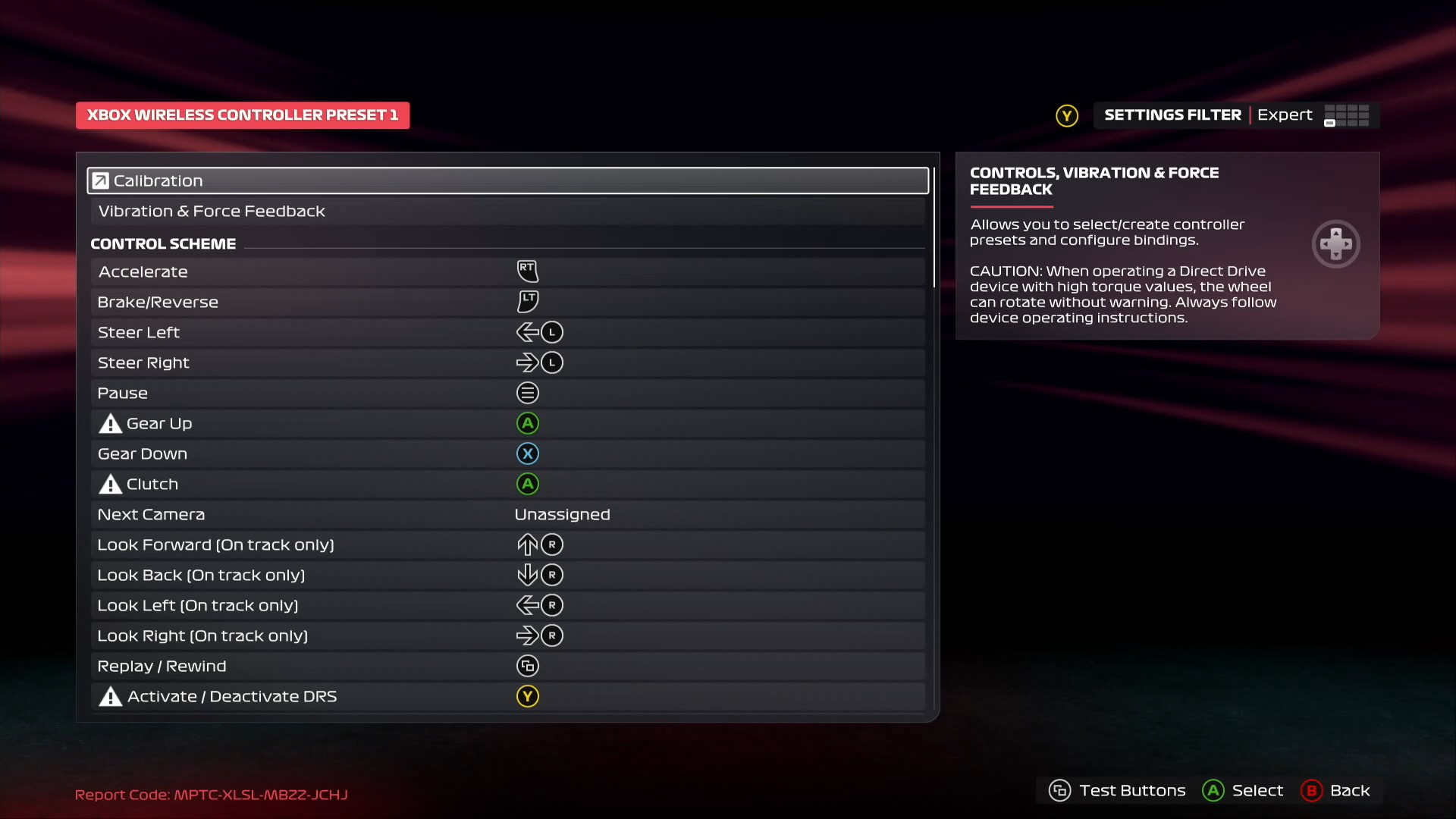
EA changed the way a controller steers in F1 25. Their April 2025 deep dive says they “tuned the steering rate for a more consistent feel at all car speeds”, and that flicking the stick “will be less effective on race days” because the tyres overheat and wear faster. Steering Rate is the first slider on the Calibration screen, and EA’s own help text describes it as “The speed of which stick input is applied in order to reach maximum lock.” A bigger number means faster steering. Out of the box, the Calibration screen is set like this:
- Steering Rate: 100%
- Brake Linearity: 25
- Every other deadzone, linearity and saturation slider: 0
Something to note on versions: v1.25 (7 September 2026) is the current build, and there is no F1 26. The 2026 season arrived as the 2026 Season Pack for F1 25 on 3 June 2026, so if you’ve been searching for F1 26 controller settings, you’ll find them in F1 25. No F1 25 patch has changed the pad calibration since launch.
Calibration and vibration
EA doesn’t publish recommended controller numbers for F1 25, so the settings below are two YouTube creators’ own setups. The first is THOMB‘s, from the F1 25 controller guide he put out in May 2025, when the game launched.
Deadzone is how far the stick or trigger has to move before the game registers anything. Linearity makes the start of the travel (the centre of the stick, on steering) less sensitive than the rest. Saturation is how much travel counts as full input, so raising it makes the input more sensitive. THOMB sets a 120% Steering Rate, because controller inputs are very gradual and 120% “allows you to be more direct with your steering input”. He also raises Steering Linearity, which he says gives “smoother steering and less rough movements”.
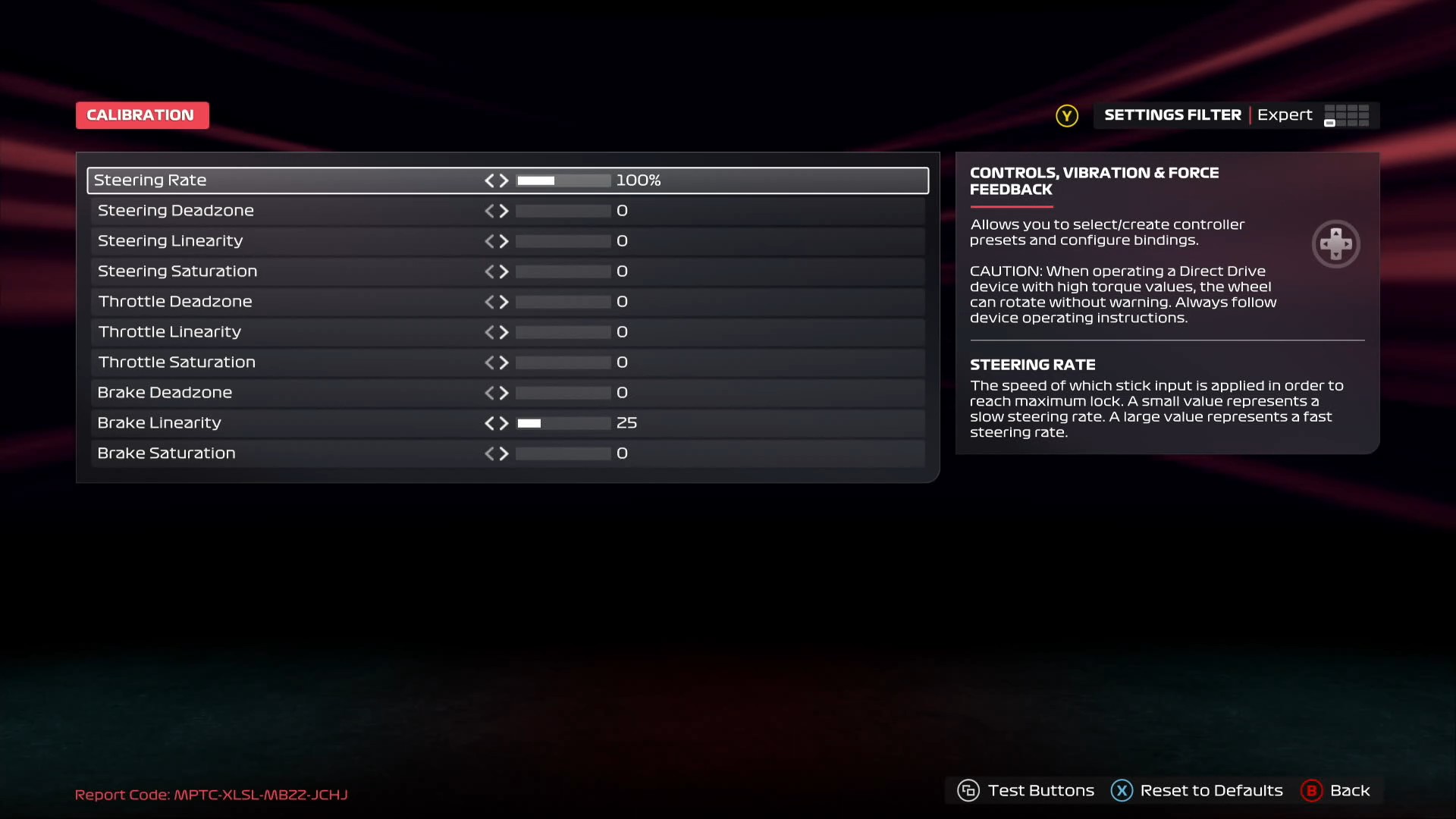
Start with THOMB’s Calibration settings:
- Steering Rate: 120%
- Steering Deadzone: 0 (see the Test Buttons check below)
- Steering Linearity: 30
- Steering Saturation: 0 (see the Test Buttons check below)
- Throttle Linearity: 0, or 20 if you’re struggling for traction
- Brake Linearity: 30
Then set Vibration & Force Feedback the way THOMB does:
- Vibration & Force Feedback Strength: 100 (120 if the triggers feel short of vibration)
- Off Track Effects: a little below the default
- The other effects: default
- Maximum Wheel Rotation: 320°
Two of those settings depend on the Test Buttons screen. THOMB only raises Steering Deadzone, one step at a time, if the stick doesn’t return to 0 on its own, and only raises Steering Saturation if a full push doesn’t read -100 or 100. On Throttle Linearity, he reckons F1 25 is easier on traction, so it might be best to skip it, or try 20 if you really do need some. The lower Maximum Wheel Rotation of 320° makes the steering “much more responsive”, which he says helps in tight hairpins like Monaco’s.
Alternative approach
Harmnn, a console F1 player on YouTube, published his setup for the 2026 Season Pack in June 2026. He plays on a PS5 and runs his Steering Rate a lot quicker than THOMB does. If you’re new to the game, his own advice is to start at 100, maybe 120, and go up gradually, because if you set it too high “you can also lose confidence in the car”.
Harmnn sets up the same two menus and the assists like this:
- Calibration:
- Steering Rate: 160%
- Brake Deadzone: 1
- Every other slider: 0
- Vibration & Force Feedback:
- Vibration & Force Feedback Strength: 150
- On Track Effects: maximum
- Maximum Wheel Rotation: 340°
- Assists: all off
Assists
In F1 25, switching on Steering Assist also turns on Braking Assist, ABS and Traction Control, and the higher you set each one, the more help you get. If you’d rather not pick them one by one, the Driving Proficiency presets set the assists for you, with five options running from Beginner to Elite.
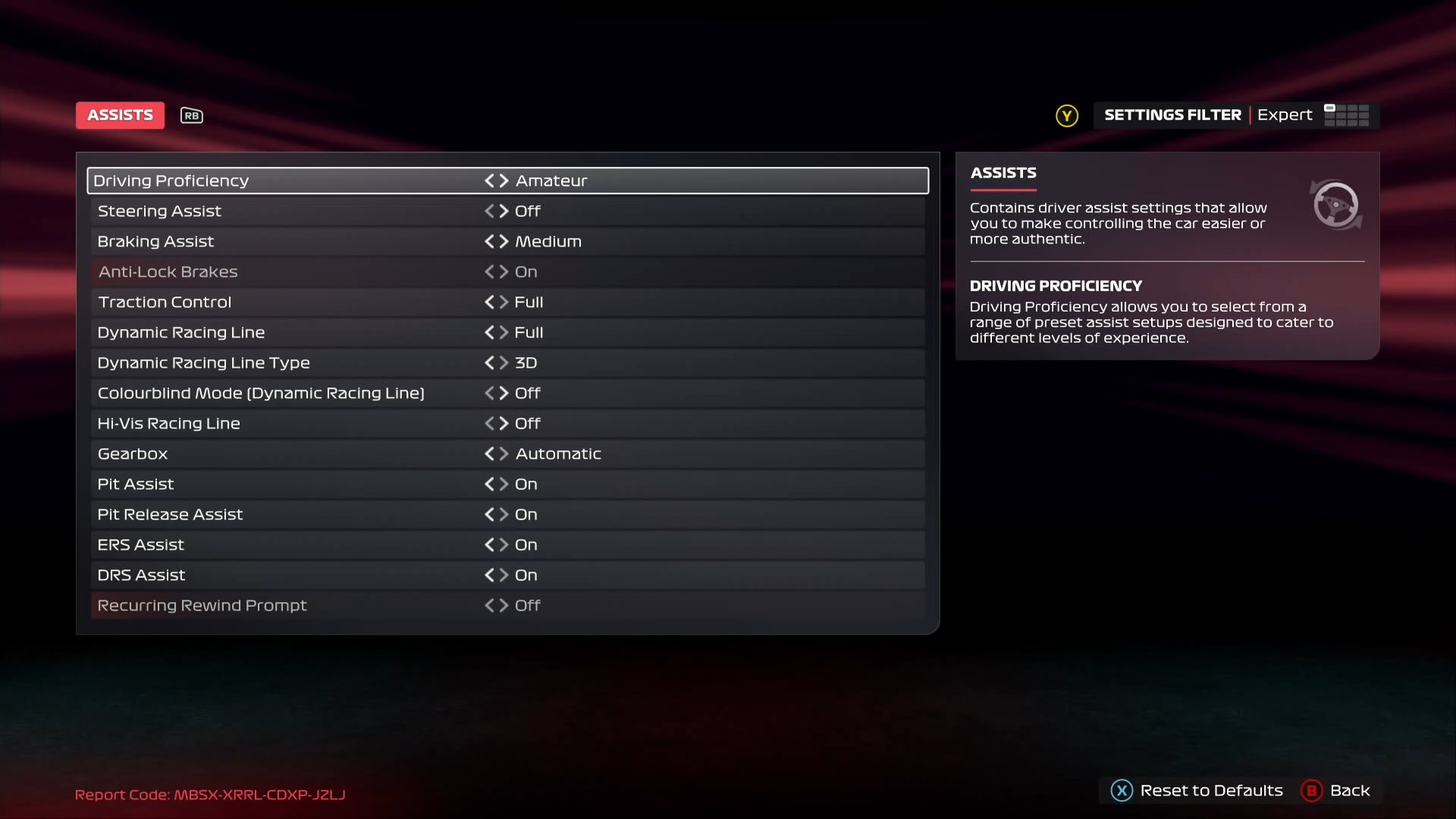
EA’s own 2026 Season Edition tips, published in September 2026, give beginners a baseline of Traction Control on Medium and ABS on, and they point out that “many drivers remain blisteringly fast even on Full TC”. EA also recommends setting ERS Activation Mode to Hold for the 2026 cars, so the boost only runs while the button is held down. When you’re ready to start taking the assists off, EA’s order goes like this:
- First: Braking Assist and Cornering Assist off (Cornering Assist comes with the 2026 Season Pack)
- Second: Dynamic Racing Line to Corners Only, then off
- Third: Traction Control from Full to Medium, then off
PS5 DualSense settings
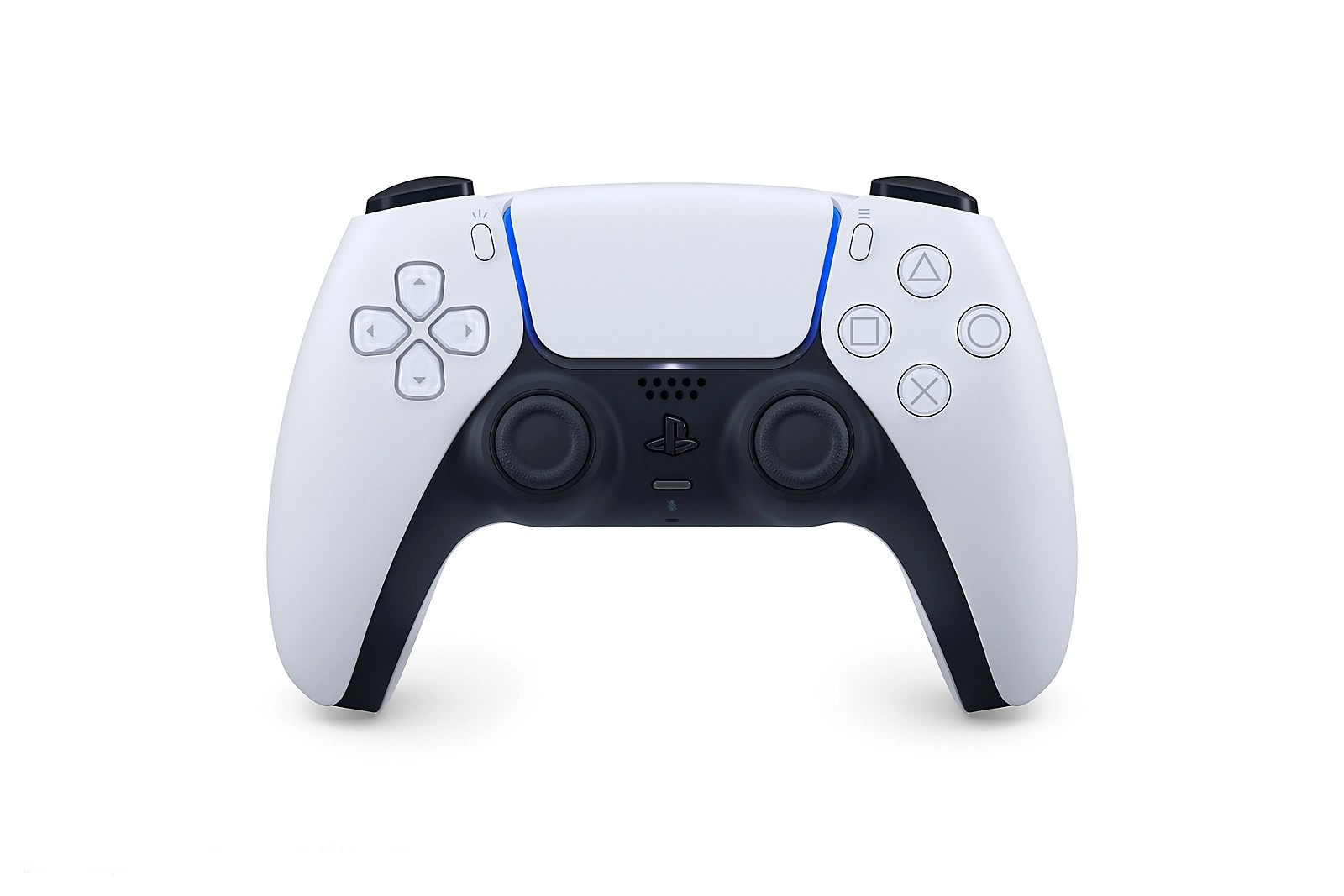
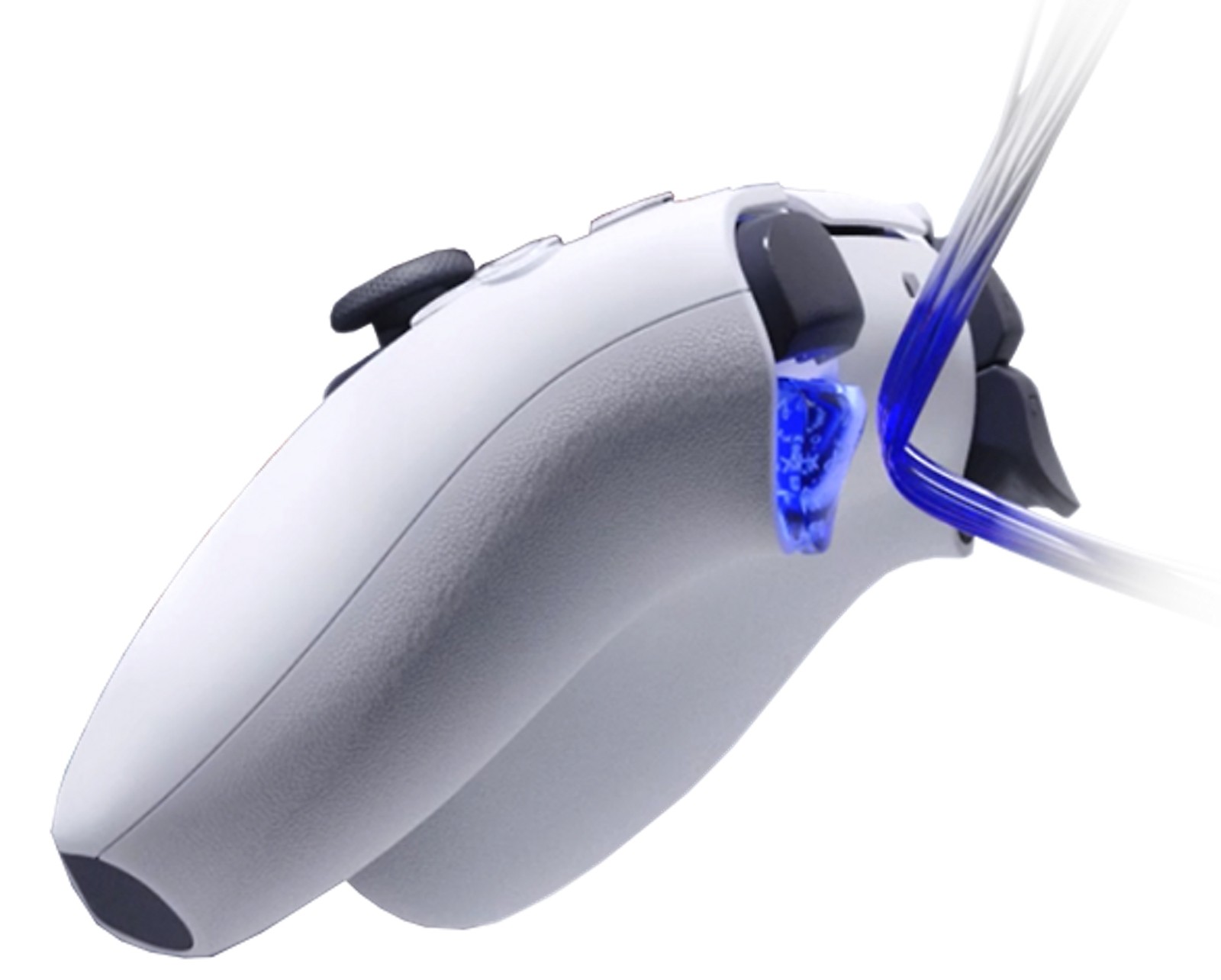
As well as haptic feedback, the DualSense has adaptive triggers, which the Xbox controllers don’t. Sony describes the trigger effect as “varying levels of tension and resistance from the L2 and R2 buttons in response to your gameplay”. Thankfully, v1.24 (13 July 2026) fixed the DualSense losing its haptics when a wheel was also plugged into the PS5.
In F1 25, the DualSense settings are:
- Adaptive Triggers: Off, Weak, Medium or Strong
- Trigger Vibration: On or Off (trigger rumble)
Then on the PS5 itself, head to Settings > Accessories > Controller (General):
- Vibration Intensity: how hard the DualSense vibrates
- Trigger Effect Intensity: how strong the trigger effect is, in games that support it
- Communication Method: Use USB Cable when the signal is weak
The two creators don’t agree on adaptive triggers. THOMB says they “can help massively with managing the gradual input to the throttle and brake”, while Harmnn says they give “a more immersive experience” but are “not going to make you quicker”. He also plays with his DualSense on the USB cable, with Communication Method set to Use USB Cable on the PS5.
Xbox controller settings
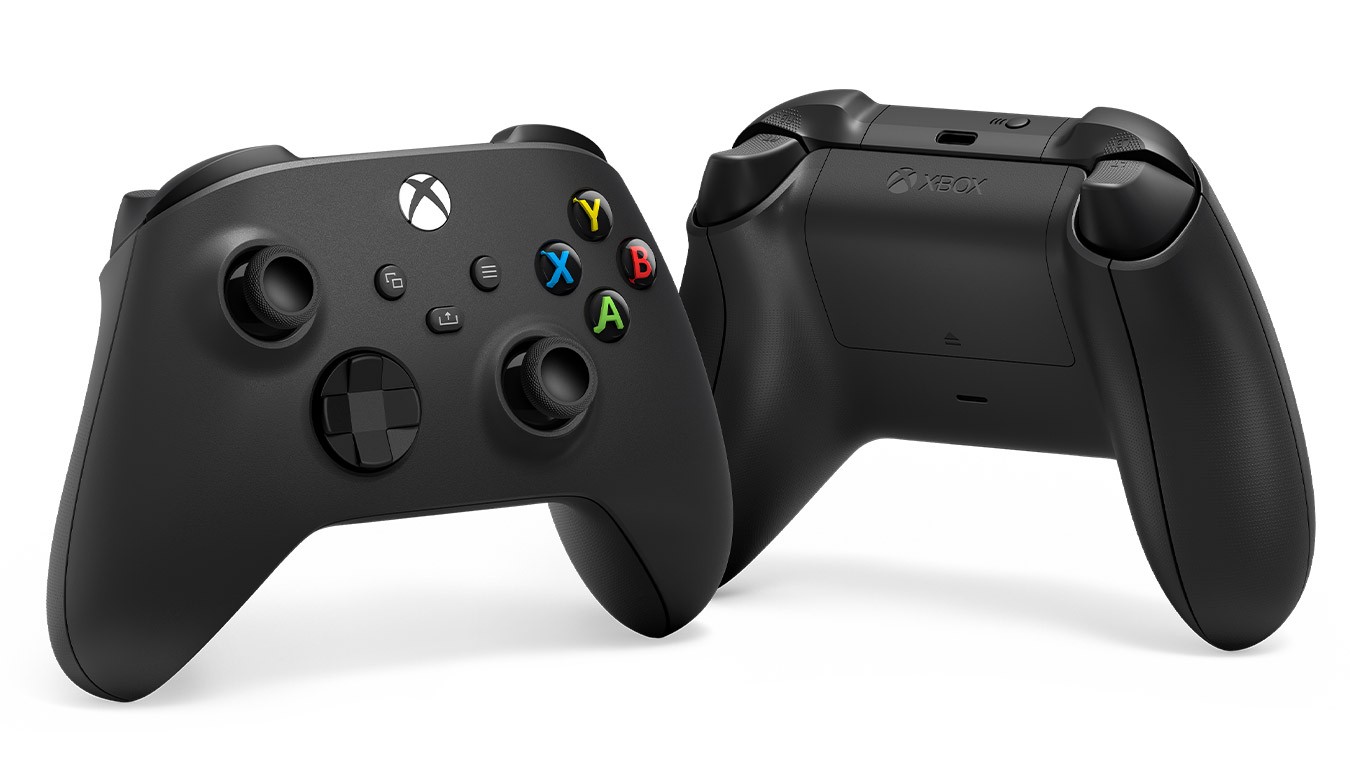
The Xbox Wireless Controller has rumble in the triggers, which F1 25’s Trigger Vibration setting turns on, but it doesn’t have adaptive triggers. The calibration numbers go in the same in-game menu as above.
On the Xbox, press the Xbox button and go to Profile & system > Settings:
- Accessibility > Controller > Vibration settings
- Choose the controller, then Configure
- Xbox Wireless Controller: Turn on vibration (on or off)
- Elite Series 2: Edit > Vibration, with sliders
PC settings
On PC, the way you connect the controller decides whether you get haptics and rumble at all. Sony says the DualSense’s haptic feedback needs a USB connection on PC, although the adaptive triggers work wherever the game supports them. Microsoft says an Xbox controller’s rumble doesn’t work on PC over Bluetooth, and you switch its vibration on or off in the Xbox Accessories app. The in-game settings are the same as on console.
Check these before you start tuning in the game:
- DualSense: plugged in by USB (haptic feedback needs it on PC)
- Xbox controller: plugged in, not on Bluetooth (rumble doesn’t work over Bluetooth on PC)
- Xbox controller vibration: Xbox Accessories app > Configure > Turn on vibration
Fine-tuning
If something still doesn’t feel right, find the symptom below and make one change at a time:
- If the stick doesn’t return to 0 in Test Buttons, raise Steering Deadzone one step at a time until it does (THOMB).
- A full push on the stick should read -100 or 100 in Test Buttons, and if it doesn’t, raise Steering Saturation one step at a time until it does (THOMB).
- If the car snaps on small stick movements, raise Steering Linearity, which makes the centre of the stick less sensitive (THOMB runs 30).
- Are you getting wheelspin out of slow corners? Add a little Throttle Linearity (THOMB suggests 20) and short-shift, or keep Traction Control on Medium, which is EA’s baseline for beginners.
- If you keep locking the brakes, try THOMB’s Brake Linearity of 30, brake in a straight line and ease off the trigger as you turn in.
- When the steering feels slow in tight hairpins, raise Steering Rate or lower Maximum Wheel Rotation (THOMB uses 320°, Harmnn 340°).
- If you’re new to the game and losing confidence in the car, drop Steering Rate back towards 100-120, which is Harmnn’s advice for newcomers.
- EA says flicking the stick overheats the tyres and wears them faster in F1 25, so if yours are overheating, smooth out your steering.
- If there are no haptics from a DualSense on PC, use the USB cable, and do the same with an Xbox controller that won’t rumble, because its rumble doesn’t work over Bluetooth on PC.
Moving up to a wheel
If you’re enjoying F1 25 on a pad, the obvious next step is a wheel and pedals for your platform. Start with the table below, and our best F1 wheels guide goes further if you already know you want a proper F1-style rim.
When your wheel arrives, the F1 25 wheel settings page has the settings for Fanatec, Moza, Logitech, Thrustmaster and Asetek wheels.
Moza discount code: use SIMRACINGCOCKPIT at checkout for 3% off at mozaracing.com.
For the other sims, the direct drive wheel settings guide goes brand by brand, and its Settings Finder has per-wheelbase settings for iRacing, ACC, Le Mans Ultimate and so on. If you’d like to try F1 25 in a headset, there are Pimax VR settings for F1 25 too. I’ll see you out on track!
Related Articles
Best Pimax VR Settings for F1 25 in 2026: A Damage-Control Guide
Best Pimax VR Settings for Le Mans Ultimate in 2026

Best Pimax VR Settings for Automobilista 2 in 2026
Best Pimax VR Settings for Assetto Corsa in 2026
iRacing VR Settings (2026): Meta Quest 3, PSVR2, Pimax and Valve Index
Assetto Corsa VR Settings 2026: Pimax, Quest 3, PSVR2 & More
Topic: Direct Drive Wheel Settings