
I’m a sim racer and amateur racer with a passion for Motorsport, good racecraft and the technical and setup aspect of sim racing.
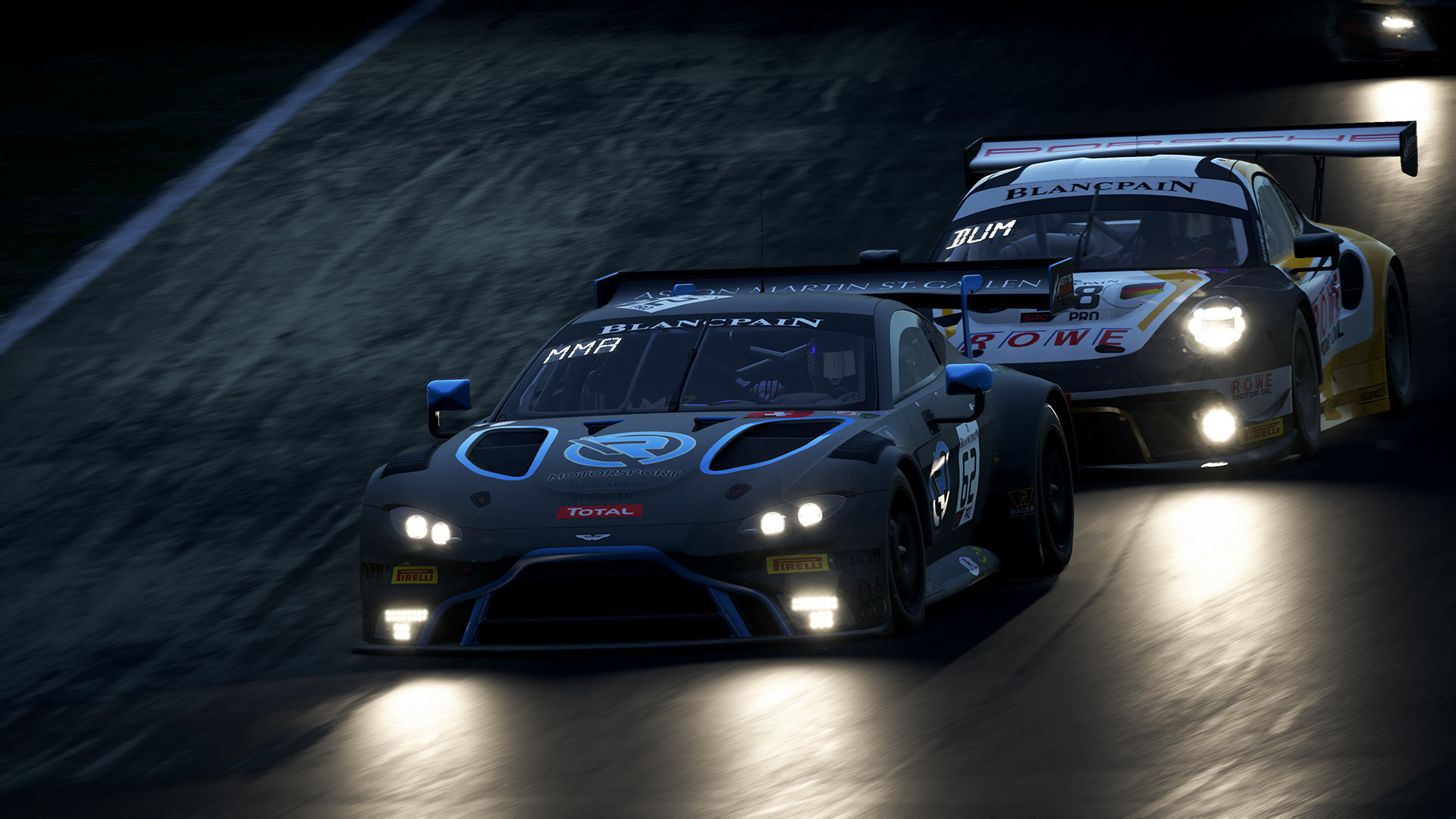
Featured image: an Aston Martin and a Porsche GT3 car racing at night in Assetto Corsa Competizione (Image: Kunos Simulazioni)
You’ve got a Moza base on your rig and Assetto Corsa Competizione (ACC) loaded up, and you want a sensible place to start the force feedback. These are MOZA’s own ACC settings, in the order you set them: Pit House first, then ACC’s Controls menu.
Quick Navigation
Jump directly to what you’re looking for:
FFB on a Moza base |
Pit House |
ACC in-game |
Alternative approach |
Fine-tuning
ACC’s force feedback on a Moza base
MOZA’s settings come from the MOZA Racing channel’s ACC setup video, which went up on YouTube in November 2025. MOZA’s support page says ACC’s FFB (force feedback) works on a Moza base out of the box, with no special configuration needed. In Pit House, head to the Game Launcher, hover over ACC and click the orange Configure button, which sets up the telemetry at the same time.
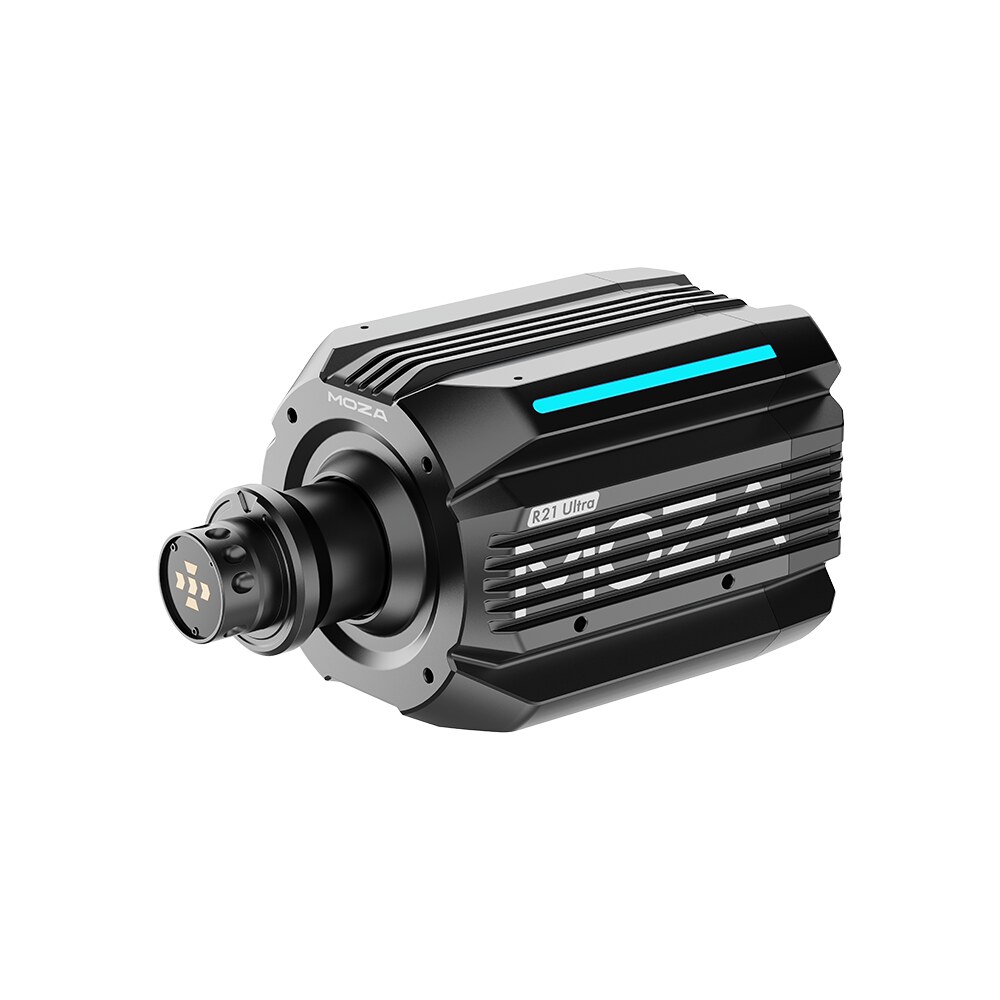
MOZA’s approach is to run your wheelbase at 100% in Pit House and tone the strength down slightly in ACC. MOZA reckons that in a lot of cases Gain, Minimum Force and Damper are about the only in-game sliders you’ll change on a Moza base, just so long as you’re on the right Pit House profile (the one with ACC in its name).
ACC has shipped controller presets for the Moza R3, R12 and R21 since v1.10.3 (August 2024). Kunos’s v1.10.4 update in December 2025 brought new liveries and updated drivers for the 2025 season. None of the patch notes since v1.10.3 mention the controls or FFB, which means MOZA’s video still matches the menu ACC has now. If you run another brand too, the settings for every maker are on our ACC wheel settings page.
Pit House settings
Start with these settings in Pit House, on the ACC profile:
- Game Launcher > ACC: Configure
- Profile: the ACC one (with the game name in it)
- Game Force Feedback Intensity: 100%
- Maximum Steering Angle: 1080° (to match ACC’s Steer Lock)
MOZA’s Pit House force feedback guide explains what the other Pit House sliders do. Road Sensitivity controls the overall strength of track surface detail, Natural Inertia simulates the weight of the steering column, Wheel Friction adds a constant resistance to steering, and Speed-dependent Damping makes the steering heavier as your speed goes up. MOZA’s ACC video doesn’t set any of them, so leave them where the ACC profile has them.
ACC in-game settings
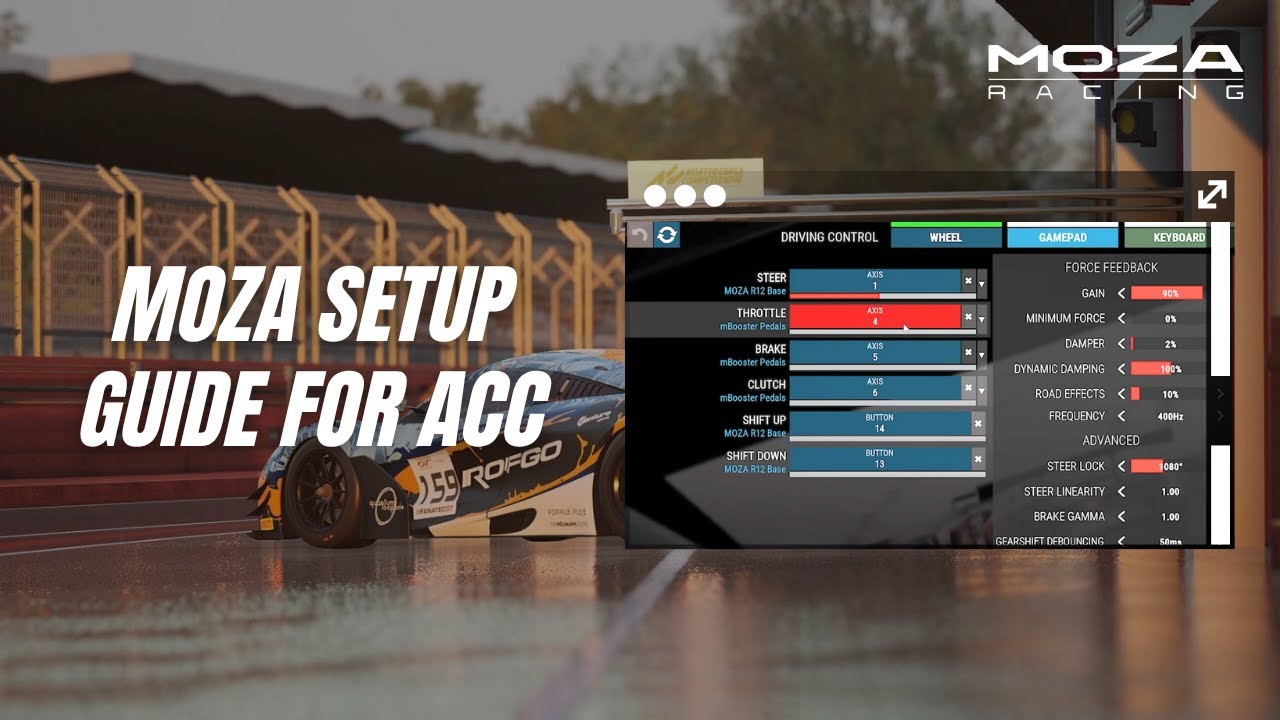
Then, in ACC, go to Options > Controls and set the following:
- Gain: 50% or less to start on an R12 or stronger, then up if it feels light
- Minimum Force: 0%
- Damper: 2%
- Dynamic Damping: 100%
- Road Effects: 10%
- Frequency: 400Hz
- Steer Lock: 1080°
- Steer Linearity: 1.00
- Brake Gamma: 1.00
MOZA gives two different answers for Gain. In the video, MOZA says not to go above 50% to start with on an R12 or anything stronger, and to turn it up if it still feels a little too light. The ACC screen on the video’s thumbnail (the image above) has Gain at 90% on an R12. There’s no MOZA value for the R3, R5 or R9.
Minimum Force applies a constant effect, and MOZA says you can set it higher if you want the wheel heavier even at the lightest forces. Damper smooths out all of the effects, which means going over a kerb doesn’t send a harsh spike through the force feedback. Steer Lock is pretty much the only Advanced setting MOZA changes, and it goes to 1080°. Once you’re done, ACC lets you save the lot as a named profile.
Moza discount code: use SIMRACINGCOCKPIT at checkout for 3% off at mozaracing.com.
Alternative approach: an R12 at 80%
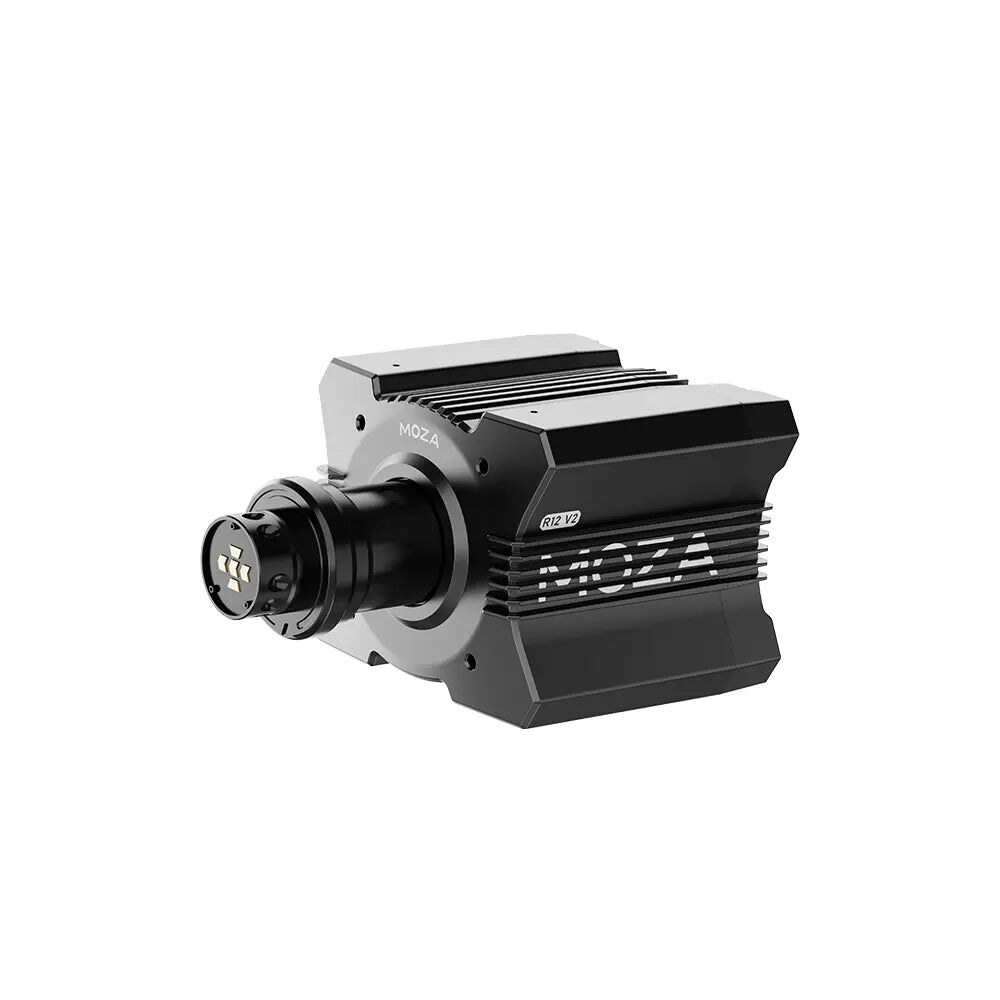
In a September 2025 video, the YouTube channel Limit Line Studio runs a different setup on an R12 with Moza’s 300 mm KS wheel. The R12 is set to about 80% in Pit House rather than 100%, because, as the channel puts it, “12 Newton meters is a ton”. Gain goes to 65% in ACC, and the lock is matched at 540° in both. Where MOZA’s video leaves the natural effects in Pit House alone, the channel sets natural damping, friction and inertia, with inertia at 400%. The channel’s full list runs Pit House first, then ACC:
- In Pit House:
- Maximum Steering Angle: 540°
- Force Feedback: 80%
- Maximum Output Torque Limit: 100%
- Soft limit strength: Hard
- Hands-off protection: On
- Steering Wheel Inertia: about 1100 (the KS wheel preset)
- Maximum Wheel Speed: 100%
- Natural damping: 33%
- Natural friction: 80%
- Natural inertia: 400%
- Wheel Spring Strength: 0%
- Speed-dependent Damping: 50%, from 60 km/h
- FFB Effect Equalizer: flat, all at 100%
- In ACC:
- Gain: 65%
- Minimum Force: 0%
- Damper: 0%
- Dynamic Damping: 100%
- Road Effects: 5%
- Frequency: 400Hz
- Steer Lock: 540°
Fine-tuning
If something still doesn’t feel right, these are the changes to reach for:
- If the steering is too heavy on an R12 or anything stronger, bring Gain back down to 50% or less.
- When the steering still feels a little too light, turn Gain up in ACC.
- If kerbs jolt through the rim, nudge Damper up a little from MOZA’s 2%.
- Clipping is where the game asks for more force than your wheelbase can give, and the detail at the top of the range is lost. To catch it, watch the FF meter in ACC’s HUD and trim Gain, which is Fanatec’s advice for ACC.
- If the R12 feels too strong at the in-game Gain you like, Limit Line Studio’s answer is to drop Force Feedback in Pit House to 80%.
- Speed-dependent Damping in Pit House is the slider to turn up if you want the steering heavier at speed.
- For more steering column weight, turn to Natural Inertia in Pit House.
The direct drive wheel settings guide has the software settings for all the other brands, along with the Settings Finder. The Moza guide covers the bases themselves, and I’ve reviewed the two I own in my R21 and R25 Ultra review. I’ll see you out on track!
Related Articles
Best Pimax VR Settings for F1 25 in 2026: A Damage-Control Guide
Best Pimax VR Settings for Le Mans Ultimate in 2026
Best Pimax VR Settings for Automobilista 2 in 2026
Best Pimax VR Settings for Assetto Corsa in 2026
iRacing VR Settings (2026): Meta Quest 3, PSVR2, Pimax and Valve Index
Assetto Corsa VR Settings 2026: Pimax, Quest 3, PSVR2 & More
Topic: Direct Drive Wheel Settings