
I’m a sim racer and amateur racer with a passion for Motorsport, good racecraft and the technical and setup aspect of sim racing.
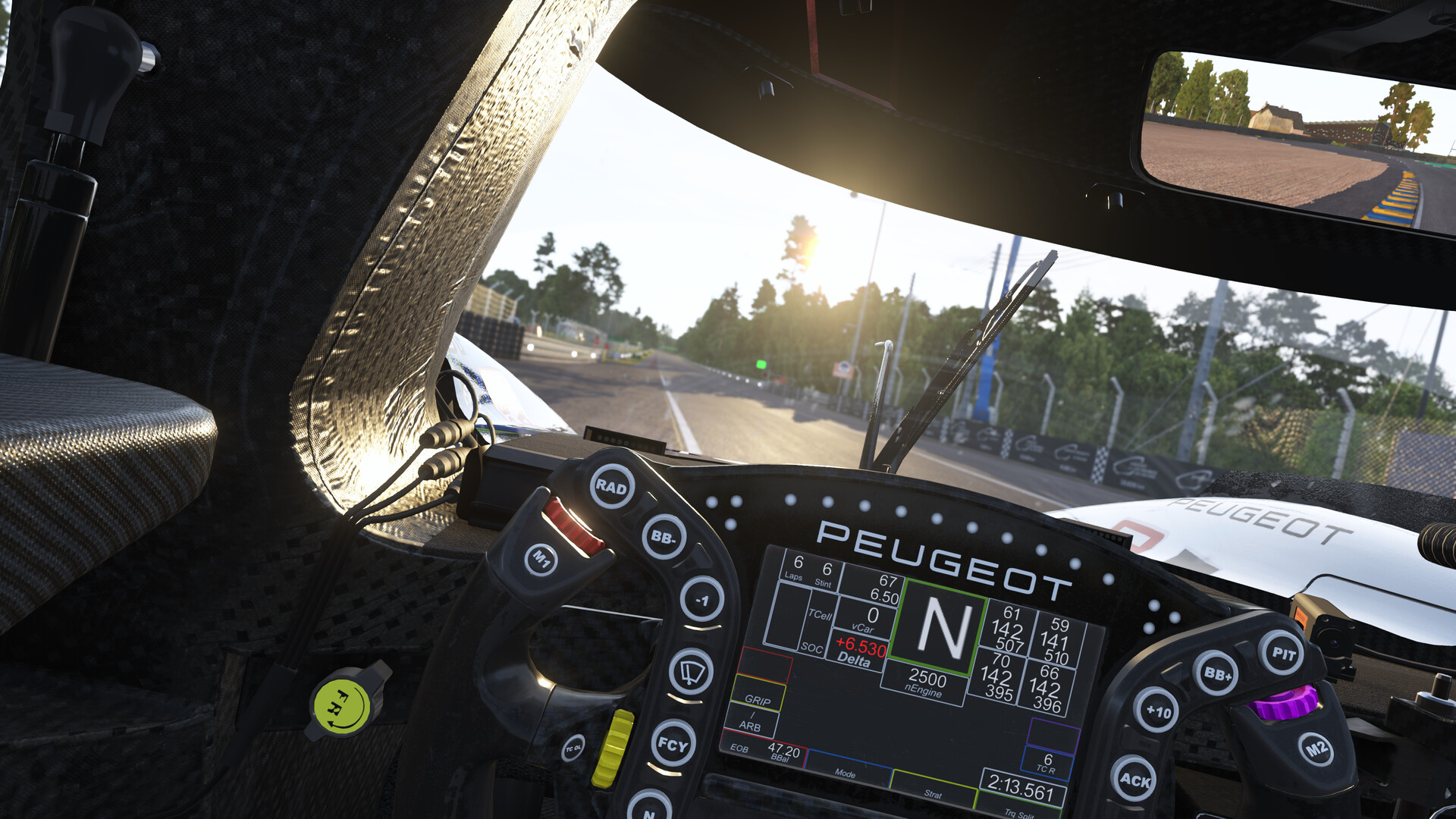
Featured image: the Peugeot 9X8 cockpit in Le Mans Ultimate (Image: Studio 397)
You’ve got Le Mans Ultimate running on your wheel and the force feedback (FFB) doesn’t feel right – or worse, the wheel pulls the wrong way. I’ve pulled together Studio 397’s notes on the settings and each wheel maker’s LMU values, brand by brand, with a creator’s profile, a forum profile or Studio 397’s advice where the maker publishes none. Each brand’s settings run in the order you’ll click through them, from the wheel’s own software to the game.
Quick Navigation
Jump directly to what you’re looking for:
LMU’s FFB menu |
Fanatec |
Moza |
Simucube |
Simagic |
Logitech |
Thrustmaster |
Asetek |
Fine-tuning
LMU’s force feedback settings
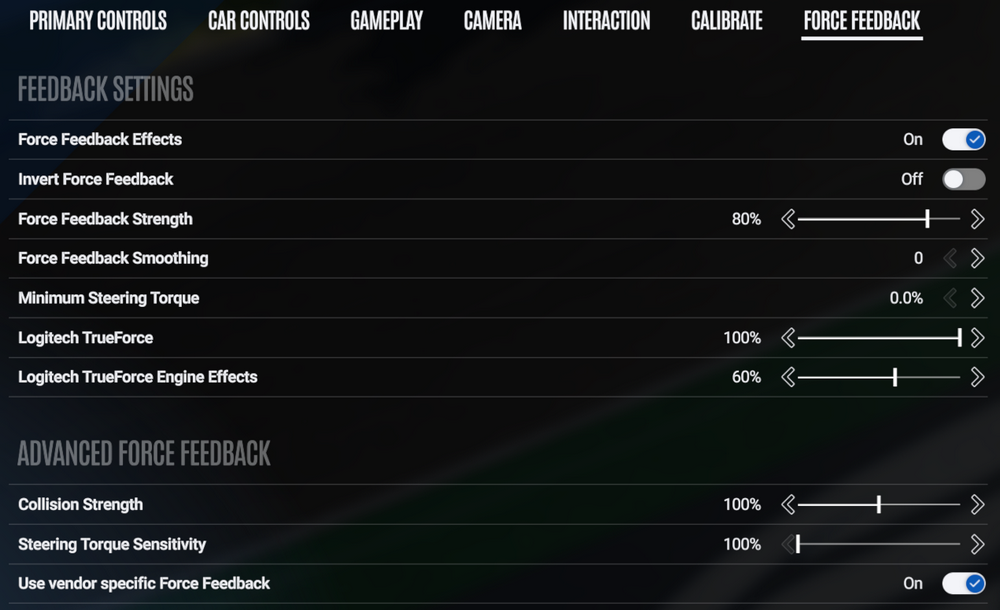
LMU keeps its force feedback settings in Settings > Controls > Force Feedback, in two blocks, Feedback Settings and then Advanced Force Feedback. The steering range sits on the Calibrate tab, and Studio 397’s own guide recommends turning on Use Steering Wheel Range From Vehicle. Most wheels have a default profile in the game, curated by the wheel’s manufacturer.
Turn Force Feedback Strength down for lighter FFB, or up if you need a bit more feel. Force Feedback Smoothing makes the FFB smoother and more damped as you raise it, with fewer jolts. Keep it low for better road feel. If you do want some smoothing, add it in the game, because smoothing in your wheel’s driver can add latency. Minimum Steering Torque adds force at low speed and light load, and you generally shouldn’t use it on a direct drive base. Collision Strength sets how hard hits and contacts come through.
Studio 397 says some wheels, Thrustmaster’s for example, need Invert Force Feedback on for the correct signal, and if it’s set wrong the wheel pulls the wrong way. Thrustmaster’s sheets and Asetek’s guide set it on, while Logitech’s settings and Sim Kris’s CSL DD profile set it off. Simagic’s own LMU preset does the inversion in SimPro Manager, so the game’s toggle stays off.
Steering Torque Capability is where you tell the game your base’s torque in Nm, and the game scales the car’s steering forces to it. Lazza, the LMU forum moderator, explains that a wheel that can’t match the car’s forces gets them scaled down, and a stronger one gets the real forces, not stronger ones. It isn’t on Logitech’s June 2026 screenshot of the menu or in Asetek’s September 2026 list, so only the Moza and Thrustmaster settings below set it.
The current build is V1.4.2.1 (24 September 2026). V1.3 (31 March 2026) added Logitech TrueForce and haptic feedback, and if you’re not on a TrueForce wheel, you can mix the same vibration effects into your normal FFB and set how much of it comes through. Haptics are extra vibration effects, like kerb rumble and tyre slip, layered on top of the FFB, and they’re set separately in Settings > Controls > Haptics. If you’ve got a bass shaker, you pick it in the sound settings. V1.3.3 (June 2026) improved the input filtering to cut down FFB vibrations. V1.4.2 (22 September 2026) updated the Hypercar tyres to fix an oscillation at Daytona, and Studio 397 calls it a first version of the tyres, due to roll out across all tracks soon. Most makers’ numbers below predate V1.4; Asetek’s guide from 15 September 2026 is the newest.
Fanatec settings
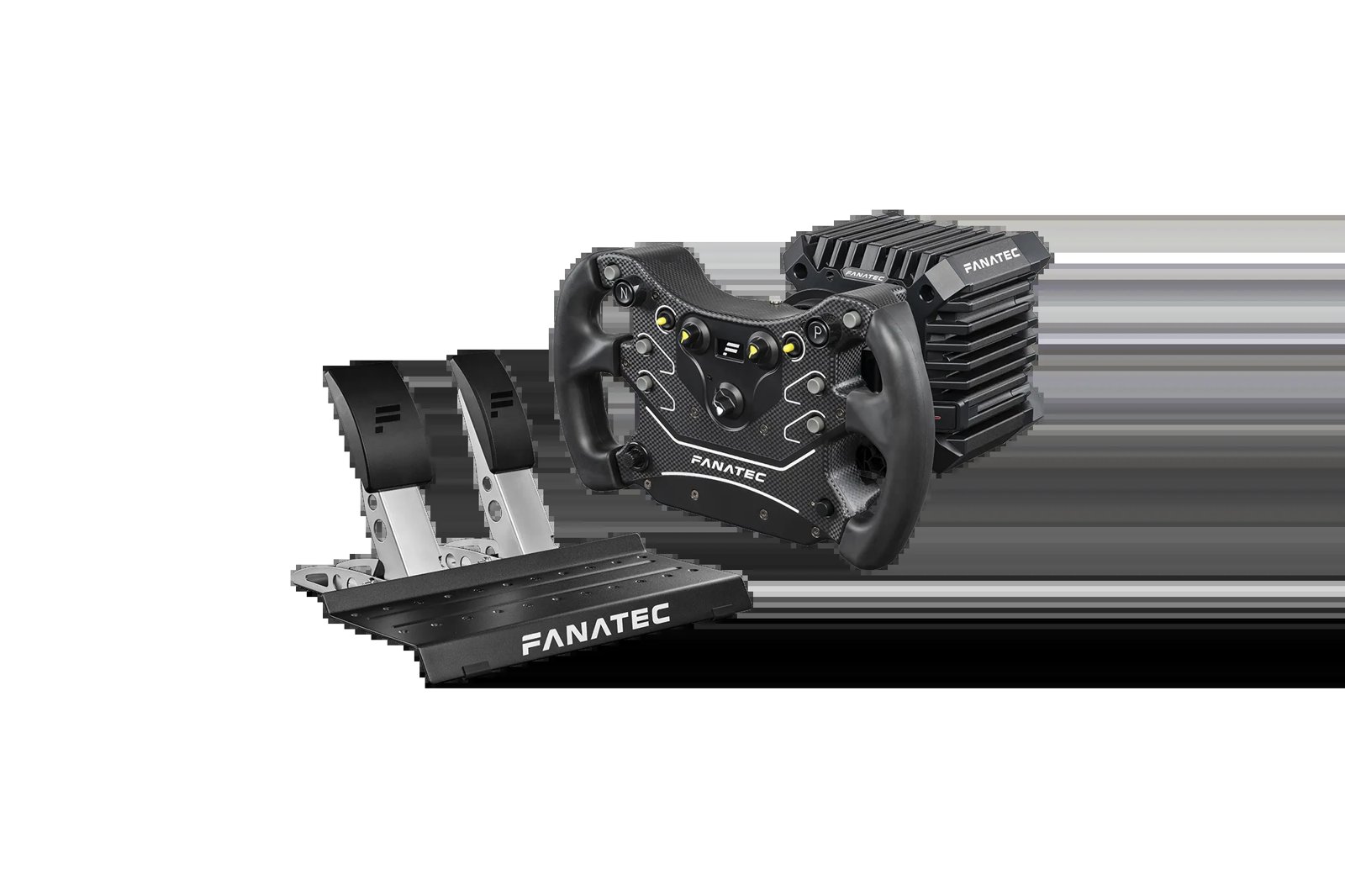
Fanatec hasn’t published LMU values of its own, so the lists below are Sim Kris‘s CSL DD profile from his YouTube channel (July 2025).
If you’re getting spikes or jolts on a bigger base like the ClubSport DD, the ClubSport DD+ or the Podium DD, Studio 397’s troubleshooting advice is to drop Force Feedback Strength to 50-70% in the game and turn the force up in the Fanatec App instead. I own a CSL DD and a Podium DD, and our Fanatec guide goes into the bases in more detail.
Start with these settings in the Fanatec App tuning menu:
- Sensitivity (SEN): Auto (the game sets the angle per car)
- Force Feedback Strength (FFB): 100%
- Force Feedback Scale (FFS): Peak
- Natural Damper (NDP): 15%
- Natural Friction (NFR): Off
- Natural Inertia (NIN): Off
- FFB Interpolation Filter (INT): 3
- The other sliders: 100
Then set these in LMU, on the Calibrate tab and under Settings > Controls > Force Feedback:
- Use Steering Wheel Range From Vehicle: On
- Force Feedback Effects: On
- Invert Force Feedback: Off
- Force Feedback Strength: 87%
- Force Feedback Smoothing: 5
- Minimum Steering Torque: 0%
- Collision Strength: 50%
- Steering Torque Sensitivity: 100%
Sim Kris says Force Feedback Smoothing and the FFB Interpolation Filter (INT) are the two that take the gritty edge off LMU’s force feedback. His 5 on Smoothing is higher than Studio 397’s advice to keep it low, so try it lower if you’d rather keep the detail. One more thing to watch out for on a GT DD Pro: a wheel button bound to Brake Migration Forward or Brake Bias Forward can fire over and over and upset the FFB. It’s on Studio 397’s known-issues list. Clear those bindings or move them.
Fanatec discount code: use SIMRACINGCOCKPIT5 at checkout for 5% off at fanatec.com.
Moza settings
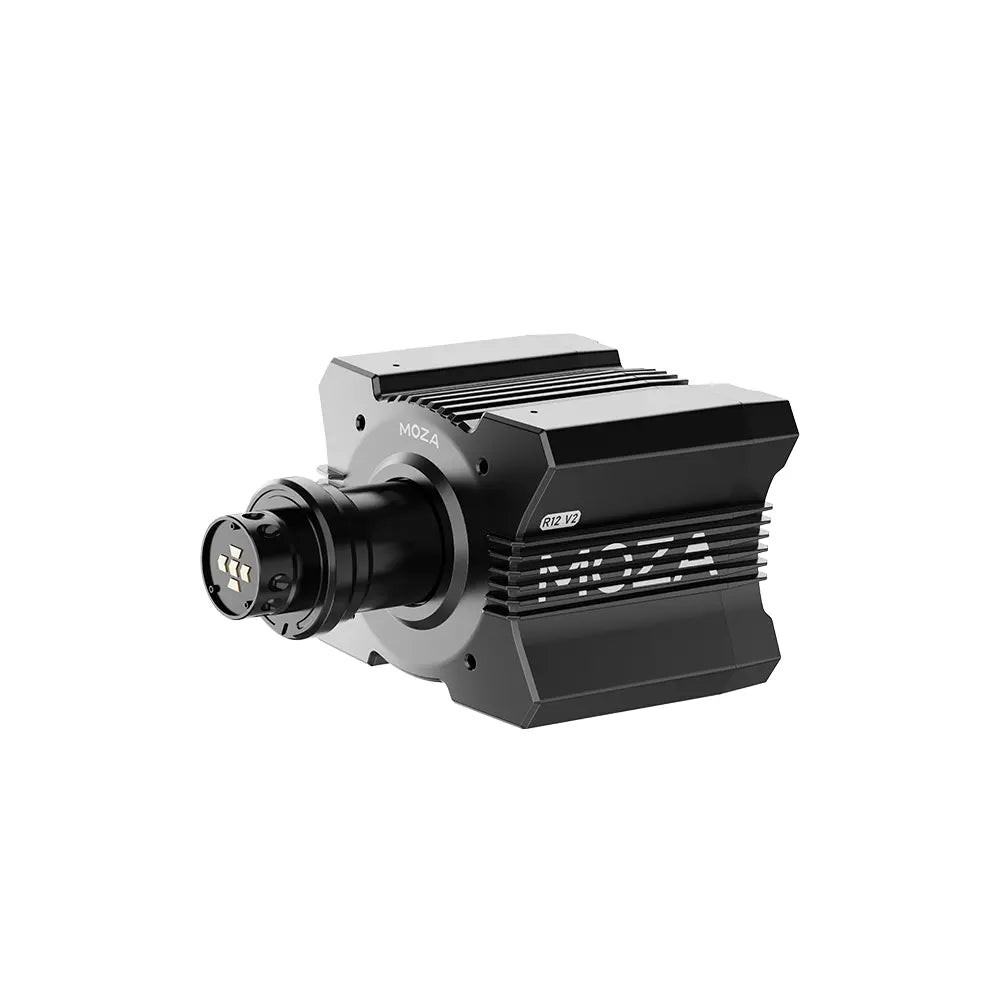
Moza’s own support page says LMU’s force feedback doesn’t need configuring, and Pit House sets up the telemetry with one click. LMU carries its own Moza presets too, updated for the R3, R5, R9 and R12 in V1.2.2, with a new one for the R16. Studio 397 says the default LMU preset in Pit House can cause issues, and if it does, try one of the Performance presets instead.
The values below are a community profile from the LMU forum, built on a Moza R12 with a KS wheel in early 2024, while LMU was still in early access, so treat it as a starting point. In the same thread, Lazza told an R9 owner to set Steering Torque Capability to 9 and adjust Force Feedback Strength from there. There’s more on Moza’s bases in our Moza guide.
In Pit House, set these across Basic Settings, Advanced Settings and the FFB Effect Equalizer:
- Basic Settings:
- Maximum Steering Angle: 1440°
- Road Sensitivity: 3 (to taste)
- Game Force Feedback Intensity: 100%
- Maximum Wheel Speed: 20
- Wheel Spring Strength: 0
- Wheel Damper: 0
- Advanced Settings:
- Force Feedback Reversal: Off
- Maximum Output Torque: 100%
- Hands-Off Protection: On
- Natural Inertia: 100
- Wheel Friction: 0
- Speed-dependent Damping: 0
- FFB Effect Equalizer (to taste):
- 10 Hz: 100%
- 15 Hz: 80%
- 25 Hz: 50%
- 40 Hz: 20%
- 60 Hz: 10%
- 100 Hz: 0%
- Base FFB Curve: Linear
Then set these in LMU:
- Use Steering Wheel Range From Vehicle: On
- Use Steering Wheel Maximum Rotation from Driver: On
- Force Feedback Effects: On
- Invert Force Feedback: On
- Steering Torque Capability: the base’s torque (12 on the R12, 9 on the R9, 5 on the R5)
- Force Feedback Strength: 60% (to taste)
- Force Feedback Smoothing: 0
- Minimum Steering Torque: 0
- Use Constant Steering Force Effect: Off
On the steering angle, Lazza says it doesn’t really matter what you use, as long as it’s larger than the highest range of any car you drive.
Simucube settings
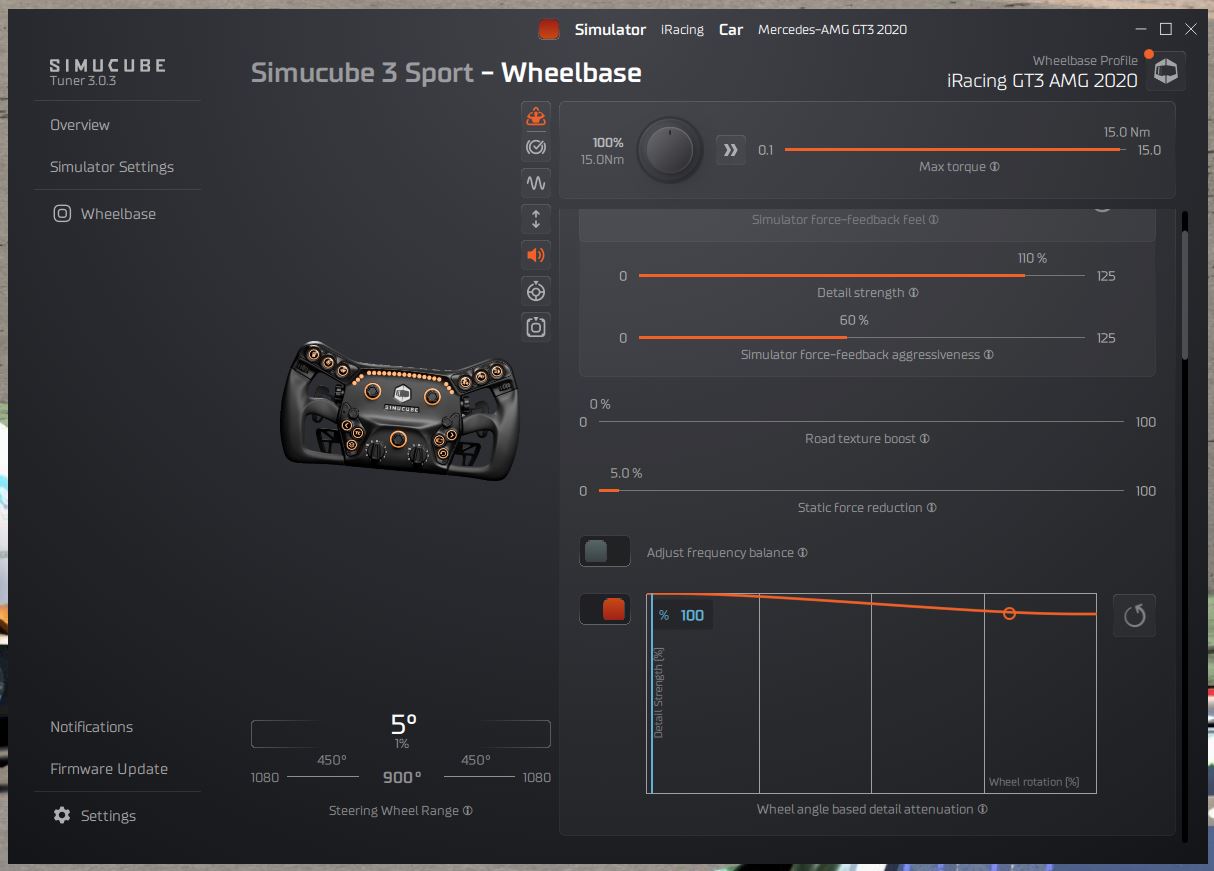
Simucube hasn’t published LMU values, so the in-game settings below are Studio 397’s advice for direct drive bases. Simucube’s Tuner software picks up LMU automatically, and there’s no plugin to set up. If you copied sc-le-mans-ultimate-plugin-x64.dll into the game’s Plugins folder in the past, Simucube suggests removing it, though it isn’t mandatory. If you’re still choosing a base, there’s our direct drive wheels guide.
Set the force itself in Tuner, then set these in LMU:
- Use Steering Wheel Range From Vehicle: On
- Force Feedback Strength: 50-70% on a high-torque base if you get spikes, with more force from Tuner
- Force Feedback Smoothing: low (and none in the driver)
- Minimum Steering Torque: 0% (not used on direct drive)
Simagic settings
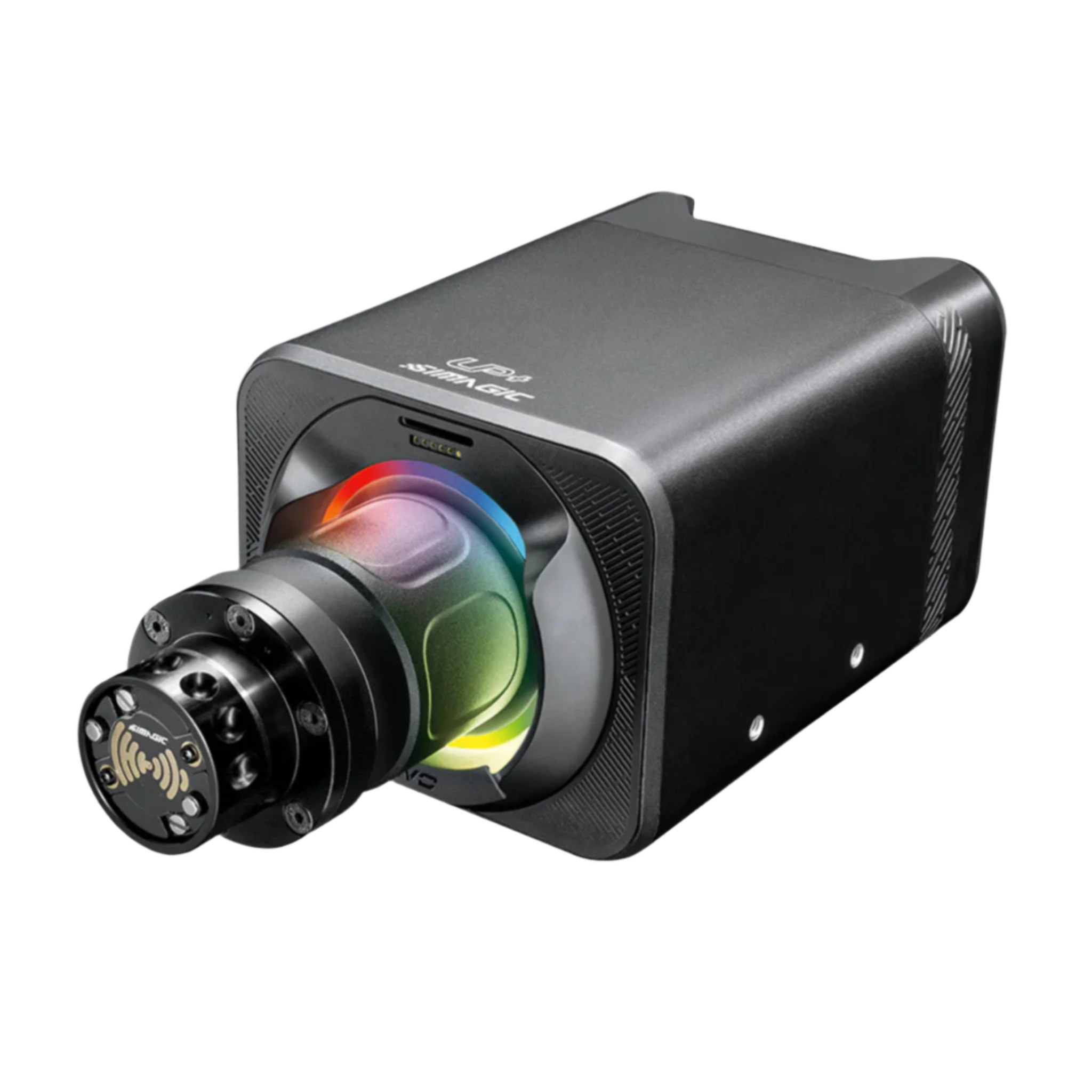
Simagic’s LMU settings come from its own YouTube channel, Simagic Official, in an LMU guide for the Alpha EVO range (June 2025). Simagic says LMU uses inverted force feedback compared to most games, which is why its LMU preset already inverts it. If you run one preset across several games, turn Invert Force Feedback on in the game instead. For the bases themselves, there’s our Simagic guide.
Start in SimPro Manager:
- Preset: Le Mans Ultimate, for your base
- Auto Switch: On
- Output: 100%
- Force feedback inversion: already on in the LMU preset
And in LMU:
- Use Steering Wheel Range From Vehicle: On
- Use Steering Wheel Maximum Rotation from Driver: On
- Invert Force Feedback: Off (the preset inverts it)
- Force Feedback Strength: to taste (the base stays at 100%, so the strength is set here)
- Force Feedback Smoothing: 5 or above if bumps feel harsh
- Collision Strength: lower it if crashes and kerbs spike
- Everything else: default or off
Simagic says LMU can feel light at low speed, most noticeably in the Hypercars, so add a little more friction in SimPro Manager. A slightly lower Wheel Rotation Speed adds damping, although too slow hurts your quick corrections. More slew rate control smooths the transitions, and a little less game centering cuts the kickback.
Logitech settings
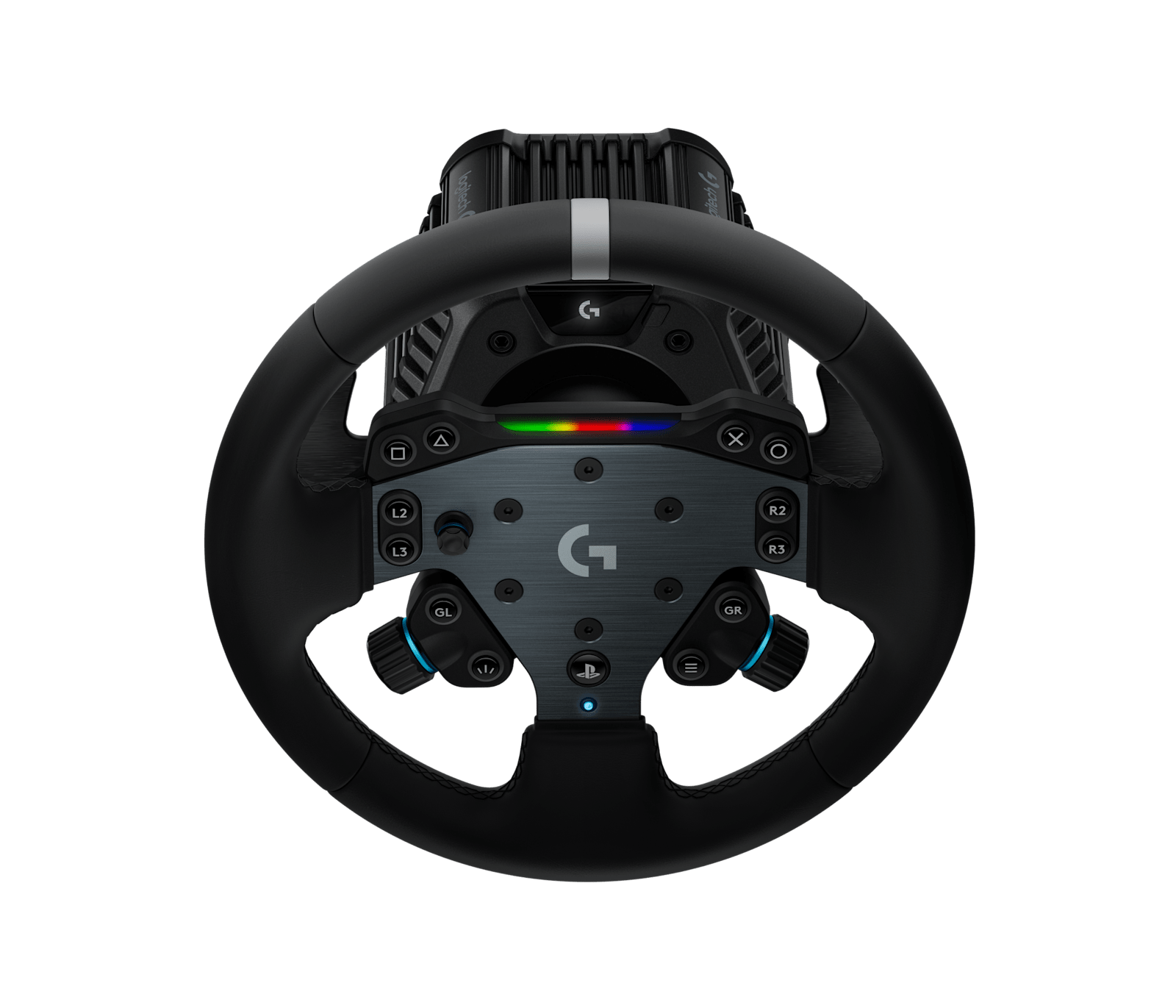
Logitech publishes its LMU settings on two support pages, one for the RS50 (the settings assume it at 8 Nm) and one for the Logitech PRO Racing Wheel (11 Nm). The LMU settings are the same on both apart from the compatibility mode and the strength each one assumes, and both pages link the same in-game screenshot, the Force Feedback page shown further up. V1.3 also gave the RS50 and the PRO wheel their own default profiles in LMU.
Neither Logitech nor Studio 397 publishes LMU values for the G923, G29 or G920, though LMU has default profiles for the G923 and G29, and V1.1 updated their controller IDs. The G29 and G920 need the latest G HUB. If a Logitech wheel pulls hard to one side with no FFB variation, turn on Use Constant Steering Force Effect.
For the RS50 and the PRO wheel, set these in G HUB and then in LMU:
- In G HUB:
- Compatibility Mode: RS (RS50) or PRO (PRO wheel)
- Strength: 8 Nm (RS50) or 11 Nm (PRO wheel)
- FFB Filter: 4
- Dampener: Off
- TF Audio: 60
- Angle: 900°
- In LMU:
- Force Feedback Effects: On
- Invert Force Feedback: Off
- Force Feedback Strength: 80%
- Force Feedback Smoothing: 0
- Minimum Steering Torque: 0.0%
- Logitech TrueForce: 100%
- Logitech TrueForce Engine Effects: 60%
- Collision Strength: 100%
- Steering Torque Sensitivity: 100%
- Use vendor specific Force Feedback: On
Thrustmaster settings
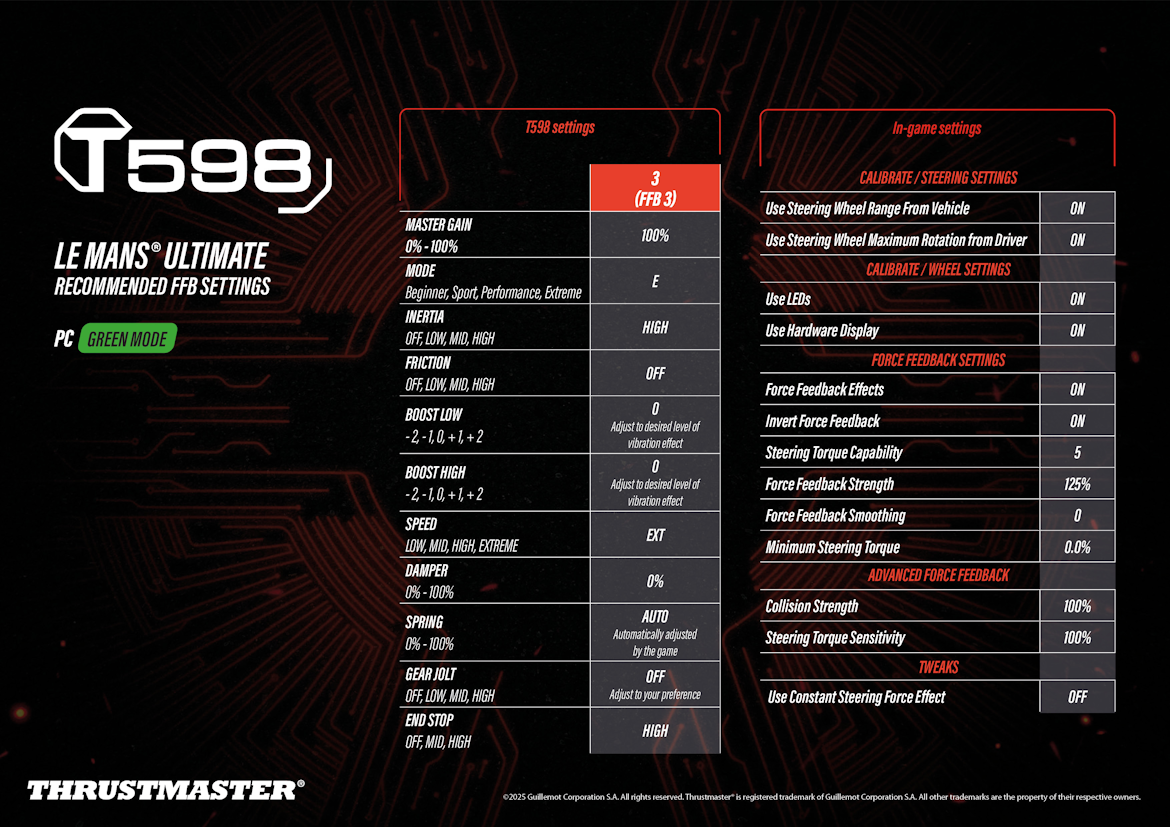
Thrustmaster’s support pages carry LMU settings sheets for the T598 (January 2025) and the T818 (March 2024, with values from the T818 beta testers community). Both run the base at 100% and set the strength in the game, with Invert Force Feedback on and Force Feedback Smoothing at 0.
The support pages for the T300 RS, T248 and T-GT II don’t carry an LMU sheet, so there are no values for those wheels. Studio 397’s supported list says the T300 RS, T150 RS and TMX need a driver update from Thrustmaster. If a Thrustmaster wheel drops its FFB after several sessions, a full reinstall of Thrustmaster’s software and firmware usually sorts it.
For the T598, set these on the base and then in LMU:
- On the base (profile 3, FFB 3):
- Master Gain: 100%
- Mode: E (Extreme)
- Inertia: High
- Friction: Off
- Boost Low: 0 (to taste for vibration)
- Boost High: 0 (to taste for vibration)
- Speed: EXT
- Damper: 0%
- Spring: Auto (set by the game)
- Gear Jolt: Off
- End Stop: High
- In LMU:
- Use Steering Wheel Range From Vehicle: On
- Use Steering Wheel Maximum Rotation from Driver: On
- Force Feedback Effects: On
- Invert Force Feedback: On
- Steering Torque Capability: 5
- Force Feedback Strength: 125%
- Force Feedback Smoothing: 0
- Minimum Steering Torque: 0
- Collision Strength: 100%
- Steering Torque Sensitivity: 100%
- Use Constant Steering Force Effect: Off
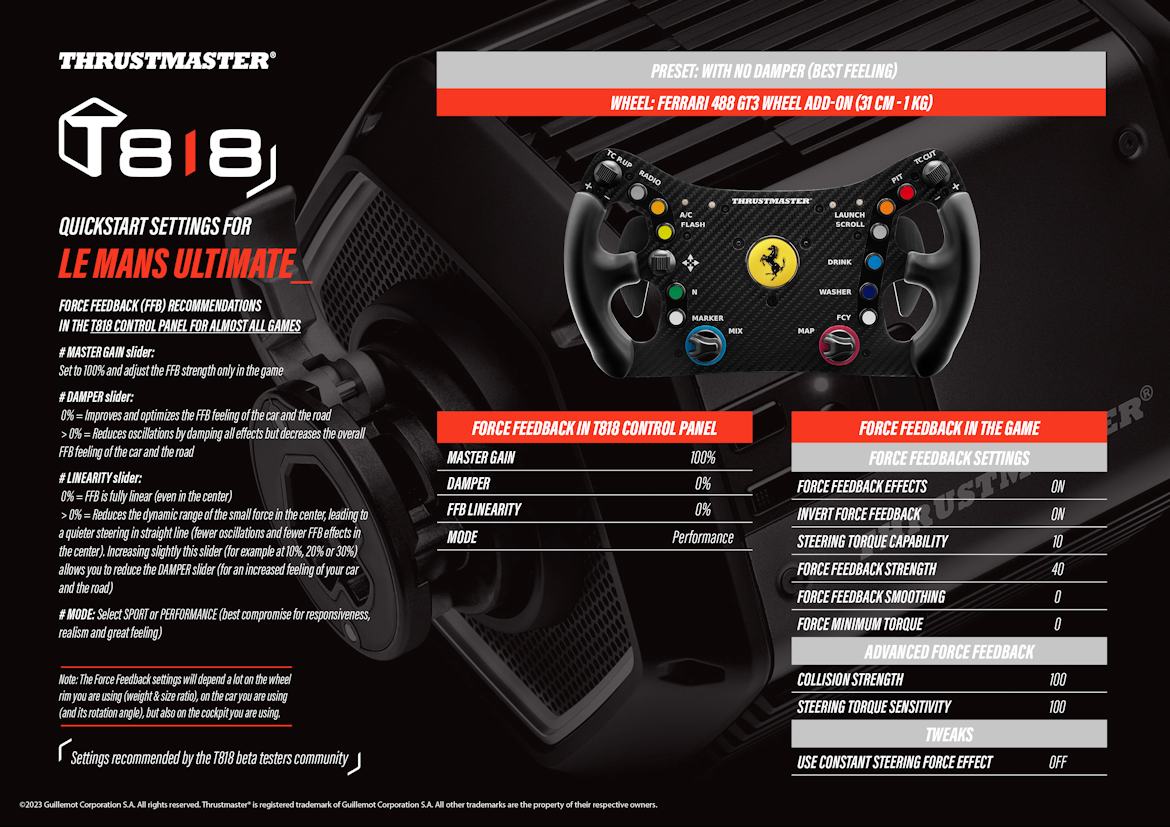
For the T818, set these in the T818 Control Panel and then in LMU:
- In the T818 Control Panel:
- Master Gain: 100% (the strength is set only in the game)
- Damper: 0%
- FFB Linearity: 0%
- Mode: Performance
- In LMU:
- Force Feedback Effects: On
- Invert Force Feedback: On
- Steering Torque Capability: 10
- Force Feedback Strength: 40%
- Force Feedback Smoothing: 0
- Minimum Steering Torque: 0
- Collision Strength: 100%
- Steering Torque Sensitivity: 100%
- Use Constant Steering Force Effect: Off
The T818 sheet says a Damper of 0% gives the best FFB feel of the car and the road, and anything above 0% calms oscillations but dulls the feel overall. A little FFB Linearity, somewhere between 10 and 30%, quietens the centre on the straights and lets the Damper come back down. The sheet also says the right settings depend a lot on your rim, the car and your cockpit.
Asetek settings
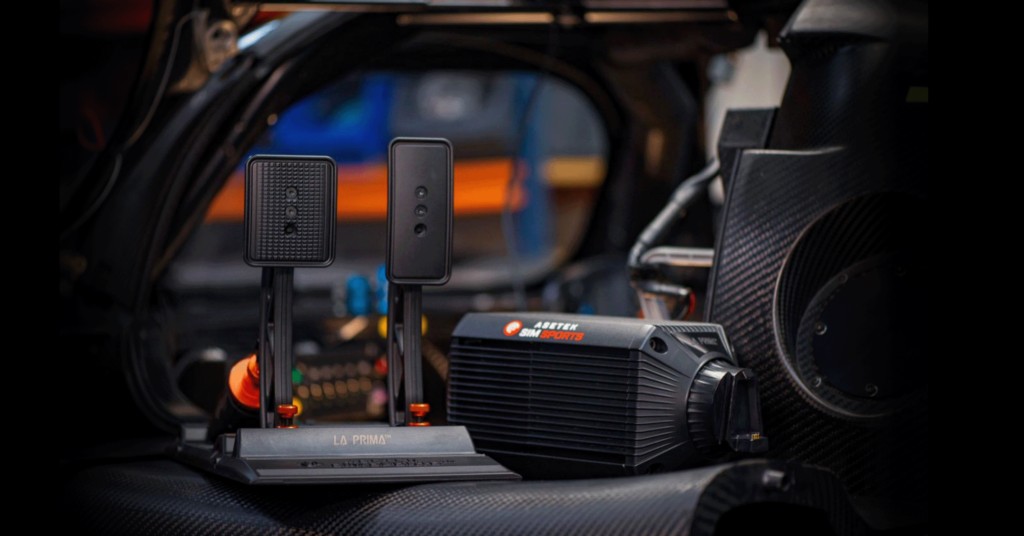
Start by downloading the LMU preset for your base from Asetek’s LMU guide, then open RaceHub. Head to Wheelbase > Force Feedback Settings, click the three dots next to Preset, choose Import as new, pick the preset and click Save to wheelbase.
Then set these in LMU, by base:
- Invert Force Feedback: On
- Force Feedback Strength: 65-70%
- Force Feedback Smoothing:
- Invicta (27 Nm), Forte (18 Nm), La Prima+ (16 Nm), La Prima (12 Nm): 0-1
- Initium+ (8 Nm), Initium (5.5 Nm): 1
- Minimum Steering Torque: 0%
- Collision Strength:
- Invicta: 55%
- Forte, La Prima+, La Prima: 60%
- Initium+, Initium: 75%
- Steering Torque Sensitivity: 100%
- Additional Force Feedback Effects: 0%
Fine-tuning
If something still feels off, find your symptom below and try the fix that Studio 397 or the sources above suggest:
- If you’re getting random spikes or jolts, Studio 397 says to turn down Force Feedback Smoothing or Minimum Steering Torque, and on a high-torque direct drive base try Force Feedback Strength at 50-70% with more force from the base’s software.
- When the FFB stops completely, map a button to Reset FFB in Settings > Controls and press it; if that doesn’t bring it back, exit to the desktop and relaunch, then reinstall the wheel’s software and firmware.
- When another player joins your practice server and the FFB drops out briefly, that’s a known issue and it comes back by itself.
- If the wheel pulls the wrong way, Invert Force Feedback is set wrong for your base.
- When a Logitech wheel pulls hard to one side with no FFB variation, turn on Use Constant Steering Force Effect.
- If it’s too harsh over bumps and kerbs, Simagic says to raise Force Feedback Smoothing a little in the game, or lower Collision Strength for the crash and kerb spikes.
- When a Simagic base feels light in slow corners in a Hypercar, add a little more friction in SimPro Manager.
- If a T818 oscillates on the straights, a little FFB Linearity (10-30%) quietens the centre and lets the Damper come down.
- When a Moza base vibrates or oscillates, reduce the 10 Hz band in Pit House’s FFB Effect Equalizer.
- If the wheel’s angle doesn’t match the car, turn on Use Steering Wheel Range From Vehicle and make sure the Calibrate range matches your driver software.
- If the FFB just doesn’t feel right, try disabling Steam Input, which Studio 397 says can help on some wheels.
- If the haptics are strong but the FFB is weak, check Settings > Controls > Haptics, which is set separately from the FFB.
The direct drive wheel settings guide explains what each brand’s wheelbase settings do, and its Settings Finder carries LMU alongside the other sims. For the game itself, start with the Le Mans Ultimate beginner’s guide. I’ll see you out on track!
Related Articles
Best Pimax VR Settings for F1 25 in 2026: A Damage-Control Guide
Best Pimax VR Settings for Le Mans Ultimate in 2026

Best Pimax VR Settings for Automobilista 2 in 2026
Best Pimax VR Settings for Assetto Corsa in 2026
iRacing VR Settings (2026): Meta Quest 3, PSVR2, Pimax and Valve Index
Assetto Corsa VR Settings 2026: Pimax, Quest 3, PSVR2 & More
Topic: Direct Drive Wheel Settings