

I’m a sim racer and amateur racer with a passion for Motorsport, good racecraft and the technical and setup aspect of sim racing.
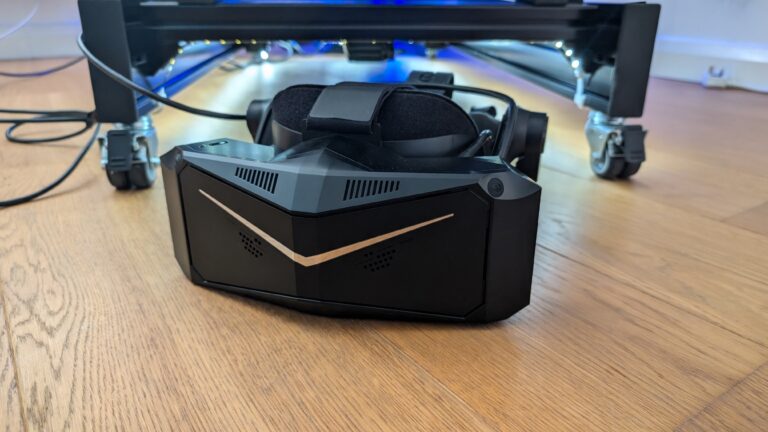
This year, I’ve tested both the Pimax Crystal Light and Crystal Super with a RTX 4070 Ti. Whatever version of Pimax’s headset you own, the difference between enjoyable VR sim racing setup and constant frustration really just comes down to your understanding of your GPU tier and its capabilities. The good news – fun times are always possible, it’s just a matter of settings. When the marketing tells you 120Hz is the target, don’t feel any pressure. 90Hz with locked frame pacing beats a wobbly 120Hz every single time.
This guide is specifically targeted at Tier 2 and Tier 3 GPU owners (RTX 4080 down to RTX 4060 Ti, AMD 7900 XTX down to 7800 XT) because that’s where the setup challenges lie when you’re fine tuning your Headset. If you’re running a 5090, congratulations – you can ignore most of this and just crank everything to native resolution. For us mere mortals, we’re going to need to think harder about our settings.

In this article, I’m focusing on iRacing with MVP (Multi-View Projection) as the primary reference point, with ACC, AMS2, and LMU coverage based on actual community testing from December 2025.
Contents
Understanding Your GPU Tier
The Crystal Super has 75% more pixels than the Crystal Light, which translates to roughly 70-80% higher GPU load requirements. We’re talking about 29 million pixels for the Super compared to 16.6 million for the Light. That’s 3.5 times more pixels than 4K gaming!
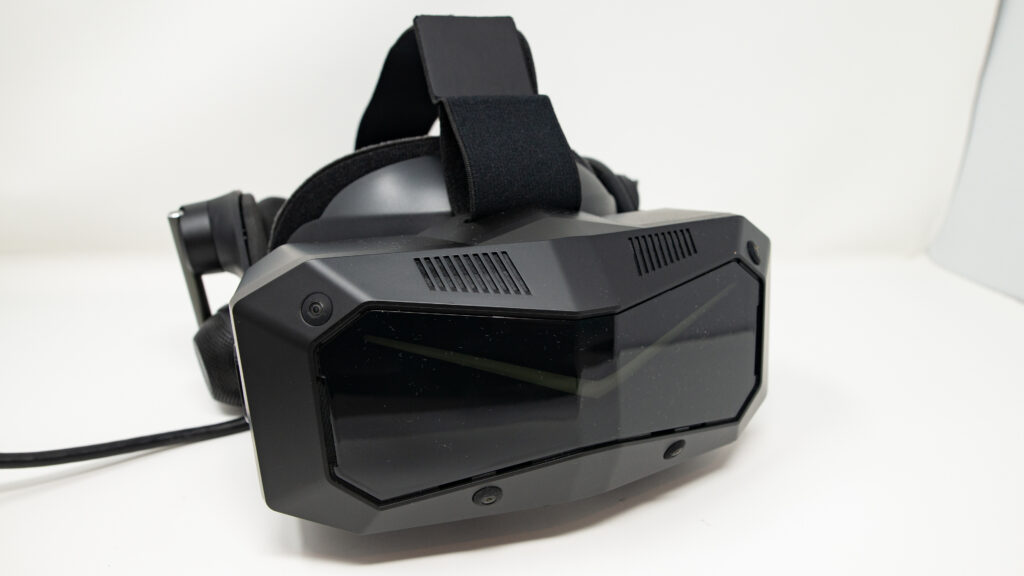
Tier 1 (RTX 4090/5090, AMD 7900 XTX high-end): You can run native resolution on the Crystal Light at 90Hz with settings headroom. For the Crystal Super, 72Hz is more realistic if you want consistent performance across all sims. Native resolution is viable, though you’ll still need to compromise a little on mirrors and shadows.
Tier 2 (RTX 4080, 4070 Ti, AMD 7900 XTX): This is where I sit with my 4070 Ti. Crystal Light at 90Hz is achievable with 0.75-0.85x render resolution and selective settings compromises. With the Crystal Super, you’re looking at 72Hz or aggressive render resolution scaling to maintain smoother frame pacing. I’ve found the sweet spot at 0.85x render resolution combined with NVIDIA sharpening at 0.25 – looks remarkably close to native whilst maintaining locked 90Hz.
Tier 3 (RTX 4070, 4060 Ti, AMD 7800 XT): Crystal Light is your only realistic option for sim racing. Expect 72Hz as your target refresh rate with 0.5-0.65x render resolution. Virtual mirrors mandatory, dynamic shadows off, and you’ll still need to manage visible car counts carefully in races. The Super simply demands too much for consistent performance.
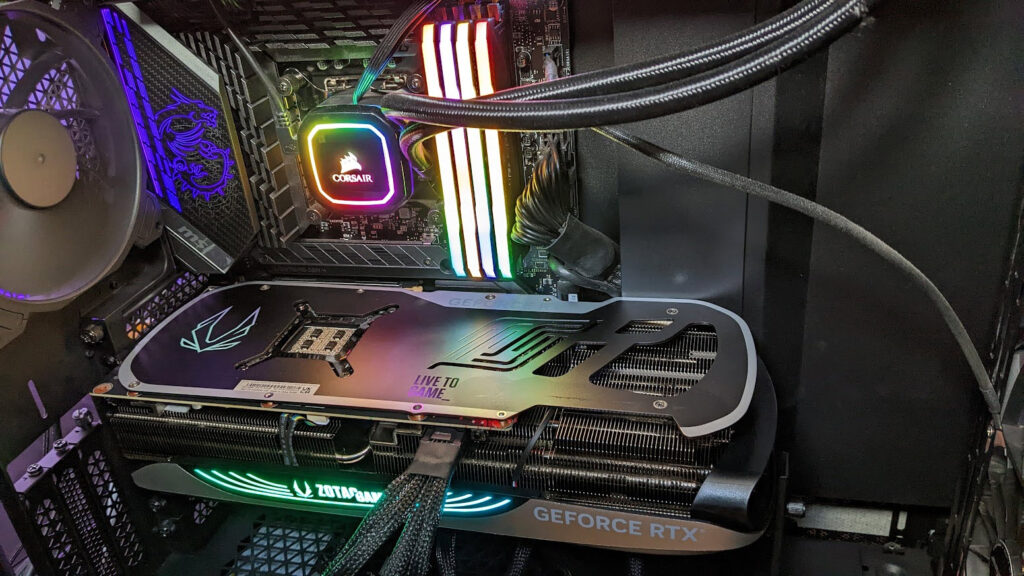
Crystal Super “prefers headroom” even with a 4090. The Super needs “breathing room” to handle frame time spikes during complex scenes. Running it at the edge of your GPU’s capability creates stuttering that can adversely affect the experience.
Essential Pimax Play Settings
These headset-level settings apply across every sim and form the foundation of your VR experience. Get these wrong and you’ll be chasing phantom problems in individual games.

Refresh Rate: 90Hz. Not 120Hz despite what the marketing pushes. Not 72Hz as a compromise. Proper 90Hz. The frame time is 11.1ms – low enough for racing, achievable enough for Tier 2/3 GPUs to maintain consistency. For DCS and sim racing, 90Hz hits a sweet spot where latency feels immediate but GPU headroom remains for visual detail.
72Hz vs 90Hz on the Crystal is a subtly different experience. That 90Hz+ smoothness is real. For sim racing specifically, 90Hz with a consistent frame pacing beats that stuttering 120Hz for obvious reasons. When you’ve got a full grid, the last thing you want is lag and stutter heading into T1 at Monza. If you’re really struggling, 72Hz is an acceptable minimum albeit with an obvious trade off.
Brightness settings: 80% for general racing, 70% for night sessions. The Crystal’s brightness is impressive, but running at 100% strains the eyes during longer stints. I like my levels to be set at between 70-80% which I find comfortable for daylight tracks, dropping to 65% for night racing where the contrast helps more than raw brightness.
Eye Tracking Tip: Calibrate EVERY session. Dynamic foveated rendering only works when calibration is accurate, and I’ve found that even minor head strap adjustments between sessions affect calibration enough to matter. Takes 15 seconds before each race, makes a genuine difference to where the sharp region renders. I assign a reset HMD button to my steering wheel. Done.
Auto IPD: Off. Manual IPD for consistency. The auto-adjust is clever but creates variability session-to-session. Set your IPD manually once, write it down, use the same value every time my IPD is 64mm – I had it measured at the local opticians. If you try to measure it yourself you’re probably going to have a bit of an error.
Render Resolution in Pimax Play: 100% for Tier 1 and 2 GPUs. 0.75x for Tier 3. This is your baseline before individual sim adjustments. You’ll fine-tune per game, but this starting point prevents immediately overwhelming your GPU.
Pymax XR Quad Views: UNCHECKED. Critical. This setting conflicts with native game foveated rendering in iRacing’s MVP system. You want game-native FFR, not headset-level FFR stacking on top. More on this in the iRacing section.
Hidden Area Mask: ENABLE. This is free performance. It prevents rendering the parts of the image you physically cannot see through the lenses. No visual quality loss with a nice gain in efficiency.
Launch Games FROM Pimax Play. This matters more than I initially realised. Pimax Play has per-game profiles with optimised settings for each sim. Launching directly from Steam or your desktop bypasses these optimisations entirely. This is something a lot of people don’t know to do – give it a try.
iRacing: The MVP VR Setup
If you’re running iRacing with Pimax FFR enabled, you could be leaving as much as 20-30% performance on the table. This is the single biggest optimisation for Crystal owners racing in iRacing.
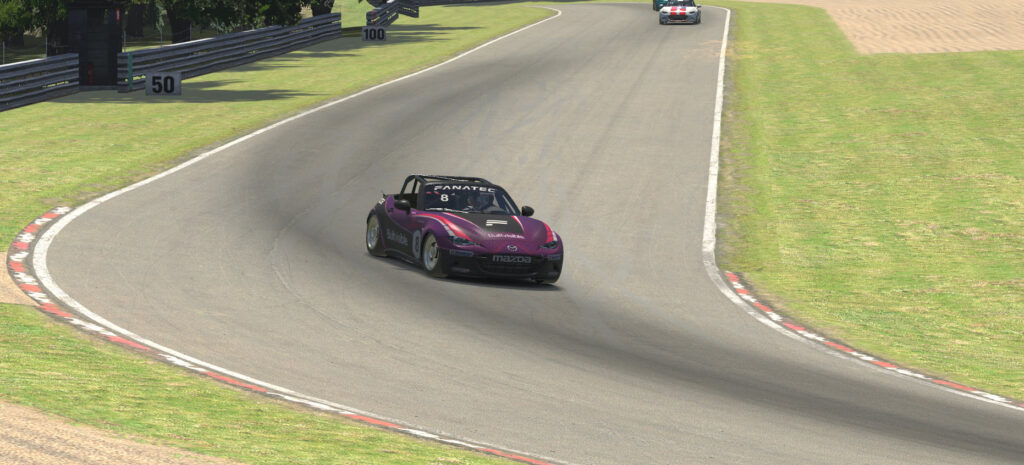
Switch from SPS (Single Pass Stereo) to MVP (Multi-View Projection). This requires OpenXR runtime, not OpenVR. The performance boost is described by the community as “dramatic” and my testing confirms it. When I first switched to MVP, I thought I’d misconfigured something. The frame rate jump was that significant.
Disable Pimax FFR entirely. Stacking FFR layers – Pimax’s headset FFR plus iRacing’s game FFR – creates conflicts and unnessecary overhead. Game native wins. Engineering reason: hardware-accelerated fixed foveated rendering with no overhead from generic rendering paths.
Here’s what works for iRacing by GPU tier:
Tier 1 (4090/5090):
- Max FPS: 87 (2-3 below your 90Hz refresh rate prevents frame time spikes)
- Pixel Density: 1.0 (no higher needed with MVP)
- Anti-Aliasing: MSAA x4
- Mirrors: Virtual mirror acceptable, cockpit mirrors viable
- Shadows: High acceptable
- Dynamic LOD: OFF (prevents pop-in stutters)
Tier 2 (RTX 4080, 4070 Ti):
- Max FPS: 87
- Pixel Density: 1.0
- Anti-Aliasing: MSAA x4 OR Simple + Sharpening (test both)
- Mirrors: Virtual mirror MANDATORY (cockpit mirrors typically cost 15-20 FPS)
- Shadows: Medium
- Dynamic LOD: OFF
- Motion Blur: OFF
- Depth of Field: OFF
- Dynamic Shadows: OFF
Tier 3 (4070, 4060 Ti, 7800 XT):
- Max FPS: 69 (targeting 72Hz refresh)
- Pixel Density: 0.75
- Anti-Aliasing: Simple + Sharpening
- Mirrors: Virtual mirror only
- Shadows: Low
- All optional effects: OFF
- Visible cars: Limit to 30 in race sessions
What I run personally with my 4070 Ti: MVP enabled, virtual mirror only, MSAA x4, max FPS 87, all optional effects disabled. I sacrificed cockpit mirrors and dynamic shadows for locked 90Hz. Not perfect, but I’d rather have consistent frame pacing than pretty mirrors at 72Hz stuttering.
ACC, AMS2, LMU, RaceRoom Settings
Each sim has its own rendering quirks. Here’s a look at Assetto Corsa Competizione (ACC), Automobilista 2 (AMS2), Le Mans Ultimate and Race Room.

Assetto Corsa Competizione (ACC)
I’m not going to pretend ACC looks great in VR on my Crystal. It doesn’t. The TAA (temporal anti-aliasing) ghosting is distracting, especially following cars closely. Community consensus matches my experience – ACC is described as the “worst looking sim racing game in VR” despite being stunning on flat screens. Something about the VR rendering pipeline just doesn’t work at the moment.
With that said, here’s what makes it playable:
- VR Pixel Density: 130% for Tier 1/2 GPUs, 100% for Tier 3
- Volumetric Fog: DISABLE (massive performance killer)
- Mirror Quality: Low, 30fps refresh
- Foveated Rendering: Via OpenXR Toolkit (third-party tool required for eye tracking)
- Quad View Ultra: Enable in Pimax settings
Enabling DFR and dropping settings to medium creates a playable experience, but compared to iRacing’s clarity or even AMS2’s sharpness, ACC feels like a generation behind in VR. It’s the sim we tolerate for the physics, not the one we show off for visuals.
Automobilista 2 (AMS2):
- Image Quality: Medium in Pimax Play
- Quad Views: OFF (native FFR superior)
- MSAA: High
- Shadow Detail: High (1-2 FPS cost, worthwhile for depth perception)
- Enhanced Mirror: NO (performance cost not worth visual gain)
Le Mans Ultimate (LMU):
- Quad View: Ultra in Pimax settings
- MSAA: 4x
- Frame cap: 87
RaceRoom Racing Experience:
RaceRoom has a community-discovered sweet spot: 0.67x render resolution. This emerged from experimentation – someone tried it, shared results, others confirmed. RaceRoom’s rendering pipeline responds particularly well to lower resolution combined with sharpening.
- Render Resolution: 0.67x
- MSAA: 8x
- Shadows: Medium
- Mirrors: Medium
- Bloom: ON (works well in RaceRoom’s engine)
Foveated Rendering Deep Dive
Understanding foveated rendering is critical for optimising the Crystal. There are three types, and stacking them creates conflicts rather than benefits.
Fixed FFR: Renders the centre of your vision at high resolution, periphery at lower resolution. No eye tracking needed. iRacing’s MVP uses fixed FFR and it’s highly optimised. This is the most efficient type because it’s predictable and hardware-accelerated.
Dynamic FFR (DFR): Uses eye tracking to move the high-resolution region based on where you’re actually looking. More sophisticated, but adds processing overhead and depends on accurate calibration. ACC’s DFR “significantly enhances” performance according to community testing.
Hierarchy that matters: Game native FFR > Pimax native FFR > third-party FFR solutions. Never stack FFR layers. For iRacing with MVP, disable Pimax FFR entirely. For ACC, enable Quad View Ultra and let the game handle DFR. For AMS2, use game’s native FFR with Quad Views disabled.
FFR creates a softness in the periphery, and this is where NVIDIA sharpening becomes critical.
My Settings
Here’s my configuration and an explainer on these specific values.
System: RTX 4070 Ti, Crystal Light and Super (comparative testing)
Pimax Play Configuration:
- Refresh Rate: 90Hz
- Render Resolution: 0.85x
- Brightness: 80%
- Eye Tracking: Enabled, calibrated before each session
- Manual IPD: 64mm
- Quad Views: Off (conflicts with iRacing MVP)
- Hidden Area Mask: On
iRacing Settings:
- MVP: Enabled
- Pimax FFR: Disabled
- Virtual Mirror: Enabled, cockpit mirrors disabled
- MSAA: x4
- Max FPS: 87
- Pixel Density: 1.0
- Dynamic LOD: Off
- All optional effects: Disabled
ACC Settings:
- VR Pixel Density: 100%
- Virtual Mirror: Low quality, 30fps
- Volumetric Fog: Off
- Foveated Rendering: Via OpenXR Toolkit
- Quad View Ultra: Enabled in Pimax
NVIDIA Control Panel:
- Image Sharpening: 0.25
- Low Latency Mode: Ultra
- Power Management: Maximum Performance
- VR Pre-rendered Frames: 1
- Vertical Sync: Off
Why these specific values work for my GPU tier: The 4070 Ti sits right at the edge of Tier 2. I can’t quite hit native resolution at 90Hz without compromises, so 0.85x render resolution combined with 0.25 sharpening gives me the visual quality I need whilst maintaining locked frame pacing. What I sacrificed for locked 90Hz: cockpit mirrors and dynamic shadows. The trade-off is worth it – consistent frame pacing beats pretty mirrors at stuttering refresh rates.
It’s not perfect. ACC’s TAA ghosting still bothers me. I’d love cockpit mirrors in iRacing. But this configuration lets me race confidently without thinking about settings mid-session, and that’s ultimately what matters.
Related Articles
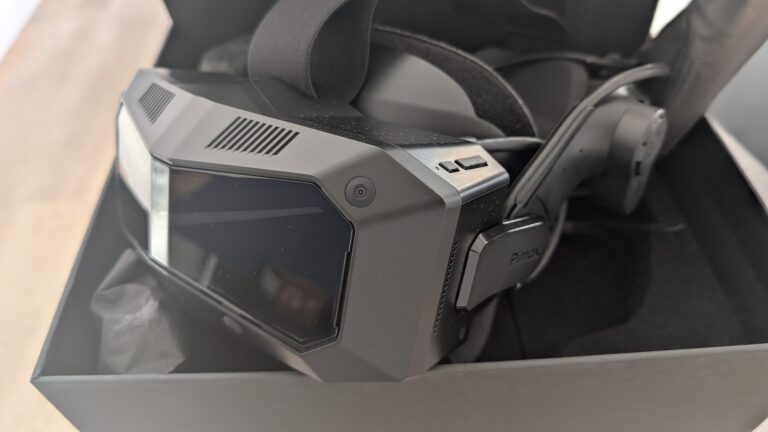
Pimax Crystal Light & Crystal Super Settings Guide for Sim Racing & Flight Simulation
Best VR Headsets for Flight Simulation
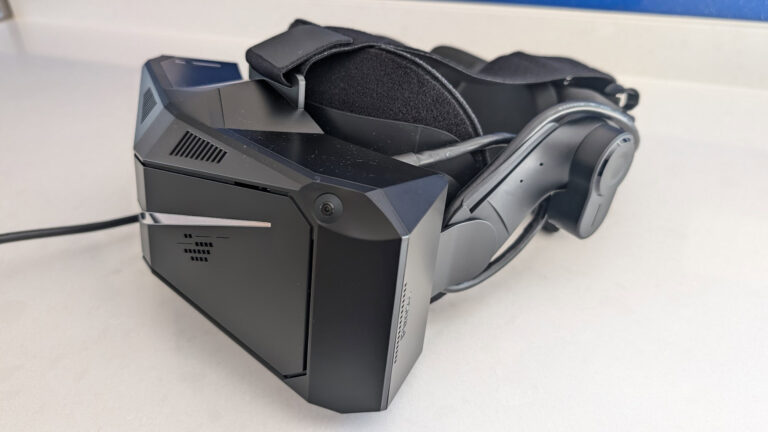
Pimax Crystal Super and Light Settings Guide: A Complete Guide Sorted by GPU
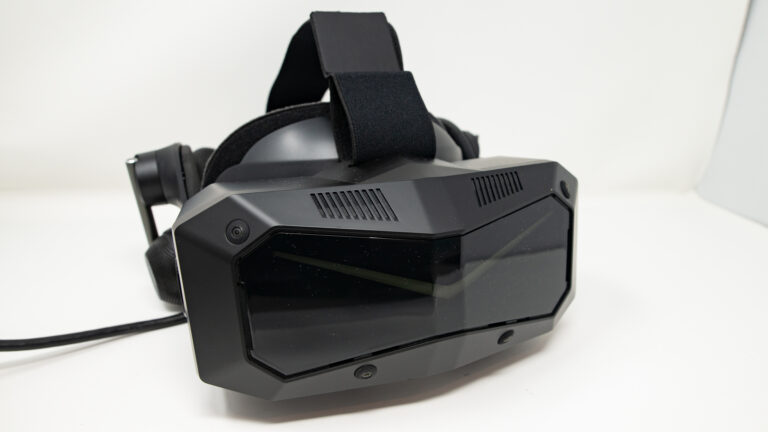
Pimax Crystal Super Review
Pimax Crystal Light Settings for Sim Racing (iRacing / ACC)
Improving that Terrible Quest 3 Headstrap with a Replacement
Topic: VR Headsets