
I’m a sim racer and amateur racer with a passion for Motorsport, good racecraft and the technical and setup aspect of sim racing.
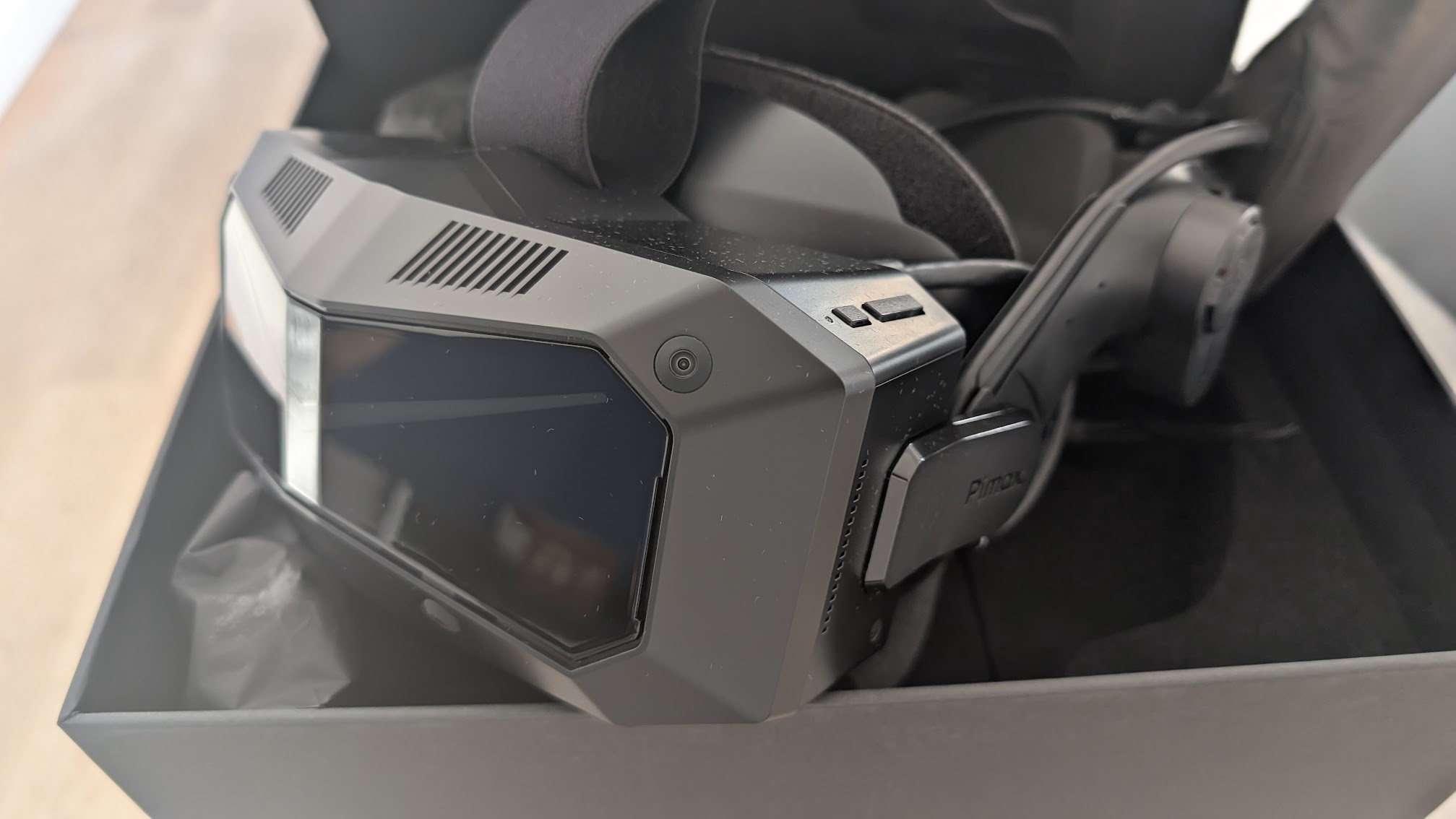
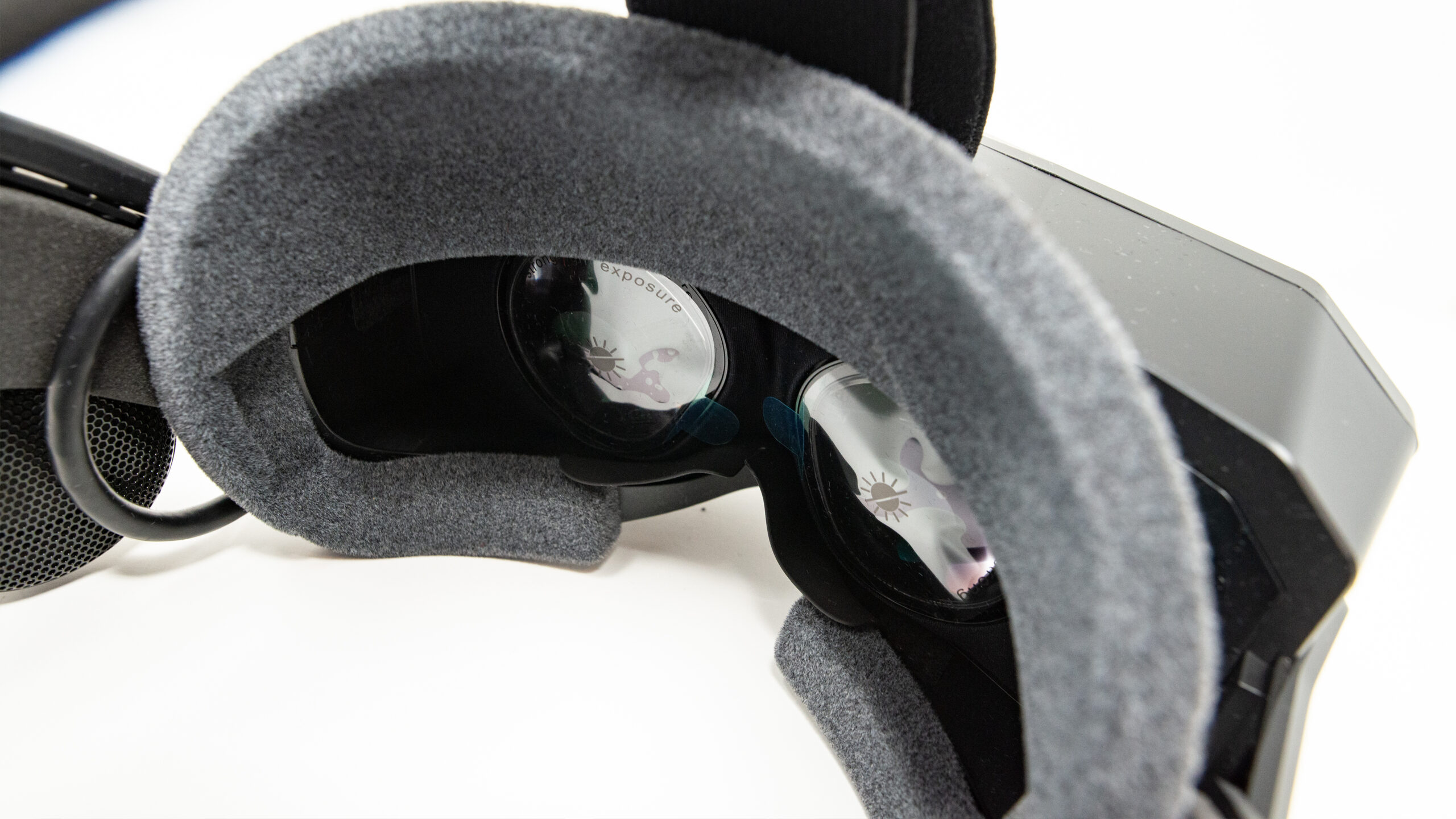
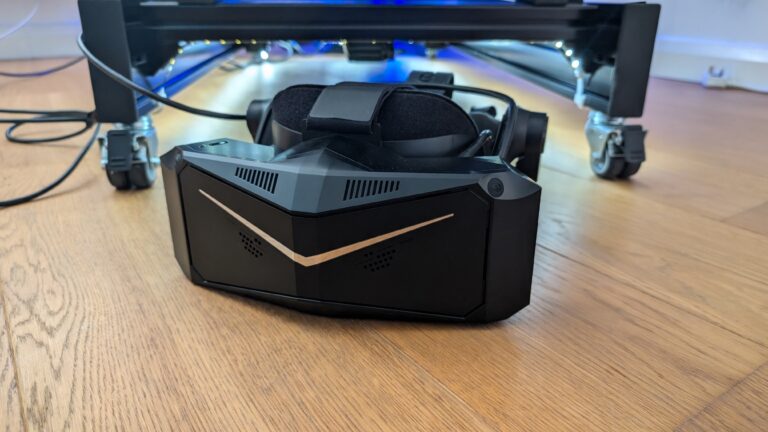
Pimax’s Crystal Light and Crystal Super cram more pixels per eye than any other headset you can buy right now. Gorgeous panels. But all that resolution’s wasted if your settings are wrong. I’ve pulled together 30+ sources (YouTube creators, Reddit, Pimax’s own blog, a 600-user survey, and a fair bit of my own testing) to build a proper settings reference for both headsets. Covers iRacing, ACC, AMS2, LMU, RaceRoom, DCS, MSFS 2024, and Falcon BMS. There’s an interactive tool below that spits out recommended settings for your exact headset-GPU combo, and then the full per-sim walkthrough after that.
Quick Navigation
Jump directly to what you’re looking for:
Settings Finder Tool |
What You’ll Need |
Pimax Play Settings |
NVIDIA Settings |
iRacing |
ACC |
AMS2 |
Le Mans Ultimate |
RaceRoom |
Flight Sims |
Tips & Mistakes
Pimax Crystal Settings Finder
Before getting into the per-sim breakdowns, here’s the interactive settings tool. Pick your headset, GPU tier, and sim – it’ll show you the community-consensus settings with confidence ratings for each one. Same research, same sources as the rest of this guide.
What You’ll Need
A couple of things to get sorted before touching any sim settings. First, make sure you’ve got Pimax Play installed and updated – it’s the hub for all headset configuration. Second, set your default OpenXR runtime to Pimax OpenXR in Pimax Play’s General tab. Skip this and your games will open as 2D windows on your monitor. Third, grab PimaxXR from mbucchia’s GitHub – it bypasses SteamVR entirely and saves you 10-15% GPU overhead. For DCS specifically, you’ll also want Quad-Views-Foveated (same developer).
Oh, and DisplayPort directly into the GPU. No USB-C adapters, no docking stations, no exceptions. Matthew from the Pimax Discord nailed it – the gap between a smooth session and a frustrating one isn’t about raw FPS. It’s frame time consistency, and dodgy connections wreck that.
Universal Pimax Play Settings
These apply to every sim. Get them right once and you won’t need to touch them again unless you swap headsets or GPUs.
Refresh rate first. On a 5090 or 4090, run 90Hz – and if you’ve got a Crystal Light, you can push 120Hz in less demanding sims. A 5080 or 4080? Stick to 90Hz. Running a 4070 or less? 72Hz. The 90Hz Upscale option in Pimax Play looks tempting but it dulls the Crystal Light’s clarity by quite a bit, as one YouTuber (An Older Gamers Perspective) put it. On a mid-tier GPU, that’s a trade-off you don’t want to make.
Render resolution depends on your GPU tier. 5090 or 4090 owners can run 1.0 native without breaking a sweat. A 5080/4080/4070 Ti sits around 0.85 – pair that with sharpening at 0.25 and it’ll look close to native. Tier 3 GPUs should aim for 0.65-0.75x, and at that point a Crystal Super isn’t really viable. Too many pixels.
Smart Smoothing: off. Always, for racing. Pimax’s motion reprojection causes ghosting on fast-moving trackside objects – barriers, trees, pit walls. A Pimax survey of 600+ Crystal Super users found only 11% even bother with it. Pretty clear consensus there.
Hidden Area Mask is a strange one. It’s supposed to stop the GPU rendering pixels you can’t see through the lenses, saving performance. Sounds great. But An Older Gamers Perspective ran tests showing it can use more performance in some sims, not less. Worth testing on/off for your setup and seeing which way it goes.
Crystal Super owners: calibrate eye tracking every session. Even a small strap adjustment throws it off, and DFR can’t do its job without accurate gaze data. For IPD, skip the auto setting and get a manual measurement from an optician – then dial it in physically. Crystal Light has a physical slider only, so there’s no software option anyway.
NVIDIA Control Panel Settings
Quick wins here. Set Power Management to Prefer Maximum Performance, VSync off, VR Pre-Rendered Frames to 1, and Shader Cache to 10GB (Unlimited can bloat your drive). Image Sharpening at 0.25 helps with distant object clarity – braking markers, corner apexes, that sort of thing.
Low Latency Mode set to Ultra gets recommended a lot, but honestly it’s disputed for VR. Might be a no-op. Harmless to enable either way.

iRacing
iRacing gets the most detailed treatment here because it’s got the best native VR support of any racing sim, and there’s more community testing data available for it than anything else.
MVP (Multi-View Projection) is the one setting that changes everything. Go to Display Settings, select VR, set VR Mode to Foveated, and enable Allow Eye Tracking. MVP replaced the old SPS rendering method and gives you a 20-30% performance boost. On a Crystal Super, this enables Dynamic Foveated Rendering – the headset tracks where your eyes are looking and renders the centre at full resolution while dropping the periphery. Gary from Next Level Sim Gaming tested this extensively with a 5090 and nailed it: “your eyes literally cannot even see the difference, but your frame counter definitely will.”
Crystal Light owners get Fixed Foveated Rendering through the same MVP system. No eye tracking, so it renders a fixed central zone at full quality. Still a massive improvement – one user on a 4070 went from 60-70 FPS at Imola to a locked 120 FPS with Quad Views enabled.
Critical rule: don’t stack FFR layers. If you’ve turned on iRacing’s native MVP foveated mode, turn off Pimax’s Quad Views, turn off Pimax’s FFR, and turn off OpenXR Toolkit’s FFR (if you’ve got that installed). Running multiple foveation systems at once doesn’t stack the benefits – it stacks the blur. I’ve seen a few people on Reddit wonder why their image looks soft despite strong FPS numbers, and nine times out of ten they’ve got two or three FFR layers fighting each other.
INI Tweaks for Fine-Tuning
iRacing exposes two foveated rendering variables in the INI file at Documents/iRacing/rendererDX11OpenXR.ini:
- FoveatedOuterPctRes – controls the outer zone resolution as a percentage. Range is 25-50. Lower means more aggressive peripheral reduction. Start at 35.
- FoveatedInsetWidthPct – controls the size of the inner focus zone as a percentage of eye width. Range is 25-50. Start at 40.
Spelling matters here – they’re camelCase and iRacing won’t throw an error if you get them wrong, it’ll just ignore them silently. I’ve double-checked these against iRacing’s current OpenXR renderer and they’re correct as of early 2026.
The FPS Cap Debate
Community’s genuinely split on this. Three camps: cap at 87 (three below your 90Hz refresh to give the compositor breathing room), cap at exactly 90 (match the refresh), or leave it uncapped. I’ve tried all three and they’re genuinely close – no obvious winner. Best advice? Try 87 first. If it feels smooth, leave it. If you notice inconsistency, try 90. Uncapped works well on a 5090 where you’ve got headroom to spare, but on anything less it can cause frame timing spikes when the GPU briefly dips below refresh.
GPU Tier Quick Reference
5090/4090: Max everything. Cockpit mirrors on (virtual mirror is the default because cockpit mirrors have an incredibly large performance impact, but at this tier you’ve got the headroom). MSAA x4, Shadows High, HDR if you want it – though be aware HDR costs roughly 40% FPS based on one source’s testing. Pixel density at 1.0.
5080/4080/4070 Ti: Pixel density stays at 1.0 but you’ll need to trim elsewhere. Virtual mirror only (cockpit mirrors cost 15-20 FPS), Shadows Medium, disable crowds, grandstands, and pit objects. Heat FX off. Shader Quality can stay on High – barely costs anything.
4070/4060 Ti: Drop to 72Hz, pixel density to 0.75, Simple AA with sharpening. Shadows Low, all optional effects off, and limit visible cars to 30. You’re basically stripping the scene down to what matters for racing.
My iRacing graphics settings guide goes into the non-VR stuff if you want more. Coming from flat screens? My VR vs triple monitors piece is worth a read.
Assetto Corsa Competizione
ACC’s VR mode is rough. Kunos built it on Unreal Engine 4 and bolted VR on afterwards, and honestly it shows. With the right settings it’s fine – but if you’re coming from iRacing’s butter-smooth VR, ACC will feel noticeably rougher.
Volumetric Fog: off. Massive performance killer. No negotiation on this one. TAA is your only anti-aliasing option, which is frustrating because it causes ghosting on moving objects. Post Processing on Low, Mirror Quality on Low, Mirror Framerate capped at 30fps.
Quad Views support in ACC is disputed. The UE4 engine may not properly support it. If you’ve got a Crystal Super, try using OpenXR Toolkit’s DFR injection instead of Pimax’s native Quad Views. Materials Quality on High is one of the few settings you can afford to keep up – it has a relatively small performance cost for a noticeable visual improvement.
5090/4090 owners can push VR Pixel Density to 130% on a Crystal Light (keep it at 100% on a Crystal Super – you’ve got enough pixels already). Everyone else: 100%, Medium view distance, Medium shadows. Tier 3 and Legacy GPUs need to limit visible cars to 10 and drop shadows to Low. It’s not pretty, but ACC’s VR mode simply isn’t optimised for lower-end hardware. My ACC graphics settings guide covers more if you’re trying to squeeze extra frames out of it.
Automobilista 2
AMS2 is genuinely good in VR. Reiza’s Madness Engine handles it better than you’d expect, and the weather system – rain, thunderstorms, time-of-day transitions – is where most of the optimisation work goes. TJR Sim (Larry Ray) did the most thorough Pimax Crystal Super testing I’ve seen for this sim, running a 4090 with the 57PPD optical engine at 72Hz for worst-case weather scenarios.
His big finding? Remember that your VR headset is rendering two screens at the same time, both at close to 4K resolution per eye. That means anything with “reflection” in the name hits the GPU twice as hard as you’d think. Track Reflections on Medium, Vehicle Reflections on Medium, and Enhanced Mirrors off.
Grass Detail: off. TJR Sim tested high versus off side by side and found they looked identical. Free GPU savings. Similarly, Particle Density on Low but Particle Detail on High – this reduces the glare from rain spray mist without losing the detail on individual droplets. Clever trade-off.
MSAA goes to Medium, not High. These panels are so sharp that Medium anti-aliasing looks great, and High is incompatible with FFR anyway. Texture Filtering to 16x – it’s VRAM-bound rather than GPU-bound, so even an 8GB card can max it without a performance hit.
Here’s a useful reframe: stop thinking in FPS and start thinking in milliseconds. At 72Hz you’ve got a 13.888ms budget per frame. Go over that and you’ll get shimmer and micro-stutters even if the FPS counter looks fine. Daytime racing? 90Hz all day. Night or thunderstorm at Interlagos with 15 cars? Drop to 72Hz and you’ll hold a stable 72-73fps with occasional dips to 67.
Exposure Compensation at 0.6 is worth setting globally. The default 1.0 is too bright and poppy – Reiza forum users have been recommending 0.6 for a while now and it gives a much more natural look through the headset.
Le Mans Ultimate
LMU doesn’t have native foveated rendering, which changes the optimisation strategy entirely. Instead of relying on the sim’s own FFR (like iRacing), you’re using Pimax’s Quad Views in Balance mode to do the peripheral resolution reduction. If you’re struggling, drop to Performance mode. An Older Gamers Perspective ran this combo with a 5080 and 9800X3D – solid 90fps on most tracks, dipping to the mid-80s on packed grid starts at places like Sebring.
Set Pimax Play Image Quality to Custom 0.8. Going to 1.0 causes frame dips on packed grids and frankly looks nearly identical at 0.8. Post Effects on Low – this kills motion blur (good) and claws back clarity and framerate in one go. MSAA at 4x, because without it straight lines in LMU look properly jagged. VSync off (the OpenXR codec handles frame timing).
A few LMU-specific gotchas. Vertical FOV: leave it at default. The headset optics control this and changing it distorts scale perception – everything starts looking slightly off. Look Ahead goes to 0% – you’re turning your actual head in VR, not panning a camera. Visible Vehicles at 20 is the sweet spot: you’ll see every car that matters for the race without melting the GPU on car geometry and shadows.
For Tier 1 GPUs, run Circuit Detail, Texture Detail, Player Detail, and Shadows all on High. Shadow Blur on Optimal (Fast causes shimmering). Road and Environment Reflections stay on Medium – push them higher and you’ll have problems in the rain. Special Effects on Medium, not High, because High causes FPS drops on lap 1 when the grid’s bunched up.
Lower-tier GPUs should follow the performance clawback order: drop Image Quality to 0.7, then refresh to 72Hz, then switch Quad Views to Performance mode. Still short on frames? OpenXR Toolkit’s custom FFR preset can help, but it sometimes clashes with Quad Views – so test one at a time, not both.
RaceRoom
RaceRoom does VR pretty well, though there’s nowhere near the same volume of community testing data you’ll find for iRacing or AMS2. The consensus sweet spot is a render resolution of 0.67x with MSAA at 8x – RaceRoom’s engine responds well to lower resolution paired with strong anti-aliasing and sharpening. Shadows on Medium, Mirrors on Medium, and Bloom on (it works well in R3E’s rendering pipeline). The settings tool above gives you the full breakdown, but honestly RaceRoom is one of those sims where the default High preset with a few tweaks gets you most of the way there.
Flight Sims: DCS, MSFS 2024, and Falcon BMS
Different world from circuit racing, these. Frame rate expectations change, rendering demands are higher (open-world terrain vs closed circuits), and the optimisation strategies shift. Quick rundown of each.
DCS World
Quad-Views-Foveated is non-negotiable. This mod from mbucchia (creator of PimaxXR) gives you a 30-50% FPS boost in DCS. You’ll need DCS running in Multi-threaded (MT) Preview mode for it to work. Before installing, restore OpenXR Toolkit to its defaults – the two can conflict. Tally Mouse is a handy companion app for tweaking settings without taking the headset off.
Turn off VR Bloom Effect and System Lens Effects. For GPU-tiered settings beyond these basics, Pimax has a dedicated DCS optimisation guide on their blog that goes into much more detail than I can here. My VR headsets for flight sim comparison covers the wider headset market if you’re still shopping.
MSFS 2024
Set realistic expectations. You won’t hit native refresh rates in MSFS. Not on a 4090. Not even on a 5090. A stable 45-60fps is what buttery smooth looks like in this sim – that’s not a compromise, that’s the target. Matthew from the Pimax Discord spent months on this and reckons CPU thermals, RAM timings, and driver versions matter way more than most people realise. CPU spiking to 90 degrees? Your frame timing’s going to suffer no matter what GPU you’ve got.
Run Pimax Play’s native runtime (remove PimaxXR and OpenXR Toolkit for MSFS – user reports show best stability with the stock setup). DLSS on with CAS sharpening at around 100% to offset the blur. Render resolution at 0.8 on a 5090/4090, 0.65-0.75 on a 5080/4080, and 0.5-0.65 on lower GPUs. Legacy cards? MSFS VR isn’t really viable.
Falcon BMS
BMS plays nicely with Pimax headsets. FFR on Aggressive works well – Pimax staff member calvin.pimax has confirmed this on the BMS forums. Target 72fps across all GPU tiers (BMS doesn’t need 90), MSAA at 2x for Tier 1 and 2, off for Tier 3 and below. Render resolution scales from 100% (Tier 1) down to 65% (Legacy). Straightforward compared to the others.
Tips and Common Mistakes
- Never stack FFR layers. iRacing MVP + Pimax Quad Views + OpenXR Toolkit FFR running simultaneously will make your image soft and blurry while wasting GPU cycles. Pick one foveation system per sim and disable the rest.
- Calibrate eye tracking before every session (Crystal Super). Even shifting the headset slightly on your face throws off the gaze calibration. Takes 30 seconds. Do it.
- Frame time trumps FPS. Pimax surveyed 600+ Crystal Super owners and the number one tuning principle was: stable frame time beats maximum settings. A locked 72fps will feel smoother than 90 with spikes down to 65. fpsVR’s frame timing graph shows this brilliantly.
- 54% of Crystal Super owners use DFR daily. If you’ve got the Super and you’re not using Dynamic Foveated Rendering, you’re leaving the biggest free performance upgrade on the table. Gary’s benchmarks showed 20%+ gains with no visible quality loss.
- One change at a time. The Pimax community’s five tuning principles include “tune one variable at a time” for good reason. Change two things at once and you won’t know which one helped (or hurt).
- Start simple. As one experienced Pimax YouTuber puts it: less tinkering means more time racing. Nail the basics, then tweak from there.
That covers both the Crystal Light and Crystal Super across every major racing and flight sim. The settings finder tool at the top will give you a quick reference any time you switch sims or GPUs. Can’t decide between the two headsets? I’ve reviewed the Crystal Super and put together a Pimax buyer’s guide that goes deeper on the hardware. My VR headsets for sim racing roundup covers the wider market too.

Racing Cockpits Buyer’s Guide
Best VR Headsets for Flight Simulation
Fanatec ClubSport Steering Wheel GT3 for Xbox Review
Simagic Sim Racing: The Complete Buyer’s Guide (2026)
Corsair for Sim Racers: Ecosystem Buyers Guide 2026