Calculate the correct FOV (Field of View) and screen angles for triple setups for sim racing games including iRacing, Assetto Corsa, ACC, Automobilista 2, F1 24, F1 25, Le Mans Ultimate, rFactor 2, BeamNG.drive, Project CARS, RaceRoom, DiRT Rally, EA Sports WRC, Euro Truck Simulator 2, and Richard Burns Rally.
Enter your monitor size (diagonal inches), your sitting distance (cm), and your screen’s aspect ratio. For triple screens, measure one panel and select “Triple Screens”, and we’ll calculate the correct angle for you too. For a “how to” on FOV so that you can get your triple setup right, read on…
Quick Navigation
Jump directly to what you’re looking for:
What Is FOV? |
How to Measure Your Setup |
Your FOV Results |
How to Set Your FOV by Game |
Triple Screens |
Curved Monitors |
Common Mistakes |
FAQ
What Is FOV and Why Does It Matter?
FOV – field of view – is the angle of the virtual world visible on your screen. Think of your monitor as a window. If you hold a window frame close to your face, you can see a wide area through it. Move it further away, and the visible area shrinks. That’s FOV.
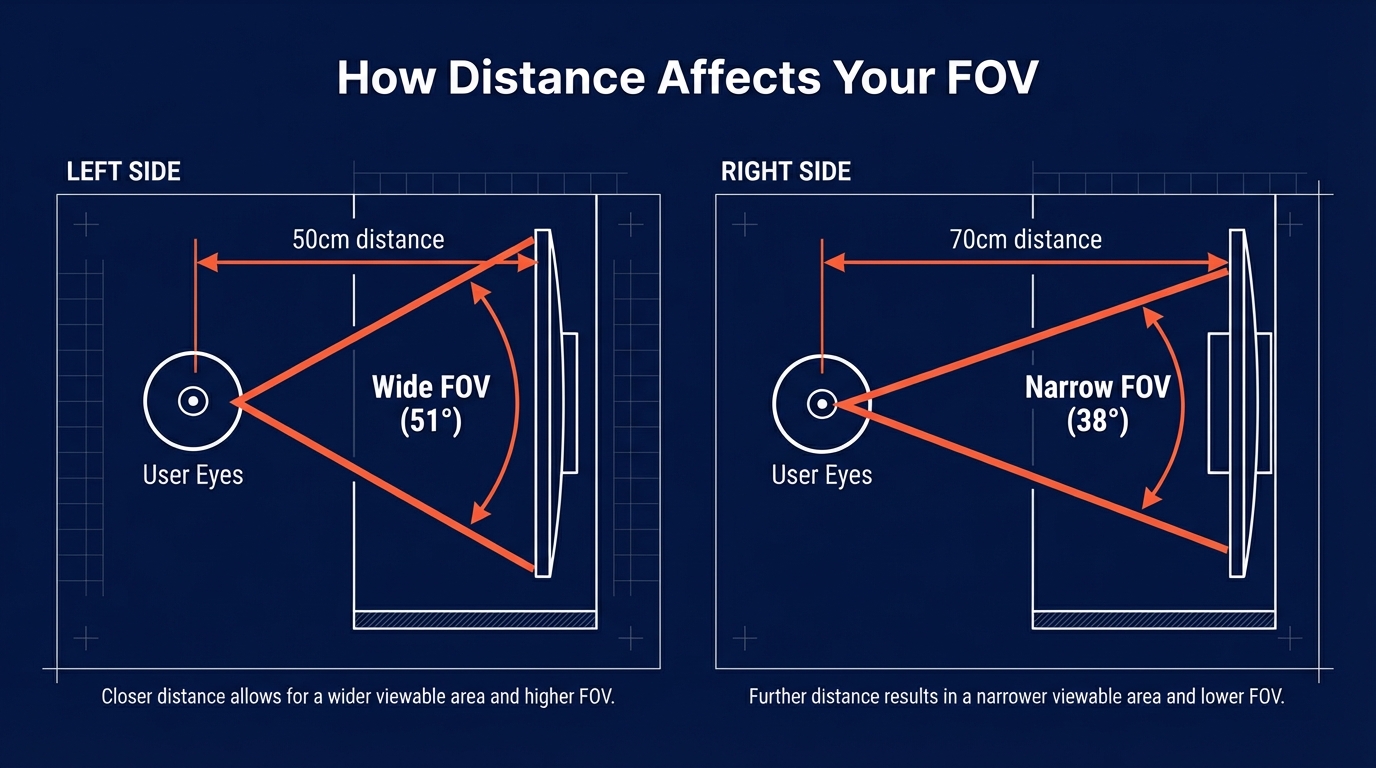
In sim racing, the game renders a 3D scene and projects it onto your flat screen. The FOV setting tells the game how much of that scene to show. Get it right and objects on screen appear at the correct physical size relative to where you’re sitting. Braking markers look the right distance away. Other cars look the right size. Your brain stops fighting the mismatch between what it sees and what the physics tells it.
Get it wrong and things feel off in ways that are hard to pin down. Too wide – the most common default – and everything looks further away than it is. Corners arrive faster than expected. Speed feels exaggerated. You brake late because your eyes say “that’s still miles away” while the physics says you’re already past the braking point.
Too narrow and the opposite happens. Everything feels sluggish. Slow motion. You’re overbraking for corners because they look closer than they are.
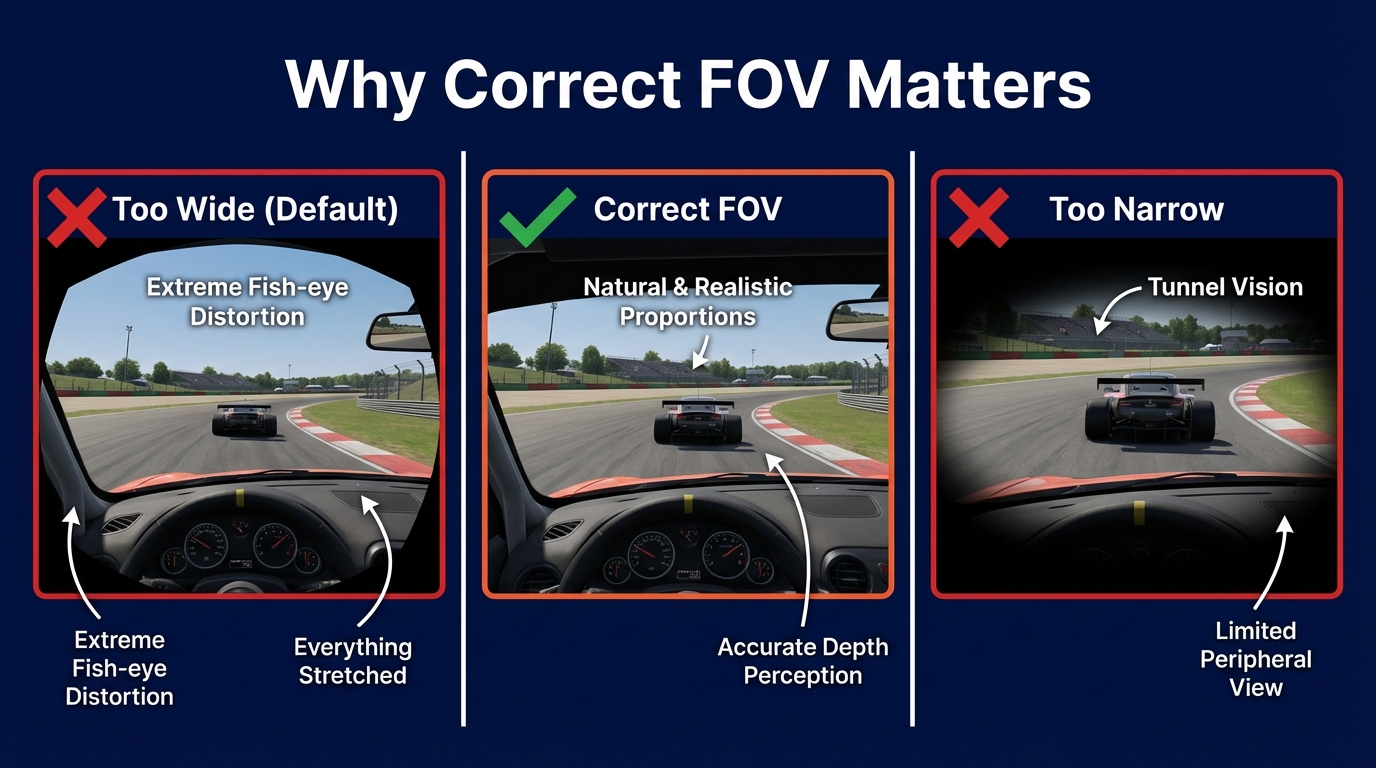
The correct FOV eliminates this. Spatial awareness improves, braking gets more consistent, and your lap times will come down – not because you’re suddenly faster, but because you’re no longer fighting bad visual information. I’ve seen people drop a second or more per lap just by fixing their FOV. It’s one of those changes where you wonder how you ever raced without it.
How to Measure Your Setup
Before using the calculator, you need three things. Get these right and the output will be accurate.
Screen size (diagonal inches): This is the number your monitor was sold as – 24″, 27″, 32″, 49″, whatever it says on the box. If you’re unsure, measure the diagonal of the visible screen area with a tape measure. Don’t include the bezel in this measurement.
Distance from your eyes to the screen (cm): Sit in your normal racing position and measure from your eyes straight to the centre of the monitor. Use centimetres. This is the measurement that changes your FOV the most – even 5cm makes a noticeable difference, so don’t guess it.
Screen aspect ratio: Most gaming monitors are 16:9. Ultrawides are typically 21:9 or 32:9. Check your monitor specs if you’re not sure – the calculator supports 16:9, 16:10, 21:9, 24:10, 32:9, 32:10, 5:4, and 4:3.
For triple screens, measure one monitor’s size and set the calculator to “Triple Screens”. If you’ve got bezels between your panels, measure the bezel width in millimetres and enter that too – it affects the overall viewing angle.
Understanding Your FOV Results
The calculator gives you a list of values for different sim racing games. These aren’t all the same number because games handle FOV in different ways. There are two main types you need to know about.
Horizontal FOV (hFOV) is the side-to-side angle. Games like iRacing, Project CARS, Automobilista 2, BeamNG.drive, and RaceRoom use horizontal FOV. You’ll see the hFOV value at the top of the results – that’s the raw horizontal angle for your setup.
Vertical FOV (vFOV) is the top-to-bottom angle. Assetto Corsa, ACC, rFactor 2, Le Mans Ultimate, and several others use vertical FOV. The vFOV value is always smaller than hFOV for the same setup because your screen is wider than it is tall.
Then there are a few special cases. F1 24 and F1 25, DiRT Rally, and EA Sports WRC all use a doubled vertical FOV value internally – the calculator handles this for you and shows the number you should type into the game. Richard Burns Rally uses radians instead of degrees, which the calculator also converts automatically.
If you’re running triple screens, you’ll also see a “Triple Screen Angle” value. That’s the angle each side monitor should be angled relative to the centre screen – more on that below.
How to Set Your FOV in Each Game
Every sim handles FOV settings differently. Some bury it in a graphics menu, others have a dedicated tool. Here’s where to find it and what to enter for the most popular titles.
iRacing
iRacing uses horizontal FOV. Take the “iRacing” value from the calculator and enter it in Options > Graphics. iRacing also has a built-in FOV calibration tool – press Ctrl+F12 in the car to adjust your seating position, and use the “FOV” slider in the camera tool to set your angle.
One thing worth knowing: set your seating position first, then your FOV. Get comfortable – eye height correct, mirrors visible, steering wheel at the right position – and then dial in the field of view. If you change your seat position later, your FOV relationship changes too. Ergonomics first, FOV second.
For more detail on the full process, I’ve got a dedicated guide: FOV setup and calculation for iRacing.
Assetto Corsa and ACC
Both Assetto Corsa and Assetto Corsa Competizione use vertical FOV. Use the “Assetto Corsa, Assetto Corsa Competizione” value from the calculator. In AC, you’ll find it under Settings > View > Field of View. In ACC, it’s under Settings > Graphics > FOV.
ACC also has a FOV offset slider that shifts the view without changing the angle. Leave that at zero initially – adjust your seat position with Ctrl+F5 instead.
F1 24 and F1 25
The F1 games use a doubled vertical FOV value – meaning what the game calls “FOV” is twice the actual vertical angle. The calculator accounts for this and shows the correct number to enter directly. Look for the “F1 23, F1 24” line in the results and type that value into your settings. Despite listing F1 23 and F1 24, the same calculation applies to F1 25.
You’ll find the FOV slider under Settings > Camera Settings > T-Cam or Cockpit > Field of View. The range is limited compared to dedicated sims, so if your calculated value falls outside the slider range, get as close as you can.
Automobilista 2, Project CARS, and RaceRoom
These three all use horizontal FOV. Use their respective values from the calculator – each has slightly different min/max ranges, which is why the calculator shows separate entries. AMS2 and Project CARS share the Madness engine, so their FOV behaviour is very similar. RaceRoom’s FOV setting is in the in-car camera options.
rFactor 2 and Le Mans Ultimate
Both use vertical FOV. Le Mans Ultimate runs on rFactor 2’s engine, so the FOV system works the same way. Use the respective calculator values. In rFactor 2, press Ctrl+F to cycle through FOV adjustments while driving, or set it in the player JSON file for precision.
BeamNG.drive
BeamNG uses horizontal FOV. The value range is 10-120 degrees, tighter than most racing sims. Enter the “BeamNG.drive” value from the calculator in the camera settings.
DiRT Rally, EA Sports WRC, and GRID Autosport
Like the F1 games, these titles use a doubled vertical FOV value. The calculator outputs the correct number to enter – don’t divide it yourself, that’s already been done. DiRT Rally 2.0 has its FOV slider in the cockpit camera settings. EA Sports WRC follows the same approach.
Euro Truck Simulator 2 and American Truck Simulator
The truck simulators use horizontal FOV with a wide range (35-180 degrees). Correct FOV makes a real difference in truck sims because you spend a lot of time judging distances to other vehicles and road furniture. Use the “European & American Truck Simulator” value from the results.
Richard Burns Rally
RBR is the outlier – it uses radians instead of degrees. The calculator converts this for you. Use the “Richard Burns Rally” value directly. If you’re using the RBRTM or RSF mod packs, the FOV setting is in the graphics configuration files.
Triple Screen FOV Setup
Triple monitors change the FOV calculation significantly. Instead of one flat viewing surface, you’ve got three panels wrapping around your peripheral vision. The calculator handles the maths, but you need to get the physical setup right first.
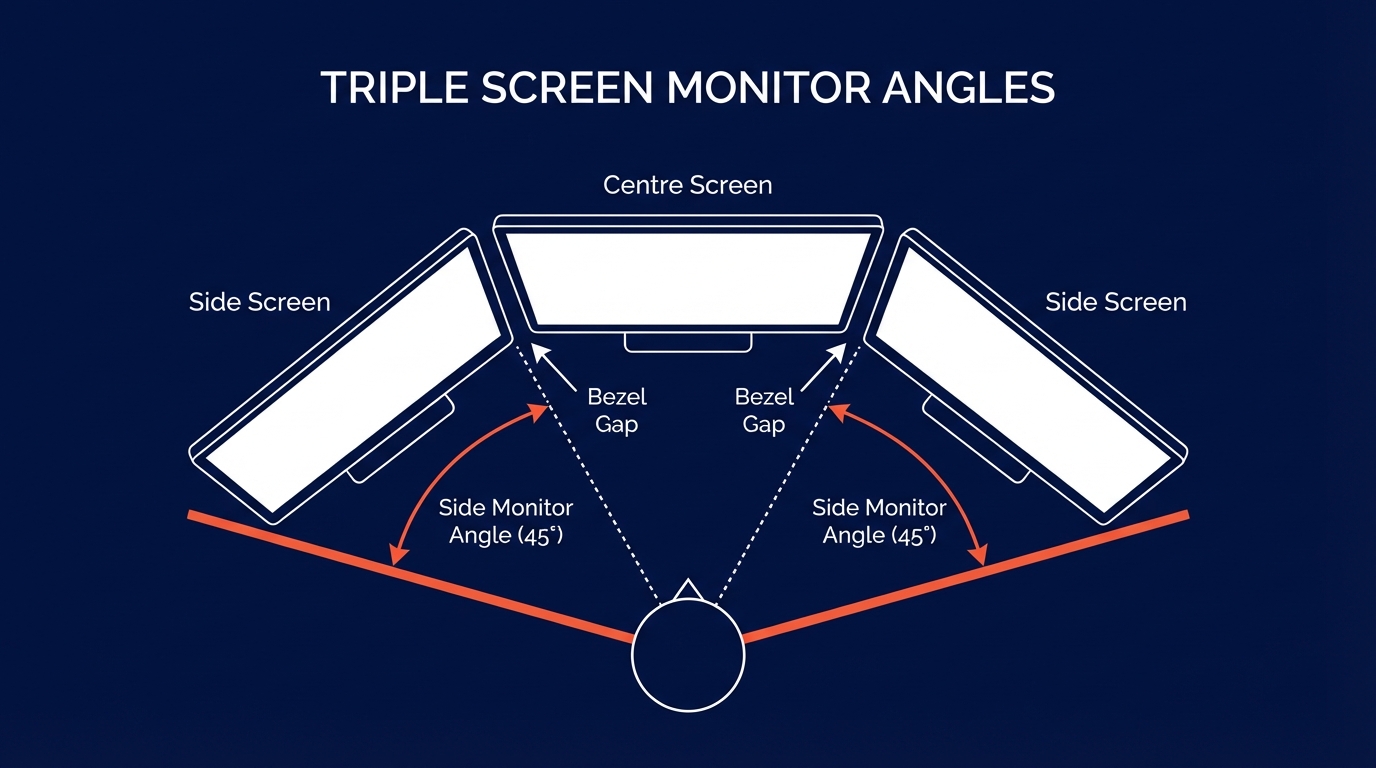
Select “Triple Screens” in the calculator. Enter the size of one monitor (they should all be the same). Enter your bezel thickness – that’s the width of one bezel edge, not both sides combined, in millimetres. The calculator gives you two key numbers: the per-game FOV value (which accounts for the total width of all three screens) and the Triple Screen Angle.
The Triple Screen Angle is the angle each side monitor should be rotated relative to the centre screen. If the calculator says 45 degrees, each side panel should be angled 45 degrees inward. Most sim rigs with triple monitor mounts let you set this angle – get it as close to the calculated value as you can.
Getting the angle wrong means the image won’t align properly across screens. Objects that cross from one panel to the next will appear to “jump” or stretch at the bezel boundaries. When the angle matches the calculated value, the image flows naturally across all three screens.
For a full walkthrough of the physical setup, monitor alignment, and in-game configuration, see my guide on setting up triple monitors in iRacing – most of the principles apply to other sims too.
Curved Monitor FOV
Curved monitors change the geometry. A flat screen has a fixed width at a fixed distance, but a curved panel wraps slightly toward you at the edges. This means the effective viewing angle is wider than a flat panel of the same size at the same distance.
Tick the “Curved monitor(s)” checkbox in the calculator and enter your curve radius. This is the “R” number in your monitor’s specs – 1000R, 1500R, 1800R. A lower number means a tighter curve. My Samsung G9 is 1000R, which is quite aggressive. Most standard curved monitors are 1500R or 1800R.
The difference between flat and curved calculation is usually a few degrees. Not massive, but worth getting right if you’ve paid for a curved panel. The calculator uses arc geometry instead of simple triangle maths for curved screens, accounting for the curvature radius and your sitting distance.
Common FOV Mistakes
Using the game’s default FOV. Most games ship with a wide FOV that looks dramatic in screenshots but is wildly inaccurate for anyone sitting at a desk. Default FOV is designed for console players sitting 2-3 metres from a TV. If you’re 50-70cm from a monitor, the default is almost certainly wrong.
Guessing the distance. The distance from your eyes to the screen is the single biggest variable in the calculation. 50cm versus 70cm on a 27″ monitor is the difference between roughly 51 degrees and 38 degrees of horizontal FOV. Measure it. Use a tape measure, not your arm span.
Setting FOV before your seating position. Get your rig ergonomics sorted first – eye height, pedal reach, wheel position, how far forward or back your seat sits. Then measure the distance and calculate FOV. If you shift your seat forward by 10cm next week, recalculate.
Giving up because it feels too narrow. If you’ve been racing with a wide default FOV for months, switching to the correct (narrower) value feels claustrophobic at first. You lose peripheral vision and it seems like you’re looking through a letterbox. This is normal. Give it three or four sessions. Your spatial awareness will adjust and you’ll start hitting braking points more consistently. That’s when it clicks.
Obsessing over exact values. FOV doesn’t have to be millimetre-perfect. A degree or two either side of the calculated value won’t ruin anything. If the calculator says 48 and the game’s closest increment is 50, that’s fine. The point is getting in the right ballpark, not chasing decimal places.
FOV Calculator FAQ
What FOV should I use for sim racing?
The correct FOV depends on your screen size and how far you sit from it. A 27″ monitor at 60cm viewing distance gives roughly 48 degrees horizontal FOV. A 32″ at the same distance gives about 57 degrees. There’s no universal “best” value – it’s specific to your physical setup. Use the calculator above with your actual measurements.
Does FOV affect lap times?
Yes, indirectly. Correct FOV gives you accurate spatial information, so braking points, corner entries, and distance judgment all improve. You’re not faster because the car is faster – you’re faster because you’re getting reliable visual feedback. Many sim racers report dropping 1-2 seconds per lap after correcting their FOV, especially on circuits with heavy braking zones.
Should I use the same FOV for every game?
No. Different games use different FOV systems – some want horizontal FOV, some want vertical, some use doubled values. The correct number to type into each game’s settings will be different even though they all represent the same physical viewing angle. The calculator shows the right value per game.
Why does correct FOV feel so narrow?
Because most games default to an unrealistically wide FOV – often 80-100 degrees on a single monitor. A physically correct value for a 27″ monitor at desk distance is typically 40-55 degrees. That’s a big reduction. You lose the ability to see your mirrors and side windows in your peripheral vision, which feels restrictive. The tradeoff is that everything you can see is spatially accurate, which is better for actual driving performance.
What if my calculated FOV is outside the game’s range?
Some games have minimum or maximum FOV limits. If your calculated value is below the game’s minimum (common for small monitors at long distances), set it to the lowest the game allows. You can also try moving your monitor closer or switching to a larger screen to bring the correct FOV into range.
Related guides:
- FOV Setup and Calculation for iRacing and Assetto Corsa
- How to Set Up Triple Monitors in iRacing
- iRacing Graphics Settings Guide
- Sim Racing Games – Complete List
- Fuel and Tyre Stint Calculator
More How-to Guides for Sim Racers:

Racing Cockpits Buyer’s Guide
Best VR Headsets for Flight Simulation
Fanatec ClubSport Steering Wheel GT3 for Xbox Review
Simagic Sim Racing: The Complete Buyer’s Guide (2026)
Corsair for Sim Racers: Ecosystem Buyers Guide 2026