
I’m a sim racer and amateur racer with a passion for Motorsport, good racecraft and the technical and setup aspect of sim racing.
If you run Assetto Corsa through Content Manager with Custom Shaders Patch and Pure, you’ll meet “Race Cancelled” sooner or later. You hit Drive, the loading screen flashes, and you’re straight back at the menu with no explanation. I’ve lost a couple of evenings to it over the years, usually after updating something I shouldn’t have touched.
The honest answer up front: Race Cancelled isn’t one bug with one fix. It’s the game crashing on load, and the trick is to stop guessing and read the log first. Do that, run one quick test to tell a broken mod from a broken install, then work the fixes in order. That’s the whole guide.
Quick Navigation
Jump directly to what you’re looking for:
What it actually is |
Read the log first |
The stock-car test |
The fixes, in order |
When it’s online only |
Current versions |
Still stuck?
What “Race Cancelled” actually is
Assetto Corsa is over a decade old now, and the only reason it still looks and drives like a modern sim is the stack we’ve bolted onto it: Content Manager as the launcher, Custom Shaders Patch (CSP) for the graphics and physics extensions, and Pure for the lighting and weather. When all three line up, it’s glorious. When one of them doesn’t, the game engine quits the moment it tries to load, and Content Manager catches that and shows you “Race Cancelled”.
So it’s a generic message, not a diagnosis. It’s the equivalent of a car that won’t start with no dashboard light to tell you why. The cause might be a CSP version that doesn’t match your Pure version, a mod that’s missing a file, a base game that’s quietly corrupted, or something as daft as a blank online name. Same symptom, completely different fixes. That’s why throwing random solutions at it wastes so much time, and why the first real step is to make the game tell you what went wrong.
Read the log first
Two things before you change a single setting. First, launch Content Manager directly from its desktop shortcut, not through Steam. When you start it via Steam, it tends to swallow the real crash output and just shrugs at you. Launched on its own, it’ll usually surface the actual reason – a missing DLL, a named file, a version conflict.
Second, when the game crashes and throws a Windows error box, don’t dismiss everything in a panic. Click No on the crash dialog and wait for Content Manager’s own message underneath – that’s the one that names the broken car sound, the missing track file, or the weather script that fell over.
For the full story, open the log file. It lives at Documents\Assetto Corsa\logs\log.txt (there’s an errors.txt in the same folder too). Scroll right to the bottom – the last few lines are the ones that matter. A rough translation of what you’ll see:
- “.kn5 not found” or “CRASH IN…” – a broken or missing car/track mod.
- “Weather script failed” or anything mentioning Pure – a CSP and Pure version mismatch.
- “dwrite.dll” or “dxgi.dll” – CSP itself is corrupted, or something like ReShade is fighting it.
- “Out of memory” – you’ve maxed your VRAM or RAM; drop the grid size and track detail.
The stock-car test (mod or install?)
This is the single most useful thing in the whole guide, and it takes thirty seconds. Pick a standard Kunos car and a standard Kunos track – the Abarth 500 at Imola is my go-to – set the session to Practice with no AI, and hit Drive.
If it loads, your install is fine and the problem is a specific mod or a weather mismatch. Go back to whatever combination was failing and start swapping pieces out. If a stock car on a stock track still throws Race Cancelled, the problem is deeper – your base game, your CSP install, or your video settings – and you can skip straight to the install-level fixes below. Either way, you’ve just cut the problem in half without guessing.
Visit Our Sponsors
The fixes, in order
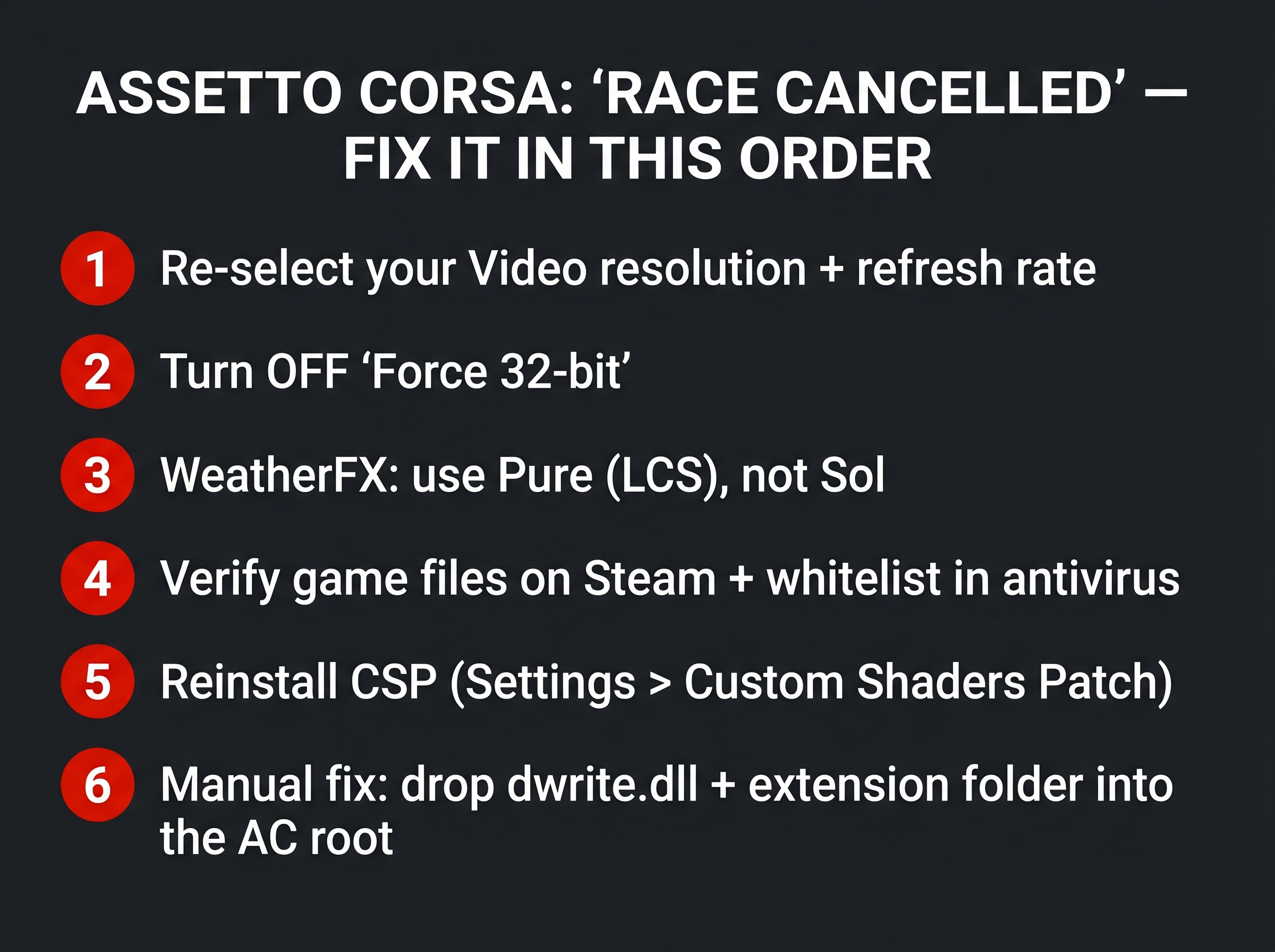
Work down this list in order. Most people are sorted by the third one. Don’t skip ahead – the order is roughly how common the causes are.
1. Verify the game files in Steam
If the stock-car test failed, start here. In Steam, right-click Assetto Corsa, go to Properties, Installed Files, and click Verify integrity of game files. It checks every base file against Steam’s copy and re-downloads anything that’s corrupted or missing – including the standard Kunos car sounds that often go walkabout. One catch worth knowing: verifying strips CSP out, because CSP isn’t a Steam file. So after it finishes, you’ll need to reinstall CSP, which is the next step anyway.
2. Reinstall Custom Shaders Patch cleanly
A half-finished CSP update is probably the most common cause of all. Content Manager’s auto-installer sometimes leaves a mix of old and new files behind, and that mismatch is enough to cancel every race. A “clean” reinstall means clearing the old files out by hand first, rather than just clicking a different version.
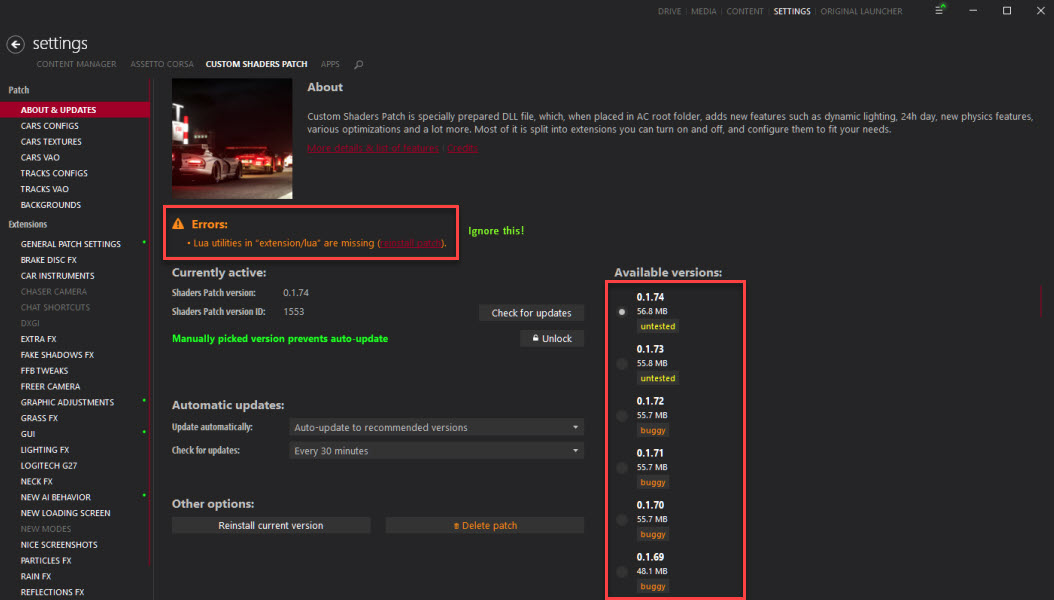
Go to your Assetto Corsa root folder (right-click the game in Steam, Manage, Browse local files). Delete the dwrite.dll file and the whole extension folder – that’s CSP gone. Then open Content Manager and head to Settings, Custom Shaders Patch, About & Updates. From there you can reinstall the current version or pick one from the list on the right.
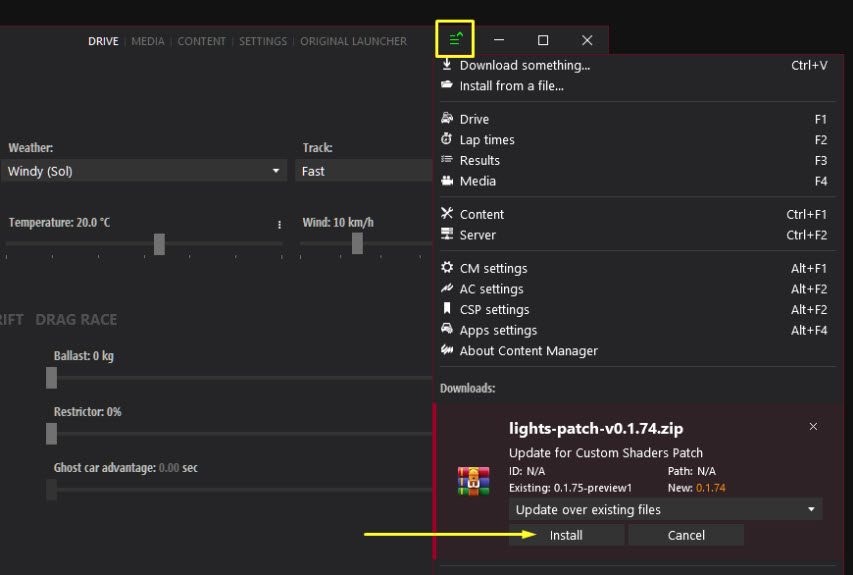
If you’re on a paid preview build (the ones with rain), you install those slightly differently – you download the zip from the Patreon, then drag it straight into the Content Manager window and hit Install from the menu, rather than extracting it yourself.
3. Match Pure to your CSP version
Pure leans on rendering hooks that only exist in newer CSP builds, so if your weather mod is ahead of your CSP, the weather script fails on load and cancels the race. Pure’s modern lighting engine in particular needs a fairly recent CSP underneath it. The fix is to get both onto compatible versions – either update CSP to match Pure, or step Pure back to suit the CSP you’re running. The current pairing is in the versions section below.
4. Run Content Manager as administrator
This one’s easy to miss and fixes a surprising number of cases. CSP works by dropping that dwrite.dll into the game folder, and if Content Manager doesn’t have permission to write there, it can’t inject CSP and the race cancels. Right-click both Steam and Content Manager and run them as administrator (or set it permanently under the shortcut’s compatibility properties). Worth a try before you do anything drastic.
5. Install mods manually (the drag-to-root trick)
Content Manager’s drag-and-drop installer is convenient, but it doesn’t always put files where they belong, especially with big track mods. The bulletproof method is to do it by hand. Extract the mod with 7-Zip or WinRAR, then keep opening folders until you see ones that match your AC root – content, system, apps, that sort of thing. Drag those into the Assetto Corsa root folder, overwrite when asked, done.
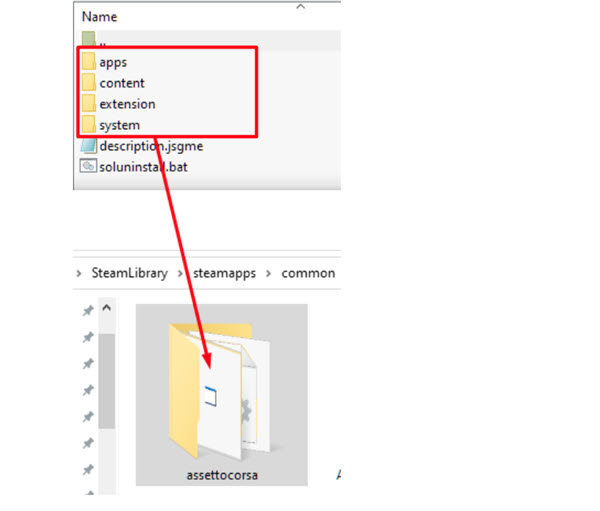
It feels like more effort than clicking Install, and it is, but for the big tracks – the Shutoku and Touge maps, the huge open-world ones – it’s the difference between a server you can join and an evening of Race Cancelled. If you’re new to all this, my Assetto Corsa mods guide walks through Content Manager, CSP and Sol from scratch.
When it only happens online
If single-player is fine but a server throws Race Cancelled, the cause is almost always a mismatch between your files and the server’s. The classic version: you’ve played a server happily for weeks, then one day it cancels. What’s happened is the server owner updated a car or track, and yours is now the wrong version. Grab the server’s current car pack (most have a Discord with the downloads) and reinstall it.
- Checksum error – your data doesn’t match the server’s. Re-download the server’s pack, or verify game files if it’s a standard Kunos car.
- Missing DLC – the server uses a Kunos DLC car you don’t own. The only fix is buying the DLC; there’s no way round it.
- Blank or prohibited online name – some servers reject the default empty name. Set one under Settings, Content Manager, Drive.
- Steam not linked – if a server needs Steam auth and Content Manager isn’t tied to your Steam profile, link it under Settings, Content Manager, General.
The current versions (early 2026)
Version numbers age fast in AC modding, so treat these as a snapshot and check for the current builds before you commit – but as of early 2026, here’s the lay of the land. Stable CSP is around 0.2.11, installed free straight from Content Manager. The paid preview build (the one with proper rain) sits in the 0.3.0 range and comes from Ilja Jusupov’s Patreon. Pure is on 3.21 with a few hotfixes, and it’s effectively replaced Sol as the weather engine of choice.
Two practical notes. Pure’s modern lighting needs CSP 0.2.3 or newer, so don’t pair a current Pure with an ancient CSP. And install Pure itself by dropping its folders into the AC root by hand – at the moment, dragging the Pure zip into Content Manager can break the weather script and, yes, cancel the race. Always grab Content Manager from its official home at acstuff.club rather than a random mod-site repack.
Still stuck? The clean-slate reinstall
If you’ve read the log, run the stock-car test, and worked the list and it’s still cancelling, it’s time to wipe the slate. It sounds drastic but it’s often quicker than chasing a ghost for another two hours. Delete the Assetto Corsa folder from steamapps\common, then delete the Content Manager data folder at %appdata%\Local\AC Tools Content Manager. Uninstall the game in Steam and reinstall it.
Here’s the step people skip: before you touch Content Manager again, launch plain Assetto Corsa through Steam once and drive a default car on a default track. That lets Steam and the game finish talking to each other and lays down all the files correctly – it also sorts out a lot of online problems before they start. Once vanilla AC runs, then reinstall Content Manager, CSP and Pure on top. Set up clean once and you stop firefighting.
That really is the lot. Read the log, isolate with the stock-car test, work the list. If your install is healthy, the next thing worth your time is making it look the part – there’s more on getting the most out of it in my best Assetto Corsa mods guide, and if your whole rig could use a once-over, there’s the sim racing PC guide too.
How to Set Up Triple Screens in Le Mans Ultimate (LMU)
iRacing VR Settings (2026): Meta Quest 3, PSVR2, Pimax and Valve Index
Assetto Corsa VR Settings 2026: Pimax, Quest 3, PSVR2 & More
Forza Horizon 5 Wheel Settings: FFB for Logitech, Thrustmaster and Moza

EA SPORTS WRC Fanatec Settings for the CSL DD and ClubSport DD+