
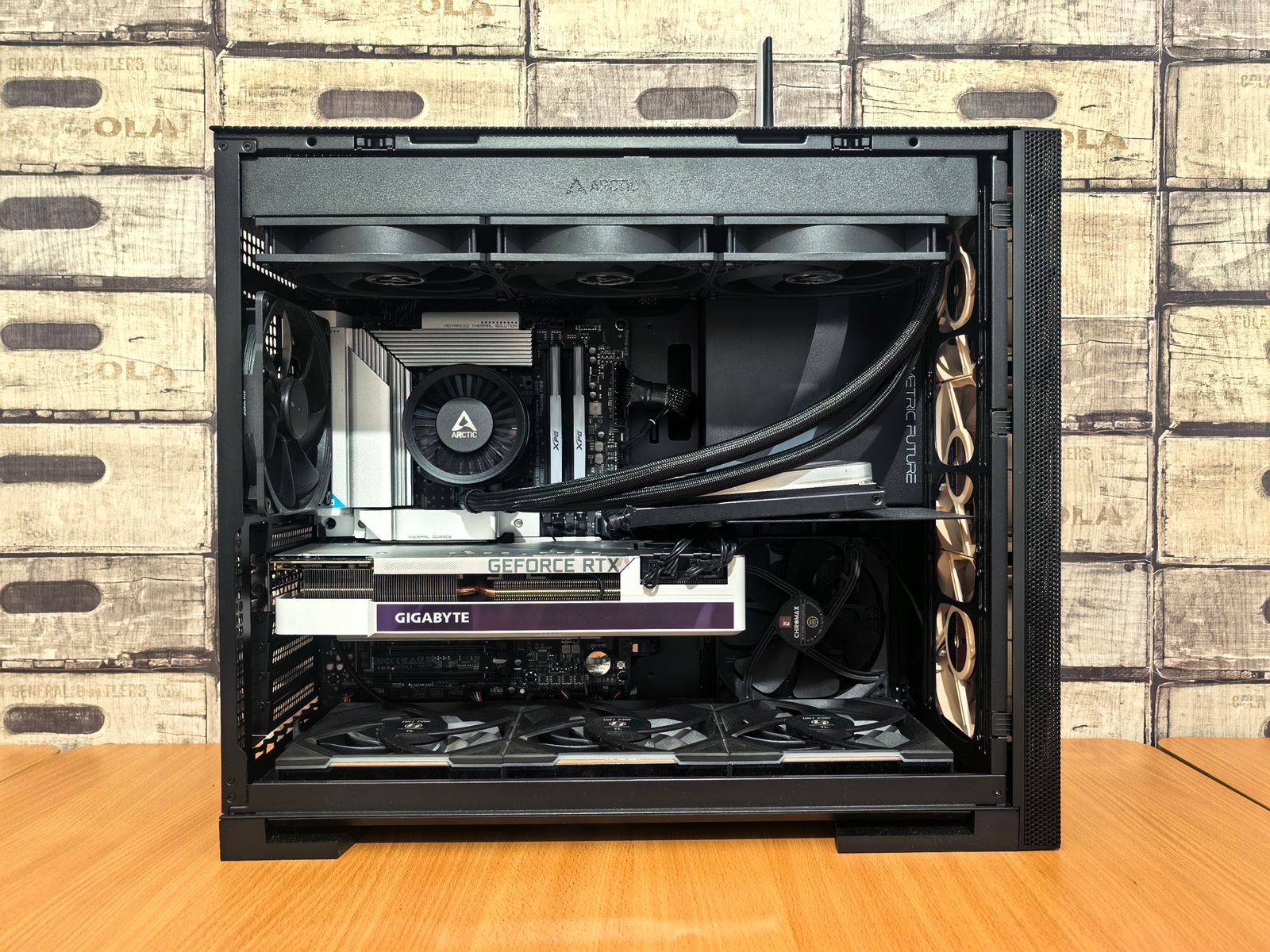

I’m a sim racer and amateur racer with a passion for Motorsport, good racecraft and the technical and setup aspect of sim racing.
You’ve built a sim PC, wired the rig up, and somewhere along the way you’ve been told to disable your integrated graphics in the BIOS. Maybe a VR headset is stuttering, maybe a sim is running at a fraction of the frame rate it should. Before you go digging through BIOS menus, most of the time you really don’t need to, but there are always edge cases and people new to this, so hopefully this is a valuable read either way. Today’s article covers when it does matter for a sim or VR rig, and how to get set up properly when it does.
Quick Navigation
Jump directly to what you’re looking for:
Check you have an iGPU |
Does it boost FPS? |
When you do need to |
Try the Windows fix first |
Disable it in the BIOS |
What can go wrong
First – check you have an iGPU
You probably wouldn’t be here if you knew for sure, so let’s start with the (important) basics. Your CPU might be quietly running an iGPU you don’t know is there, and plenty of the chips that go into sim rigs don’t have one at all.
- Intel: an “F” on the end of the model means no integrated graphics. A 14900KF or 13600KF has nothing to disable; a 14900K (no F) does.
- AMD AM5 (Ryzen 7000 and 9000): nearly all of them have an iGPU, the 7800X3D included. This is the one that catches people out, because the old assumption was that gaming Ryzen chips had no graphics on board.
- AMD AM4 (Ryzen 5000 and older): only the “G” chips, like the 5600G, have an iGPU. The 5800X3D has none.
No integrated graphics means no setting to change, and no problem to solve here. If you do have one, read the next bit before you touch anything.
Will disabling it boost your frame rate?
My opinion on this one hasn’t changed in years: disabling the integrated GPU won’t get you a single extra frame in iRacing, Assetto Corsa, or MSFS. It frees up a sliver of system memory and a touch of CPU overhead, and that’s it. If you came here chasing extra FPS, that’s not where they are.
The actual fix, nine times out of ten, is easy: plug your monitor into the graphics card, not the motherboard. If your display cable runs into the HDMI or DisplayPort on the motherboard’s rear panel, Windows pushes the picture out through the integrated GPU, dragging the signal off your dedicated card first. That’s where the stutter and the input lag come from. Move the cable down to the ports on the graphics card itself and the problem usually disappears without a single BIOS change.
The “always disable your iGPU” advice gets repeated far more than it needs to be. For most rigs it does nothing. There are a handful of cases where it does help, though, and they’re worth knowing.
When you do need to disable it
Four situations come up often enough on sim and VR rigs to make the trip into the BIOS worth it:
- A sim or app grabs the wrong GPU. Some older titles default to “GPU 0”, which can be the integrated chip, and you end up running at single digits with a 4090 sitting idle. Disabling the iGPU removes the choice and forces everything onto the dedicated card.
- Your VR headset routes through the wrong encoder. This is the big one for VR sim racers. Quest Link, Air Link, Virtual Desktop and some OpenXR setups can latch onto the integrated GPU’s video encoder instead of NVENC or AMD’s AMF. The result is stutter, latency spikes, or a black screen in the headset. Disabling the iGPU forces the system onto the dedicated card’s encoder.
- You’ve run out of GPU ports. Three monitors plus a VR headset is more outputs than most cards have, so a screen ends up on the motherboard. That keeps the integrated GPU awake and can throw desktop stutter across all your displays, not just the one on the motherboard.
- AM5 idle temperatures. A side effect rather than a display fix, but a real one. The iGPU on Ryzen 7000 and 9000 chips can draw a fair bit of power at idle and push CPU idle temps up into the high 50s. Owners running an X3D chip for long stints have measured idle drops of up to 20 degrees after disabling it. If your rig sits on for hours and runs warm at the desktop, this is a legitimate reason.
Try the Windows fix first
If the problem is software picking the wrong GPU rather than idle temps, you can often sort it without rebooting at all. Windows 11 handles two graphics adapters far better than it used to.
Visit Our Sponsors
Go to Settings, System, Display, Graphics. Find the game, the sim, or the VR runtime in the list – the VR one is usually vrserver.exe or the headset’s own client – click it, hit Options, and set it to High Performance. That pins it to the dedicated card. Leave Hardware-Accelerated GPU Scheduling on while you’re there; it helps Windows manage the split between the two chips.
For most people this is the better answer. It locks your sim and headset to the dedicated card while leaving the integrated GPU free to drive a secondary monitor or take some browser and Discord load off your main card. The BIOS route only wins when a stubborn old title or a custom VR runtime ignores the Windows setting entirely, or when you’re chasing those AM5 idle temps. Try the software fix, see if it holds, and only go into the BIOS if it doesn’t.
How to disable the iGPU in your BIOS
Restart and tap Delete (sometimes F2) as the machine boots to get into the BIOS, then press F7 for Advanced mode on most boards. The exact menu names shift a little between manufacturers and between firmware updates, but the wording below is consistent enough to follow. Save and exit with F10 when you’re done.
One pattern to recognise across all of them: you’re usually setting the “primary display” or “initiate graphic adapter” to PEG or PCIe (your dedicated card) rather than IGD or Auto (the integrated chip), and then setting the integrated graphics or multi-monitor option to Disabled.
ASUS (ROG, TUF, Prime, ProArt)
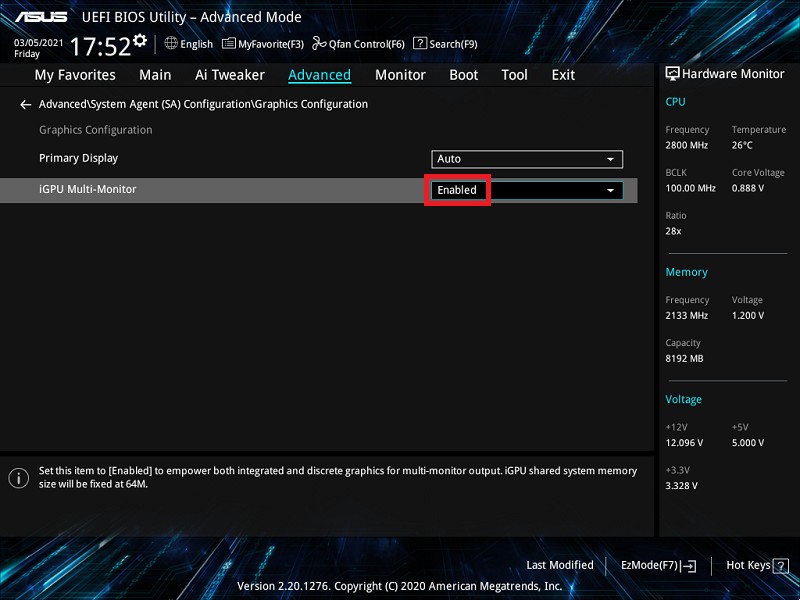
On Intel boards, go to Advanced, then System Agent (SA) Configuration, then Graphics Configuration. Set Primary Display to PEG (newer boards label that value PCIE, with the integrated option shown as CPU Graphics), and set iGPU Multi-Monitor to Disabled (some boards label that Internal Graphics). On AMD boards it’s usually Advanced, NB Configuration, Integrated Graphics, set to Disabled. On a few of the newer ProArt and ROG boards, ASUS hides the iGPU toggle entirely if there’s no monitor plugged into the motherboard, so unplug any motherboard-connected display first if you can’t find it.
MSI (MEG, MPG, MAG, PRO)
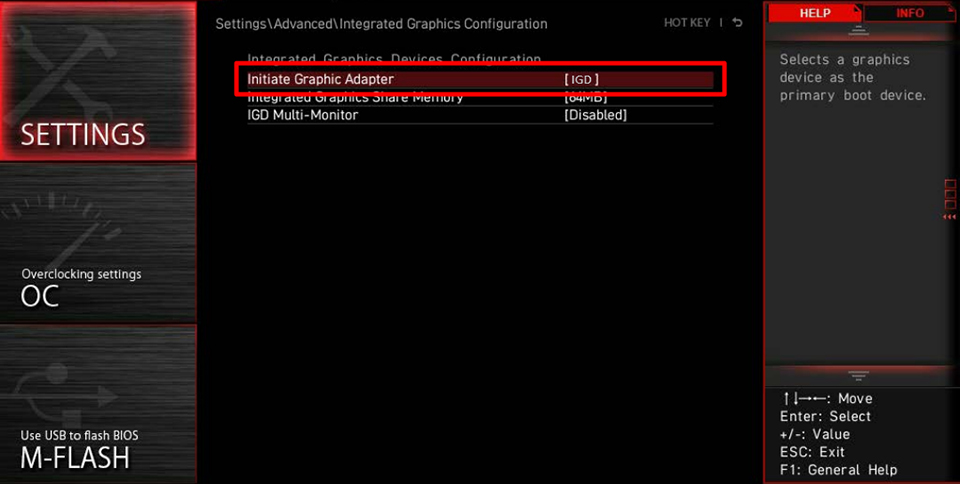
Settings, Advanced, Integrated Graphics Configuration. Change Initiate Graphic Adapter from IGD to PEG, and set Integrated Graphics Control (older boards call it IGD Multi-Monitor) to Disabled.
Gigabyte and AORUS
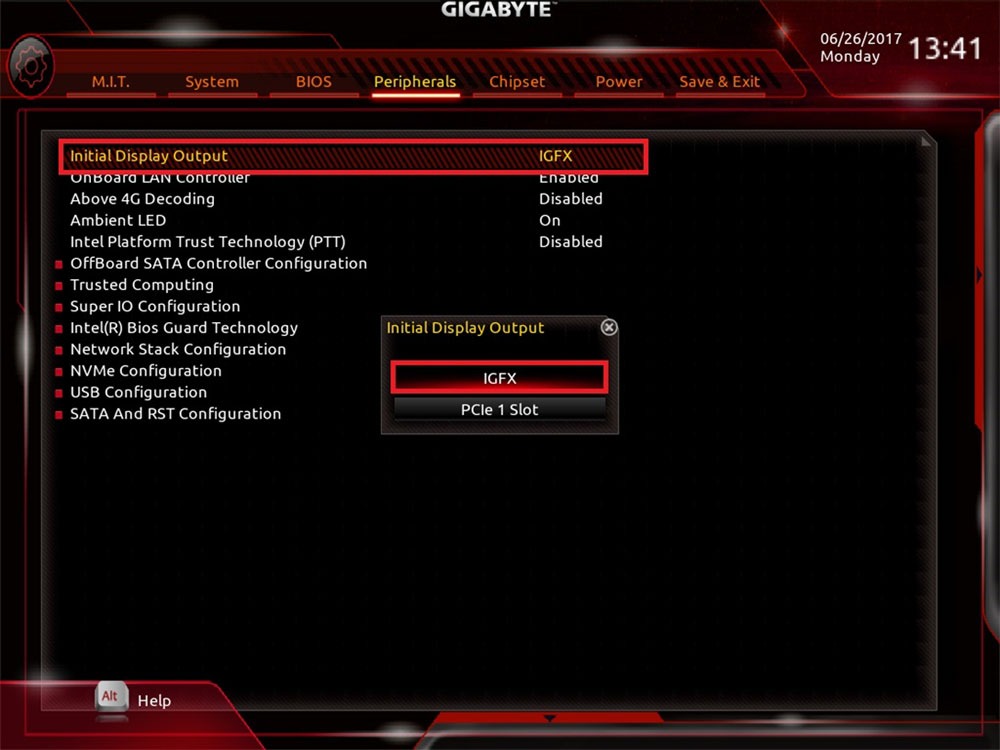
Settings, then IO Ports (Peripherals on older boards, the Chipset tab on some newer firmware). Set Initial Display Output (it usually defaults to IGFX) to PCIe 1 Slot, or whichever slot your card sits in, and set Internal Graphics to Disabled if your board has that separate toggle.
ASRock (Taichi, Phantom Gaming, Steel Legend)
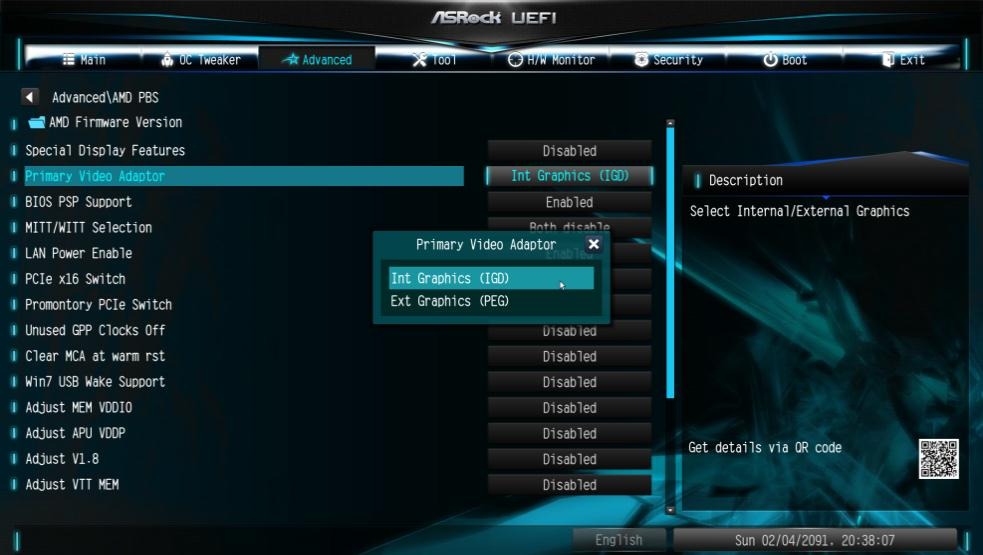
The quickest route on most boards: under Advanced, find Primary Video Adaptor (some boards call it Primary Graphics Adapter) and switch it from Int Graphics (IGD) to Ext Graphics (PEG). To turn the iGPU off completely on an AMD board, go deeper – Advanced, AMD CBS, NBIO Common Options, GFX Configuration, then set the iGPU option to Disabled. On Intel boards the equivalent sits under Advanced, Chipset Configuration.
What can go wrong, and how to undo it
Disabling the integrated GPU has a few trade-offs that aren’t obvious until you’ve hit them.
You lose the integrated encoder. If you stream your races to Twitch or record with OBS and you’ve been using Intel QuickSync or AMD’s iGPU encoder to handle that, turning the iGPU off takes it with it. The encoding load shifts onto your main card, which can cost you frames mid-race. If you stream, leave the integrated graphics on and fix the GPU selection in Windows instead.
You can also end up at a black screen. Disabling the iGPU switches off the motherboard’s own display outputs, so any monitor plugged into the motherboard goes dark – move it to the graphics card. More seriously, if your dedicated card ever fails, or a PCIe riser cable works loose (and risers are everywhere in sim rigs), a machine with the iGPU disabled boots to nothing, because there’s no fallback output left.
If that happens, you reset the BIOS to clear it. Power off, switch off at the wall, then either short the two pins labelled CLR_CMOS or JBAT1 with a screwdriver for about ten seconds, or pull the round CR2032 battery out of the board for five minutes and put it back. The BIOS reverts to defaults, the iGPU goes back to Auto, and you’ll have a picture again. One more thing if you’re on a gaming laptop: don’t disable the iGPU at all unless you know it has a hardware MUX switch, because many laptops route the dedicated card’s output through the integrated one, and turning it off leaves you with a permanent black screen. Use the laptop maker’s software to switch to dedicated-GPU mode instead.
So: check the cable’s in the graphics card first, try the Windows graphics setting next, and only disable the iGPU in the BIOS if a sim or headset is still being stubborn or your AM5 chip is running hot at idle. If you’re still building the rig around it, our sim racing PC guide and graphics card guide cover what to pair with what, and the VR headset guide is the place to start if the headset is what brought you here.
Related Posts
How to Set Up Triple Screens in Le Mans Ultimate (LMU)
iRacing VR Settings (2026): Meta Quest 3, PSVR2, Pimax and Valve Index
Assetto Corsa VR Settings 2026: Pimax, Quest 3, PSVR2 & More

Forza Horizon 5 Wheel Settings: FFB for Logitech, Thrustmaster and Moza

EA SPORTS WRC Fanatec Settings for the CSL DD and ClubSport DD+