

I’m a sim racer and amateur racer with a passion for Motorsport, good racecraft and the technical and setup aspect of sim racing.
Le Mans Ultimate looks glorious and then, mid-stint into a multiclass pack, the frames fall through the floor and the car starts juddering. It’s one of the most common complaints about the game, and the reason is almost always the same: the engine underneath LMU is brutally CPU-bound, so the things that tank your frame rate aren’t the things you’d expect. You don’t fix this by buying a bigger graphics card. You fix it by taking load off one or two CPU threads. Here’s the order I’d work through, fastest wins first, current for the 1.3 update.
Quick Navigation
Jump to what you need:
Why LMU stutters |
The five-minute checklist |
The single biggest fix |
The CPU core-parking fix |
File and config tweaks |
VR stutter |
If it’s still stuttering
First, why Le Mans Ultimate stutters in the first place
LMU runs on a heavily updated version of the rFactor 2 (ISI) engine. That engine does something most modern games don’t: it leans almost everything that matters onto one or two primary CPU threads. Tyre model, suspension, aero, AI behaviour – it’s all calculated on those threads, every car, every tick. So the moment you load into a busy multiclass grid, those threads saturate, and that’s what you feel as the stutter.
This is why the usual advice (“turn down your graphics”) only gets you so far. A big chunk of LMU stutter is the CPU choking, not the GPU. Get your head around that one idea and the fixes below stop looking random – nearly all of them are about freeing up CPU headroom, keeping clock speeds from dropping, or stopping the game pausing to read something off disk.
The five-minute checklist (do these first)
Before you touch a config file, clear the obvious stuff. Studio 397’s own performance guide starts here, and it’s right to: a surprising share of “my game stutters” posts come down to one of these.
- Verify the game files in Steam. Right-click LMU in your library, Properties, Installed Files, Verify integrity. This catches a corrupt or half-patched install, which is the first thing to rule out after any update.
- Check your monitor is plugged into the graphics card, not the motherboard. It sounds daft, but running off the motherboard’s display output instead of the GPU is one of the most common causes of dire performance, and it’s invisible until you look.
- Run the game from an SSD. LMU streams car and track assets constantly. On a mechanical hard drive that streaming causes stutter and long loads. An NVMe drive is what you want.
- Close everything in the background. Chrome, Discord, OBS, RGB software, a Windows Update quietly downloading – all of it eats CPU and RAM. Shut it down before a session, not after you’ve noticed the problem.
- Set the Windows power plan to High Performance or Ultimate Performance, and set your GPU control panel to prefer maximum performance. This stops Windows throttling your hardware to save power mid-race.
If you’d rather watch someone click through the Windows side of this – power plan, game mode, GPU control panel, the lot – this walk-through covers the generic FPS housekeeping before you get into the LMU-specific stuff below.
The single biggest in-game fix: Visible Vehicles
If the game turns into a slideshow at a rolling start or into a packed corner, this is your setting. Go to Settings > Display and drop Visible Vehicles to somewhere between 10 and 15. Never run it above 20. Of everything in this guide, this is the one that gives the most frames back for the least effort, and it’s the one most people leave untouched.
Visit Our Sponsors
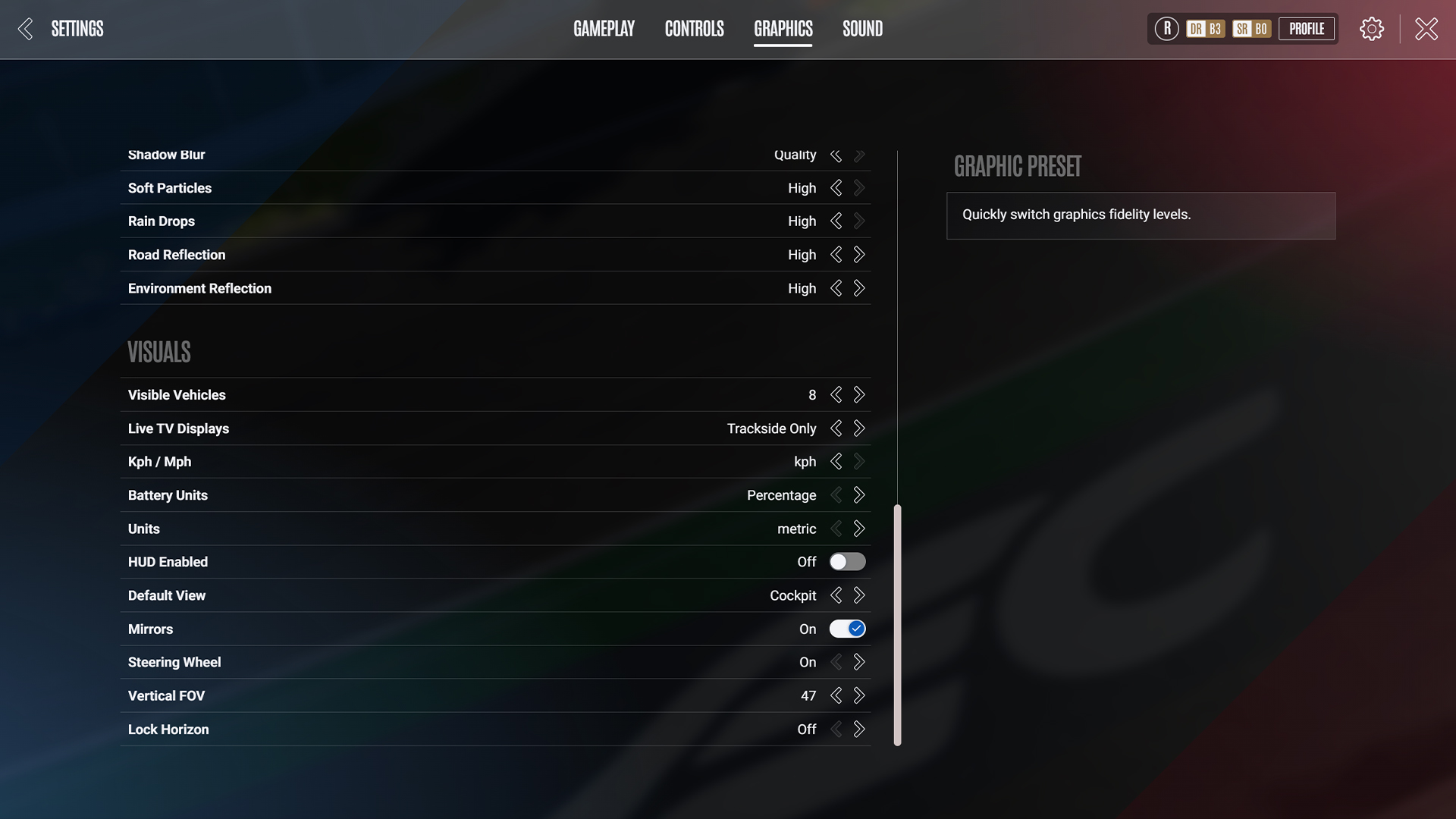
Here’s why it works so well. In most games, distant cars stop rendering their detailed models and that’s the end of the cost. LMU’s engine keeps doing heavy CPU work for every visible car – the physics, the suspension calculation, the lot. Capping the count at 10 to 15 frees up a big slab of CPU headroom, and honestly you rarely need to see more than the cars immediately around you to race cleanly. If you’re still struggling, reduce the actual number of opponents in the session too.
While you’re in the display menu, two more levers. Drop Post Effects (post-processing) – it’s one of the heavier settings and a known culprit for frame drops. And don’t sleep on the sound setting: lowering it to 128, 64 or even 32 reduces the CPU load from audio processing, which really does help on a stretched CPU. Ultra settings, by the way, are for screenshots and replays. Don’t race on them.
The fix the official guide skips: CPU core parking
This is the big one the community worked out that the official docs don’t really cover, and it’s the fix for that maddening rhythmic micro-stutter – the little hitch every second or two that no graphics setting touches. Because LMU hammers one or two threads, it hates anything that lets your CPU relax. Windows 11 is aggressive about parking idle cores and scaling clock speeds down to save power, and on a modern chip it will sometimes misread LMU’s physics thread as idle for a split second. The clock drops, the frame’s late, you feel the hitch.
The High Performance power plan helps but doesn’t always win, because motherboard BIOS settings can override it. The reliable community fix is a small free tool – Bitsum Process Lasso (or its lighter sibling ParkControl). It forces the CPU to keep cores unparked and clocks held while the game is running. A typical setup: install Process Lasso, launch LMU, right-click Le Mans Ultimate.exe in Lasso, set CPU priority to High, and turn on Induce Performance Mode. That alone kills most of the periodic stutter.
If you’re on a chip with mixed cores there’s a bonus step. On an Intel CPU with P-cores and E-cores, set LMU’s affinity to the P-cores only so the physics thread never lands on a slow E-core. On an AMD X3D part, pin it to the cores with the 3D V-Cache. It’s fiddly, but on those CPUs it’s the difference between smooth and not. This is squarely advanced territory, so change one thing at a time and test.
File and config tweaks worth doing
A few edits outside the game menus are worth doing. Back up a file before you change it, and close the game first.
- Garage Car Detail. If your frames tank in the garage or pit box, open
settings.jsoninSteam\steamapps\common\Le Mans Ultimate\UserDataand setGarage Car Detailto0.01. It strips detail off the cars shown in the garage view without touching anything on track. - Clear the shader cache. After a big update, old shaders can fight the new build and cause stutter or crashes. Delete the contents of
Le Mans Ultimate\UserData\Log\Shadersand delete thedynamic.cachefile. The next launch will be slow to load a track while it rebuilds the cache – that’s normal, and it only happens once. - Set a fixed Windows pagefile. LMU loads a lot into memory. If Windows resizes the pagefile mid-race you get a multi-second freeze. Set a manual pagefile on your fastest SSD (never a hard drive) – the official guide suggests up to 64GB if you’ve the space; a fixed 16GB to 32GB helps plenty on most rigs. The point is fixing the size, not the exact number.
- Crashing on launch? Delete
config_dx11.inifrom the User Data folder and let the game regenerate it. Also check your antivirus isn’t quarantining LMU’s files.
One more, and it bites wheel users specifically: disable Steam Input. A conflict between LMU’s native input and Steam Input causes both stutter and FFB weirdness, and it’s common on Fanatec, Moza and Logitech gear. Right-click LMU in Steam, Properties, Controller, and set it to Disable Steam Input. If your wheel felt numb or your pedals were flickering, this often clears it in one move. If you want to go deeper on getting the wheel itself right, our force feedback setup guide walks through the principles.
If you’re in VR
VR roughly doubles the rendering load, so it’s less forgiving and a few things matter more. Set supersampling in your VR runtime (SteamVR or OpenXR), not in-game – start at 100% and only push higher if you’ve headroom to spare. Turn motion blur off (it costs frames and feels grim in a headset), keep Visible Vehicles at 10 or below, and make sure reprojection or ASW is enabled in your runtime as a safety net for when frames dip. If your headset supports fixed foveated rendering, switch it on – it’s close to free performance.
VR also leans even harder on the GPU, so if you’re running a headset it’s worth knowing where your card sits. Our graphics card guide for sim racing covers what each tier can realistically drive.
If it’s still stuttering: find your bottleneck
If you’ve worked through the above and it’s still not right, stop guessing and measure. Pull up MSI Afterburner or HWiNFO and watch your CPU and GPU usage during a busy bit of a race. The numbers tell you which way to tune.
- GPU sitting at 99%, CPU lower – you’re GPU-limited. Drop the graphical settings: reflections, anti-aliasing, texture quality, draw distance.
- CPU high, GPU not maxed – you’re CPU-limited, which is the common LMU case. Fewer opponents, lower Visible Vehicles, lower sound quality, and the core-parking fix above. Closing background apps helps here most.
- A stutter only on the first lap at a track – that’s shader compilation. It’s a one-time cost and clears on the next visit.
- Frames falling away the longer you run – check temperatures. A CPU or GPU thermal-throttling under sustained load behaves exactly like a performance problem. HWiNFO will show it.
If you reckon something broke specifically after a patch, check the in-game update’s support hub for known performance regressions before you tear your rig apart – sometimes it’s a known issue with a fix incoming, not you.
Work through it in order and most LMU stutter clears up well before you reach the bottom. Cap Visible Vehicles, sort the core parking, clear the shaders – that trio alone fixes the bulk of cases. If you’re tuning the rest of your setup, our sim racing PC guide and the wider sim racing games hub are good next stops.
Related guides
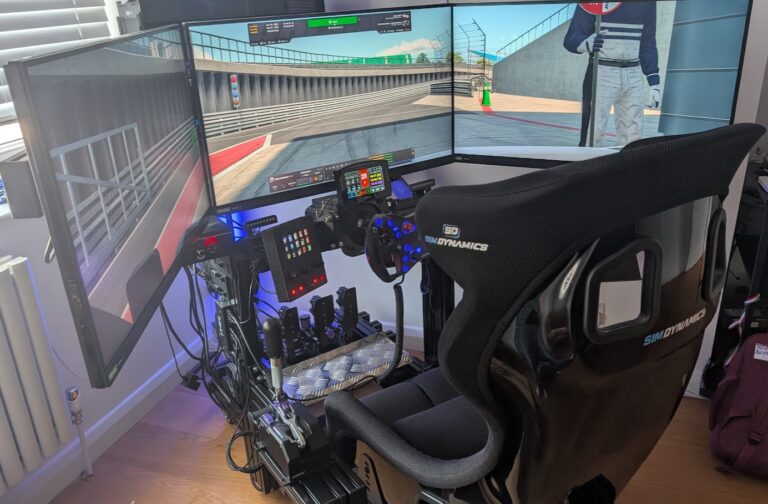
How to Set Up Triple Screens in Le Mans Ultimate (LMU)
iRacing VR Settings (2026): Meta Quest 3, PSVR2, Pimax and Valve Index
Assetto Corsa VR Settings 2026: Pimax, Quest 3, PSVR2 & More

Forza Horizon 5 Wheel Settings: FFB for Logitech, Thrustmaster and Moza

EA SPORTS WRC Fanatec Settings for the CSL DD and ClubSport DD+